

Other Settings
Getting a School Ready for Observations
Set up a school so observers can start observations there, read its Requirements to enable observations list, and fix a missing New Observation link or an empty dropdown.
Before an observer can start an observation at a school, that school needs all of the following in place:
- Enable Observations? turned on for the school
- At least one class period, one grade level, and one content area attached
- At least one member of the school who can be observed (a teacher with the observable role)
- At least one form assigned to the school, and that form belonging to an active form set
Until every one of these is true, the school does not appear when an observer starts an observation. If the school is the only one the observer works in, New Observation does not appear in the observer’s menu either. This is the first thing to check at the start of a school year, when a new school opens, or when a principal reports “I can’t start an observation at my building.”
Role: system administrator. Attaching a form to a form set also needs the publisher role; see Adding Forms to Form Sets.
Opening the school’s page
Section titled “Opening the school’s page”- Click the gear icon to open System Administration.
- Under GENERAL, click Organizations/Groups.
- Click the school’s name.
The top of the page summarizes the school. When weCLIMB is on for your district, it shows Observations Enabled: and lists the school’s Class periods:, Grade Levels:, and Content Areas:. The tabs below hold Users, Sub Organizations, Content Areas, Class Periods, Grade Levels, and Forms.
Reading the requirements list
Section titled “Reading the requirements list”When a school is not ready, the summary shows Requirements to enable observations: with each missing piece in red:
| Red item | What to do |
|---|---|
| Class periods | Attach class periods on the Class Periods tab. |
| Grade levels | Attach grade levels on the Grade Levels tab. |
| Content Areas | Attach content areas on the Content Areas tab. |
| Users that can be observed | Add a teacher with the observable role to the school’s Users tab. |
| Assign Forms | Assign a form on the Forms tab, or assign it to the district. |
| Attach Forms to Form Sets | Add one of the school’s forms to an active form set. |
In the example below, District Office has its class periods, grade levels, content areas, and forms, but no one there can be observed, so it lists Users that can be observed.
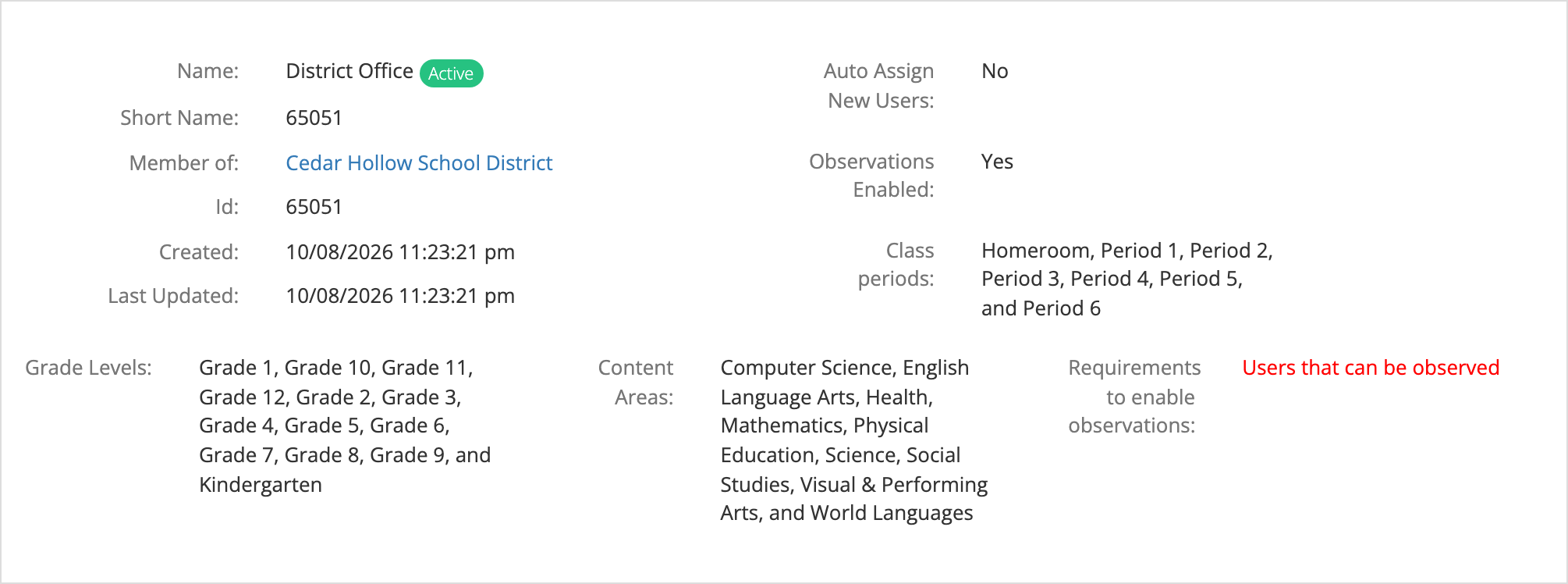
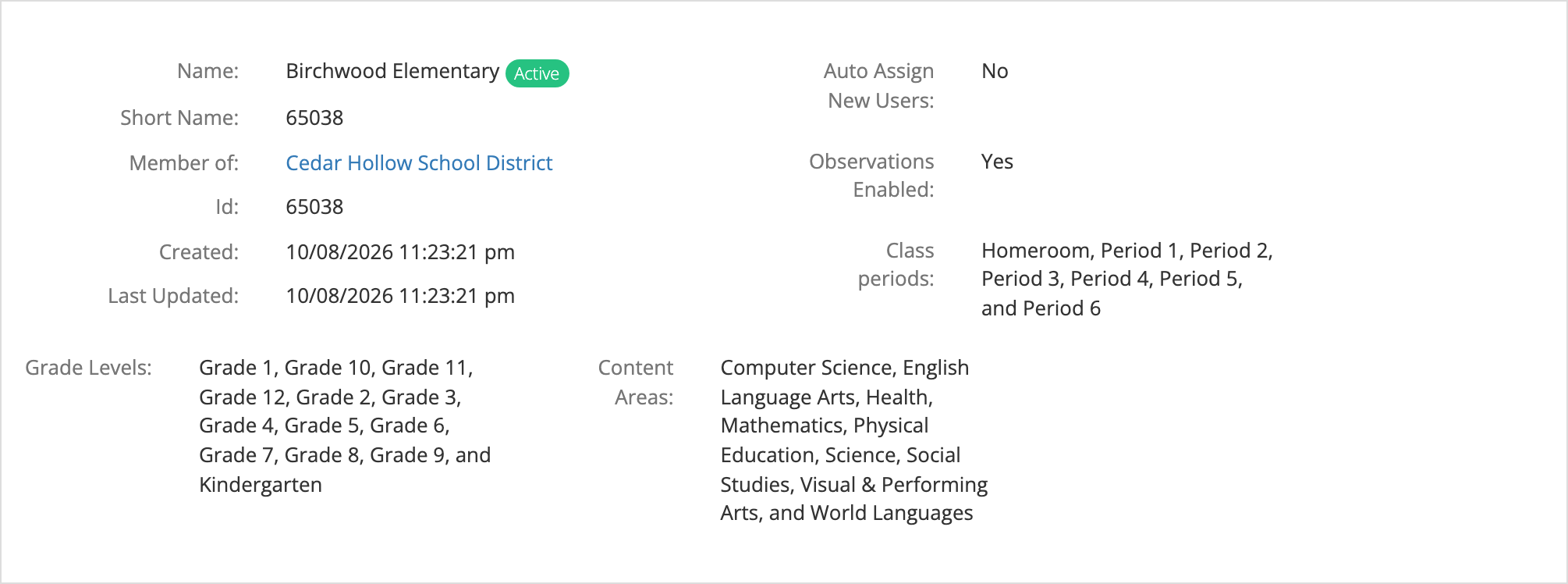
The list does not include Enable Observations?. If Observations Enabled: reads No, the school is not ready even when no red item shows. On a phone-size screen these summary columns are hidden, so check from a computer or tablet.
When everything is in place, the requirements list disappears.
Turn on Enable Observations?
Section titled “Turn on Enable Observations?”- On the school’s page, click Edit.
- In the Edit Organization window, set Enable Observations? to Yes.
- Click Save.
The same window has Class Periods, Grade Levels, and Content Areas boxes, so you can attach all three here as well. Turn Enable Observations? off for an organization you never want observed, such as a central office, so it stays out of observers’ school lists.
Attach class periods, grade levels, and content areas
Section titled “Attach class periods, grade levels, and content areas”Your district keeps one list of each (see Class Periods, Content Areas, and Grade Levels). Each school attaches the ones it uses, and the observation form at that school offers only those.
- Open the Class Periods, Grade Levels, or Content Areas tab.
- Click Attach.
- In the box, click to add items. Only active items are offered. Items already attached appear in the box.
- Click Save.
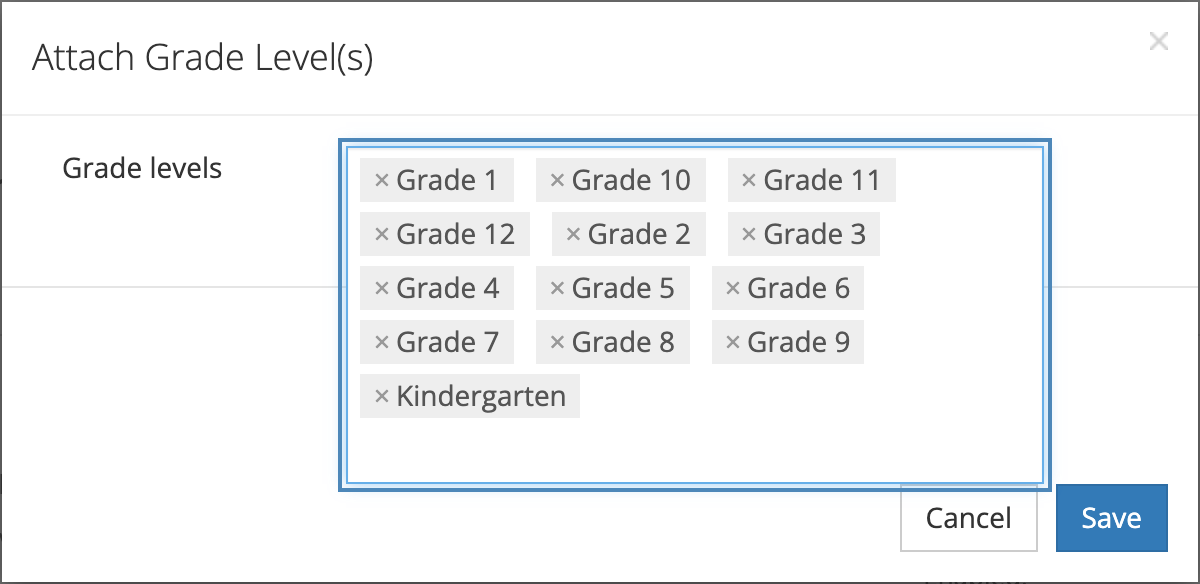
The box holds the school’s full list. Removing an item from the box and saving detaches it from the school.
To detach a single item, use the unlink icon on its row (on Class Periods, … > Unlink), then Yes, Remove or Remove to confirm. Detaching does not change past observations.
If the item does not exist yet, click New on the tab. The item is added to the district list and attached to this school in one step.
Make sure someone can be observed
Section titled “Make sure someone can be observed”A school counts as having “users that can be observed” when at least one of its members has the observable role (User can be observed. on the user’s form). On the observation form, the User dropdown lists the active members of that school with that role.
Membership is per organization. A teacher whose Authorized Organizations include only the district, and not the school, does not appear in that school’s User dropdown. To add teachers, use Attach or New on the school’s Users tab, or edit each user. See Managing Users and Organizations.
Assign forms
Section titled “Assign forms”A school can use a form when the form is assigned to the school, to an organization above it, or to the district. A form assigned to the district is available at every school, which is the common setup for a district-wide evaluation instrument. Assign a form to a single school when only that school uses it, such as a literacy walkthrough piloted at one elementary.
The Forms tab lists every form available to the school. Under each form’s name it shows the organizations the form is assigned to and the form sets it belongs to. A form that belongs to no form set shows Not attached to any form sets. in red, and observers cannot use it until a publisher adds it to a form set.
To assign forms to the school:
- On the Forms tab, click Assign. (The button appears only when the district has a licensed form the school cannot use yet.)
- In Forms, choose one or more forms.
- Optionally set Available On and Expires On. Leave both blank for no date limit.
- Leave Active? set to Yes.
- Click Save. The assignment runs in the background, and the tab reloads when it finishes.
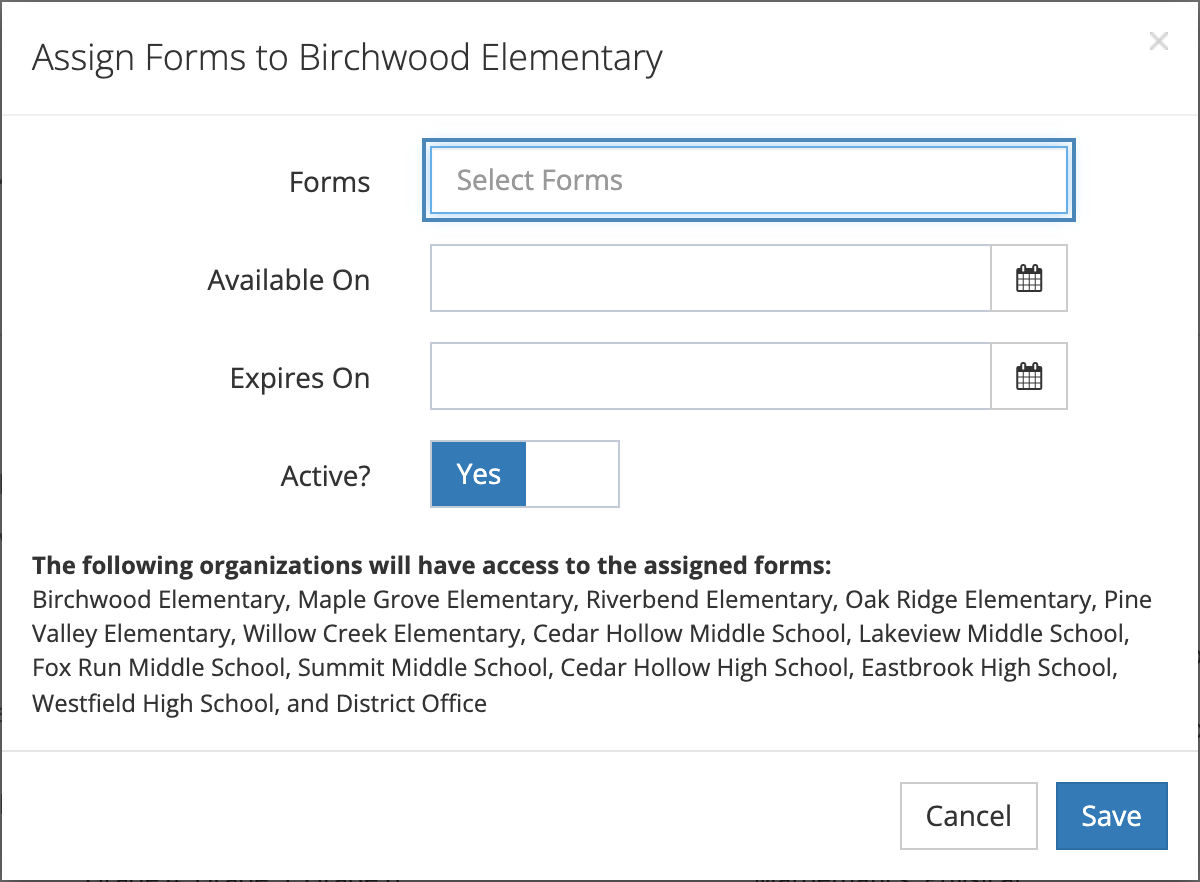
Use the dates to match your evaluation calendar. For example, make a mid-year walkthrough form available on the first day of the second semester and expire it on the last day of school. Observers cannot start an observation with a form outside its dates.
To change an assignment, click the edit icon on the form’s row. The Edit Form Assignment window has Available On, Expires On, and Active?. To remove it, click the trash icon and confirm with Yes, Remove. The Status column shows Active only while the assignment is active, within its dates, and covered by an active license.
Troubleshooting
Section titled “Troubleshooting”New Observation is missing from the menu
Section titled “New Observation is missing from the menu”New Observation appears for a user who has the observer role and belongs to at least one active school that meets every requirement above. Check these in order:
- The observer role. Open the user and confirm Performs observations. is checked.
- The observer’s schools. Confirm the user’s Authorized Organizations include the school, or an organization above it.
- The school. Open the school’s page and read Observations Enabled: and the Requirements to enable observations list. Fix each red item.
- The school is active. An inactive school never counts.
The menu is checked each time a page loads, so the observer sees the link on the next page they open.
The school dropdown is empty or missing a school
Section titled “The school dropdown is empty or missing a school”When an observer clicks New Observation, the Create Observation window lists, under Organization, only the schools in the observer’s organizations that meet every requirement above. A missing school has a red item on its page, has Observations Enabled: set to No, or is outside the observer’s Authorized Organizations.
If the window says “You currently do not have schools assigned to your profile,” none of the observer’s schools are ready. Start with the requirements list on each of the observer’s schools.
The Form Set dropdown is empty
Section titled “The Form Set dropdown is empty”The Form Set dropdown lists active observation form sets that contain at least one form the school can use today. A school can pass the requirements list and still show an empty dropdown when:
- the form’s assignment has Active? set to No,
- today is before Available On or after Expires On, or
- the license behind the form has expired (the Status column on the Forms tab shows Inactive).
Fix the dates or status in Edit Form Assignment, or assign a current form.
A dropdown on the observation form is empty
Section titled “A dropdown on the observation form is empty”- Class Period, Grade Level, or Content Area: the school has items attached, but all of them are inactive. Reactivate an item or attach an active one.
- User: no active member of this school has the observable role. A teacher may belong only to the district, or their account may be inactive.