

Forms & Rubrics
Setting Up Rubrics and Rating Scales
Display a section as a rubric or matrix, place answer choices under performance levels, and add rating scales for performance reviews.
Most evaluation frameworks are written as rubrics: each indicator is a row, each performance level is a column, and each cell describes what that level looks like. You can show any section this way, so observers see the whole rubric row and click the cell that matches what they saw.
Requires the Publisher role and content creation turned on for your district. See Form Sets Overview.
Display formats
Section titled “Display formats”Each section has one of three display formats:
| Display Format | What observers see |
|---|---|
| Rubric (table with scoring) | A table with performance levels as columns. Each level has a point value. |
| Matrix (table without scoring) | A table with labeled columns but no points. Use it for look-fors you want to record without scoring. |
| Neither (standard question list) | Each question with its answer choices listed below it. This is the default. |
Before you build a rubric, add the section’s questions and their answer choices. Each answer choice becomes a cell in the rubric. See Adding Questions and Configuring Scoring.
Turn a section into a rubric
Section titled “Turn a section into a rubric”- Open the section (from the form’s Form Sections tab, or System Administration > Sections).
- On the Questions tab, click Rubric/Matrix.
- Next to Display Format:, choose Rubric (table with scoring).
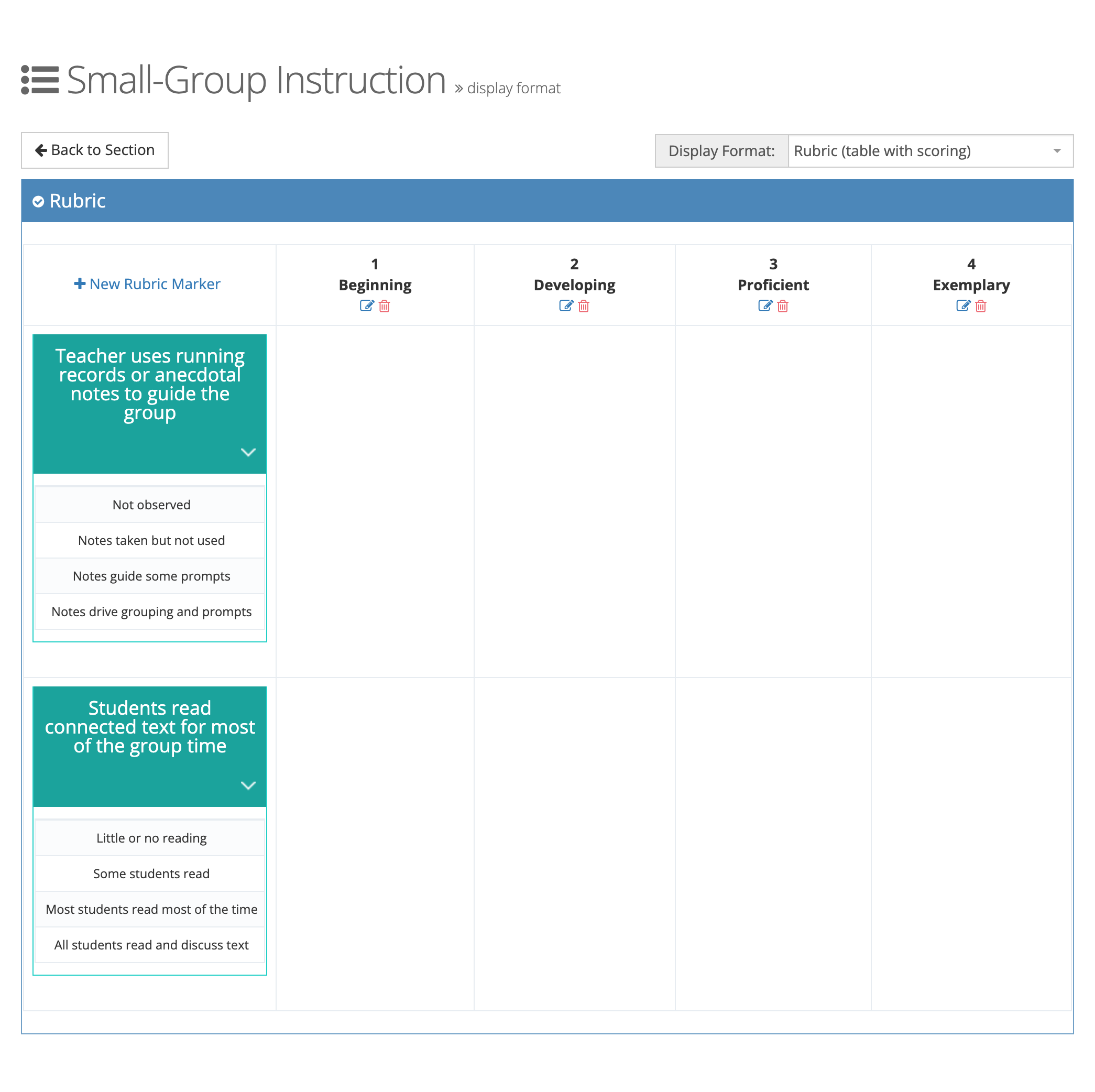
The page reloads with an empty Rubric table. The questions are listed down the left side with their answer choices underneath.
Add performance levels (rubric markers)
Section titled “Add performance levels (rubric markers)”- In the Rubric table, click New Rubric Marker.
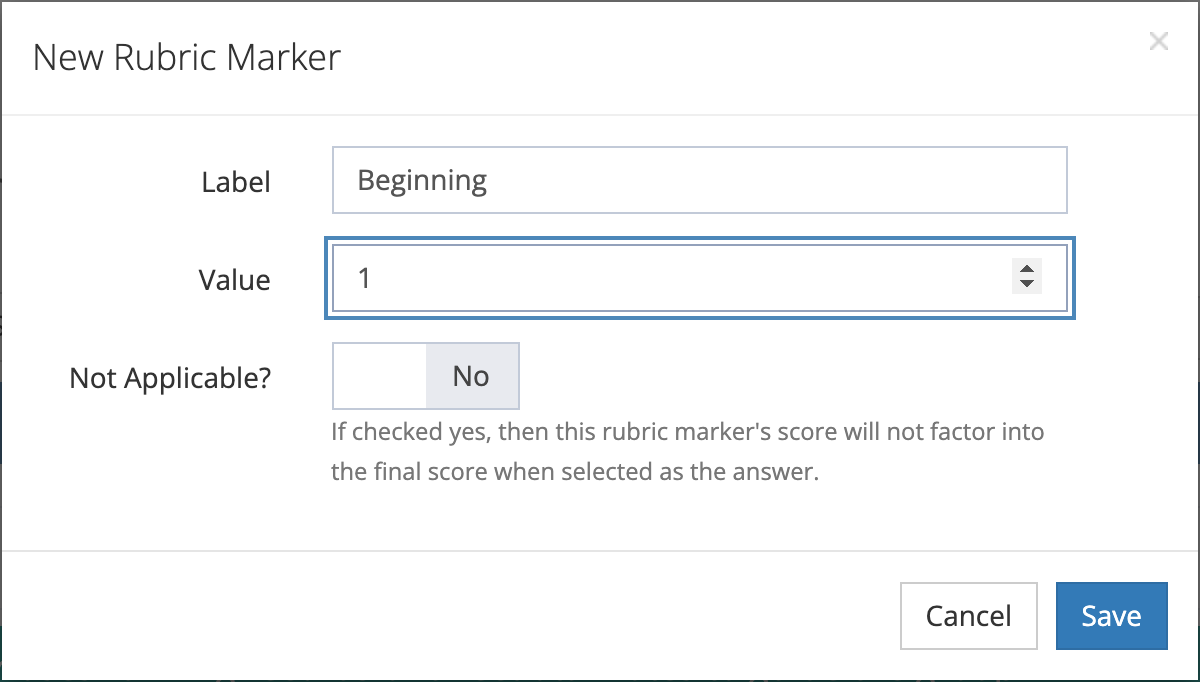
- In the New Rubric Marker window, enter:
- Label: the performance level, such as “Proficient”.
- Value: the points for this level. It must be 0 or more.
- Not Applicable?: turn on for a level that should not count toward the score, such as “Not observed”.
- Click Save.
- Repeat for each level.
Columns are ordered by Value, lowest on the left. Each column header shows the value and label, with icons to edit or delete the marker.
Place answer choices under the levels
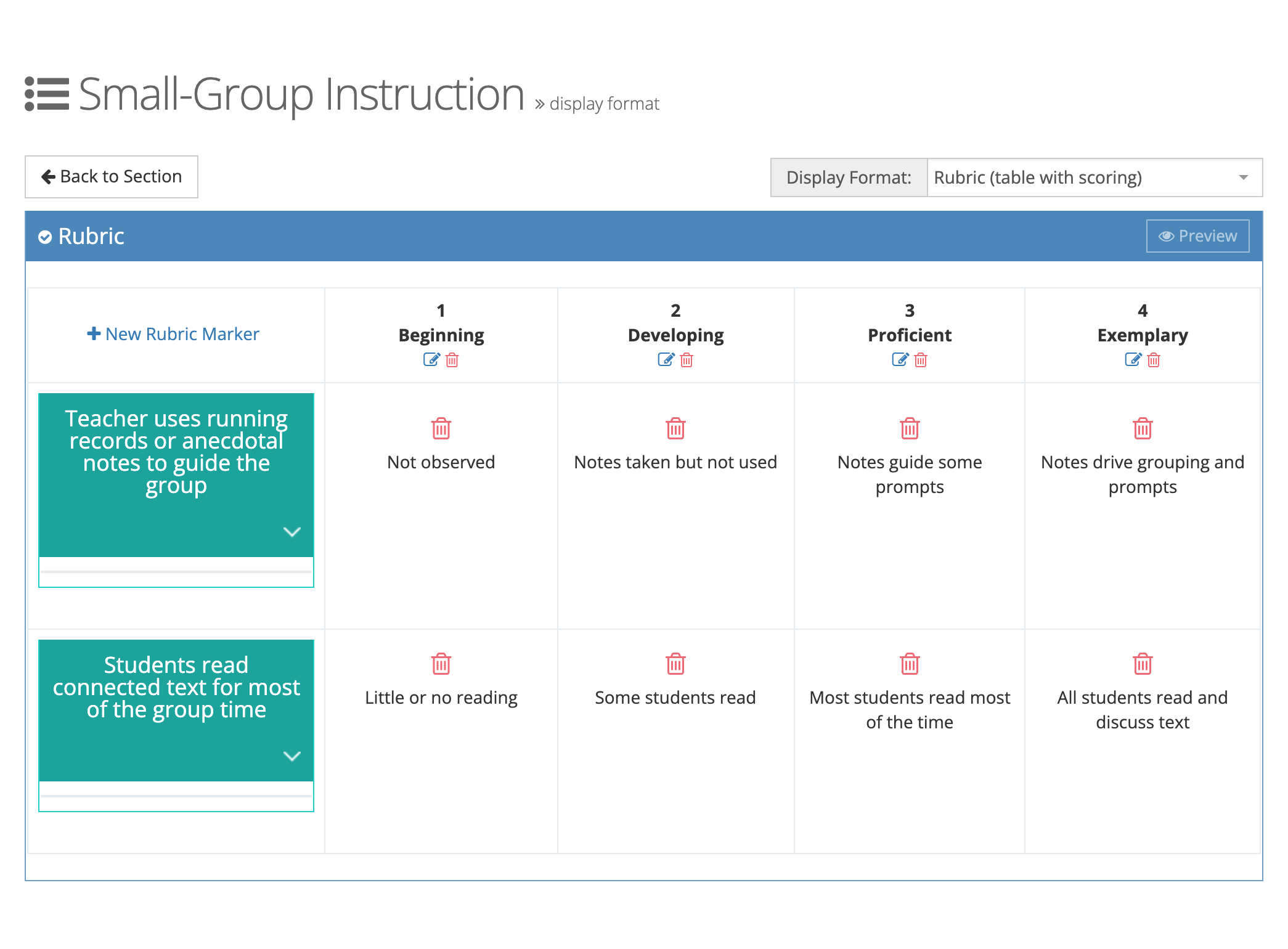
Section titled “Place answer choices under the levels”Drag each answer choice from under its question into the cell for the matching level, in the same question’s row. The choice moves into the cell and is saved.
To undo a placement, click the trash icon in the cell. The choice returns to the list under its question.
When every answer choice in the section has been placed, a Preview button appears in the Rubric title bar so you can see the rubric as observers will.
Build a matrix
Section titled “Build a matrix”Choose Matrix (table without scoring) instead. Click New Matrix Marker and enter a Label and a Display Order for each column (matrix markers have no value). Then drag answer choices into place the same way.
Change or remove the format
Section titled “Change or remove the format”Choose a different option next to Display Format:. If the section already has markers, a Change Display Format window asks how to proceed:
- Convert Markers (rubric to matrix, or matrix to rubric): keeps your columns and placements. Converting to a matrix drops the point values. Converting to a rubric uses each column’s display order as its value, so check the values afterward.
- Clear Markers: deletes the markers and their placements. This cannot be undone.
- Cancel: keeps the current format.
Click Back to Section to return to the section.
How rubric scoring works
Section titled “How rubric scoring works”A question on a rubric section counts toward the score when its answer choices have point values, or when its choices are placed under rubric markers that have values. Counter questions never count. Once a section has rubric markers, the observer’s answer earns the Value of the level it sits under, not the choice’s own value. A level marked Not Applicable? leaves the question out of the score.
Rating scales (performance reviews)
Section titled “Rating scales (performance reviews)”A rating scale turns a score into a label, such as “Meets Expectations” for 3.0 to 3.4. Rating scales are available when performance reviews are turned on for your district.
- On a form set: a Rating Scales tab appears on form sets whose Evaluation Type is Performance Review. The New button appears once the form set’s forms include a rubric section with markers.
- On a section: a Rating Scales tab appears on every section. The New button appears once the section has rubric markers.
To add a rating scale:
- Open the form set or section and click the Rating Scales tab.
- Click New.
- Enter a Name and a Display Order.
- Turn on Primary Rating Scale? if this is the scale to use for the overall rating. A form set or section has one primary scale.
- Under Point Range, the window shows the lowest and highest points possible. Click Add Point Rating Scale for each rating, and enter its Name, Display Order, Minimum Points, and Max Points within that range.
- Click Save.
A performance review form set’s detail page shows its primary scale as Primary Rating Scale. Performance review PDFs list each of the form set’s rating scales and check the rating the overall score falls in.
- Use the same levels and values on every rubric section of a form so scores compare across sections.
- Write each answer choice as the full descriptor for that level, since observers read the cell text when they score.
- Add a Not Applicable? level only when your framework allows an indicator to be skipped.