

Coaching
Coaching Roster & Assignments
A coaching assignment pairs a coach with a teacher they support at one school. Coaches work from My Roster; organization and system administrators see assignments across all coaches in All Assignments. Both live in the sidebar under Coaching.
To create, edit, pause, complete, or archive an assignment, see Starting & Managing a Coaching Assignment.
My Roster (coach)
Section titled “My Roster (coach)”Requires the observer role. My Roster shows the assignments where you are the coach.
- Filters across the top: Search observee, an Active checkbox, and status (In Progress, Paused, Completed), stage, school, and focus-area menus. The New Assignment button starts a new assignment.
- Summary tiles: Teachers coached, Open steps, Overdue, Due this week, and Completion rate.
- Action steps to address: your open steps across all your teachers, grouped as Overdue, Due this week (a check-back date within 7 days), Upcoming, and Deferred, with the step controls on each one. A deferred step shows Resume (play icon) and Remove.
- Assignments: one card per teacher with a cadence marker, the teacher’s name, the number of open steps, and the school, stage, and last visit.
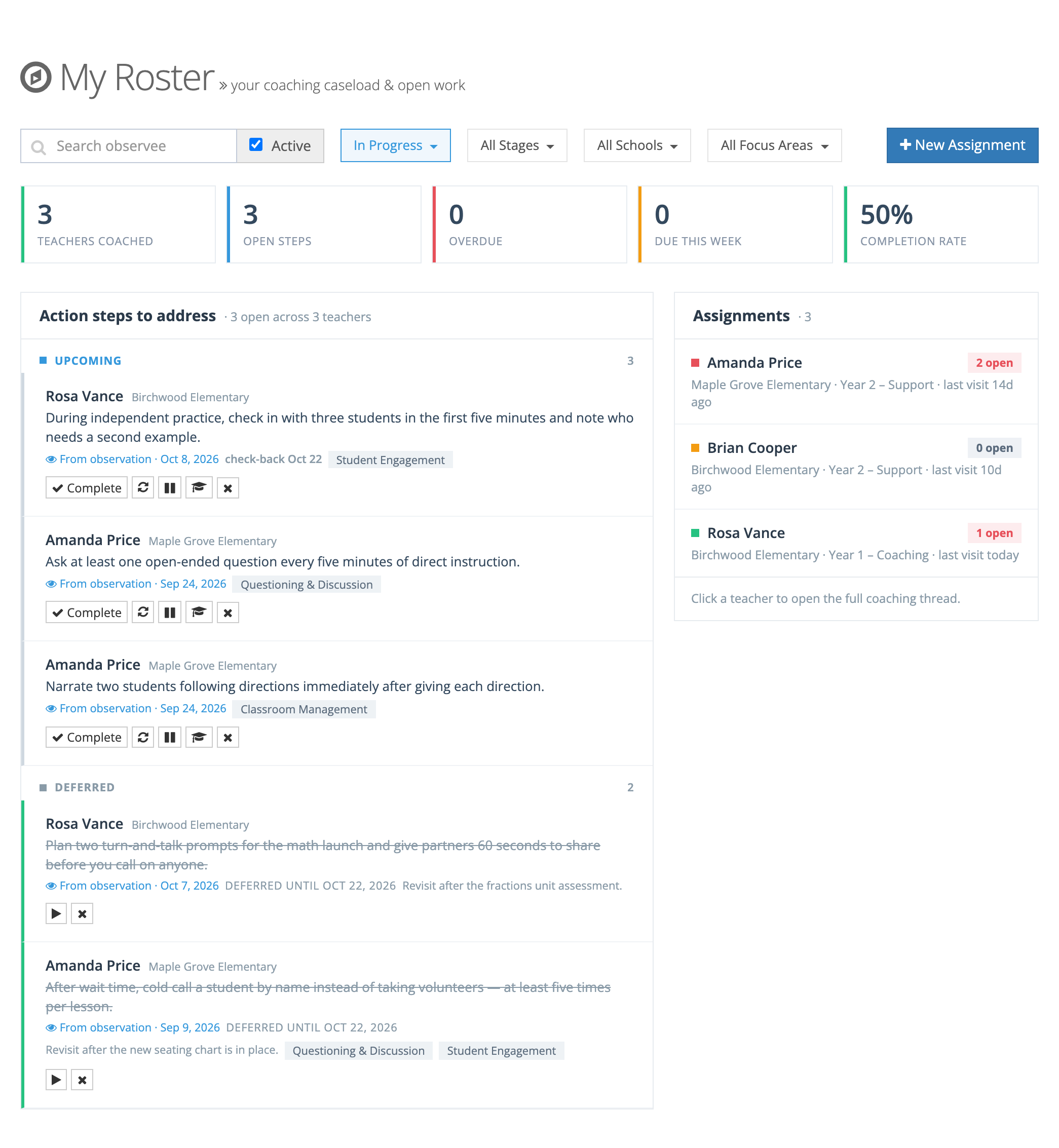
Click a teacher’s card to open the assignment.
Cadence
Section titled “Cadence”Each assignment carries a cadence status based on days since the coach’s last submitted visit and the visit interval set on its cycle stage (14 days when the stage sets none): Not started, On track, Due soon (within 4 days of the interval), or Overdue (the interval has been reached). The colored marker on each roster card and the Cadence column on All Assignments show it. For the exact day counts, see How the visit interval drives cadence.
All Assignments (administrator)
Section titled “All Assignments (administrator)”Requires the organization administrator or system administrator role. All Assignments lists every assignment where the coach or the teacher is someone you can access. The table columns are Cadence, Coach, Observee, School, Stage, Last Visit, and Active Steps, with an Open link on each row. The same filters and New Assignment button appear above the table.
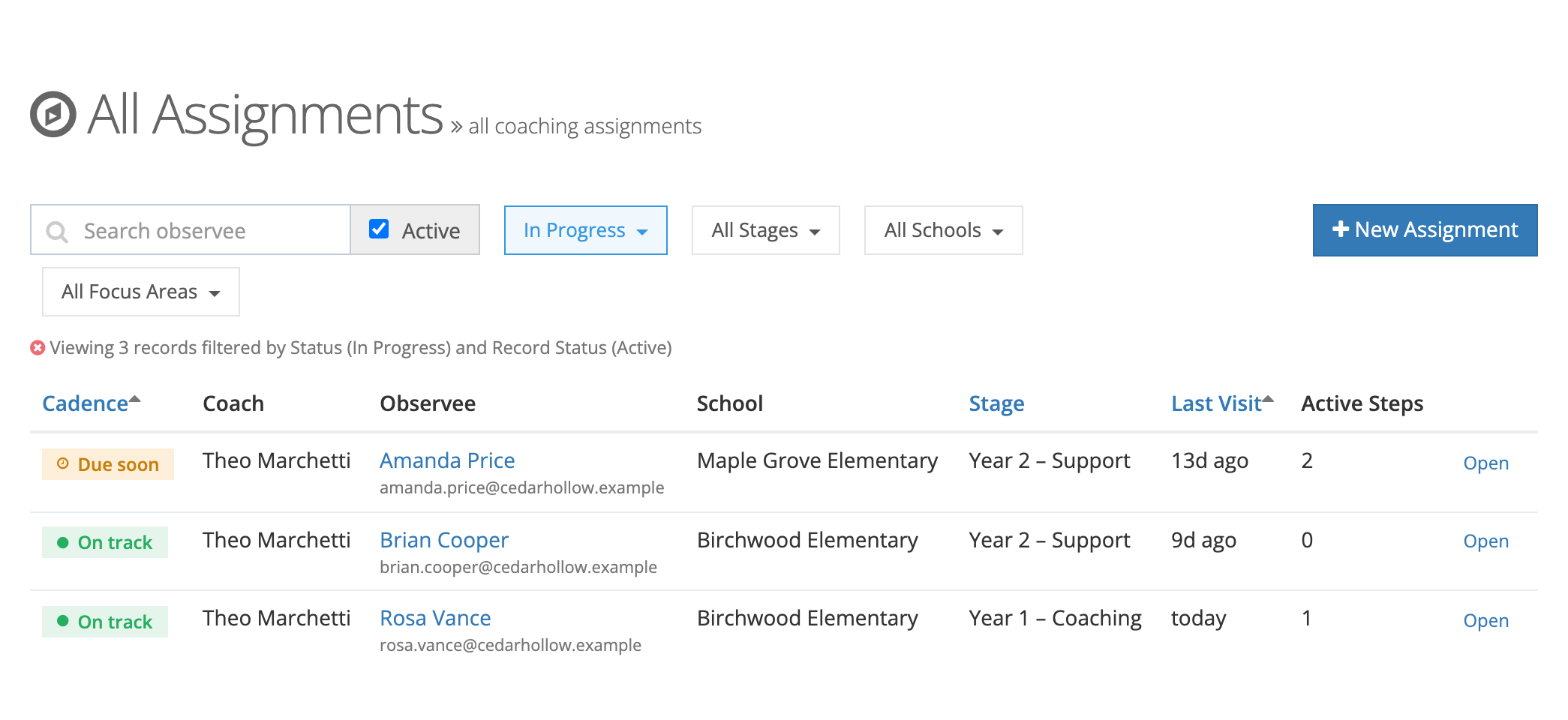
The assignment page
Section titled “The assignment page”Opening an assignment shows the full coaching thread for that teacher: a status strip with Cadence, Open action steps, and Growth this cycle; the pending, deferred, and resolved action steps; a Coaching timeline of the coach’s observations of this teacher; and the focus areas, cycle details, View Growth Trajectory, and Notes (coach + admin), which teachers do not see.
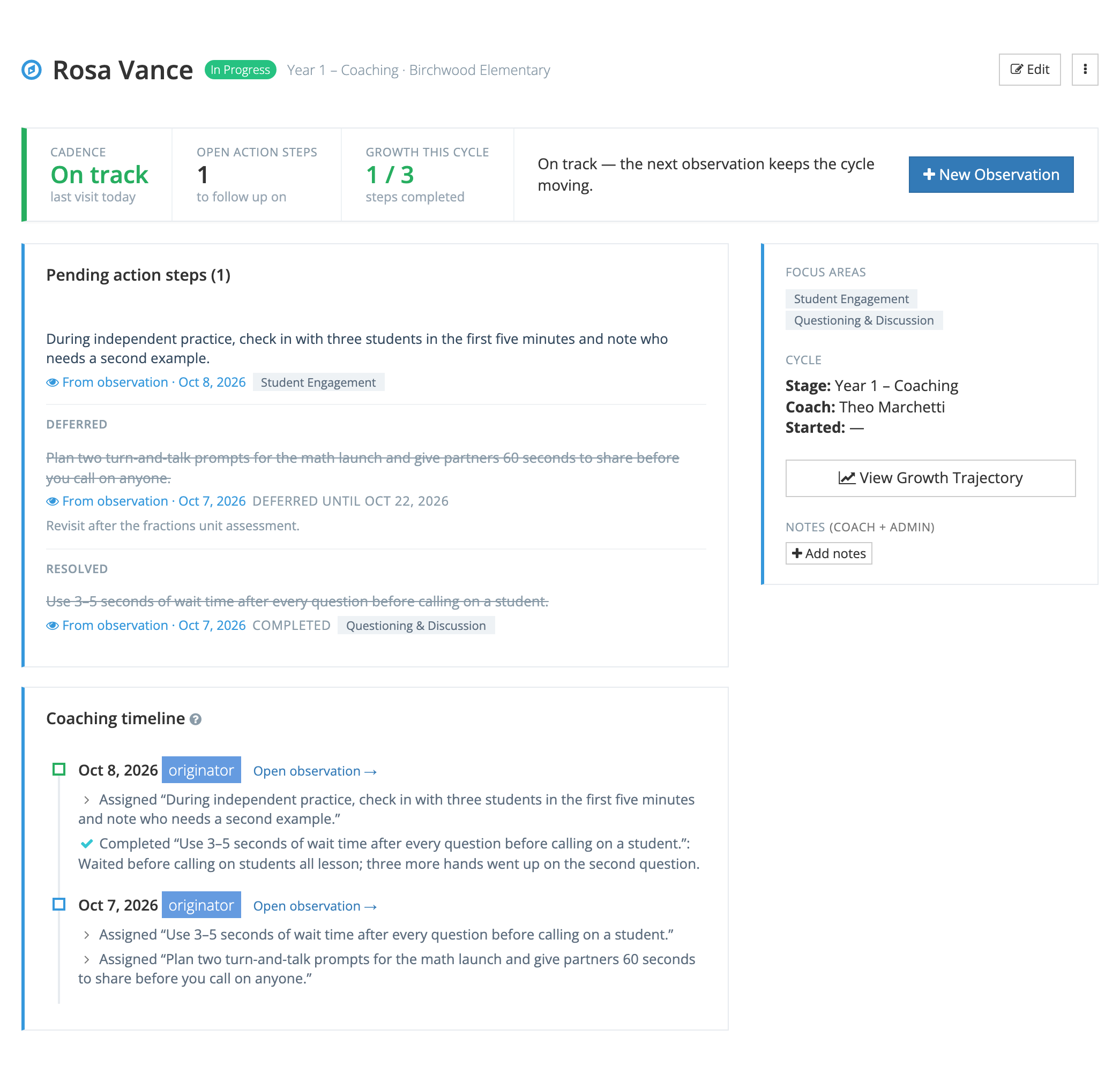
For what each part of the page does, and how to pause, complete, or archive an assignment, see Starting and Managing a Coaching Assignment.