

weCLIMB Mobile
weCLIMB Mobile Overview
What the weCLIMB mobile app does, who it is for, and how the Home screen and side menu are laid out.
Roles: for everyone. Observers and coaches conduct observations and manage coaching; teachers reflect, acknowledge, and follow their coaching.
The weCLIMB mobile app puts the classroom side of weCLIMB on your phone. An observer can start an observation at the classroom door, score the form, and submit it before the next visit. A teacher can read the observation, write a reflection, and acknowledge it from the same phone that received the notification. Coaches can see their roster and assign action steps from a walkthrough.
Everything you do in the app is saved to the same Master Teacher account you use on the web. An observation saved on your phone appears in your observation lists on the web, and the other way around.
The app needs a network connection; see No offline mode.
Getting the app
Section titled “Getting the app”The app is available for iPhone and iPad from the App Store, and for Android phones and tablets from Google Play. Search for weCLIMB, install it, and sign in with your Master Teacher account. See Signing In to the Mobile App.
When a newer version is published, the app shows an update prompt at launch. Tap Update to go to the store. For a minor update you can tap Later. For a required update the prompt has only Update, and you need to install it before you can keep using the app.
The Home screen
Section titled “The Home screen”After you sign in, the app opens on Home. The cards you see depend on your roles.
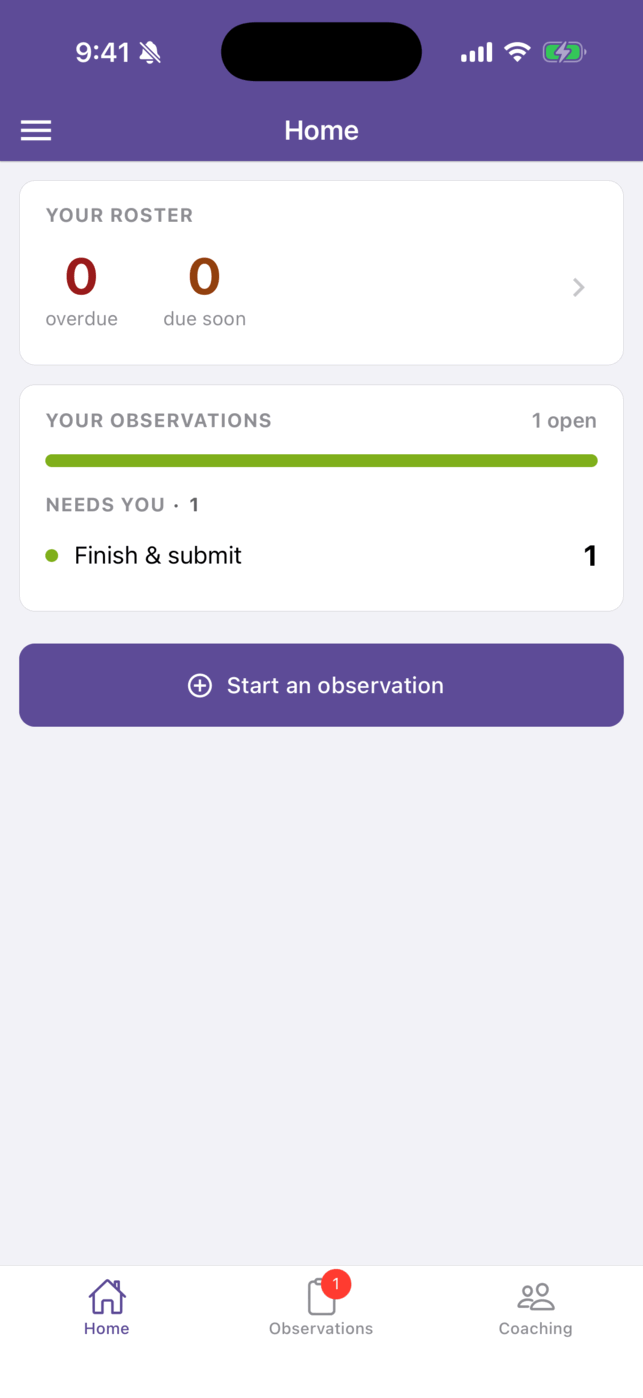
If you observe or coach:
- Your roster shows how many of your coaching cycles are overdue and due soon, and lists up to three teachers who are overdue. When you have teachers on your roster and none is overdue, it reads “You’re all caught up. Nice work.” Tap the card to open My Roster.
- Your observations counts your open observations and splits them into Needs you (Finish & submit, Close out) and Waiting on teachers (Reflection, Acknowledgment). Tap a row to open the Observations list filtered to that status. The card is hidden when you have no open observations.
- Start an observation opens the window where a new observation begins. See Starting an Observation on Mobile.
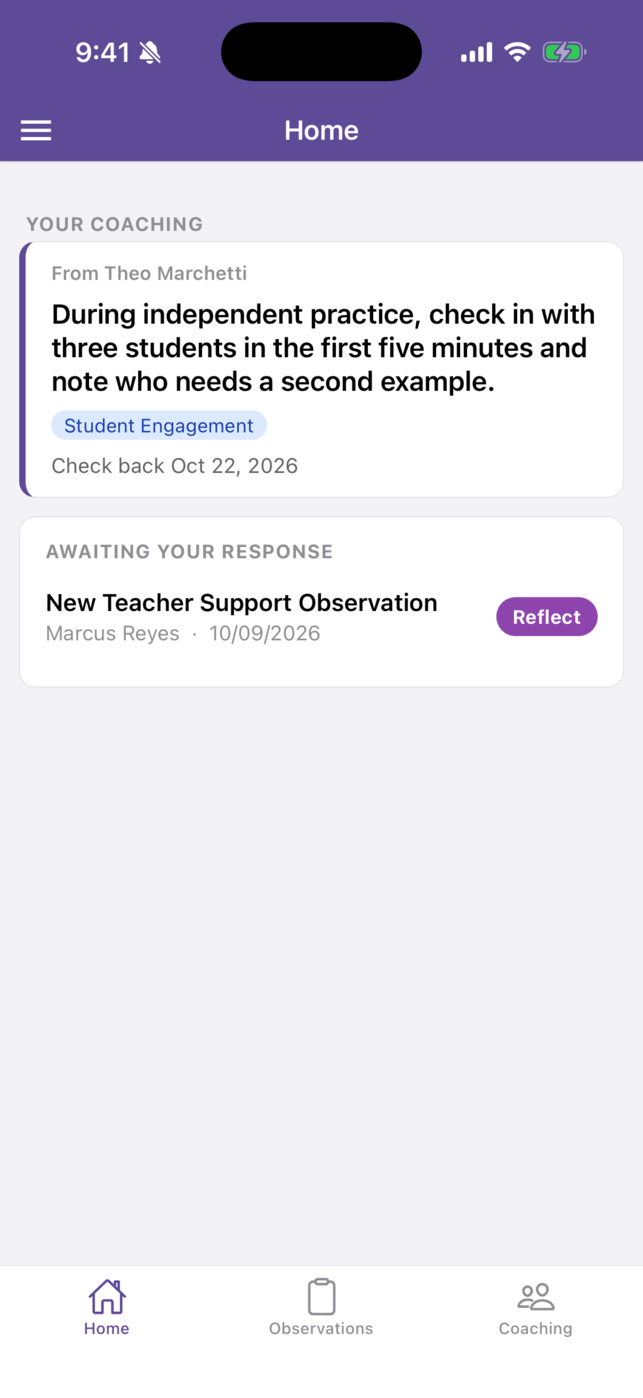
If you are observed:
- Your coaching shows your current action step from your coach, or “No active action steps right now.”
- Awaiting your response lists observations that need your reflection (Reflect) or acknowledgment (Acknowledge). Tap a row to open the observation. See Reflecting and Acknowledging on Mobile.
The tabs
Section titled “The tabs”The bar along the bottom has up to three tabs:
- Home: the cards described above.
- Observations: every observation you can see, with search and filters. Observers see a red badge with the number of observations that need them. See Finding and Opening Observations on Mobile.
- Coaching: shown when your district uses coaching cycles and you hold the Observer role or are a teacher who is observed. Coaches see My Roster; teachers see My Coaching. If you hold both roles, the app shows My Roster. See Coaching on Mobile.
The side menu
Section titled “The side menu”Tap the menu icon (☰) in the top-left corner of Home, Observations, My Roster, or My Coaching to open the side menu.
- Your photo and name: opens My Profile, which shows your photo, name, and email. It is read-only; change your profile on the web.
- About weCLIMB: the app’s version and copyright.
- Notifications: choose which push notifications you receive. See Push Notifications on Mobile.
- eLearn and other district apps: shown when your district uses them. If that app is installed on your phone, the row opens it and passes your sign-in along. If it is not installed, the row opens its store page.
- Support: opens Support Information with Go to help page and your support phone number, email, and hours. Tap the phone number to call or the email address to write.
- Sign off: signs you out of the app on this phone and stops push notifications to it until you sign in again.
What you can do in the app
Section titled “What you can do in the app”| Task | Article |
|---|---|
| Sign in and sign off | Signing In to the Mobile App |
| Start an observation | Starting an Observation on Mobile |
| Answer questions, give feedback, add photos and video | Filling In the Observation Form on Mobile |
| Save, submit, close, and reopen | Saving, Submitting, and Closing on Mobile |
| Reflect on and acknowledge an observation | Reflecting and Acknowledging on Mobile |
| Coaching cycles and action steps | Coaching on Mobile |
| Find an observation, read and post comments | Finding and Opening Observations on Mobile |
| Push notifications | Push Notifications on Mobile |
| What to do on the web instead | What the Mobile App Does Not Do |