

Performance Reviews
Performance Reviews Overview
Learn what a performance review is, who can start one, where each list lives, and how a review moves from draft to closed.
A performance review is the summative evaluation of a staff member: the annual or end-of-term teacher evaluation that draws on a year of classroom observations. An observation records one visit to one classroom. A performance review is the formal judgment an evaluator writes at the end of a cycle, with the year’s formal observations attached as evidence.
Performance reviews are available only when your account has them turned on. If you don’t see Reviews in the left menu, contact Master Teacher support.
How a review differs from an observation
Section titled “How a review differs from an observation”- It uses a Performance Review form set. Form sets have an Evaluation Type of either Observation or Performance Review. Only Performance Review form sets appear when you start a review.
- Evaluators conduct it. Starting a review requires the evaluator role. The observer role is enough for observations but not for reviews.
- It can carry formal observations. While writing the review, you can attach the teacher’s closed formal observations. Each one is added to the review as a PDF of that observation.
- It can belong to an evaluation period. You can tag the review with an evaluation period (for example, “2026–27 School Year - Term 2”) so reviews from the same cycle can be grouped.
Everything else works as it does for an observation: rubric scoring, element feedback, Overall Feedback, attachments, comments, and the teacher reflection and acknowledgment steps.
Starting a new performance review
Section titled “Starting a new performance review”Role: evaluator.
- In the left menu, click New Performance Review. (From the Conducted Reviews list, you can also open the ⋮ menu and choose New.)
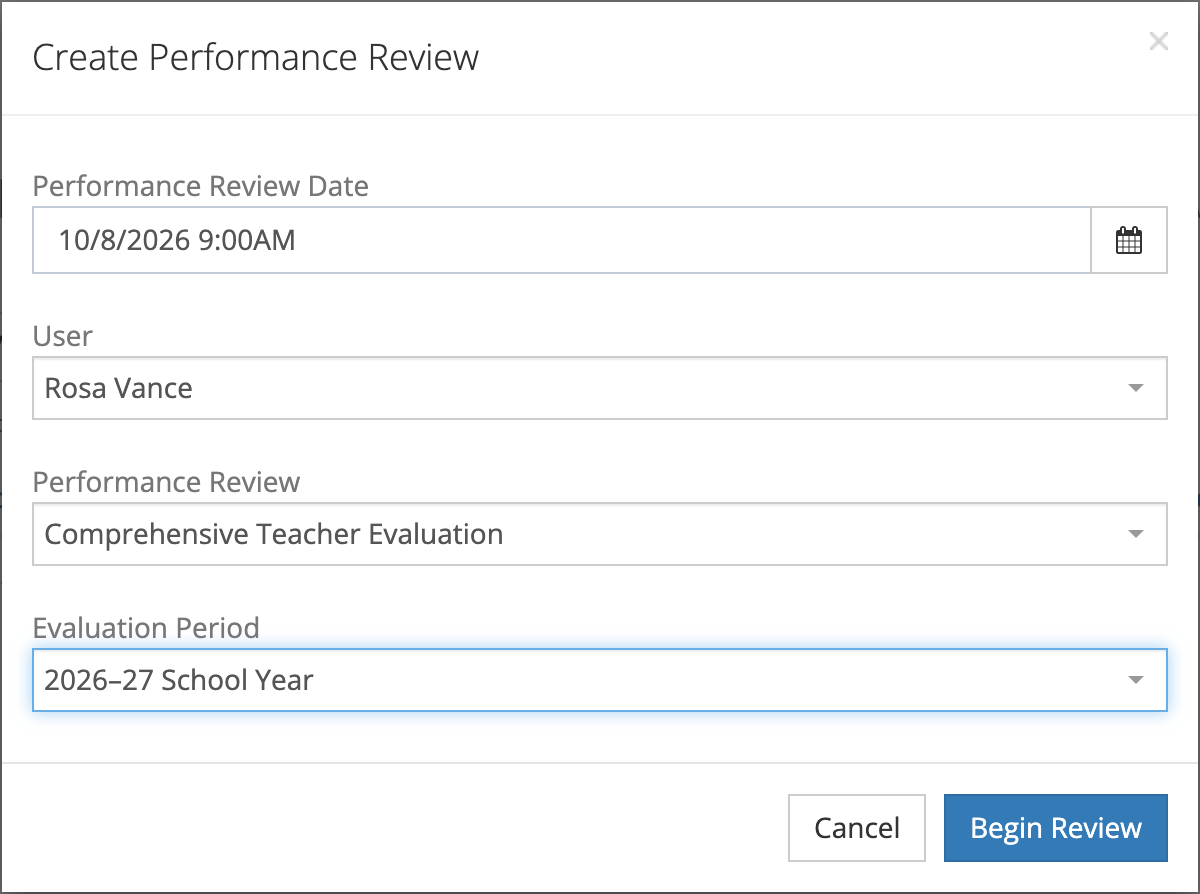
- In the Create Performance Review dialog, set the Performance Review Date.
- Choose the User you are reviewing. The list shows the teachers (staff with the observable role) in the schools you belong to.
- Choose the Performance Review form set. The list fills in once you pick a user and shows the active Performance Review form sets available at that user’s schools.
- If your district has an active evaluation period, choose one under Evaluation Period. This field is optional, and it does not appear when no period is active.
- Click Begin Review.
If there are no teachers in your schools, the dialog says you do not have users assigned to your profile. Ask your system administrator to add you to the right schools.
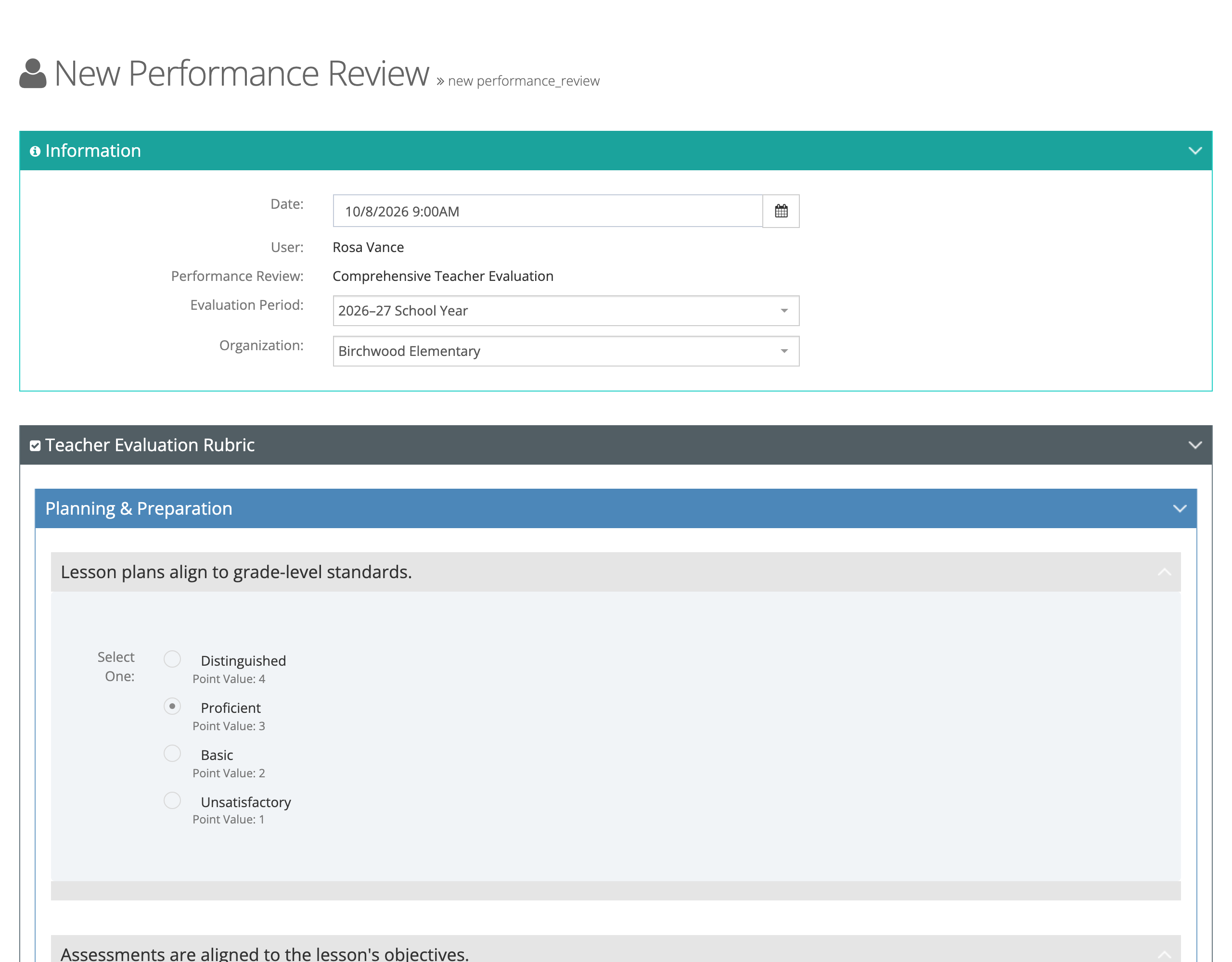
The New Performance Review page opens. The Information panel shows the Date, User, Performance Review form set, Evaluation Period, and Organization. Choose the school the review belongs to under Organization; the list shows the teacher’s active schools.
Below the Information panel are the form set’s questions, a Documentation panel, and Overall Feedback. Click a question to expand it, then select a rating.
In Documentation, click Attach next to Attach Files to add supporting documents. If the teacher has closed formal observations, Attach Formal Observations lists them. Select the ones that support your ratings.
Click Save Draft to save. Saving creates the review as a draft. Nothing is sent to the teacher until you submit.
The review lifecycle
Section titled “The review lifecycle”Each review shows one of five statuses:
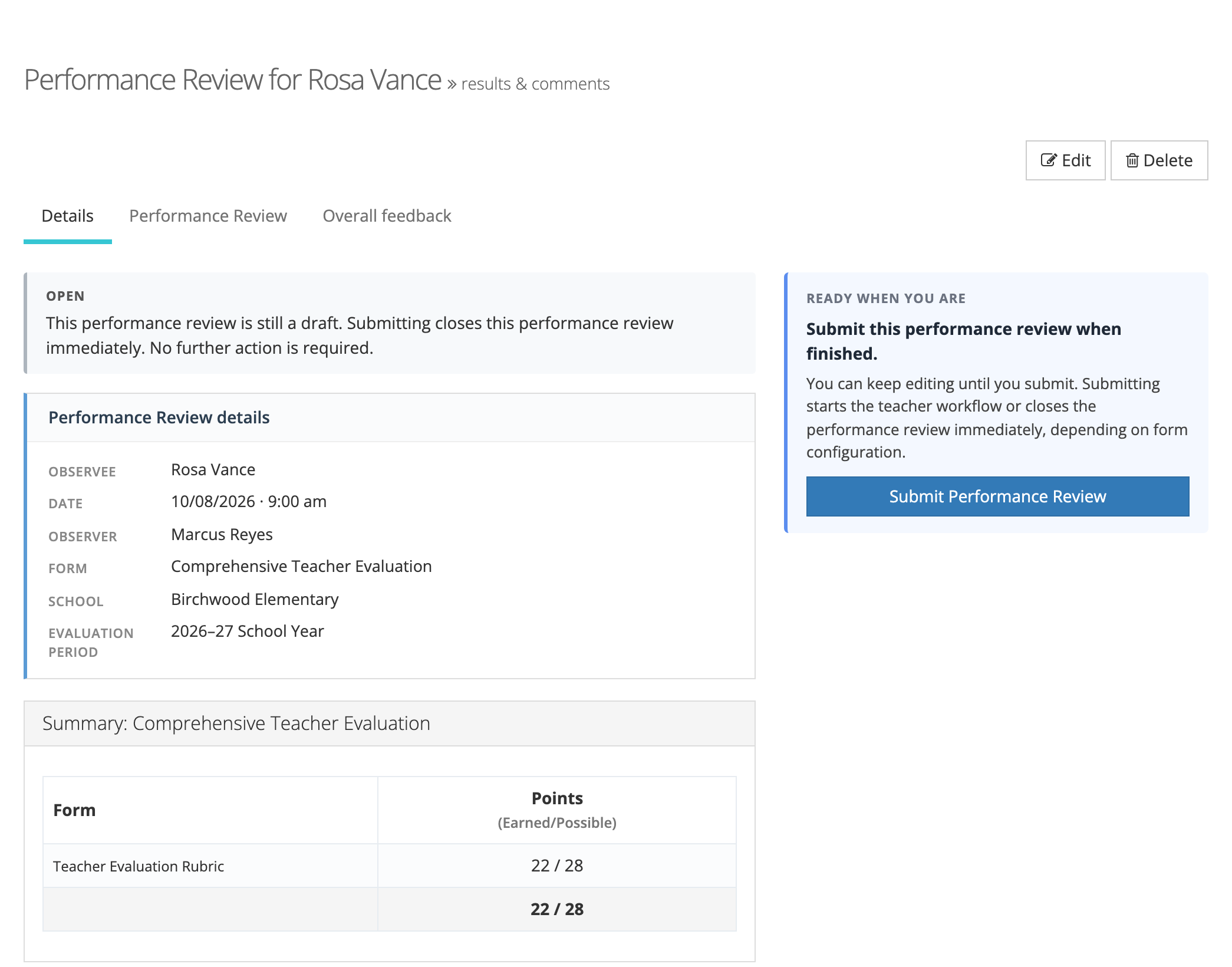
- Open: a draft. The reviewer can keep editing. The next-action panel offers Submit Performance Review.
- Awaiting Reflection: submitted, and the form set asks the teacher to reflect first.
- Awaiting Acknowledgment: submitted, and the form set asks the teacher to acknowledge the review.
- Awaiting Closure: the teacher has finished. The reviewer or an administrator can click Close Performance Review.
- Closed: the permanent record. It can no longer be edited, and the PDF button becomes available.
Submitting starts the teacher workflow or closes the review at once, depending on the form set’s reflection and acknowledgment settings. The status card on a draft tells you which will happen. While a review waits on the teacher, an organization administrator or system administrator can choose Close without reflection or Close without acknowledgment. The reviewer alone cannot skip the teacher step.
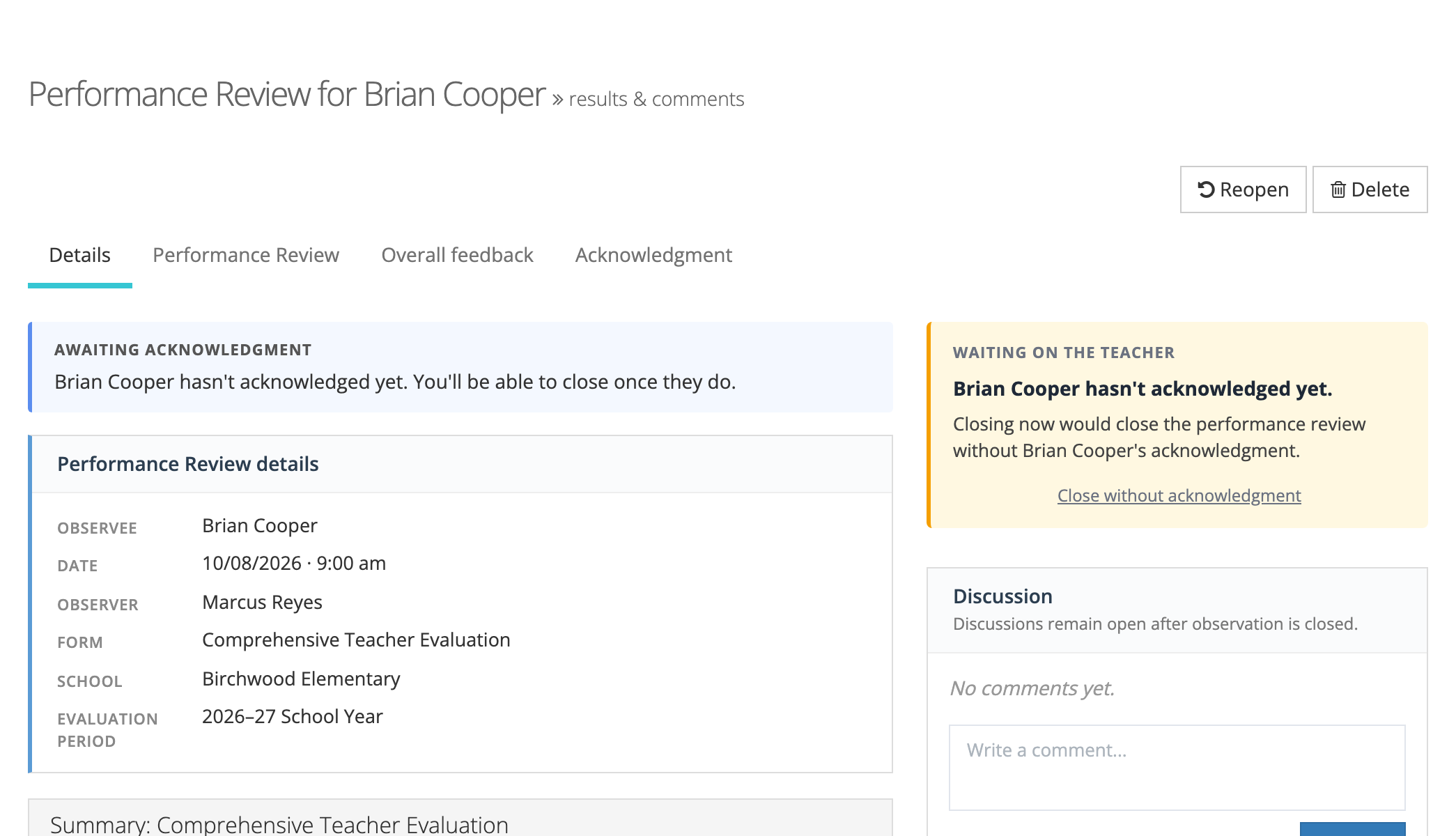
A closed review can be reopened with Reopen Performance Review if revisions are needed. A Reopen button also sits at the top of a review that is waiting on the teacher. Administrators, observers, and evaluators can reopen reviews for staff within their scope.
A teacher sees a review only after it is submitted.
The three review lists
Section titled “The three review lists”The Reviews section of the left menu holds up to three lists. Which ones you see depends on your role.
| List | Shows | Who sees it |
|---|---|---|
| My Reviews | Submitted reviews of you | Staff with the observable role (teachers) |
| Conducted Reviews | Reviews you wrote | Evaluators |
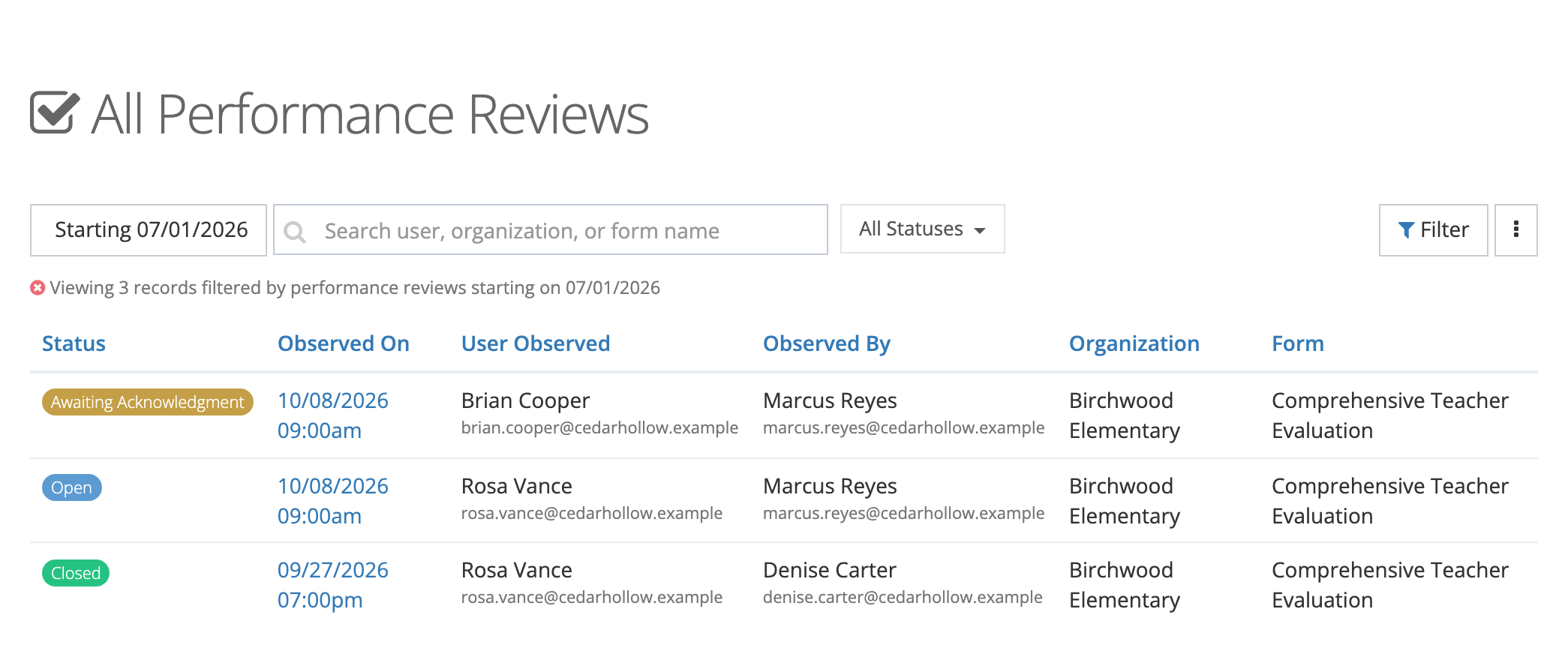
| All Reviews | Every review in the schools you manage | Organization administrators |
My Reviews shows a count badge when a review is waiting for your reflection or acknowledgment.
All Reviews is tied to the organization administrator role. A system administrator who does not also hold that role does not see this list.
Each list has the same columns: Status, Observed On, User Observed, Observed By, Organization, and Form. You can search by user, organization, or form name, set a date range, and open Filter to narrow by Forms, Organizations, Observable Users, Observers, or Observable User Record Status. Conducted Reviews and All Reviews also have an All Statuses filter and an Export CSV option in the ⋮ menu. On My Reviews, the Filter window adds a Performance Review Status field (Open or Closed) instead.
Evaluation periods and reviews
Section titled “Evaluation periods and reviews”An evaluation period is a named date range, such as a school year or a term, that you can attach to each review. Only active periods appear in the Evaluation Period dropdown. For setup and management, see Overview of Evaluation Periods.