

Reports
School Activity
See which schools need attention, with stuck observations, staff nobody has observed, and how long observations take to close.
The School Activity report gives you one row per school so you can see which buildings need attention. Schools with stuck observations sort to the top, followed by the schools with the most staff nobody has observed.
This report was called By School until October 2026.
Role: system administrators and organization administrators. Organization administrators see only the schools they manage.
Opening the report
Section titled “Opening the report”Go to Reports > Observation Reports and click School Activity. Administrators without the reporter role do not see the Reports menu. A system administrator can add the reporter role in Manage Users.
For a reminder of what each column means without leaving the page, click How to use this report in the upper right.
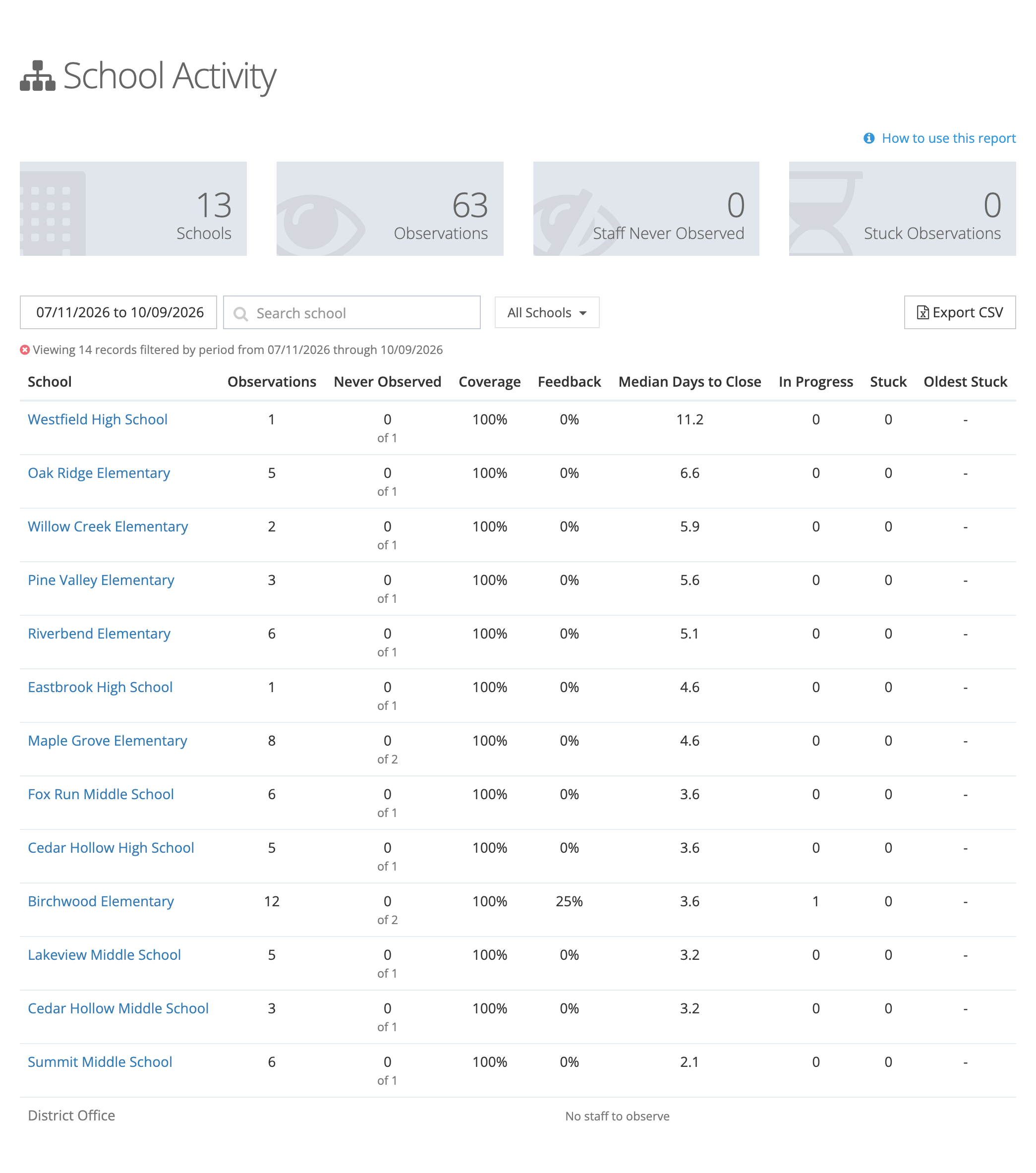
The cards at the top
Section titled “The cards at the top”- Schools: schools in the list that are set up for observations.
- Observations: observations submitted in the date range.
- Staff Never Observed: staff nobody observed in the date range.
- Stuck Observations: submitted observations that have waited 11 days or more on their current step.
The cards follow the date range and the schools you pick. The search box narrows the table only.
Staff who belong to more than one school appear in each of those schools’ rows. The cards count each person once, so the rows can add up to more than the cards.
Narrowing the list
Section titled “Narrowing the list”- Date range: defaults to the last 90 days. Pick a preset (Last 30 Days, Last 90 Days, This Month, This Quarter, Last Year, This Year, or All Time) or set your own start and end dates.
- Search school: type part of a school’s name.
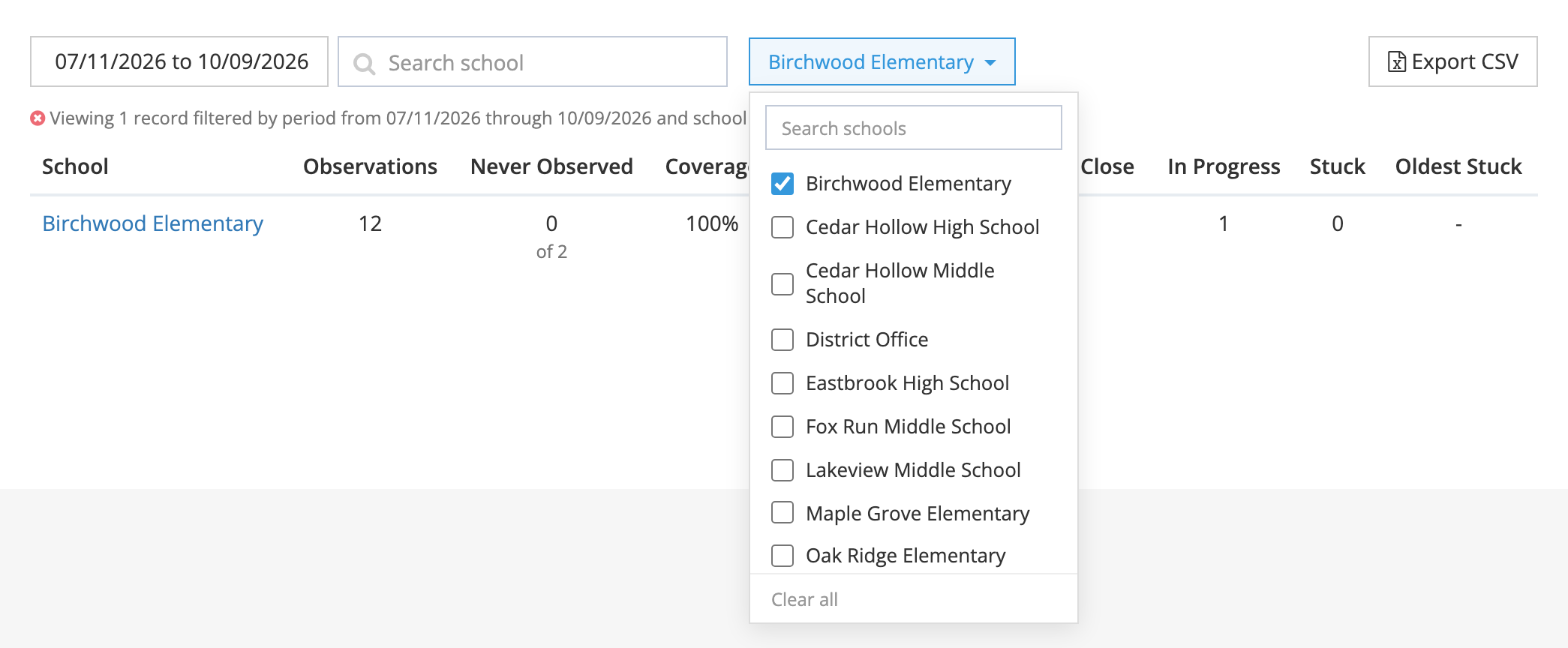
- All Schools: open the dropdown, type to find a school, and tick one or more. The table updates as you tick. Clear all goes back to every school. Picking a school also includes any groups or departments that sit under it.
The line under the toolbar sums up the filters in use. Click the ✕ at the start of that line to clear them.
Reading the table
Section titled “Reading the table”Each row is one school:
- Observations: observations submitted at the school in the date range.
- Never Observed: staff at the school nobody observed in the date range. The number underneath is everyone at the school who could have been observed.
- Coverage: the share of those staff observed at least once.
- Feedback: the share of submitted observations that included written feedback.
- Median Days to Close: the typical number of days from the observation date to its closure, for observations closed in the date range.
- In Progress: observations not yet closed, including recent drafts.
- Stuck: submitted observations that have waited 11 days or more on their current step.
- Oldest Stuck: how long the longest-waiting stuck observation has been sitting.
In Progress, Stuck, and Oldest Stuck show where things stand today, whatever date range you pick. An observation left unfinished since the fall still needs attention now.
Click a school’s name to open its observations for the same date range in All Observations. That list opens only for organization administrators, so the link works only if you hold that role.
Organizations at the bottom of the list
Section titled “Organizations at the bottom of the list”Some organizations appear at the bottom in grey, with no figures:
- No form set · N staff members: the organization has staff, but no form set, so no one there can be observed yet.
- No staff to observe: the organization has no one to observe.
These usually exist for licensing or rostering rather than observing.
Exporting
Section titled “Exporting”Click Export CSV. A progress window opens, and the file downloads when it is ready. The export uses the same date range, schools, and search as the screen.
The file has one row per school, including the grey rows at the bottom, with a Status column that reads Observable, No form set, or No staff to observe.