

Other Settings
Content Mapping
Link observation questions to eLearn courses so observers can assign a course from the question a teacher needs to grow on.
Content Mapping connects a question on your observation forms to a course in eLearn. Once a question is mapped, observers see a Require Course button on that question, so they can move a teacher from “here is what I saw” to “here is the course that builds this skill” without leaving the observation.
For example, a district might map its “Questioning prompts students to explain their thinking” walkthrough question to a course on questioning strategies. When a principal sees that a teacher’s questions stay at the recall level, the principal can assign the course during the walkthrough.
Role: system administrators. The page appears only when your district has both weCLIMB and eLearn.
Opening the page
Section titled “Opening the page”Click the gear icon to open System Administration, then click Content Mapping under OBSERVE.
What the page lists
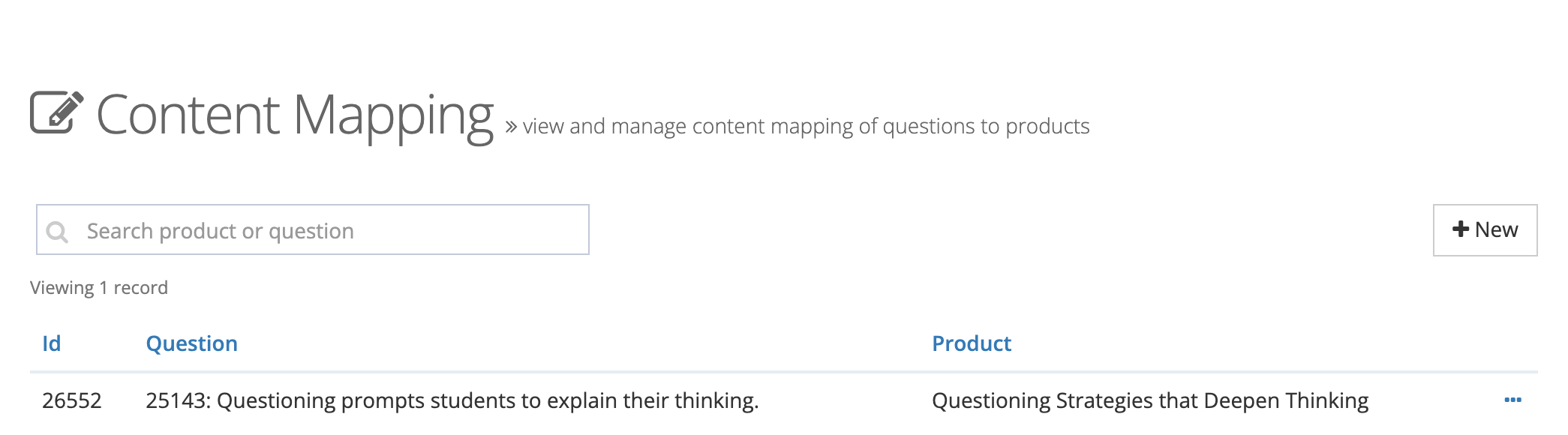
Section titled “What the page lists”Each row is one mapping, with its Id, Question, and Product (the eLearn course or bundle). One question can be mapped to several products, one row each.
Use Search product or question to find a mapping. Click a column heading to sort.
Creating a mapping
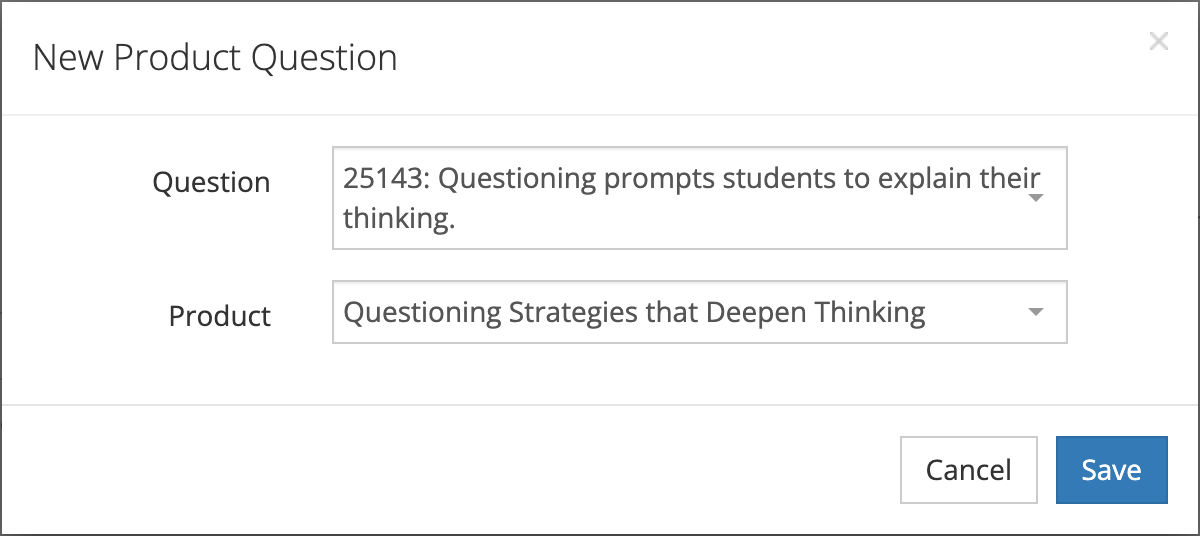
Section titled “Creating a mapping”- Click New. The New Product Question window opens.
- In Question, choose a question. The list includes the questions on your district’s forms, each shown with its ID number.
- In Product, choose the eLearn course or bundle that supports that practice.
- Click Save.
Editing and removing a mapping
Section titled “Editing and removing a mapping”Open the … menu at the end of a row:
- Edit: change the question or product, then click Save.
- Delete: opens Remove Content Mapping. Click Remove to confirm.
Removing a mapping does not take back courses already assigned from it.
What observers see
Section titled “What observers see”On an observation or a performance review, a mapped question shows a Require Course button once the teacher being observed is chosen in User.
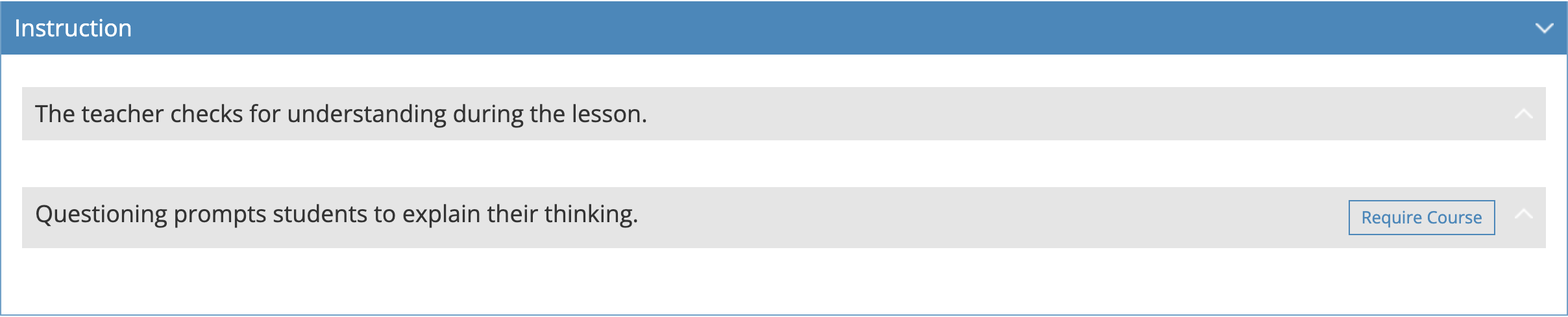
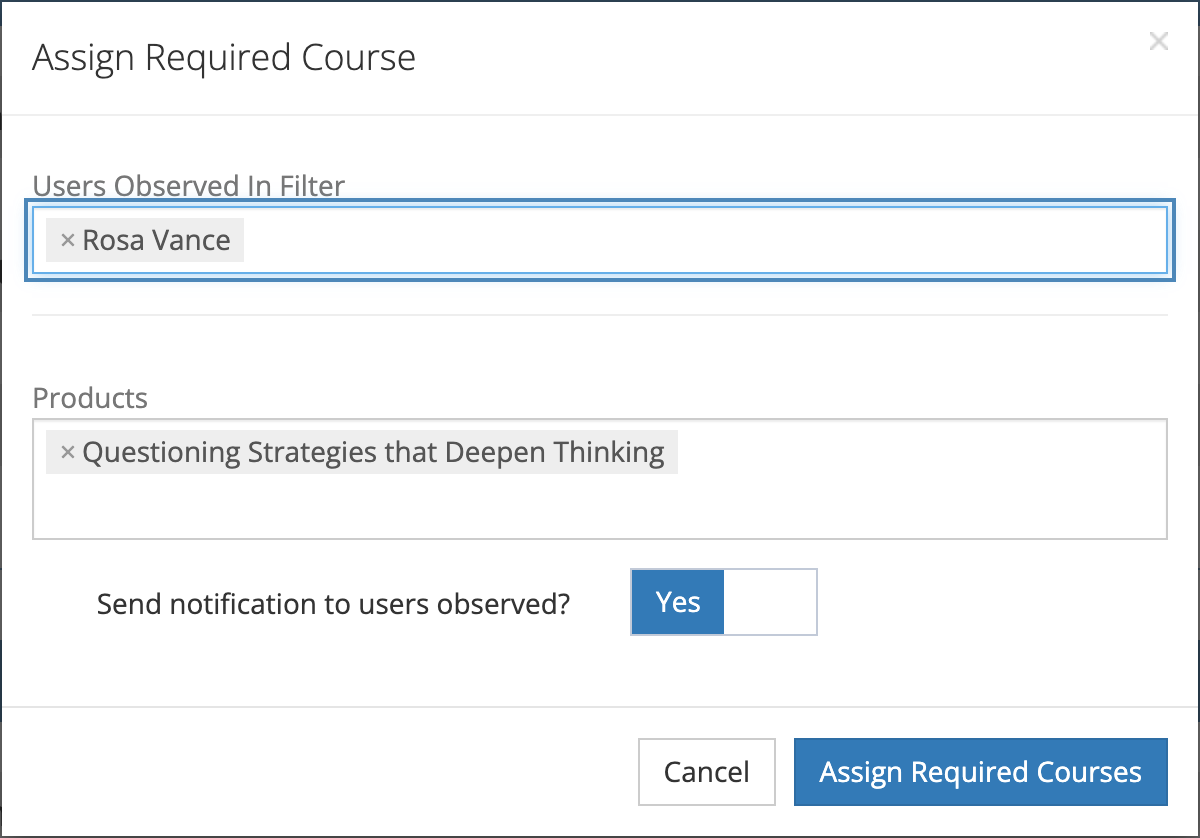
Clicking Require Course opens Assign Required Course, with:
- Users Observed In Filter: the teacher being observed, filled in for you.
- Products: the products mapped to that question.
- Send notification to users observed?: set to Yes by default. The teacher gets an email and a push notification about the new course.
Click Assign Required Courses to finish. A course is assigned only if the teacher already has access to it through your district’s eLearn content. If a product is a bundle, the courses inside it are assigned too.
The same Require Course button appears in the observation summary report on a mapped question that has responses, so an administrator can assign the course to every teacher in the report at once.