

Reseller Notes
Reseller Notes: Choosing What Teachers Can Say When They Acknowledge
Districts can now turn the disagree option off, offer a written response, reword the acknowledgment screen, and stop attaching the PDF to the teacher's email. What changes, what does not, and what to say when a district asks.
Published
When a Form Set asks for acknowledgment, the teacher has always seen the same screen: two choices, one of which is “I acknowledge, but disagree with part of this observation”, in wording nobody could change.
Districts have asked for two things that pull in opposite directions. Some want the disagree option gone, because their contract talks about a teacher’s written response, not about disagreeing. Others want to keep it with softer wording. This release lets each district decide for itself, on each Form Set.
These settings live in the Edit Form Set window, which now opens full screen and holds every setting for the Form Set in one place, with a preview of what the teacher will see. The Form Set page also shows a short summary of the settings, so nobody has to open Edit just to check them.
Nothing changes for teachers on the day this ships. Every Form Set that asks for acknowledgment today keeps the screen its teachers see now. What administrators notice is a larger Edit window and the summary on the Form Set page.
Who this affects
Section titled “Who this affects”The acknowledgment changes affect only districts that have acknowledgment turned on for at least one Form Set. To check a district, open Form Sets and open a set: the Acknowledgment line in the summary says No acknowledgment or names what the teacher is asked to do.
The larger Edit window and the new PDF setting in section 7 affect every district that edits Form Sets.
Screens below are from a fictional district built for this document. Every name, school, and email address in them is invented.
1. The Form Set page and the Edit window
Section titled “1. The Form Set page and the Edit window”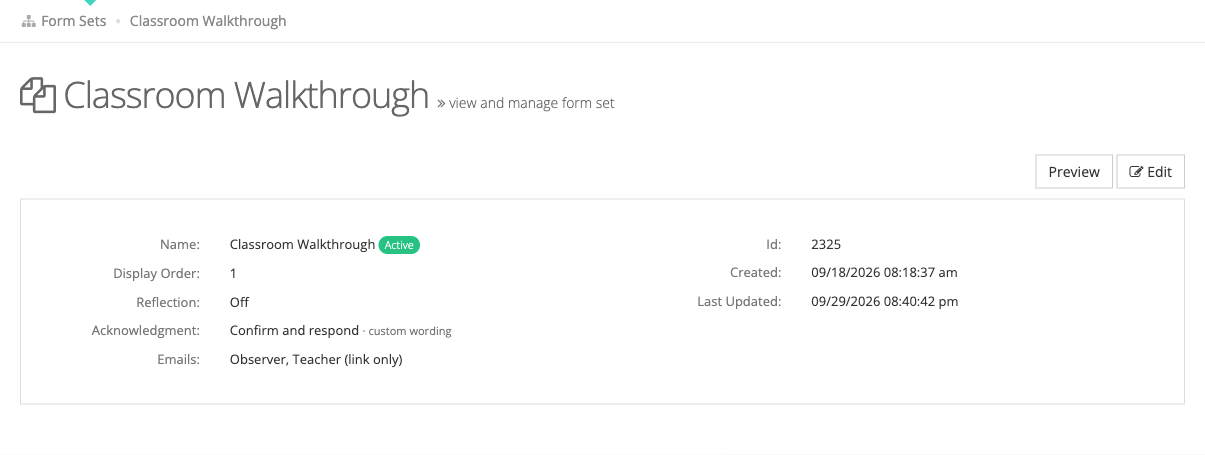
Open any Form Set. Under the name and display order, three new lines sum up what happens after an observer submits: whether the teacher reflects, what the teacher is asked to do when they acknowledge (and whether the wording is the default or the district’s own), and who gets emails.
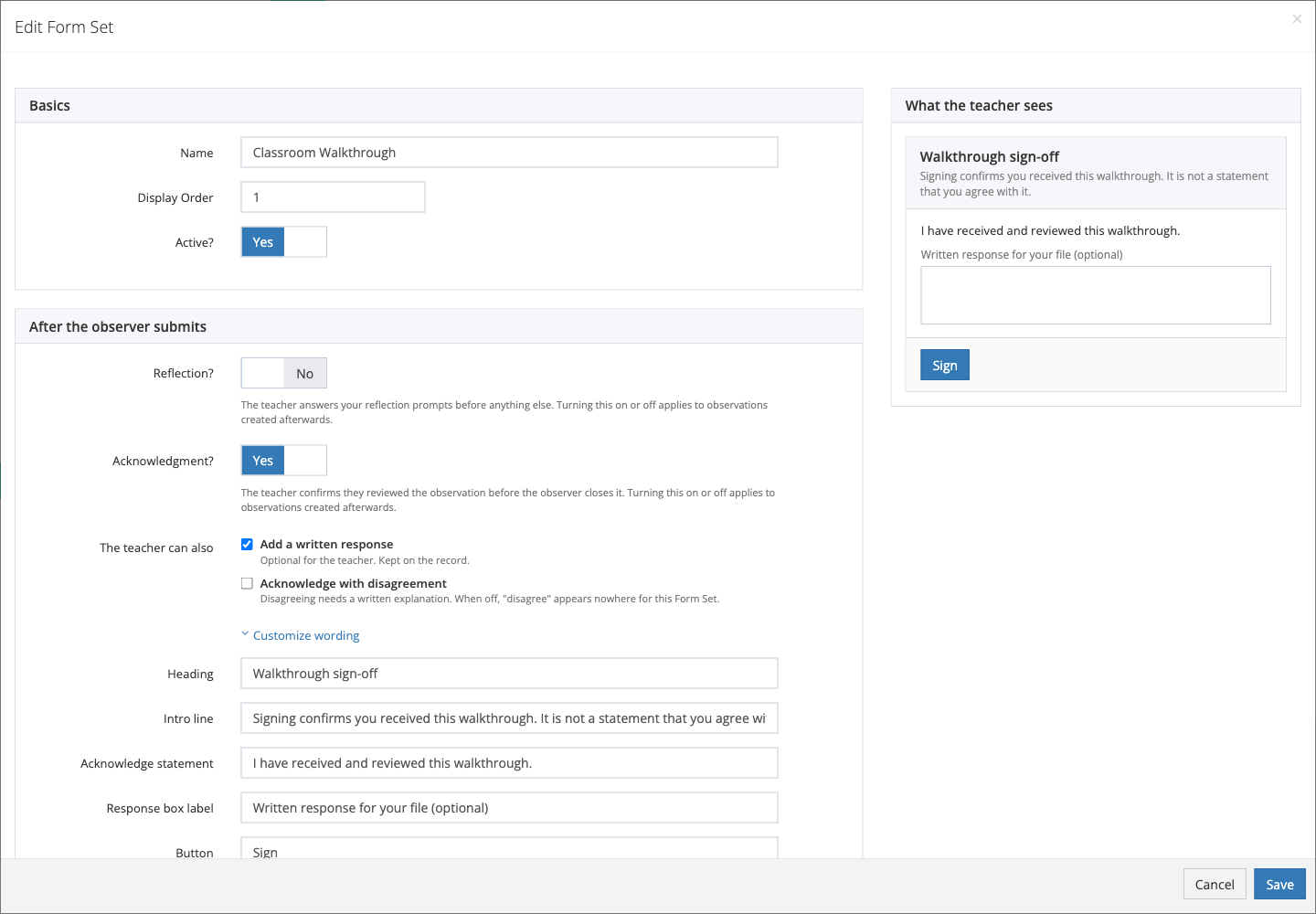
Choosing Edit opens the Edit Form Set window full screen. On the left are three sections: Basics (name, display order, active), After the observer submits (reflection and acknowledgment), and Emails. On the right, What the teacher sees shows the teacher’s screen with the settings as they stand, including changes not saved yet, and stays in view while the settings scroll. Save at the bottom saves everything in the window, and Cancel throws away everything changed since it opened. New opens the same window.
For acknowledgment, the district chooses whether the teacher can add a written response and whether they can acknowledge with disagreement. The summary on the Form Set page names the result:
| Written response | Disagreement | Summary says | What the teacher sees |
|---|---|---|---|
| Off | Off | Confirm receipt | One statement and a button. |
| On | Off | Confirm and respond | One statement and an optional written response. |
| Off | On | Confirm or disagree | Two choices. Disagreeing needs an explanation. This is today’s screen. |
| On | On | Respond or disagree | Two choices and a response box for either. |
With Acknowledgment? set to No, the summary says No acknowledgment and nothing is asked of the teacher.
What existing Form Sets show: every Form Set that asks for acknowledgment today is set to Confirm or disagree with the default wording. That is today’s screen, which is how this release avoids changing anything for teachers on day one.
New Form Sets start with Add a written response on and disagreement off (Confirm and respond), unless the district changes it.
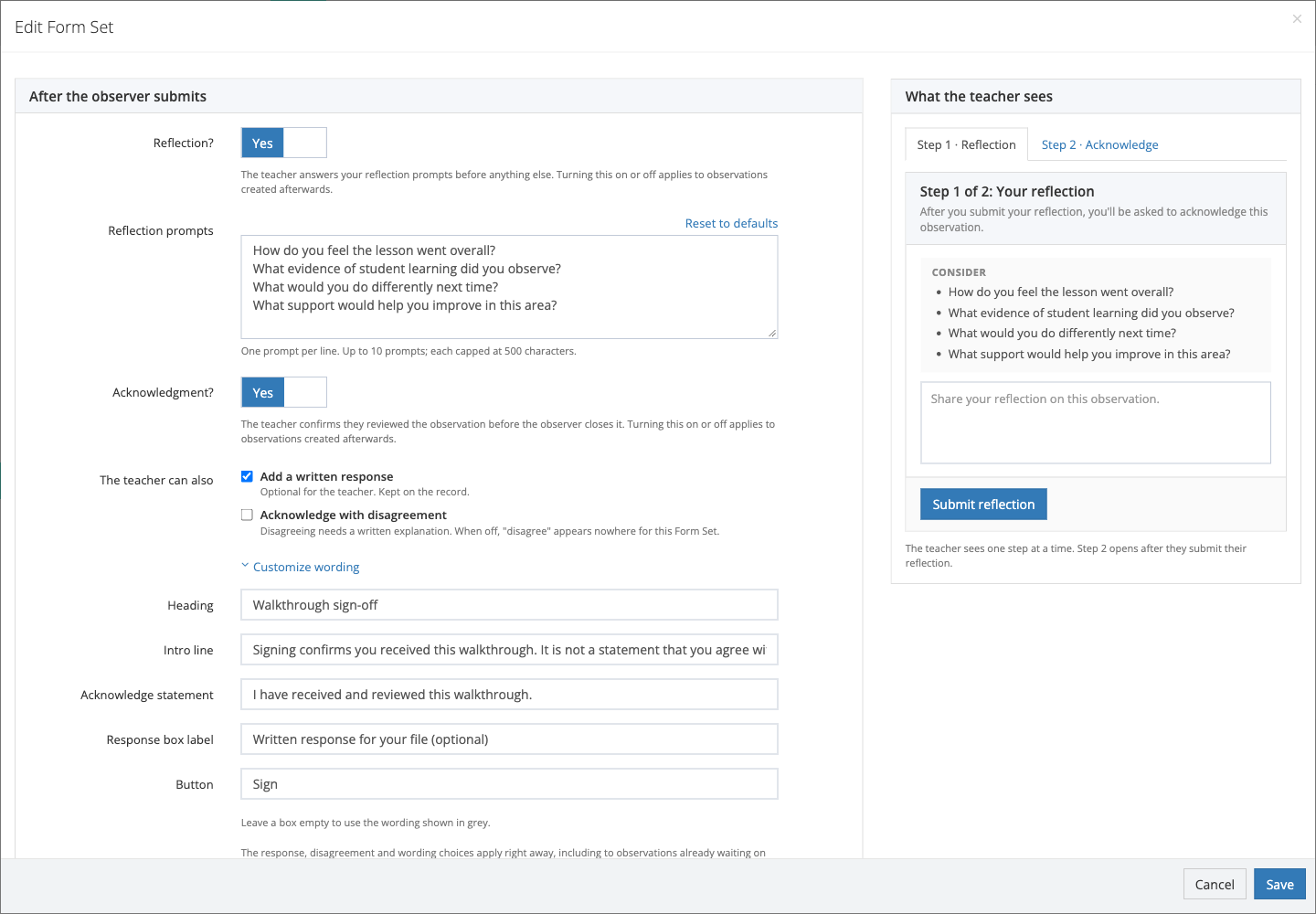
Reflection is in the same window. Turning Reflection? on shows the reflection prompts, one per line, with Reset to defaults. When a Form Set asks for both a reflection and an acknowledgment, the teacher sees them one at a time, so the preview does too: Step 1 shows the reflection screen and Step 2 the acknowledgment. The preview switches to whichever step the administrator is editing, and either tab can be chosen.
2. The teacher’s screen, unchanged until someone changes it
Section titled “2. The teacher’s screen, unchanged until someone changes it”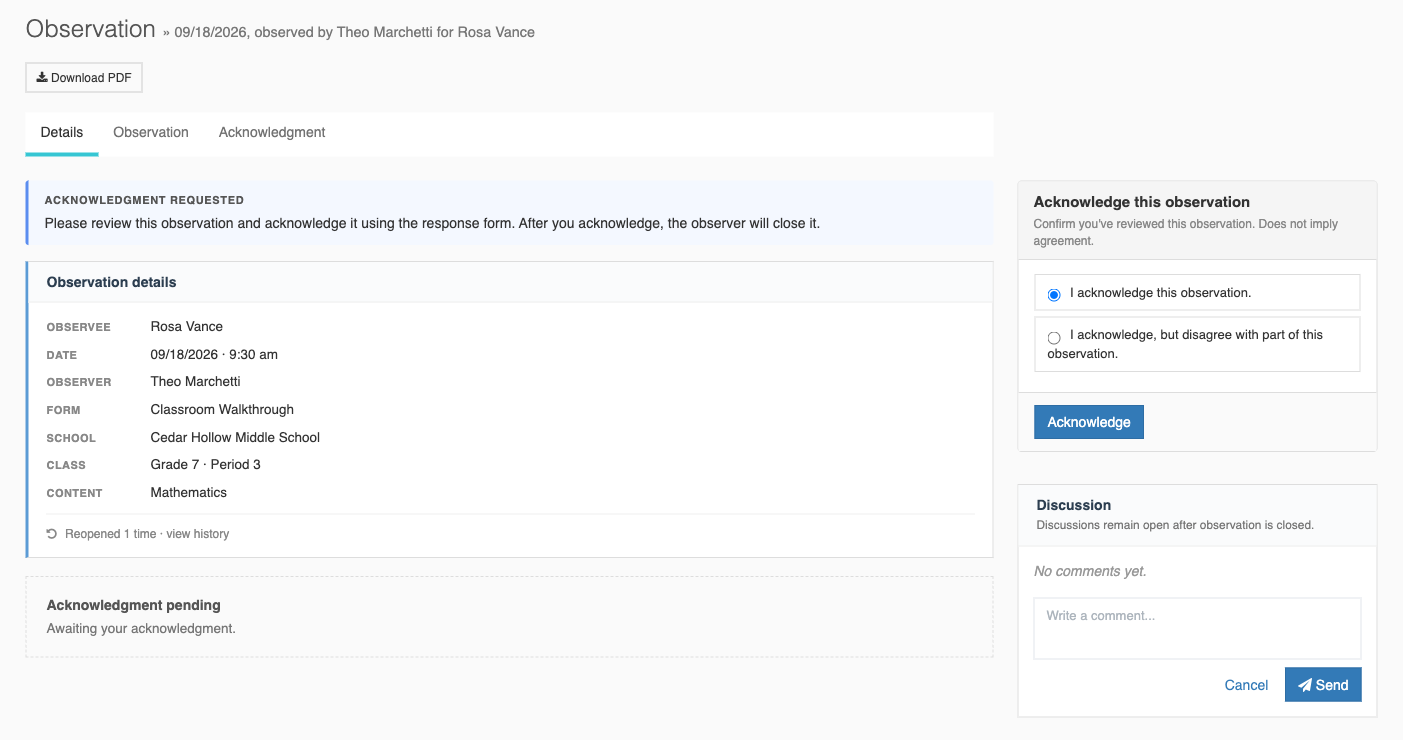
This is what a teacher sees on a Form Set nobody has touched. It is the same screen as before this release.
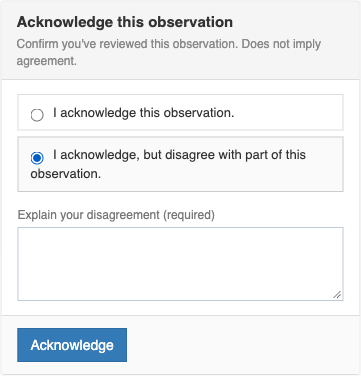
Choosing the disagree option still opens a box for the explanation, and the teacher cannot submit without filling it in.
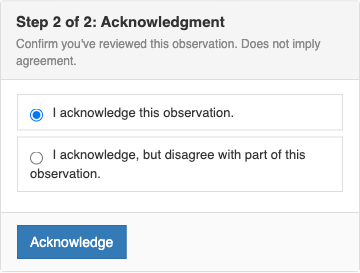
Form Sets that ask for a reflection first still show the acknowledgment as Step 2 of 2.
3. Turning the disagree option off, and rewording the screen
Section titled “3. Turning the disagree option off, and rewording the screen”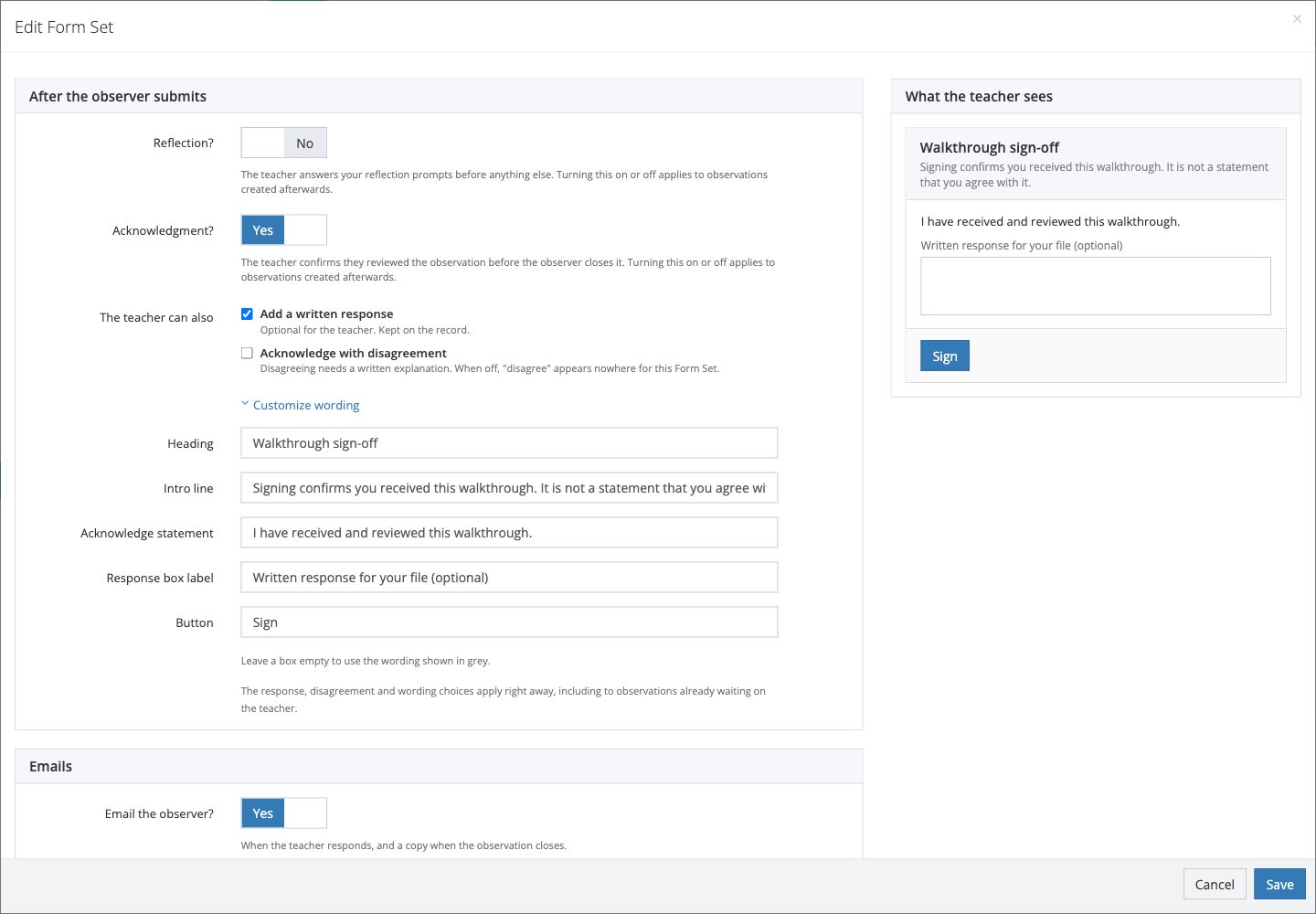
In this example the district ticked Add a written response, left Acknowledge with disagreement unticked, and wrote its own wording under Customize wording. Each box shows the default wording in grey, and leaving a box empty keeps it. The preview on the right changes as they type, before anything is saved. Customize wording starts open on any Form Set that already has wording of its own.
After saving, the summary on the Form Set page reads Confirm and respond · custom wording.
The response, disagreement, and wording choices take effect as soon as they save, including for observations already waiting for a teacher’s acknowledgment. A district that turns the disagree option off does not have to wait for its backlog to clear. Turning Acknowledgment? or Reflection? on or off works as before: it applies to observations created afterwards. The Edit window says which rule applies under each setting.
4. What the teacher sees now
Section titled “4. What the teacher sees now”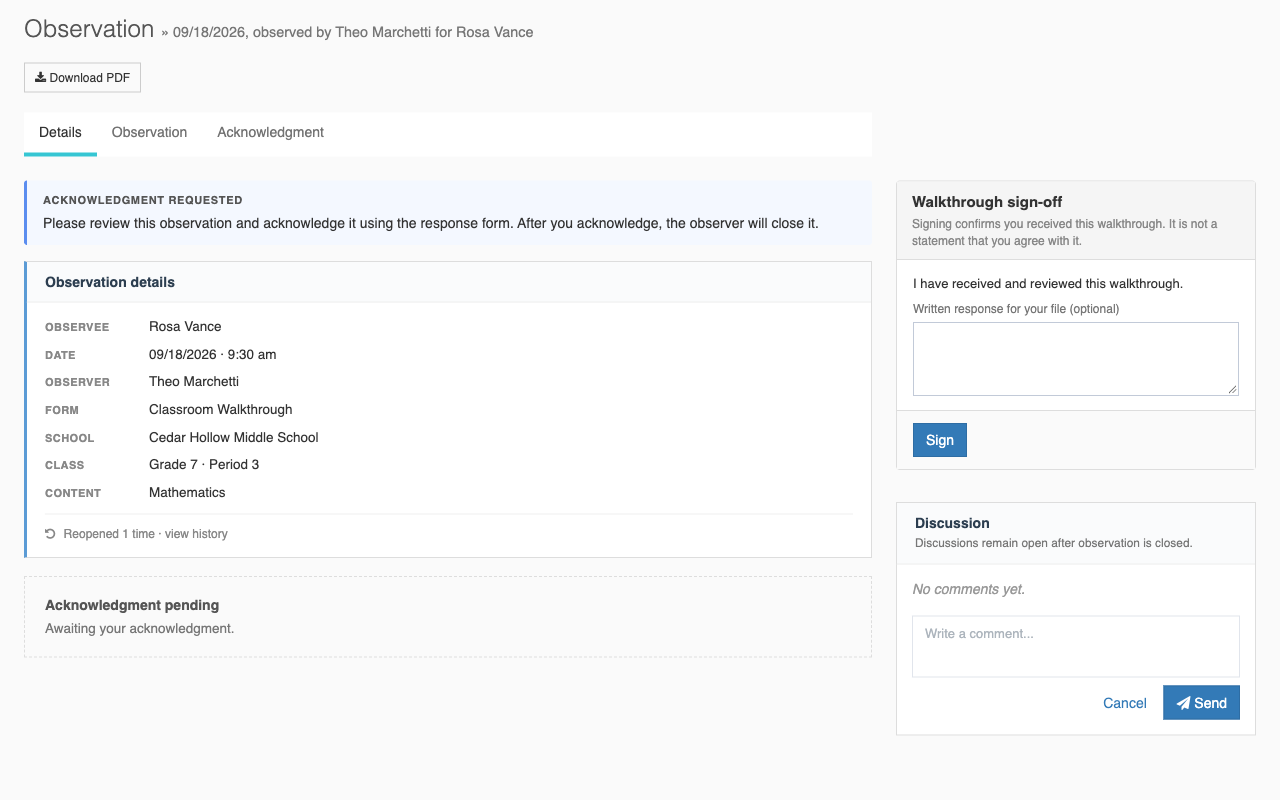
With the disagree option off, the teacher sees one statement, an optional response box, and one button, all in the district’s words. The word “disagree” does not appear anywhere for that Form Set: not on this screen, not in the email asking the teacher to acknowledge, not on the observation record, not in the PDF, and not in the email to the observer.
The wording is the district’s own. We do not review it. If a district writes something about what signing does or does not mean, that is their statement, not ours. Our default intro line says only that acknowledging “Does not imply agreement.”
5. A teacher who had the page open when the setting changed
Section titled “5. A teacher who had the page open when the setting changed”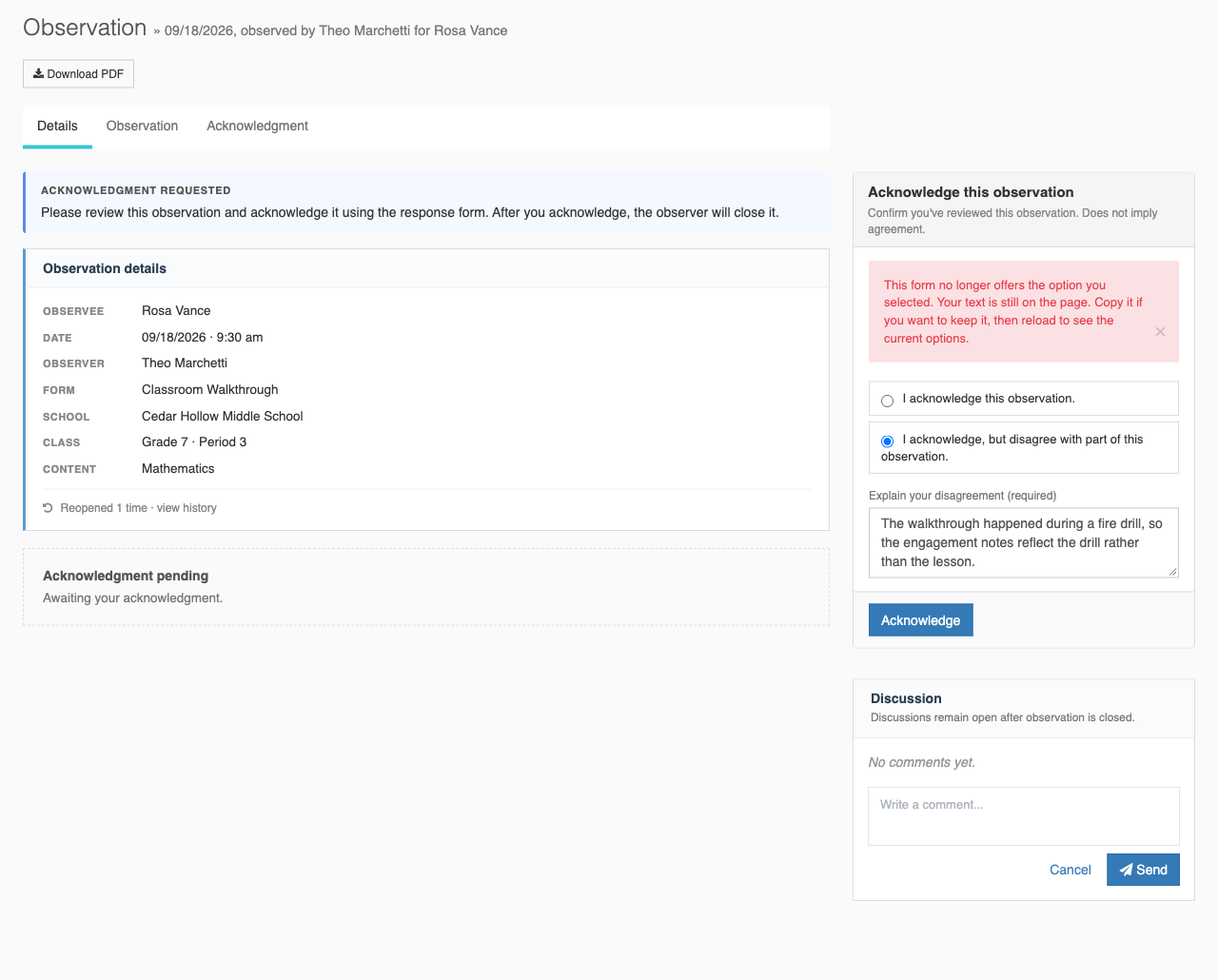
A teacher might open the page, choose to disagree, and write a paragraph, while an administrator turns the disagree option off. When they submit, the teacher sees:
This form no longer offers the option you selected. Your text is still on the page. Copy it if you want to keep it, then reload to see the current options.
Nothing is recorded, and their text is not lost. After reloading they see the current screen and can paste their text into the response box if the district offers one.
6. The record keeps what the teacher signed
Section titled “6. The record keeps what the teacher signed”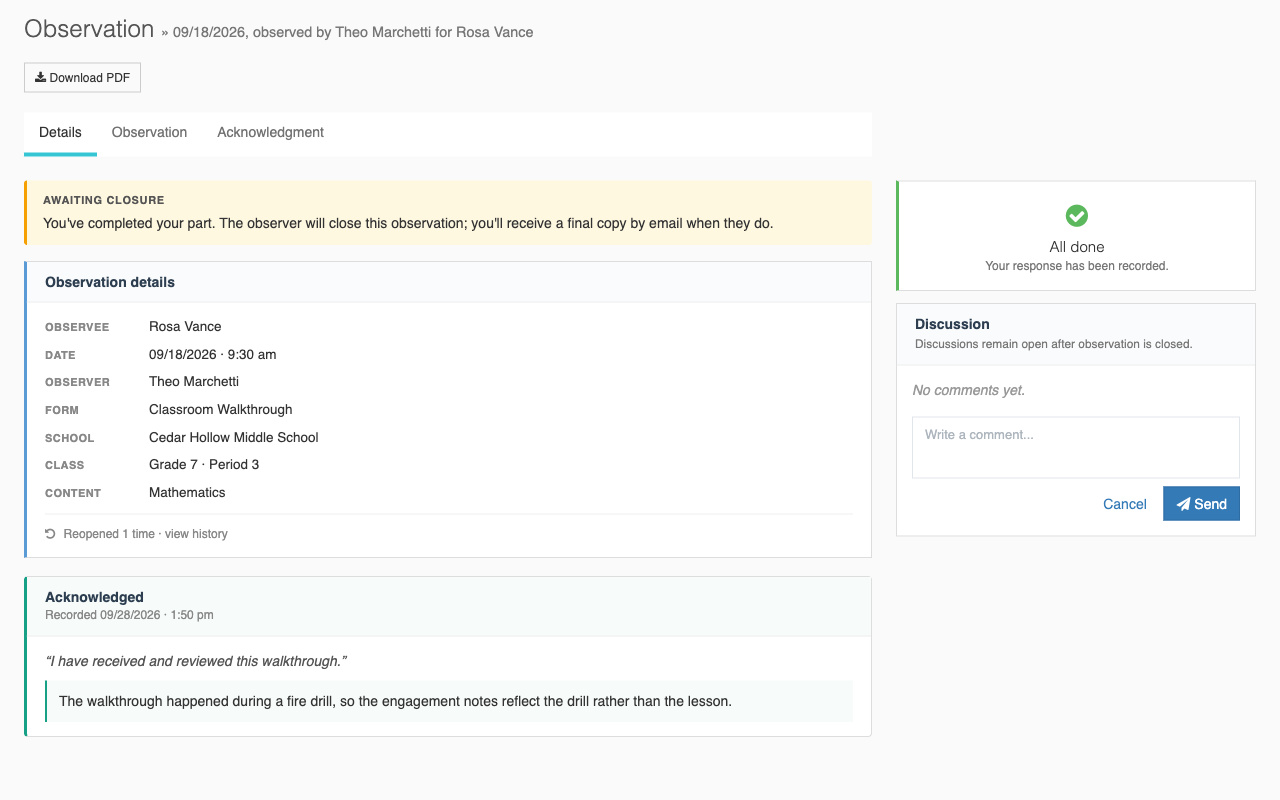
When the teacher acknowledges, the observation records the exact statement they chose, shown in quotation marks, with their written response underneath.
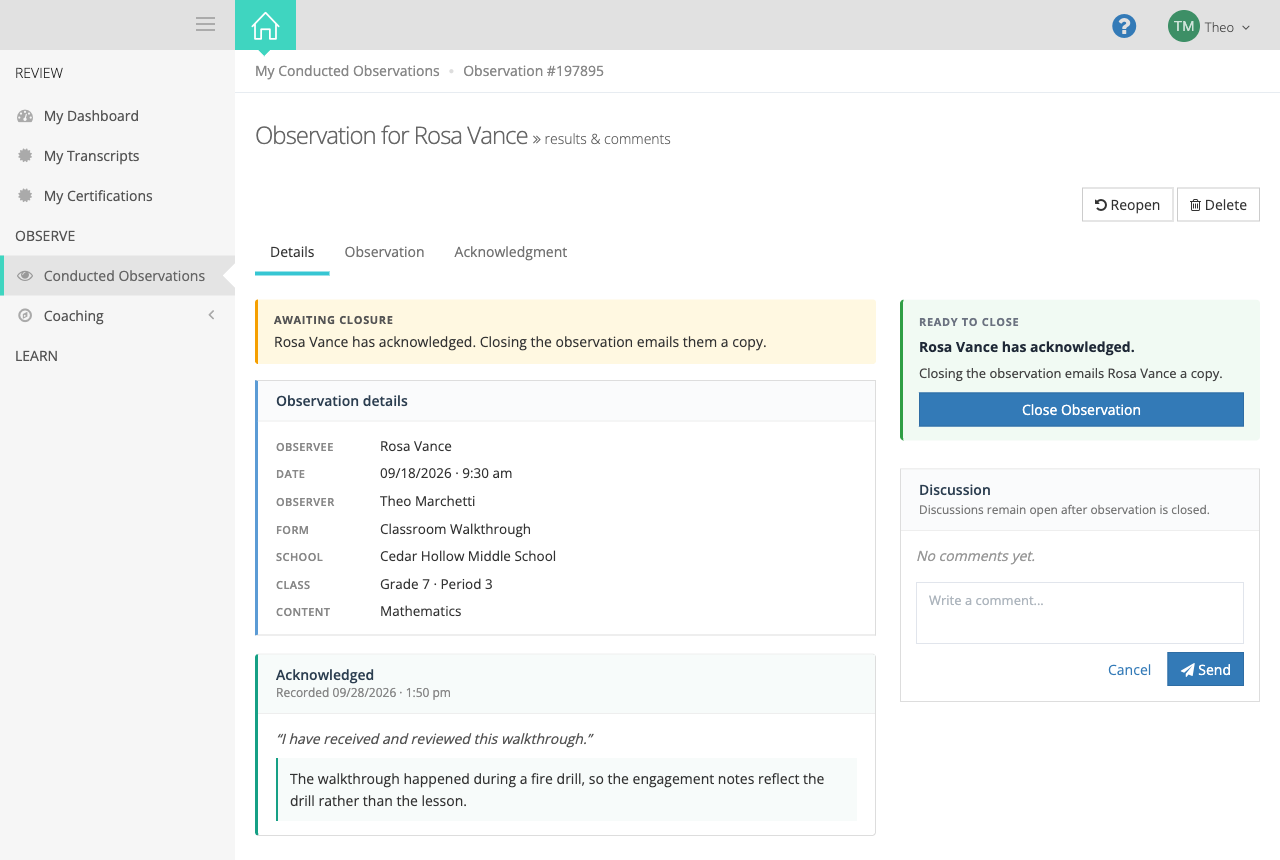
That recorded statement does not change if the district edits its wording later. In this example the district reworded its statement after the teacher signed, and the observation still shows the sentence the teacher saw. A document that goes in a personnel file should not change its wording after the fact.
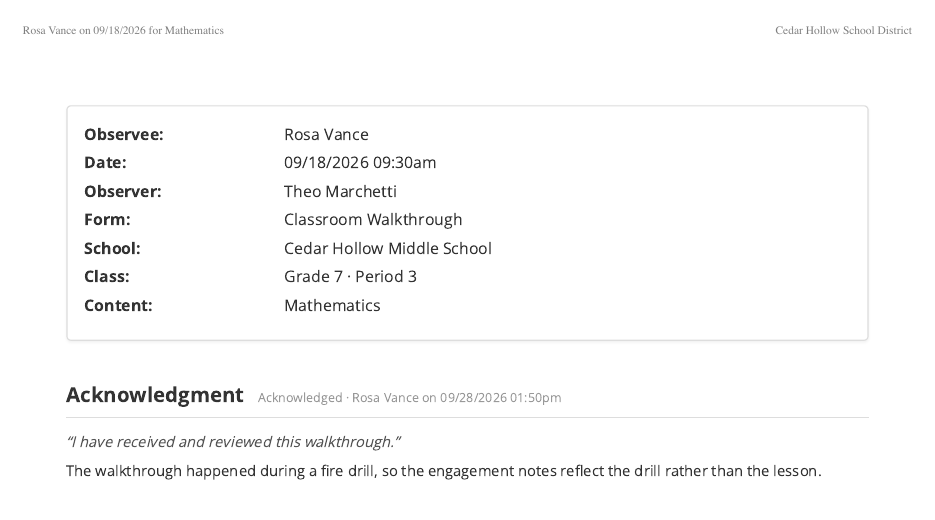
The PDF shows the same thing.
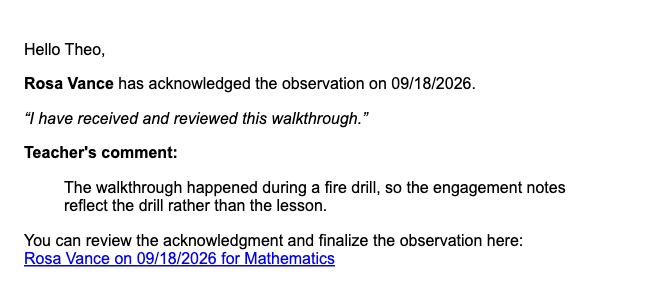
So does the email the observer receives when the teacher acknowledges.
A plain acknowledgment can now carry a response. Before this release, a teacher could only write something if they chose to disagree. With Add a written response on, a teacher who acknowledges without disagreeing can add a note, and it is kept on the record like any other response.
7. Sending a link instead of the PDF
Section titled “7. Sending a link instead of the PDF”The Emails section has one new setting, Attach the PDF to the teacher’s closing email, under Email the teacher?. It is on for every Form Set, so nothing changes unless a district turns it off.
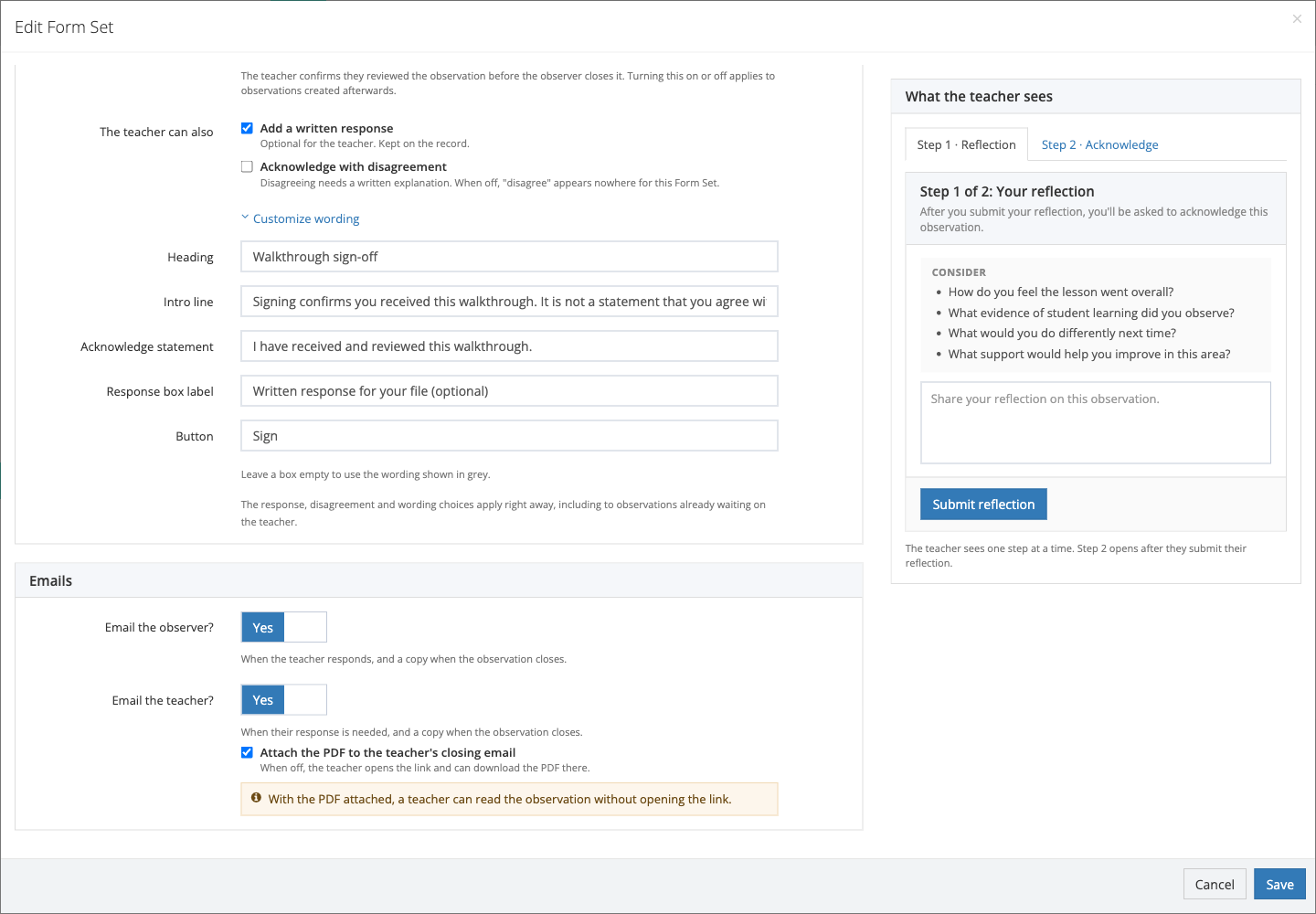
While it is ticked, a note under it explains that with the PDF attached, a teacher can read the observation without opening the link.
When it is off, the email a teacher receives when the observation is closed no longer carries the PDF. The teacher opens the observation from the link in the email instead.
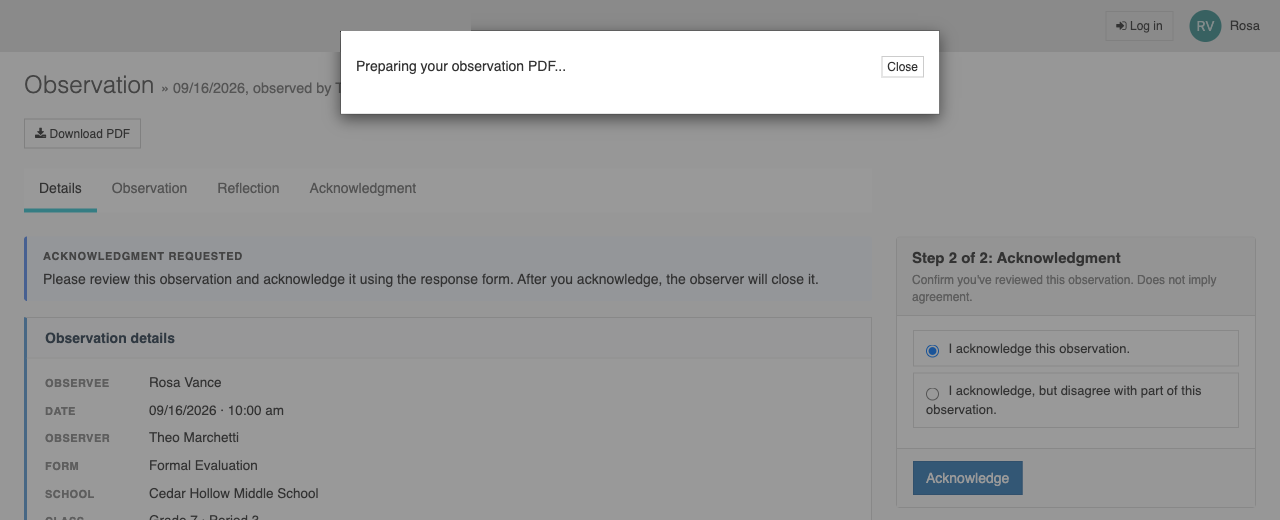
The teacher does not lose their copy. The page they reach from the email now has a Download PDF button. The PDF takes a few seconds to prepare and then downloads by itself.
Every visit through the teacher’s link, including each download, is logged. That log is not shown anywhere in the app today. If a district needs to know whether a teacher opened or downloaded an observation, our team can look it up.
Worth knowing for tickets: this switch only matters for districts whose teachers receive the PDF with their closing email today. If a district’s closing email has never included a PDF, turning it off changes nothing they would notice.
What did not change
Section titled “What did not change”- The default wording. On a Form Set nobody has edited, every word on the teacher’s screen is what it was before this release.
- Recorded disagreements. A teacher who disagreed before a district turned the option off still shows as having disagreed, with their explanation, on screen and in the PDF. Settings change what is offered from now on. They never rewrite a signed record.
- The explanation rule. Choosing to disagree still requires a written explanation.
- The mobile app. The teacher app still shows its own acknowledgment screen with both choices. If a district turns the disagree option off and a teacher tries to disagree in the app, the app shows an error and nothing is recorded. The teacher can acknowledge without disagreeing, or use the email link on the web. A response written with a plain acknowledgment on the web does not appear in the app yet. An app update to follow these settings is planned separately.
- Who can change Form Sets. The same people who could edit Form Sets before can change these settings, and no one else.
If a district asks
Section titled “If a district asks”| They say | You can say |
|---|---|
| ”Where are the acknowledgment and reflection settings?” | Open the Form Set and choose Edit. Everything is in that window, and the Form Set page shows a summary. |
| ”Our contract says teachers can submit a written response. We don’t want a disagree button.” | In the Form Set’s Edit window, tick Add a written response and untick Acknowledge with disagreement. Teachers then see one statement and an optional response box. |
| ”The disagree wording is too harsh.” | They can keep disagreement on and reword it in Disagree statement under Customize wording. They can reword the rest of the screen in the boxes around it, and check it in the preview before saving. |
| ”We changed the wording. Why does an old observation still show the old sentence?” | The record keeps the sentence the teacher saw when they signed. New acknowledgments use the new wording. |
| ”We turned disagree off. Does that affect observations already waiting?” | Yes. It applies straight away, including to observations already waiting for the teacher. |
| ”A teacher says they wrote a disagreement and got an error.” | The option was turned off while their page was open. Their text stayed on the page. They reload and use the response box if the district offers one. |
| ”A teacher can’t disagree in the app.” | If the Form Set has disagreement off, that is expected. If it is on, it is a separate problem. Please pass it on. |
| ”We’d rather teachers open the observation than get a PDF.” | In the Edit window’s Emails section, untick Attach the PDF to the teacher’s closing email. Teachers can still download a PDF from the observation page. |
| ”Did anything change for us without us doing anything?” | Not for teachers. Every existing Form Set behaves as it did. Administrators see a larger Edit window and a summary on the Form Set page. |