

Coaching
Action Steps
Action steps carry a coaching cycle from one visit to the next. A coach assigns a step from an observation, and at the next visit the coach and teacher check whether it took hold.
Only the assignment’s coach can create or change action steps. Administrators can read them on the assignment page.
Before the visit: the reminder panel
Section titled “Before the visit: the reminder panel”When a coach starts a new observation and picks a teacher they coach, a panel under the teacher’s name shows Active coaching assignment with the stage and focus areas, and lists the Pending action steps from prior visits.

Assigning a step
Section titled “Assigning a step”On an observation you conducted for a teacher you coach, the right-hand column shows coaching panels:
- In New from this visit, click + Add Action Step.
- Optionally choose a step under Pick from library. It fills in the description and focus areas, which you can then edit.
- Write or adjust the Description. Keep it bite-sized, specific, and observable.
- Add Focus areas.
- Optionally set Check back by. Leave it blank to check back at the next walkthrough.
- Click Assign Action Step, or Save and add another to keep the window open.
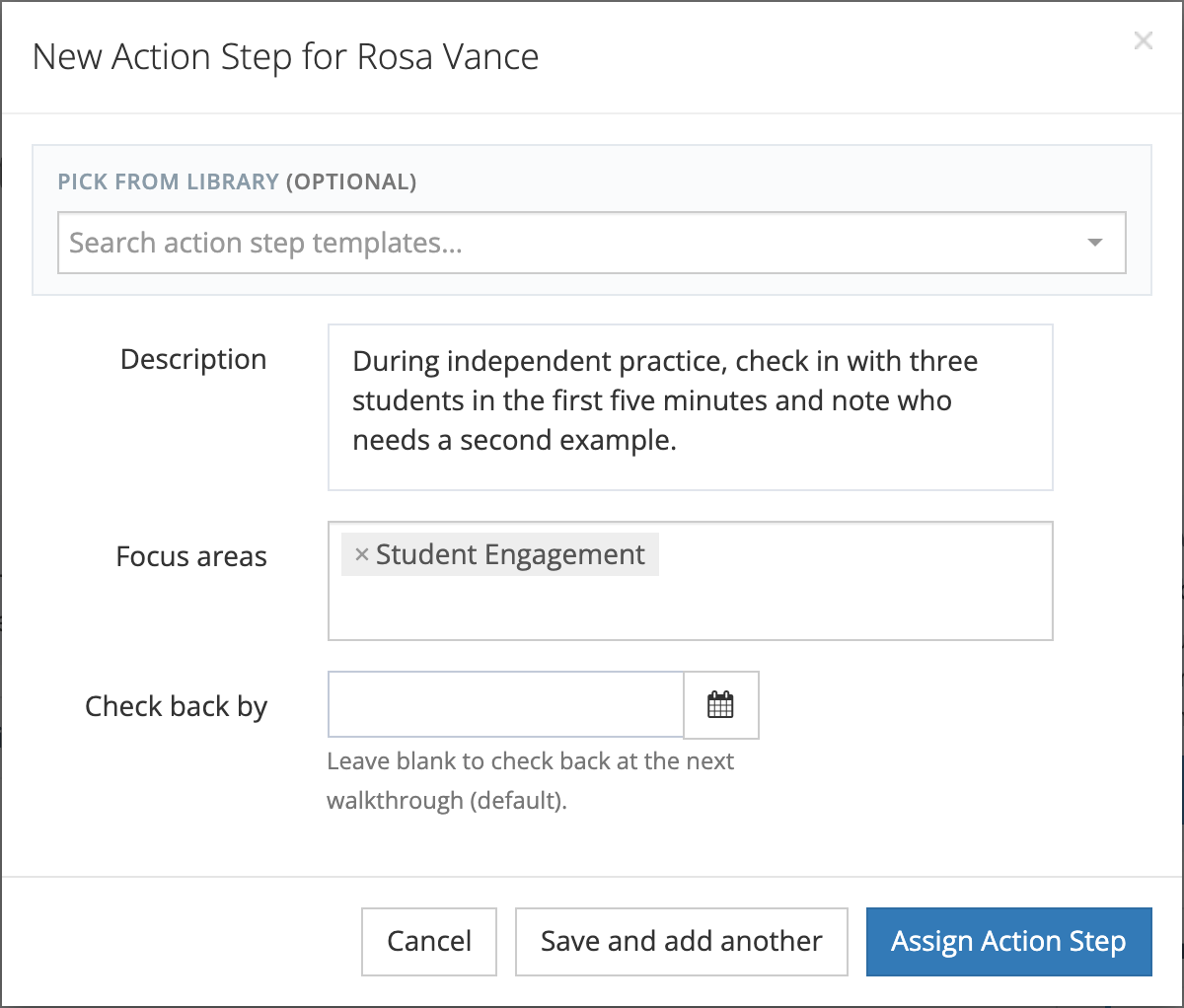
When the visit already has 4 or more action steps (removed steps do not count), the window notes that smaller sets are easier to act on. It does not stop you from saving.
You can add steps while the observation is still a draft. The teacher sees them only after the observation is submitted.
Working a step
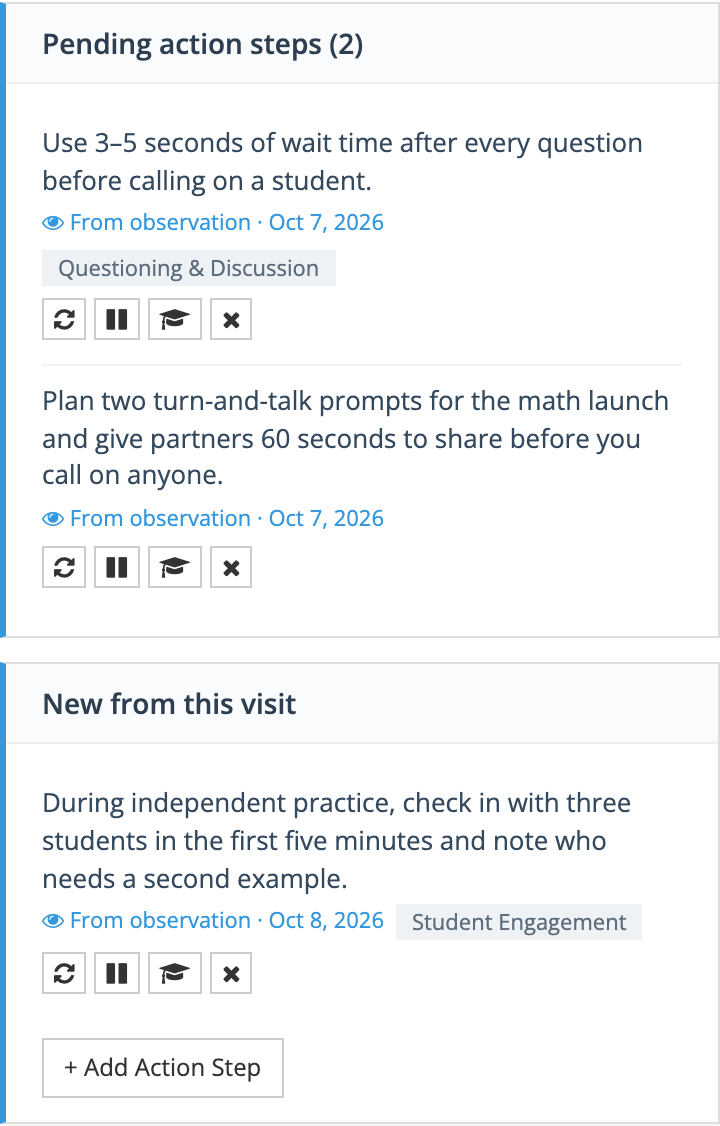
Section titled “Working a step”Steps from earlier visits appear under Pending action steps, and steps from this visit under New from this visit. Each step has these controls:
- Complete: available once the observation is submitted. Add an optional Completion note and click Save.
- Revise (refresh icon): edit the wording, with an optional note about the revision.
- Defer (pause icon): set Defer until (two weeks out by default) and an optional Reason.
- Recommend a course (graduation-cap icon): shown when eLearn is on.
- Remove (×): asks you to confirm. Completed steps cannot be removed.
A deferred step on an in-progress assignment shows Resume (play icon) and Remove, on My Roster under Deferred and in the coaching panels of an observation. Resume puts the step back to work before its date: it returns to open and its deferral date and reason are cleared.
While an assignment is paused, its steps cannot be completed, revised, deferred, or resumed.
Carrying a step into a new cycle
Section titled “Carrying a step into a new cycle”Completing an assignment defers its open steps. If you later start a new assignment with the same teacher, those steps can come along:
- Open an observation of the teacher that you conducted while the new assignment is in progress.
- In the coaching panels, find Carry forward from a previous cycle. It lists deferred steps from your completed cycles with this teacher.
- Click Carry forward next to a step.
The step moves into the new assignment (it is not copied), is tied to the current observation, and returns to open with its focus areas and course recommendations. Only the coach of the new assignment can carry steps forward.
Reusable templates
Section titled “Reusable templates”The library under Pick from library comes from Action Step Templates, which system administrators manage in System Administration under OBSERVE, in Coaching > Action Step Templates. (Organization administrators have permission to manage templates but no menu link to the page.) See Cycle Stages & Action Step Templates.
Recommending a course
Section titled “Recommending a course”When eLearn is on, a coach can attach a course from your licensed eLearn catalog to any step:
- Click the Recommend a course icon on the step.
- Filter by category on the left or type in Search courses by name….
- Select a course and click Recommend.
The course shows on the step with the teacher’s progress: Recommended, Enrolled, or Completed. Use the × on it to remove the recommendation. If no courses are licensed to your organization yet, the window says there is nothing to recommend.