

Reports
Coaching Activity Reports
Compare coaching activity by coach and by school, with teachers coached, classroom visits, action steps, and completion rate.
The two coaching activity reports turn your district’s coaching cycles into tables you can sort and export:
- Coaching Activity by Coach: one row per coach. Use it to balance caseloads and to see whether each coach’s action steps get followed through.
- Coaching Activity by School: one row per school. Use it to see where coaching is reaching teachers and where it has stalled.
Both reports count activity. They read from coaching assignments, classroom visits, and action steps, and they never show the contents of an action step, a note, or a reflection. They measure how much coaching is happening, not how good it is.
Role: reporter, organization administrator, or system administrator. Coaching cycles must be available to your district and turned on with Enable coaching cycles? in Observe Settings. The Coaching Reports item appears in the sidebar Reports menu, which only users with the reporter role see. Administrators without the reporter role can open both reports from the Coaching Dashboard.
Which coaches and schools you see
Section titled “Which coaches and schools you see”Each report includes coaching assignments at the schools you belong to and any organizations under them. A user who belongs to the district organization sees the whole district. A principal who belongs to one building sees that building’s assignments.
Only coaches and schools with at least one active (not archived) coaching assignment appear.
Opening the reports
Section titled “Opening the reports”From the Reports menu:
- In the sidebar, open Reports and click Coaching Reports.
- Click Coaching Activity by Coach or Coaching Activity by School.
From the Coaching Dashboard, click Activity by Coach or Activity by School next to Open the detailed tables:. The report opens with the same filters the dashboard was using.
Each report has a How to use this report link in the upper right that explains its columns without leaving the page.
Choosing a period
Section titled “Choosing a period”Every number in both reports follows the period you pick, except Assignments (see below). The report opens on the current school year (July 1 to June 30).
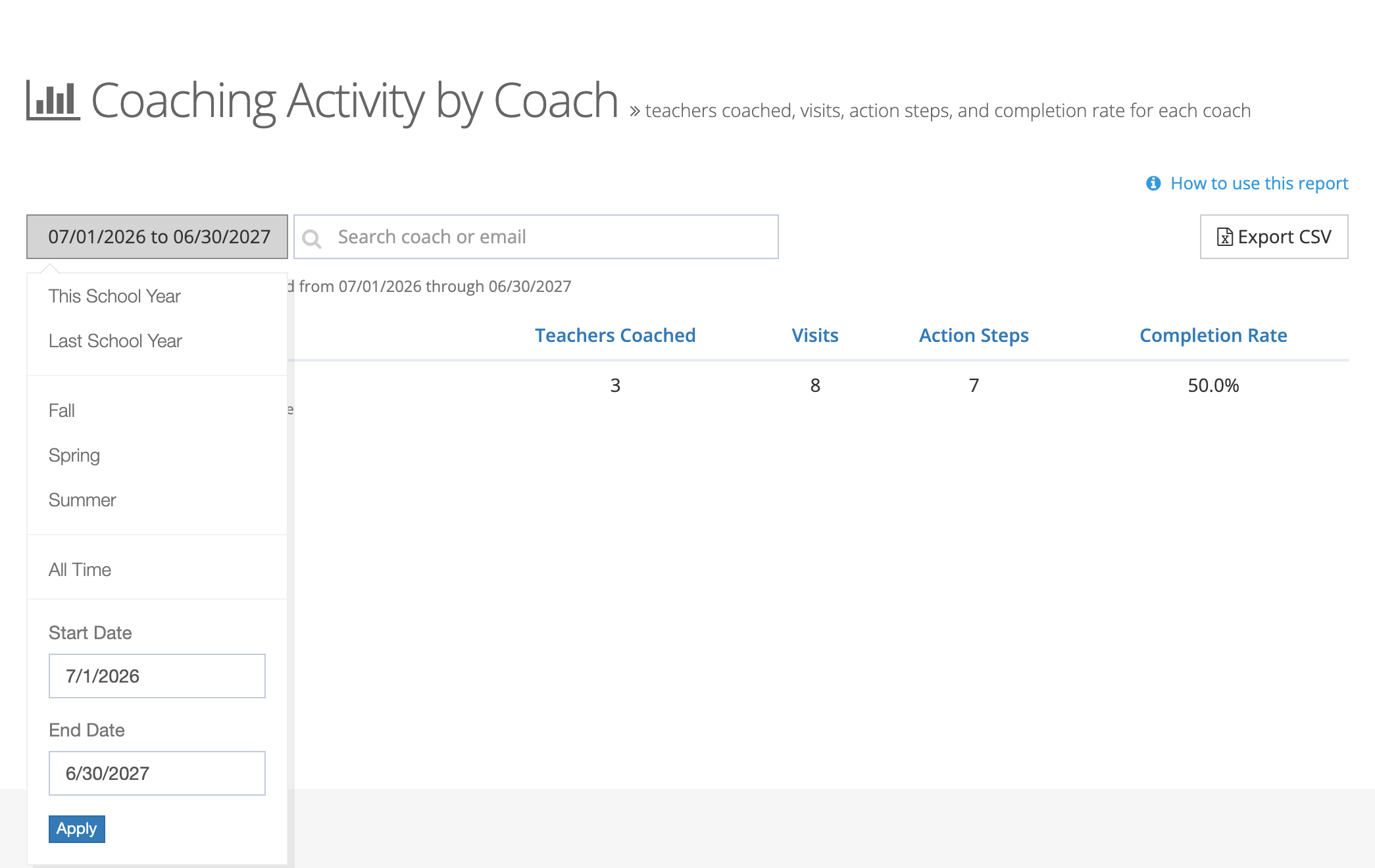
Click the date button to choose:
- This School Year or Last School Year
- Fall (August 1 to December 31), Spring (January 1 to May 31), or Summer (June 1 to July 31) of the current school year
- All Time
- Your own Start Date and End Date, then Apply
The line under the toolbar shows the period and search in use.
Coaching Activity by Coach
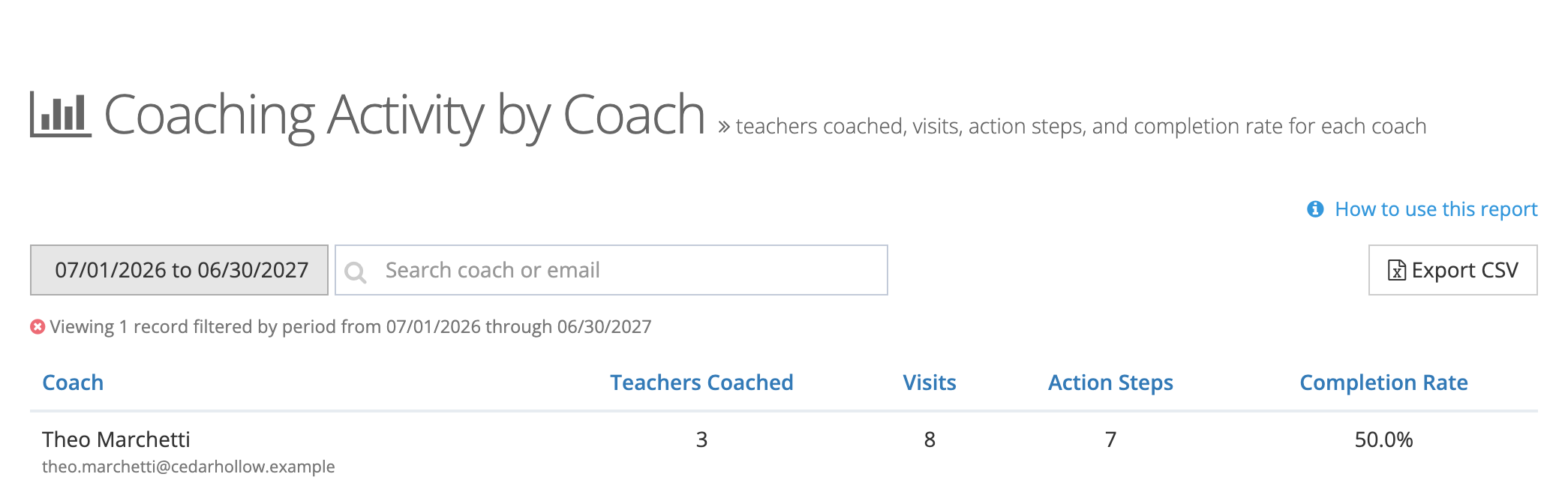
Section titled “Coaching Activity by Coach”Search by coach name or email with the Search coach or email box.
| Column | What it counts |
|---|---|
| Coach | The coach’s name and email. |
| Teachers Coached | Distinct teachers on the coach’s active assignments who had a visit or an action step in the period. A teacher assigned but not yet visited does not count. |
| Visits | Submitted observations the coach conducted of their coached teachers in the period, within each assignment’s start and completion dates. |
| Action Steps | Action steps created on the coach’s assignments in the period. |
| Completion Rate | Of the action steps created in the period that have been resolved, the share marked complete rather than deferred. |
Coaching Activity by School
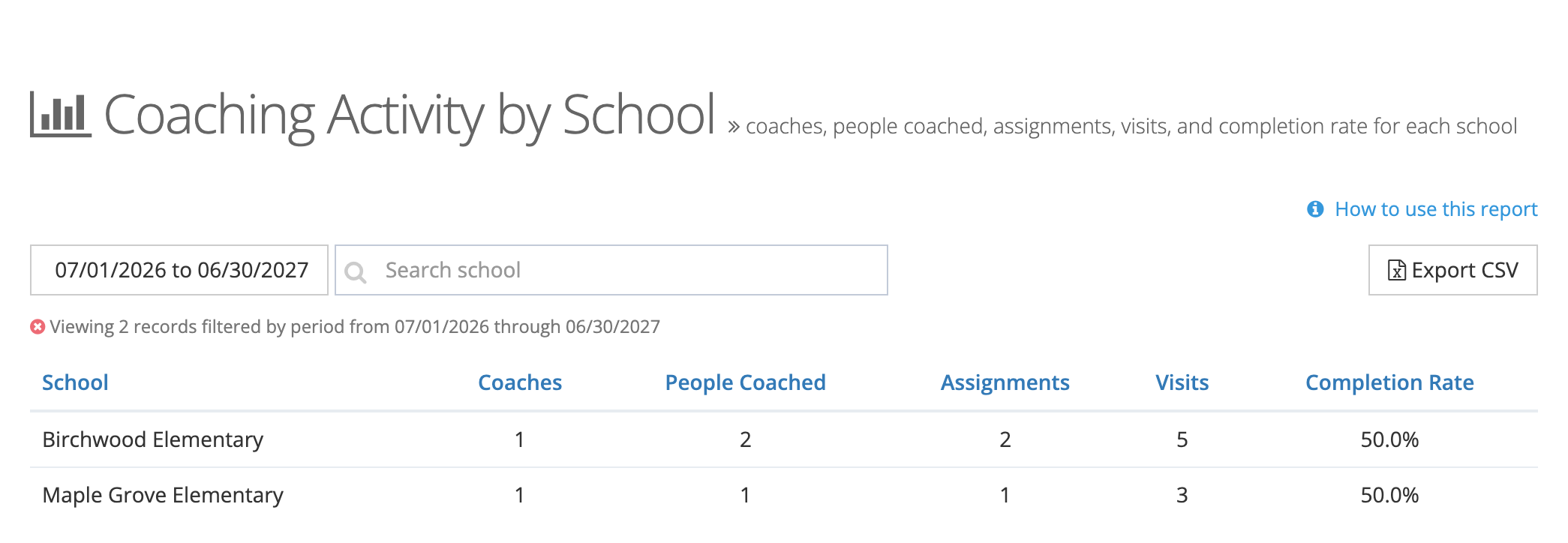
Section titled “Coaching Activity by School”Search by school name with the Search school box.
| Column | What it counts |
|---|---|
| School | The school the assignments belong to. |
| Coaches | Coaches who had a visit or an action step with a teacher at the school in the period. |
| People Coached | Distinct staff members at the school who had a visit or an action step in the period. |
| Assignments | Active coaching assignments at the school. This is a standing total and does not change with the period. |
| Visits | Submitted coaching visits at the school in the period, within each assignment’s start and completion dates. |
| Completion Rate | Of the action steps created at the school in the period that have been resolved, the share marked complete rather than deferred. |
Compare Assignments with People Coached: a school with eight assignments and three people coached this term has teachers waiting for a first visit.
How completion rate is calculated
Section titled “How completion rate is calculated”Completion rate looks only at action steps created in the period:
Completion Rate = completed ÷ (completed + deferred)
- Steps still open (assigned and not yet resolved) are left out, so a new step does not pull the rate down.
- Only steps a coach deferred to a later date count as deferred.
- When no step created in the period has been resolved, the column shows a dash instead of 0%.
A heavy caseload with a low completion rate is a reason for a conversation with the coach about step size or follow-up, not a verdict on their coaching.
Sorting and exporting
Section titled “Sorting and exporting”Click any column heading to sort by it.
Click Export CSV to download the table. A progress window opens, and the file downloads when it is ready. The file uses the same period and search as the screen. The coach file has Coach, Email, Teachers Coached, Visits, Action Steps, and Completion Rate columns. The school file has School, Coaches, People Coached, Assignments, Visits, and Completion Rate.
Using the reports
Section titled “Using the reports”- Mid-year caseload check: open Coaching Activity by Coach for Fall, sort by Teachers Coached, and look for a coach carrying far more teachers than the others.
- Follow-through: sort by Completion Rate to find coaches whose action steps keep getting deferred, and talk about whether the steps are small enough to finish between visits.
- Building reach: open Coaching Activity by School for This School Year and look for schools with assignments but few visits.
- End-of-year summary: export both reports for This School Year to report coaching reach and activity to district leadership.