

Reports
Observation Status Report
List every observation in your schools with its teacher, observer, school, form set, and status, then filter and export the list.
The Observation Status Report lists observations one row at a time: when it happened, who was observed, who observed, at which school, on which form set, and where it stands. Principals use it to answer the questions that come up before a walkthrough deadline or an evaluation window closes:
- Which observations are still open?
- Has every teacher on my staff been seen this semester?
- How many walkthroughs has each assistant principal or coach logged?
Role: reporter, organization administrator, or system administrator. The sidebar Reports menu appears only for users with the reporter role. An administrator without it can still open the report from a direct link, such as the View all … observations link on an observer’s page in the Observer Activity report.
Which observations you see
Section titled “Which observations you see”The report lists observations at the schools you belong to and any organizations under them. A user who belongs to the district organization sees the whole district. A principal who belongs only to one building sees that building.
Opening the report
Section titled “Opening the report”- In the sidebar, open Reports and click Observation Reports.
- Click the Observation Status Report card.
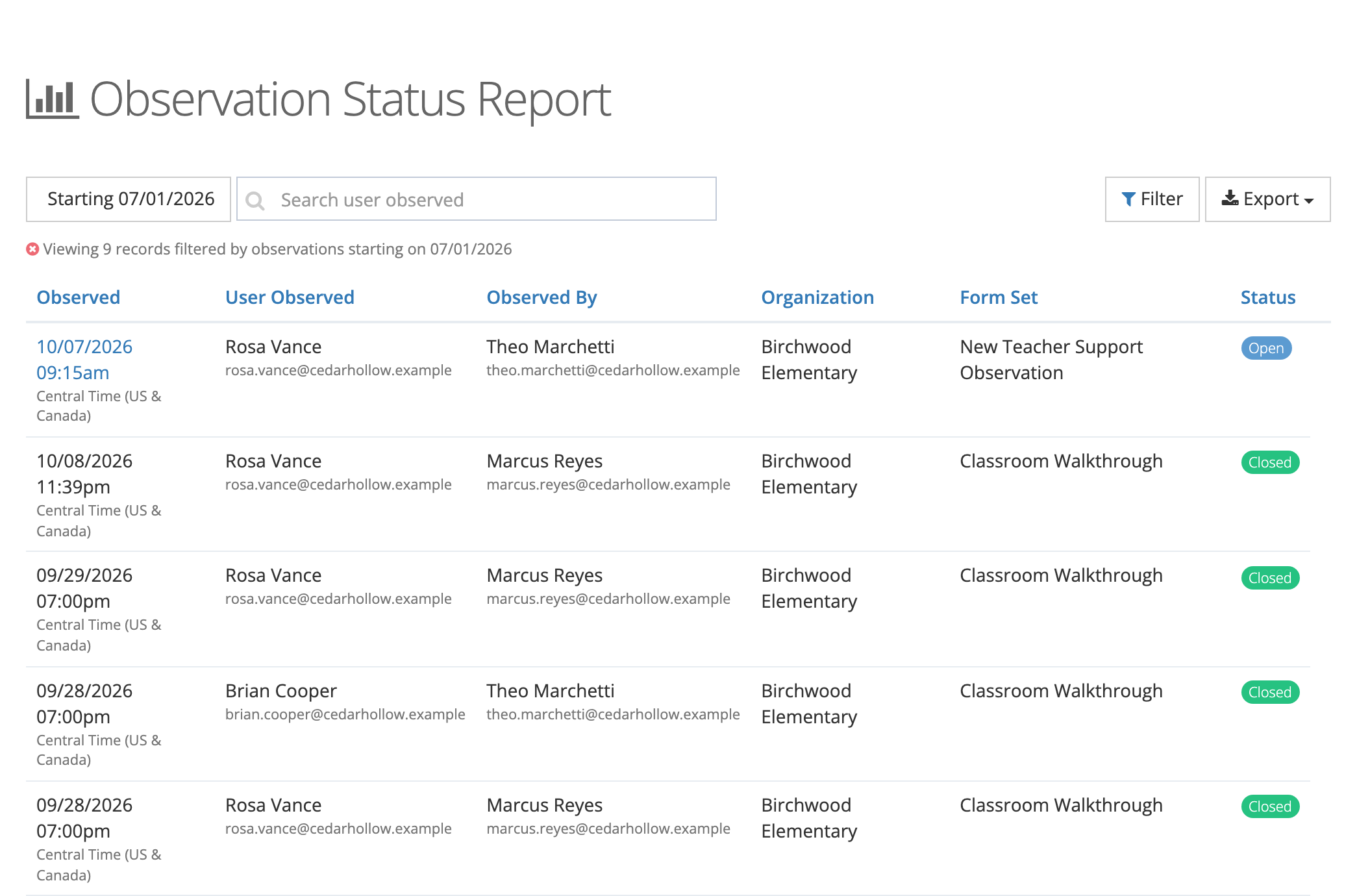
The report opens with observations from the start of the current school year (July 1) onward. The line under the toolbar says how many records you are viewing and which filters are in use. Click the ✕ at the start of that line to clear them.
Reading the table
Section titled “Reading the table”| Column | What it shows |
|---|---|
| Observed | The date and time of the observation. The date links to the observation when you have permission to edit it. |
| User Observed | The teacher or staff member observed, with their email. An archived user carries an Archived badge. |
| Observed By | The observer, with their email. |
| Organization | The school the observation belongs to. |
| Form Set | The form set the observer used, such as a walkthrough or a formal evaluation form. |
| Status | Where the observation stands (see below). |
Click any column heading to sort by it. Sorting by Status brings unfinished observations to the top.
Status values
Section titled “Status values”- Open: the observer has not submitted it yet. It is still a draft.
- Awaiting Reflection: submitted, and waiting for the teacher’s reflection.
- Awaiting Acknowledgment: submitted, and waiting for the teacher to acknowledge it.
- Awaiting Closure: submitted, nothing is needed from the teacher (or the teacher has finished), and the observation still needs to be closed.
- Closed: finished.
Which of the waiting steps appear depends on how your district set up reflections and acknowledgments for each form set. See Reflections and Acknowledgments.
Narrowing the list
Section titled “Narrowing the list”Date range
Section titled “Date range”Click the date button to pick Last 30 Days, Last 90 Days, This Month, This Quarter, Last Year, This Year, or All Time, or type a Start Date and End Date and click Apply. This Year and Last Year follow the school year (July 1 to June 30).
Search
Section titled “Search”The search box (Search user observed) matches the teacher’s first or last name. It also matches school names and form set names, so typing part of a building’s name works too.
Filters
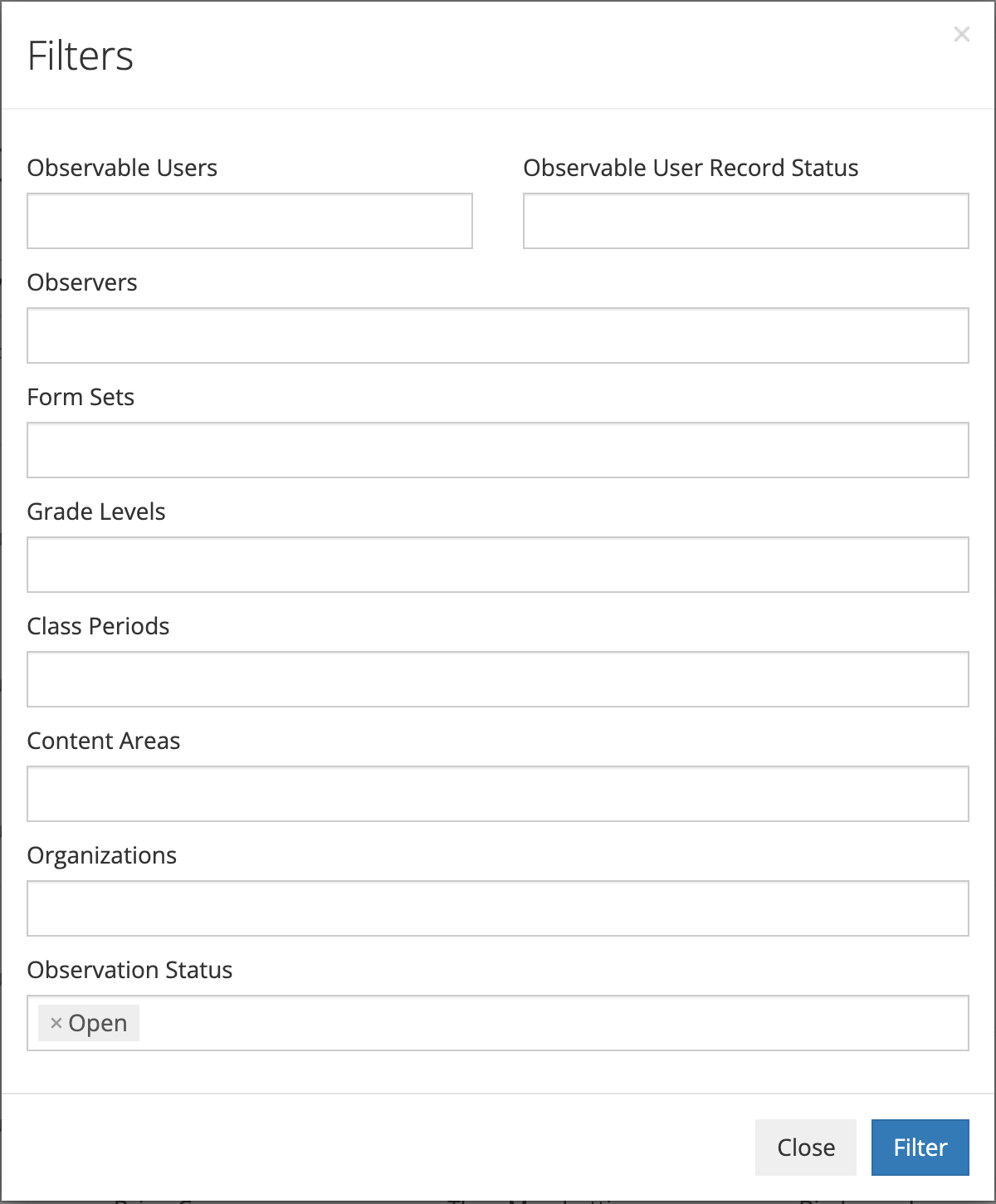
Section titled “Filters”Click Filter to open the Filters window. Every field accepts more than one choice. Click Filter at the bottom to apply them, or Close to leave without changes.
- Observable Users: specific teachers or staff members.
- Observable User Record Status: active or archived staff. Use it to leave out teachers who have left the district.
- Observers: specific observers.
- Form Sets
- Grade Levels, Class Periods, Content Areas
- Organizations: specific schools.
- Observation Status: Open or Closed. Here Open means anything not yet closed, so it includes drafts and observations waiting on the teacher or on closure.
Exporting
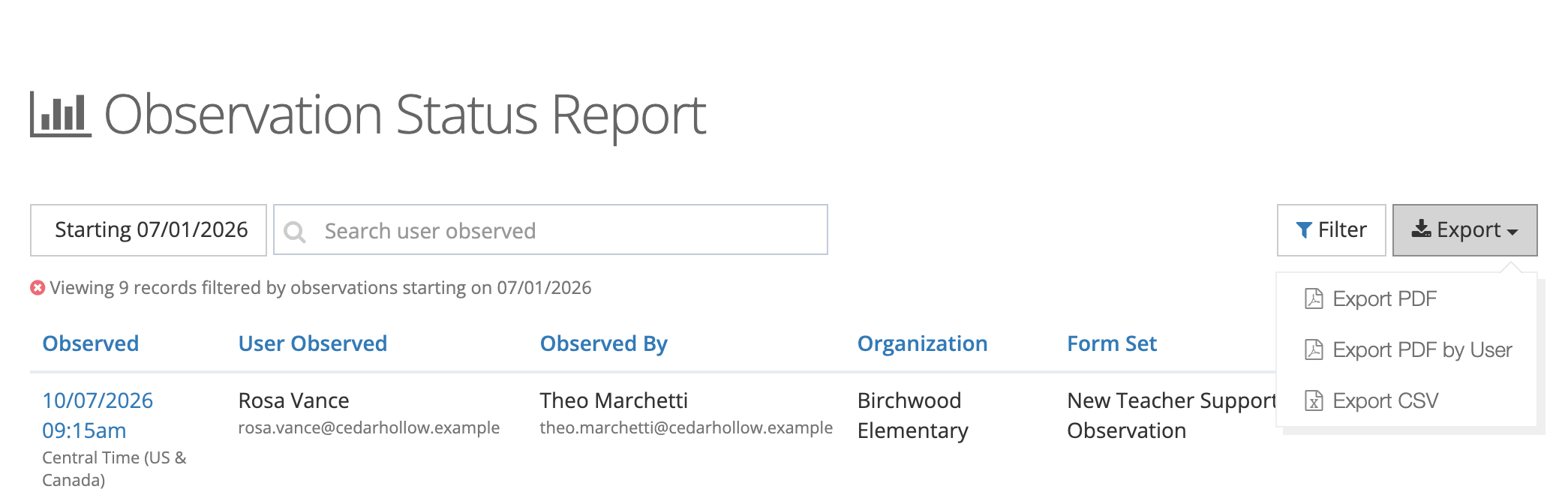
Section titled “Exporting”Click Export and choose a format. A progress window opens, and the file downloads when it is ready. Every export uses the same date range, search, and filters as the screen.
- Export PDF: one table of every observation in the list.
- Export PDF by User: one page per teacher, listing that teacher’s observations. Useful for a teacher’s file or an evaluation conference.
- Export CSV: a spreadsheet with Observed On, User Observed (name and email), Observed By, Organization, Form Set, and Status columns.
In all three exports, Status reads only Open or Closed. An observation waiting on the teacher shows as Open in the file, even though the screen shows the waiting step.
Using the report in your building
Section titled “Using the report in your building”- Chasing unfinished work before a deadline: filter Observation Status to Open, sort by Status, and follow up with the observers who still have drafts or with the teachers whose reflections are outstanding.
- Checking coverage: filter to your school and the current semester, then sort by User Observed to see who has been seen and how often. For a list of staff nobody has observed yet, use the Observable Users Totals report.
- Reviewing an observer’s caseload: filter Observers to one assistant principal or coach and sort by Observed.
- Preparing for a conference: filter Observable Users to one teacher and use Export PDF by User.