

Other Settings
Feedback Templates
Build a district library of reusable feedback statements that observers can insert while they write observation feedback.
Feedback Templates are reusable feedback statements your district writes once and every observer can insert while writing feedback. A shared library lets a team of principals, assistant principals, and coaches describe the same practice in the same words, while each observer still edits the text to fit what they saw.
Role: system administrators. Organization administrators do not see this page.
For a step-by-step walkthrough of templates, tags, and # focus-area mentions together, see the How-to Guide: Feedback Templates, Tags & Focus-Area Mentions.
Opening the page
Section titled “Opening the page”Click the gear icon to open System Administration, then click Feedback Templates under OBSERVE.
Starting with an empty library
Section titled “Starting with an empty library”When your district has no templates yet, the page shows No feedback templates yet and two choices:
- Load starter templates: adds a starter library of observation feedback templates organized across a set of instructional tags. The Load Starter Feedback Templates window shows how many templates and tags will be added. Click Load starter templates to confirm.
- Or create a template from scratch: opens the New Feedback Template window.
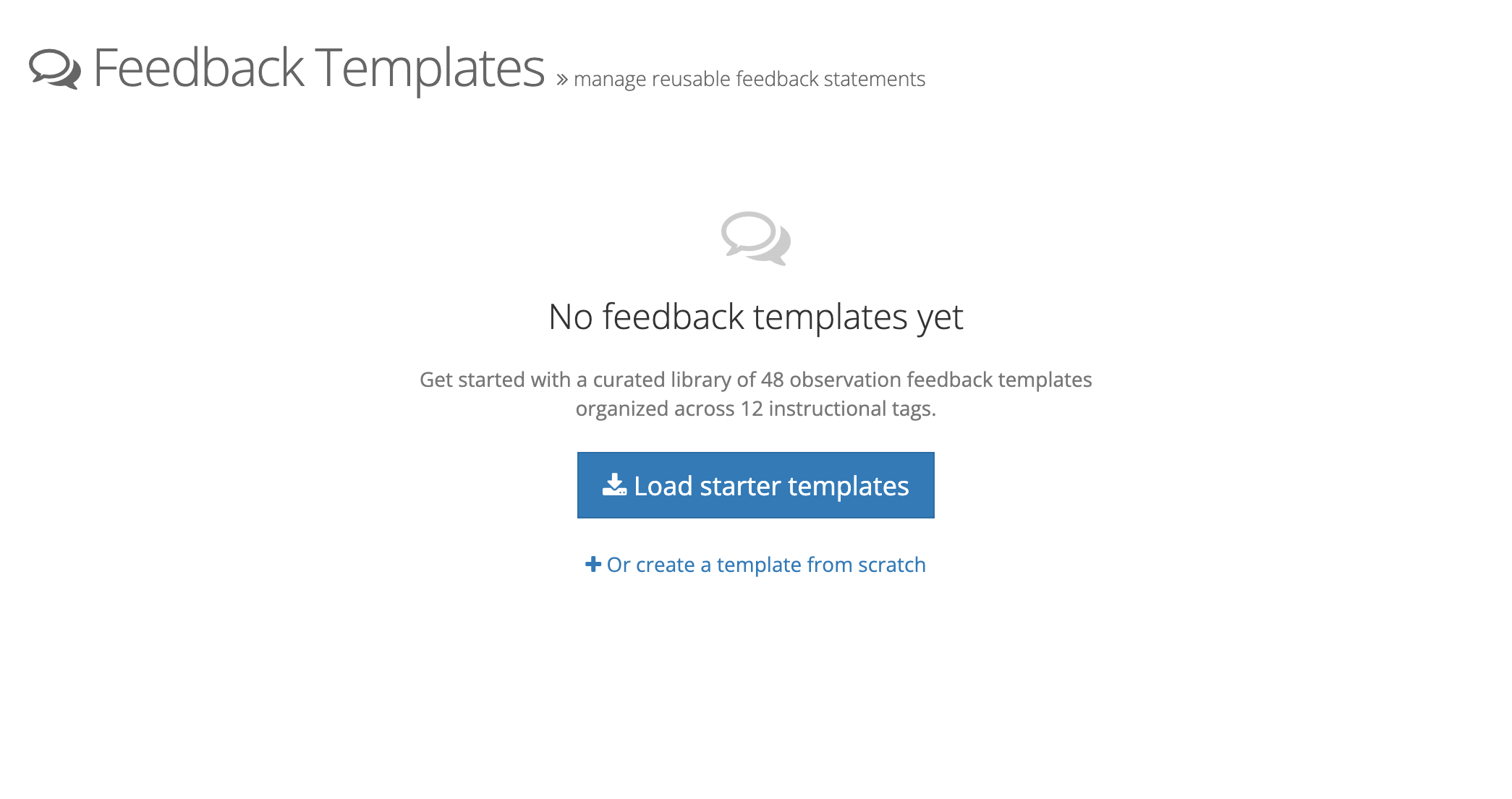
The Load starter templates button appears only while the library is empty. Once your district has any template, including an archived one, the page shows the list instead. If your district already has a tag with the same name as a starter tag, no second tag is created: the starter templates use your tag, and its focus-area setting is changed to match the starter library.
What the page lists
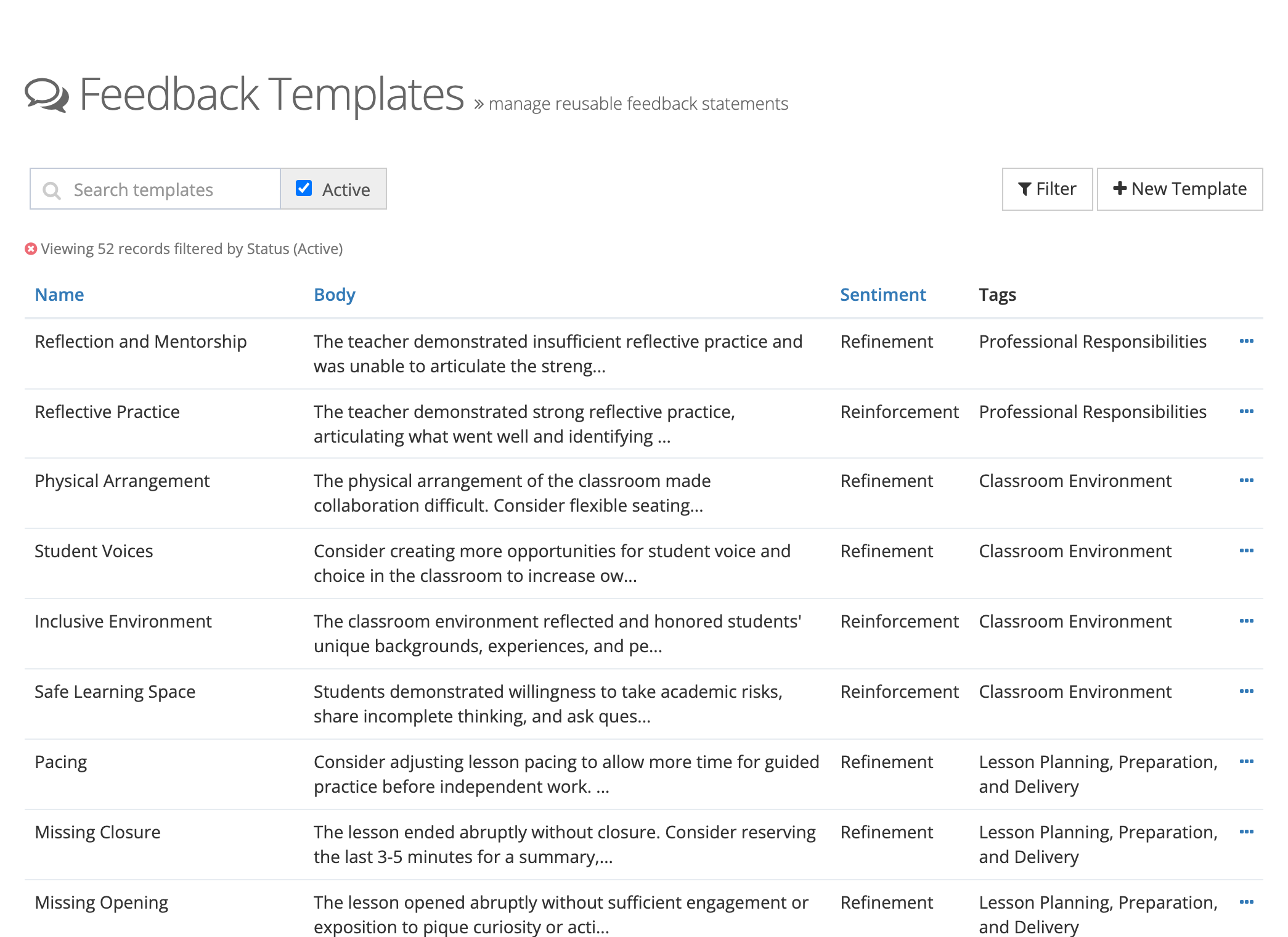
Section titled “What the page lists”Each row shows the template’s Name, the start of its Body, its Sentiment, and its Tags. An archived template shows an Archived badge beside its name. A tag that has been archived appears in a warning color in the Tags column.
- Search templates: find a template by its name or text.
- Active: checked by default, so only active templates show. Uncheck it to include archived ones.
- Filter: narrow the list by Sentiment (Reinforcement, Refinement, or Neutral) and by one or more Tags, then click Filter.
Click the Name, Body, or Sentiment heading to sort.
Creating a template
Section titled “Creating a template”- Click New Template.
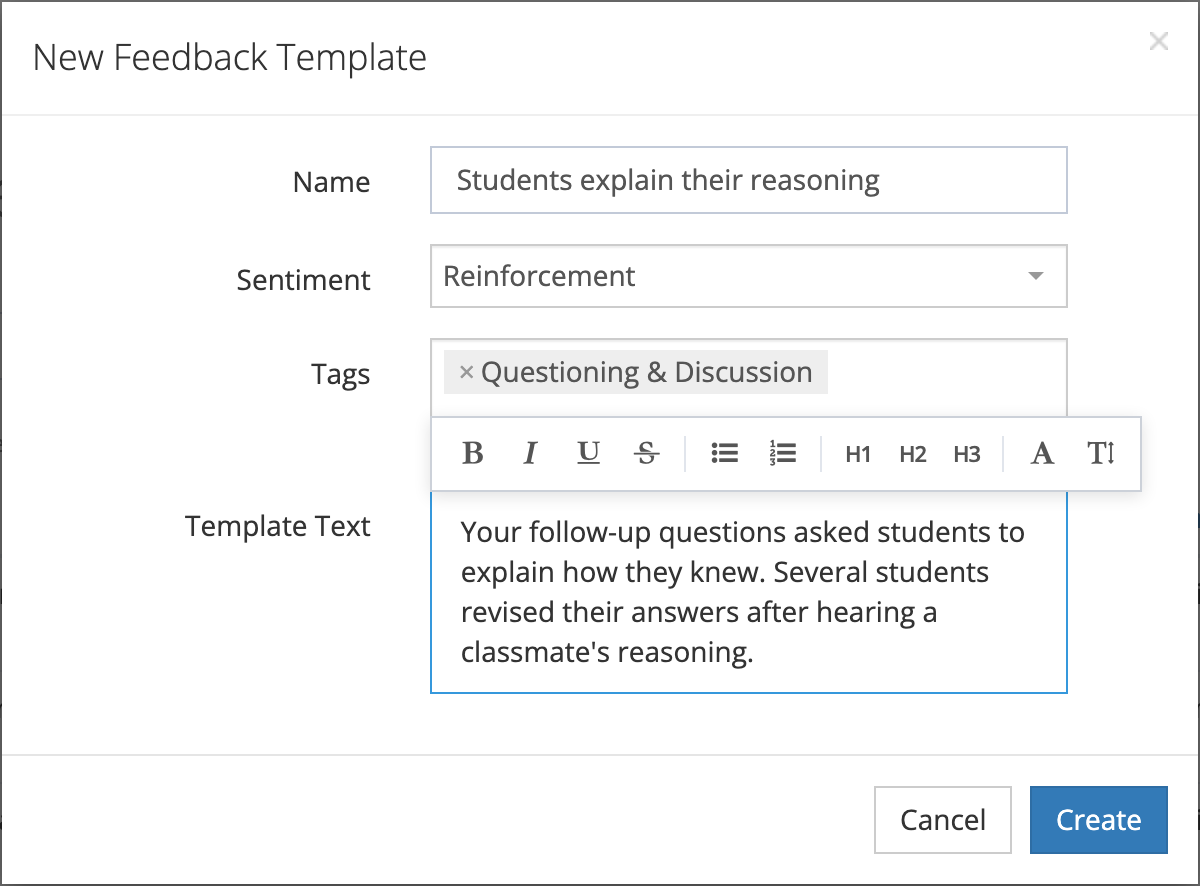
- Enter a Name. Observers see this name in the template picker, so keep it short (for example, “Students explain their reasoning”).
- Choose a Sentiment: Reinforcement (a strength to keep doing), Refinement (a next step), or Neutral.
- Choose one or more Tags. Only active tags are offered.
- Write the Template Text in the rich text editor. Formatting carries through when an observer inserts it.
- Click Create.
Name and Template Text are required.
Editing, archiving, and deleting
Section titled “Editing, archiving, and deleting”Open the … menu at the end of a row:
- Edit: change any field, then click Save.
- Archive: hides the template from observers but keeps it in your library. Activate brings it back.
- Delete: opens Delete Feedback Template. Click Delete to remove it permanently.
Archive a template you may want again, such as language tied to last year’s instructional focus. Delete only what you are sure you will never use.
What observers see
Section titled “What observers see”Active templates appear behind the Insert Template button on the rich text toolbar wherever observers write feedback on an observation or a performance review: the overall feedback and question-level feedback. The picker has a Search templates… box and, when there is more than one sentiment or any tags, Sentiment and Tags filters. Hovering over a template previews its text before the observer inserts it.
When a question on the form carries tags, templates with a matching tag are listed first, above All Templates. You set those question tags in the Manage Tags window on the question (see Tags).
When an observer picks a template, its text goes in at the cursor. A Reinforcement or Refinement chip is added after it, along with a chip for each of its tags that is marked as a focus area. Neutral templates add no sentiment chip. Observers can edit the text and remove any chip before saving.
Archived templates do not appear in the picker. Feedback already written from a template does not change when you edit or delete the template.