

Coaching
Starting and Managing a Coaching Assignment
Create a coaching assignment with the five-step wizard, then pause, complete, reopen, archive, or edit it from the assignment page.
A coaching assignment pairs one coach with one teacher for a coaching cycle. Once it exists, the coach’s observations of that teacher count as coaching visits, action steps from those visits follow the teacher from visit to visit, and the pair shows up on the coach’s roster and in coaching reports.
Roles: coaches (Observer role) create assignments for themselves from My Roster. System administrators and organization administrators create assignments for any coach from All Assignments. Coaching Cycles must be turned on for your district.
Who can be paired
Section titled “Who can be paired”- The coach must have the Observer role.
- The teacher must have the Observable role and belong to a school the coach also belongs to. If a teacher is missing from the list, check the coach’s school memberships first.
- A coach can have only one in-progress assignment with the same teacher at a time. Teachers the coach is already coaching do not appear in the list.
When a coach already has an in-progress assignment with every teacher they can coach, My Roster shows “You have an active assignment with every teacher you can coach.” in place of the New Assignment button.
Create an assignment
Section titled “Create an assignment”- As a coach, open Coaching > My Roster. As an administrator, open Coaching > All Assignments. (See Coaching Roster & Assignments for what both pages show.)
- Click New Assignment. The New Coaching Assignment wizard opens.
- Work through the steps below. Click Continue to move forward, Back to return, or a step name in the progress bar to jump to a step you have already reached.
- On Review, click Create Assignment.
The new assignment appears on the roster right away.
Step 1: Coach
Section titled “Step 1: Coach”On My Roster you are always the coach, so the wizard marks this step done and opens on step 2. On All Assignments, the step reads Who is coaching? and you pick a Coach from the observers you can see. The coach you pick limits every later choice, so if you change the coach, the later lists change with it.
Step 2: People & Place
Section titled “Step 2: People & Place”- Observee (required): the teacher being coached. The list shows only teachers the coach can still be assigned to.
- School (required): the school where the coaching happens. The list narrows to the schools the teacher shares with the coach and fills in on its own when there is only one.
A banner at the top of the step names the coach the options are scoped to.
Step 3: Form & Focus
Section titled “Step 3: Form & Focus”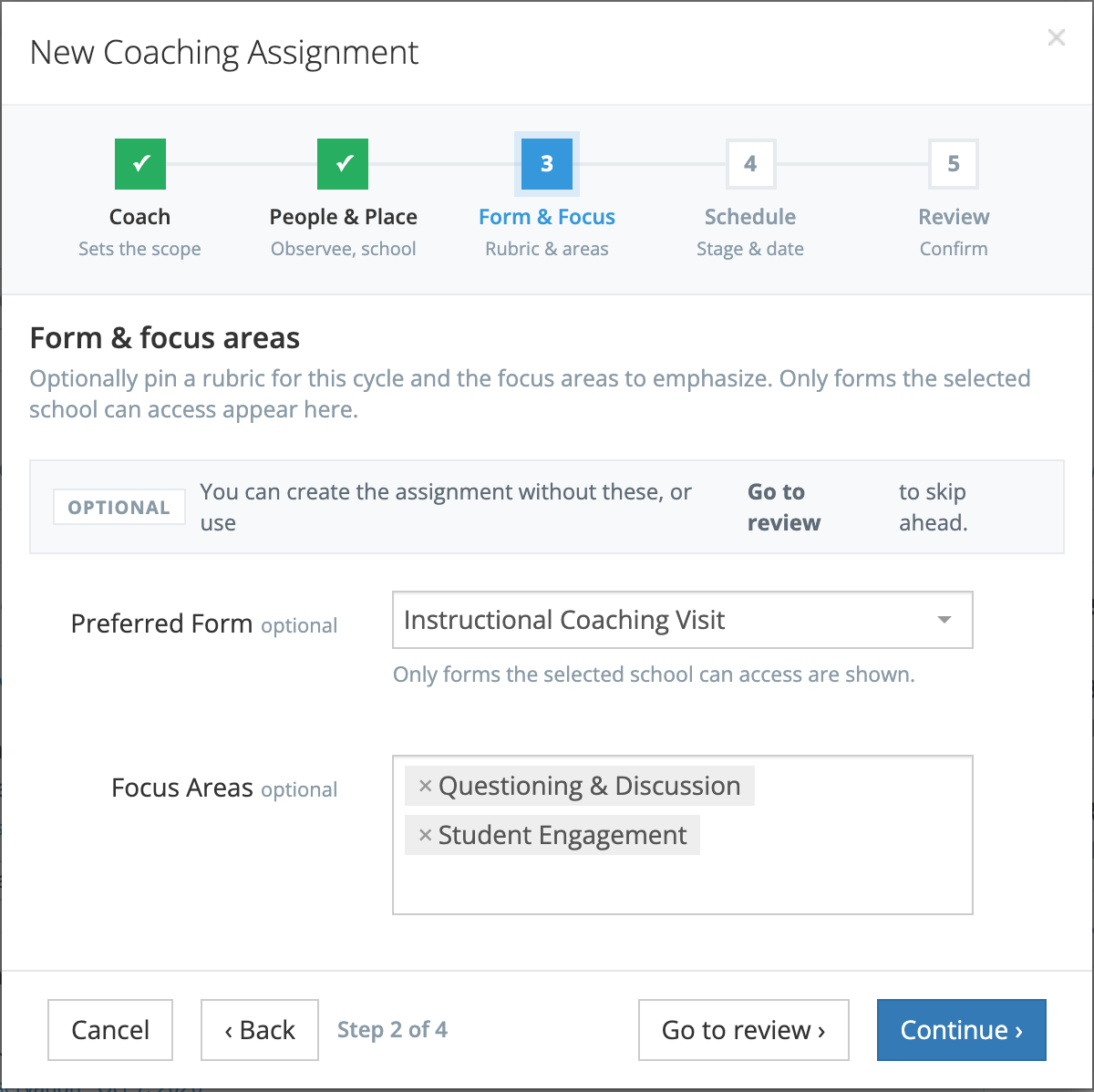
Both fields are optional. Click Go to review to skip ahead.
- Preferred Form: the form set this cycle uses. Only forms the selected school can access are listed. When you start a visit from the roster or the assignment page, this form is chosen for you.
- Focus Areas: the instructional areas this cycle emphasizes. The list holds tags your administrator marked Available as focus area. Focus areas appear on the assignment page and drive the All Focus Areas filter on the rosters.
Step 4: Schedule
Section titled “Step 4: Schedule”Both fields are optional and can be filled in later.
- Cycle Stage: where the teacher is in your district’s coaching model, for example “Year 1 – Coaching”. The stage sets how often the coach is expected to visit. See Setting Up Cycle Stages and Action Step Templates.
- Start Date: when the cycle began. The Growth Trajectory counts visits from this date.
Step 5: Review
Section titled “Step 5: Review”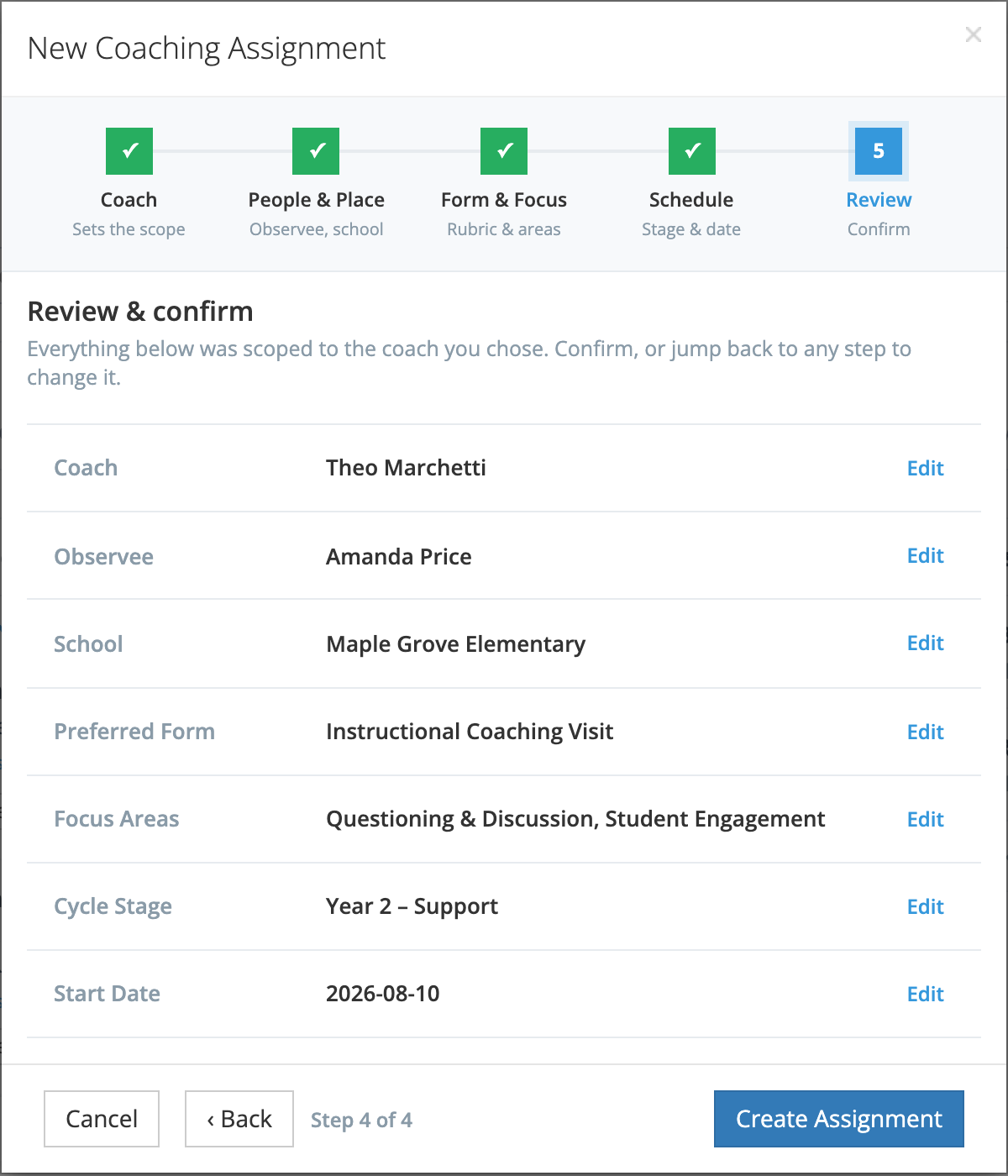
Review lists every choice with an Edit link back to its step. Click Create Assignment to save.
The assignment page
Section titled “The assignment page”Click a teacher’s name on My Roster or All Assignments (or Open on the All Assignments table) to open the assignment page. It has:
- The page heading: the teacher’s name, a status badge (In Progress, Paused, or Completed, plus Archived when archived), the cycle stage, and the school. Edit and the ⋮ menu sit at the right.
- The summary bar: Cadence (Not started, On track, or Overdue, with days since the last visit; this bar does not show Due soon, which appears on the rosters and the Growth Trajectory), Open action steps, and Growth this cycle (steps completed out of all steps). A short prompt suggests the next move, and the coach sees a New Observation button that starts a visit with the teacher, school, and preferred form already chosen.
- Pending action steps: the open steps, followed by Deferred and Resolved steps. This panel is read-only; you act on steps from My Roster or the observation page. See Action Steps.
- Coaching timeline: the coach’s ten most recent observations of this teacher, newest first. Each entry is labeled originator (steps were assigned there), follow-up (steps were completed there and none were assigned), or standalone (neither), lists what was assigned and completed, and links to Open observation →. If there are more, a View all N observations → link opens the full list. With no observations yet, the panel offers Start the first one.
- The side panel: Focus areas; Cycle details (Stage, Coach, Started); View Growth Trajectory (see Growth Trajectory); and Notes (coach + admin). Click Add notes or Edit, type, and click Save Notes. Teachers do not see these notes.
A visit is any observation of the teacher by the assigned coach that has been submitted. The Last visit and cadence come from the most recent one.
Pause, complete, reopen, and archive
Section titled “Pause, complete, reopen, and archive”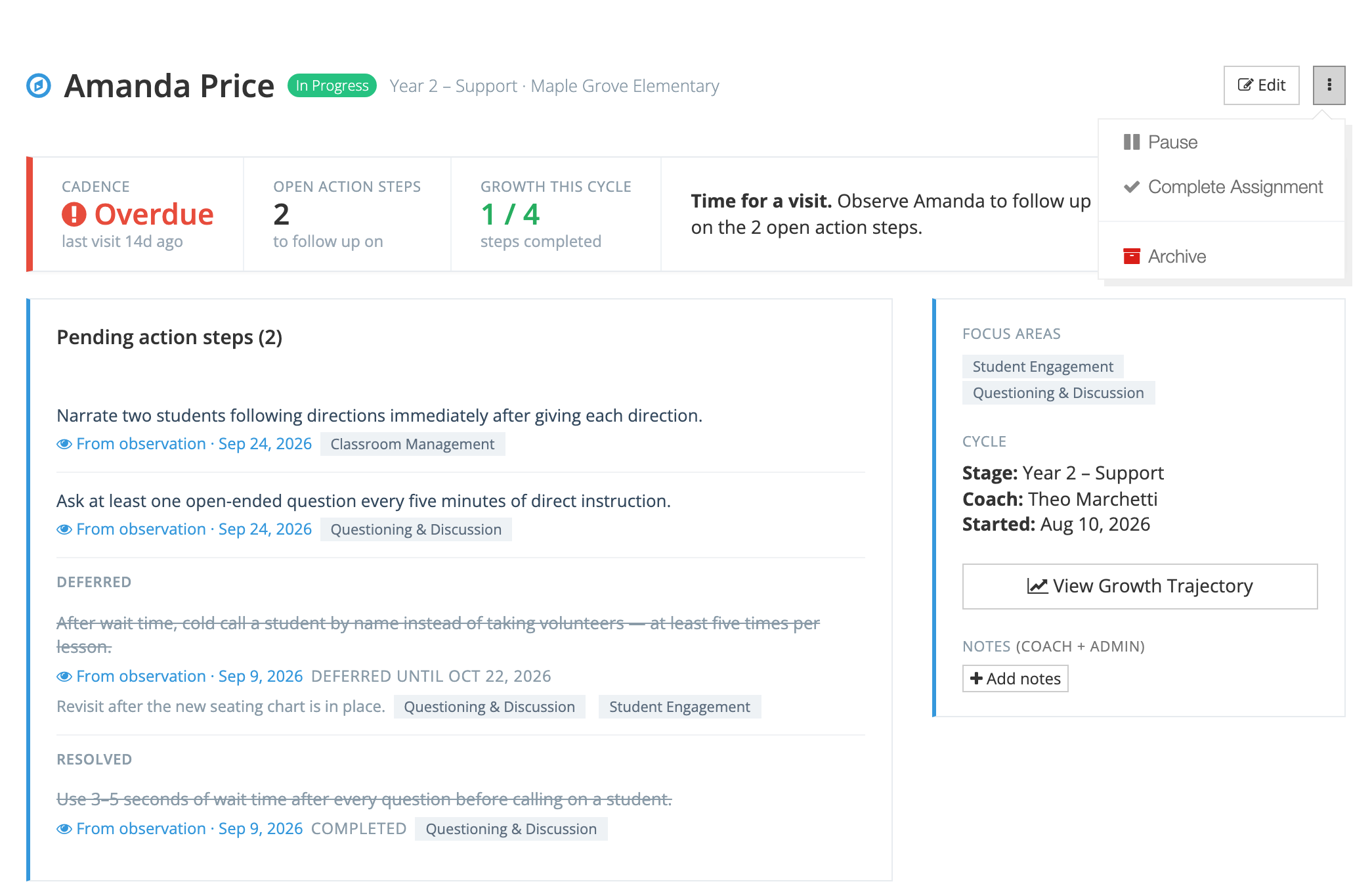
The assigned coach, a system administrator, or an organization administrator can use the ⋮ menu at the top right of the assignment page.
| Action | What it does |
|---|---|
| Pause | Sets the assignment to Paused. Use it for a leave, a long testing window, or any stretch when coaching stops for a while. While paused, action steps cannot be completed, revised, deferred, or reactivated, the coaching panel no longer appears on the coach’s observations of this teacher, and overdue-visit alerts stop. |
| Resume | Replaces Pause on a paused assignment and returns it to In Progress. |
| Complete Assignment | Ends the cycle. You are asked to confirm: “Complete this assignment? Any open action steps will be deferred.” Open steps are deferred automatically and the completion date is recorded. A completed assignment cannot be edited. |
| Reopen Assignment | Replaces the pause and complete items on a completed assignment. After you confirm, it returns to In Progress and the completion date is cleared. Reopening fails if the coach already has another in-progress assignment with the same teacher. |
| Archive | Removes the assignment from the rosters while keeping the record. You are asked to confirm. An assignment with pending action steps cannot be archived: complete the assignment first (which defers them) or resolve the steps. The page offers no action to unarchive. |
Paused and completed assignments drop off the rosters’ default view, which shows In Progress only. Use the status filter (In Progress by default) to include them. Archived assignments are hidden while the Active box is checked; uncheck it to see them.
Edit an assignment
Section titled “Edit an assignment”Click Edit on the assignment page to open Edit Coaching Assignment, the same five steps. Coach and Observee are locked once the assignment exists. You can change the School (limited to the teacher’s schools), Preferred Form, Focus Areas, Cycle Stage, and Start Date. Click Save Changes. Edit is hidden on a completed assignment; reopen it first.
Carry steps into a new cycle
Section titled “Carry steps into a new cycle”When a cycle is completed, its open steps are deferred. If the same coach later starts a new assignment with the same teacher, the coach can carry those steps forward from an observation in the new cycle. See Action Steps. A step deferred during the current cycle can also be resumed before its date; see Working a step.