

Reports
Overview
The reports available for observations and performance reviews, who can open them, how to reach them, and the filters they share.
Reports turn a year of classroom visits into answers a principal or district leader can act on: which teachers nobody has observed yet, which observers have gone quiet, how a school scored on each item of the instrument, and what a teacher’s summative review says. This section covers each report.
Who can open reports
Section titled “Who can open reports”- The Reports menu in the left menu appears only for users with the reporter role.
- The report pages themselves open for reporters, organization administrators, and system administrators. An administrator without the reporter role does not see the Reports menu and reaches reports through the links on the Observe Dashboard and the Admin Dashboard.
- School Activity and Observer Activity are for system administrators and organization administrators only. A reporter who holds neither role does not see their cards.
- Every report shows only the schools and staff your role can reach. Organization administrators see the schools they belong to; system administrators see the whole district.
The Reports menu
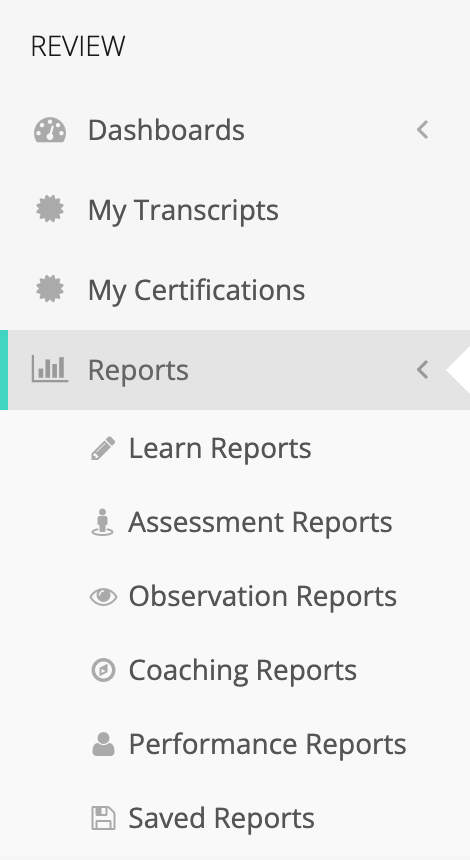
Section titled “The Reports menu”Open Reports under Review in the left menu. It holds:
- Learn Reports and Assessment Reports, when Learn is turned on for your account.
- Observation Reports: the cards for every observation report (listed below).
- Coaching Reports: coaching activity by coach and by school. See Coaching Activity Reports.
- Performance Reports: the scored report for one closed performance review. Shown when performance reviews are turned on. See Performance Review Reports.
- Saved Reports: the report filters you and your colleagues have saved. See Saved Reports.
The observation reports
Section titled “The observation reports”Observation Reports opens a page of cards, one per report:
- Summary Report: answers from closed observations for one form set, rolled up by form, section, and question. See Observation Summary.
- Observation Status Report: every observation in the date range with its observer, teacher, school, form set, and status. See Observation Status Report.
- Organization Totals: observation counts grouped by organization, grade level, or content area. See Organization Totals.
- Observable Users Totals: for each organization, how many of its current staff have been observed and how many have not. See Observable Users Totals.
- School Activity: one row per school, with stuck observations, staff nobody has observed, and how long observations take to close. See School Activity.
- Observer Activity: one row per observer, with pace and trend. See Observer Activity.
Controls most reports share
Section titled “Controls most reports share”- Date range: most reports open on the current school year. Pick a preset (Last 30 Days, Last 90 Days, This Month, This Quarter, Last Year, This Year) or set your own start and end dates.
- Filter: opens a Filters window with the fields that report supports, such as Organizations, Grade Levels, or Content Areas.
- Filter summary: the line above the table sums up the filters in use. Click the ✕ at its start to clear them.
- Saved filters: the Summary Report, Organization Totals, and Observable Users Totals can save the current filters under a name so you can reload the same view later.
- Export: most reports export to CSV. The export runs in the background: a progress window opens, and the file downloads when it is ready. The Summary Report and the Performance Review Report export to PDF.
For other ways to get observation data out of Master Teacher, see Exporting Observation Data.