

Performance Reviews
Managing Evaluation Periods
Edit, deactivate, and delete evaluation periods as your review cycles change.
At the end of each review cycle, retire the period you just finished so evaluators file new reviews under the right one. This article covers editing, deactivating, and deleting periods.
Role: system administrator.
All of these tasks start at System Administration > Subdivisions > Evaluation Periods. Untick Active Only if the period you want is inactive.
Edit a period
Section titled “Edit a period”- Click the edit icon on the period’s row.
- In the Edit Evaluation Period window, change the Name, Term, Display Order, Start Date, End Date, or Active? setting.
- Click Save.
A new name shows on every review already tagged with the period, because reviews point to the period rather than keep a copy of its name.
Deactivate or reactivate a period
Section titled “Deactivate or reactivate a period”Deactivating a period removes it from the Evaluation Period list that evaluators choose from. Reviews already tagged with it keep the tag.
To deactivate a period, use either way:
- Click the edit icon, switch Active? to No, and click Save.
- Click the delete icon, then click Deactivate in the Delete Confirmation window.
To reactivate a period, untick Active Only, click the edit icon on the period, switch Active? to Yes, and click Save.
Activating one period does not deactivate the others. When you open a new school year, deactivate last year’s period yourself.
Delete a period
Section titled “Delete a period”You can delete a period only when nothing is tagged with it. For a period that has been used, deactivate it instead.
- Click the delete icon on the period’s row.
- Read the Delete Confirmation window:
- If nothing is tagged with the period, click Yes, Remove to delete it.
- If records are tagged with the period, a red note gives their count and Yes, Remove does not appear. Click Deactivate (shown when the period is active) or Cancel.
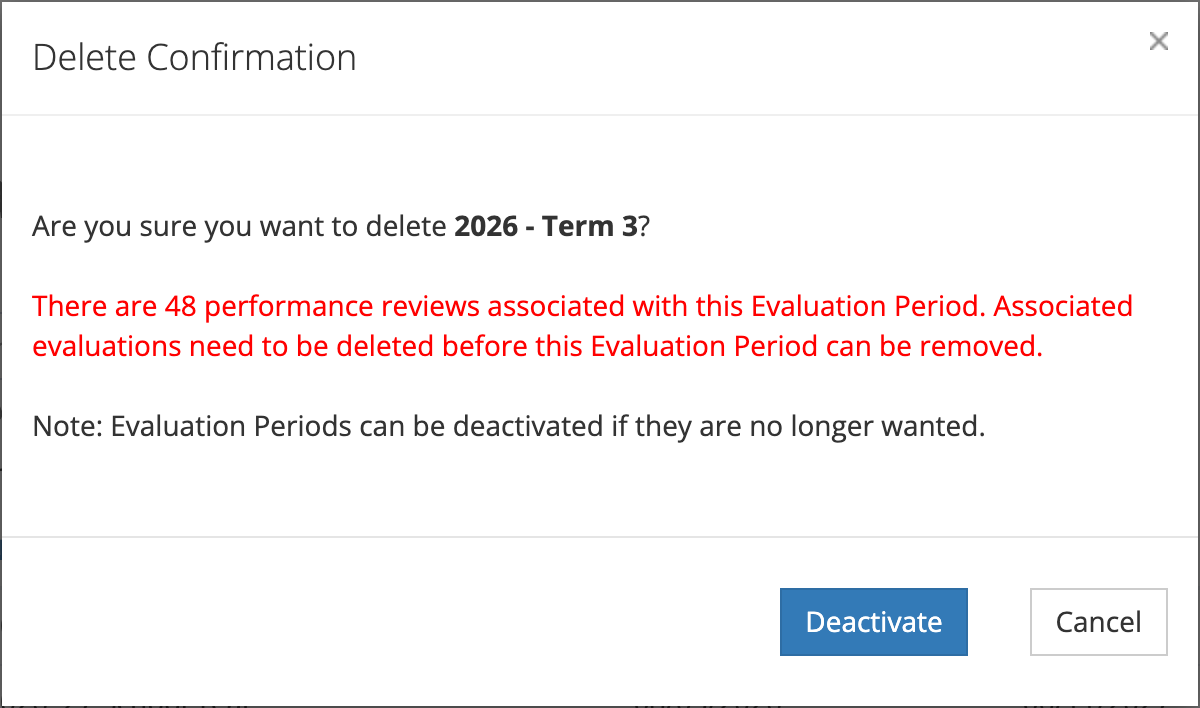
The red note counts every observation and performance review tagged with the period, so the number can be higher than the number of performance reviews.