

Other Settings
weCLIMB Settings
Turn district-wide weCLIMB options on or off, including notifications, magic links, comments, and coaching cycles.
weCLIMB Settings holds the district-wide switches for how observations work. Each switch applies to every school in your district. Several of them work together with a matching setting on each Form Set, so you can turn a feature on for the district and still control it form by form.
Role: system administrators assigned at the district level. A system administrator assigned only to a school, and organization administrators, do not see this page.
Opening the page
Section titled “Opening the page”Click the gear icon to open System Administration, then click Settings under OBSERVE. The page is titled Observe Settings.
Changing a setting
Section titled “Changing a setting”Check or uncheck the box beside a setting. It saves right away, and Saved appears beside the row. If a change fails, the row shows Couldn’t save.
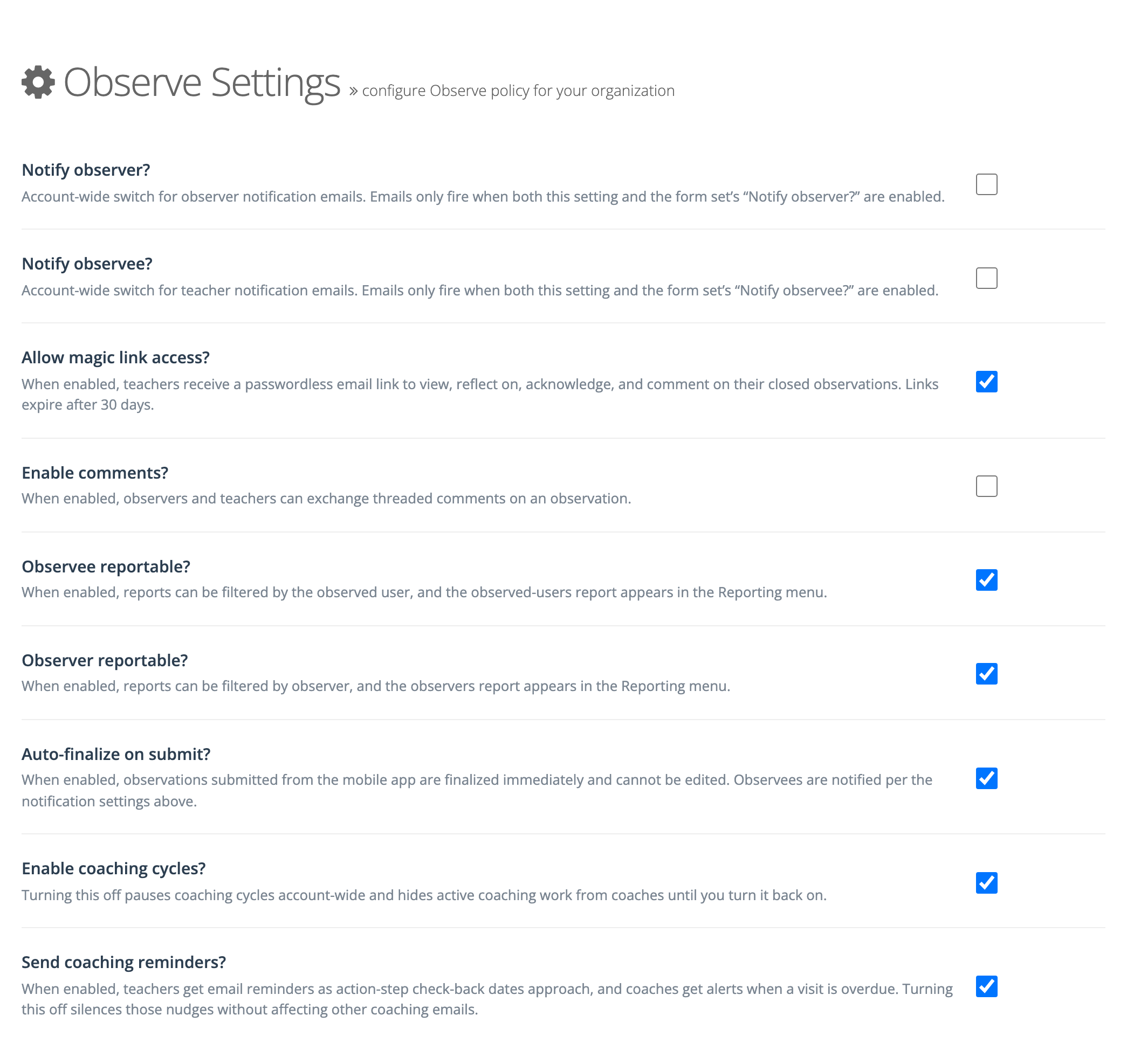
The settings
Section titled “The settings”-
Notify observer?: the district-wide switch for observer notifications. A notification goes out only when this setting and the Form Set’s Notify Observer? are both on. It covers the observer’s email and push notification when an observation closes, and the email and push notification when a teacher acknowledges an observation.
-
Notify observee?: the district-wide switch for teacher notifications. A notification goes out only when this setting and the Form Set’s Notify Observee? are both on. It covers:
- the teacher’s email and push notification when an observation closes
- the reflection request and the acknowledgment request
- resending the current email from an observation
- when coaching cycles are on, the email and push notification that tells a teacher their coach added or changed action steps
When this setting is off, teachers get none of these, so they also get no magic links.
-
Allow magic link access?: teachers get a passwordless email link to view, reflect on, acknowledge, and comment on their observations. The link arrives with the email that asks for a reflection or an acknowledgment, which goes out when the observer submits, so a teacher can respond before the observation closes. The email sent when the observation closes carries a new link. Links expire after 30 days, and a teacher with an expired link can request a new one. (The setting’s own description on the page says “closed observations”.) See Opening an Observation from Email.
-
Enable comments?: observers and teachers can exchange threaded comments on an observation.
-
Observee reportable? and Observer reportable?: the page saves these settings, but they do not change anything in reports today. The descriptions on the page say they control report filters and Reporting menu items; turning them off does not hide either one.
-
Auto-finalize on submit?: the page saves this setting and shows it on each observer’s account, but it has no effect today. Submitting an observation, from the web or the mobile app, does not finalize it, whatever this setting says. The description on the page says otherwise.
When coaching cycles are part of your district’s plan, two more settings appear:
- Enable coaching cycles?: turning this off pauses coaching cycles district-wide and hides active coaching work from coaches until you turn it back on.
- Send coaching reminders?: teachers get email and push reminders as action-step check-back dates approach, and coaches get email and push alerts when a visit is overdue. Turning it off stops those reminders without affecting other coaching emails.
Turning off magic links
Section titled “Turning off magic links”Turning off Allow magic link access? stops new links from going out. It does not stop links already sent: a teacher can still open a link that has not expired, and can still request a new one from an expired link. Closing or reopening an observation ends its current link.
Choosing settings for your district
Section titled “Choosing settings for your district”- Notifications: leave both on at the district level and control them per Form Set. For example, notify teachers on formal evaluations but not on quick walkthroughs.
- Magic links: turn this on when teachers rarely sign in, or when your evaluation process needs a teacher’s reflection or acknowledgment soon after the observer submits the observation.
- Coaching: turn off Enable coaching cycles? to pause coaching over the summer. Turn off Send coaching reminders? during testing windows or breaks.
Auto-finalize values on an observer’s account
Section titled “Auto-finalize values on an observer’s account”Auto-finalize on submit? is the district default for a value saved on each observer’s account. Like the district setting, the observer’s value has no effect today. You see it in three places:
- On a user’s page (system administrators): in Manage Users, open an observer. The Auto Finalize row shows Yes or No. When the observer has no value of their own, it adds (using district setting). For a user without the observer role, it shows N/A (does not have Observer role).
- In the Edit User window: Auto Finalize? appears when the Observer role is checked. Saving this window always records the Auto Finalize? value shown, even when you opened it to change something else, so the observer stops following the district setting.
- On the observer’s own profile: an observer can open My Profile and use Auto-finalize on submit under Observation settings. While they have no value of their own, the row reads Using your organization’s default.