

How-to Guides
How-to Guide: Feedback Templates, Tags & Focus-Area Mentions
Set up tags and a feedback template library, connect them to rubric questions, and use templates and
This guide walks through the three parts of feedback templates in weCLIMB and where to find each one. Parts 1 and 2 are for the district system administrators who set up the library. Part 3 is for the principals, assistant principals, and coaches who use it during walkthroughs.
Overview
Section titled “Overview”Each part works on its own, and they connect to each other.
- Tags are your district’s shared vocabulary, such as “Questioning & Discussion” or “Classroom Management”. They organize the template library and supply the focus areas observers use to label feedback.
- Feedback Templates are reusable feedback statements a system administrator writes once and any observer can insert into their feedback.
- Focus-area mentions are
#chips observers add while they write feedback, to label it as a Reinforcement, a Refinement, or a focus-area tag.
The administrative pages are in System Administration, under OBSERVE.
Role: setting up tags and templates takes a system administrator. Observers need no setup to use them.
Part 1: Setting up Tags
Section titled “Part 1: Setting up Tags”Tags do two jobs. They group templates, and any tag marked as a focus area also appears in the # menu when observers write feedback.
Find it
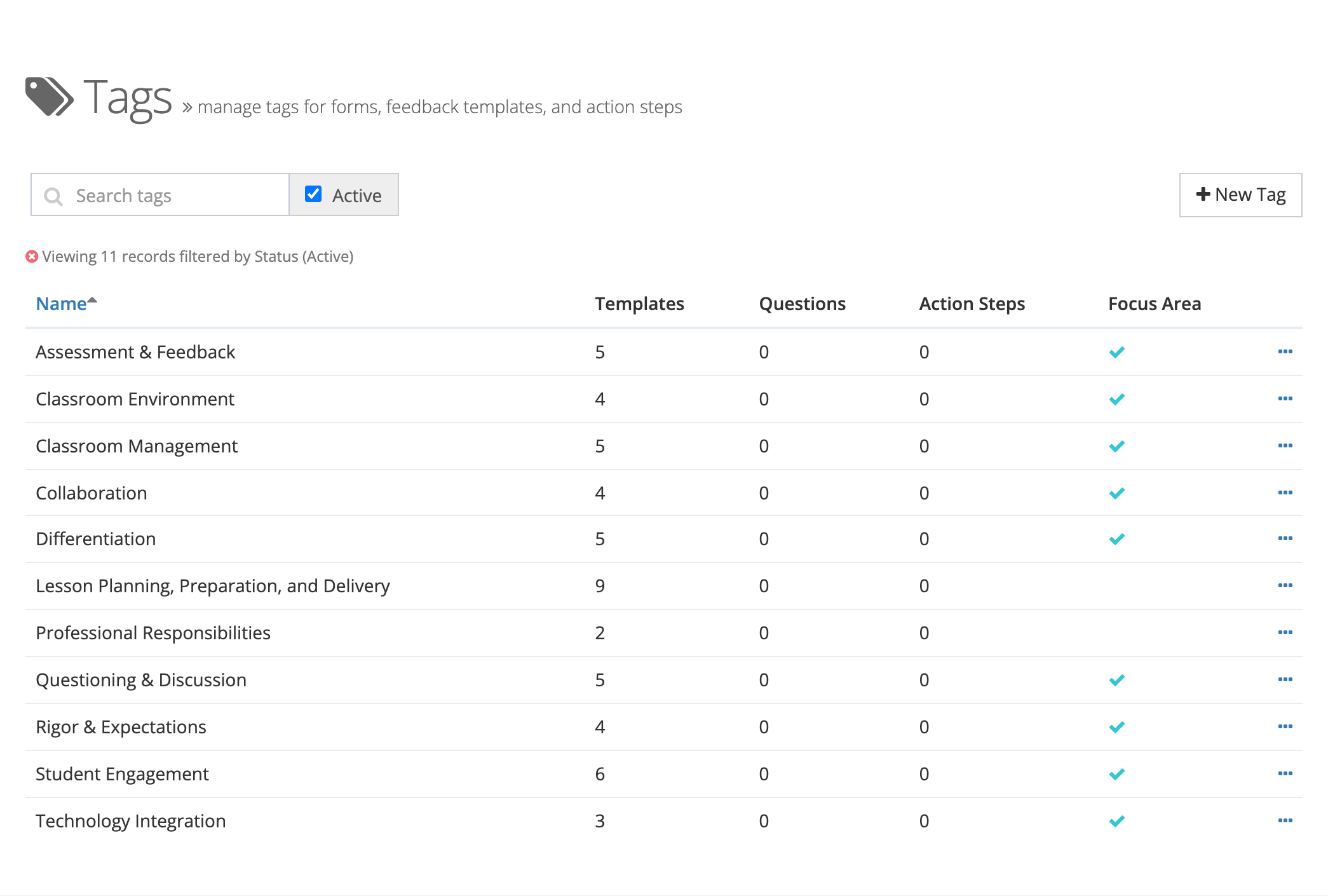
Section titled “Find it”Click the gear icon to open System Administration, then click Tags under OBSERVE.
Create a tag
Section titled “Create a tag”- Click New Tag.
- Enter a Name (for example, Student Engagement).
- Check Available as focus area if observers should be able to label feedback with this tag using
#. Leave it unchecked for a tag that only organizes templates and questions. - Click Save.
The list shows, for each tag, how many Templates, Questions, and Action Steps use it and whether it is a Focus Area. Use Search tags and the Active checkbox to find a tag. From a row’s … menu you can Archive a tag instead of deleting it, which keeps it on everything already tagged. Activate brings it back.
For the full page reference, see Tags.
Part 2: Building the Feedback Template library
Section titled “Part 2: Building the Feedback Template library”Find it
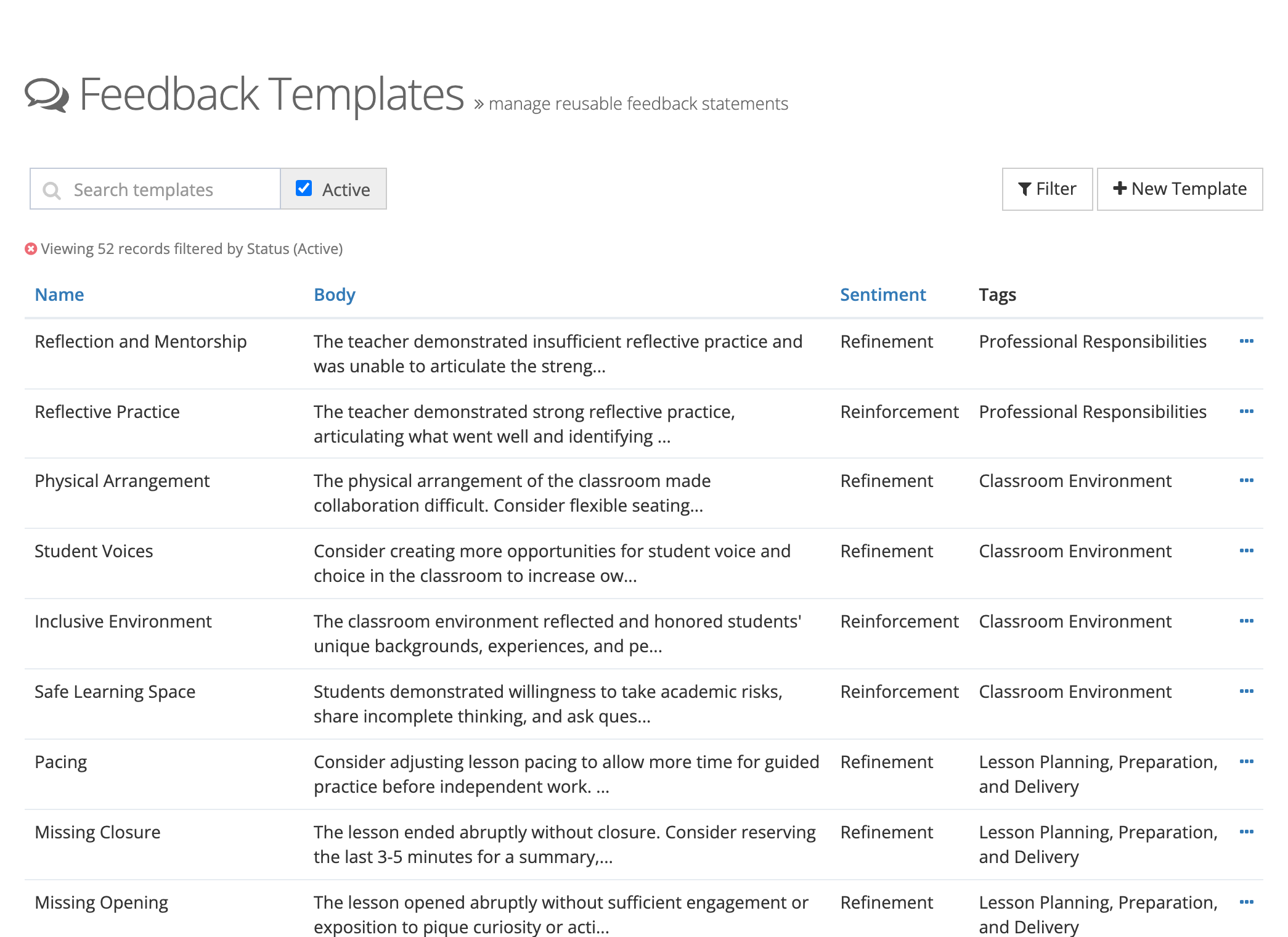
Section titled “Find it”Click the gear icon to open System Administration, then click Feedback Templates under OBSERVE.
Load the starter library (optional)
Section titled “Load the starter library (optional)”When your district has no templates yet, the page shows No feedback templates yet and a Load starter templates button. It adds a starter library of feedback statements organized across a set of instructional tags. You can then edit, archive, or add to any of them.
Create a template
Section titled “Create a template”- Click New Template.
- Fill in:
- Name: what observers see in the picker. Keep it short.
- Sentiment: Reinforcement, Refinement, or Neutral.
- Tags: one or more tags from Part 1. Tags drive the filters in the picker and the suggestions on tagged questions.
- Template Text: the feedback itself, written in the same rich text editor observers use. Formatting carries through when an observer inserts it.
- Click Create.
Manage your templates
Section titled “Manage your templates”The list has Search templates, an Active checkbox, and a Filter button for Sentiment and Tags. From a row’s … menu you can Edit, Archive, Activate, or Delete a template. Archiving hides a template from observers without deleting it.
For the full page reference, see Feedback Templates.
Tag questions for suggested templates
Section titled “Tag questions for suggested templates”When a question on a form carries tags, templates with a matching tag are listed first in the picker while an observer writes feedback on that question.
- Click the gear icon to open System Administration, then click Questions under OBSERVE, and open the question. (The Questions menu appears only for districts that build their own forms.)
- Click the pencil button beside the question’s tags. The Manage Tags window opens.
- Choose one or more Feedback Template Tags and click Save.
The form itself does not change. Observers see the matching templates at the top of the picker the next time they write feedback on that question.
Part 3: Using templates during a walkthrough
Section titled “Part 3: Using templates during a walkthrough”This part is for observers. There is nothing to configure: once your district has templates, the Insert Template button is on the feedback toolbar.
Insert a template
Section titled “Insert a template”- Start an observation and click into the Overall Feedback box, or into the feedback box on a question.
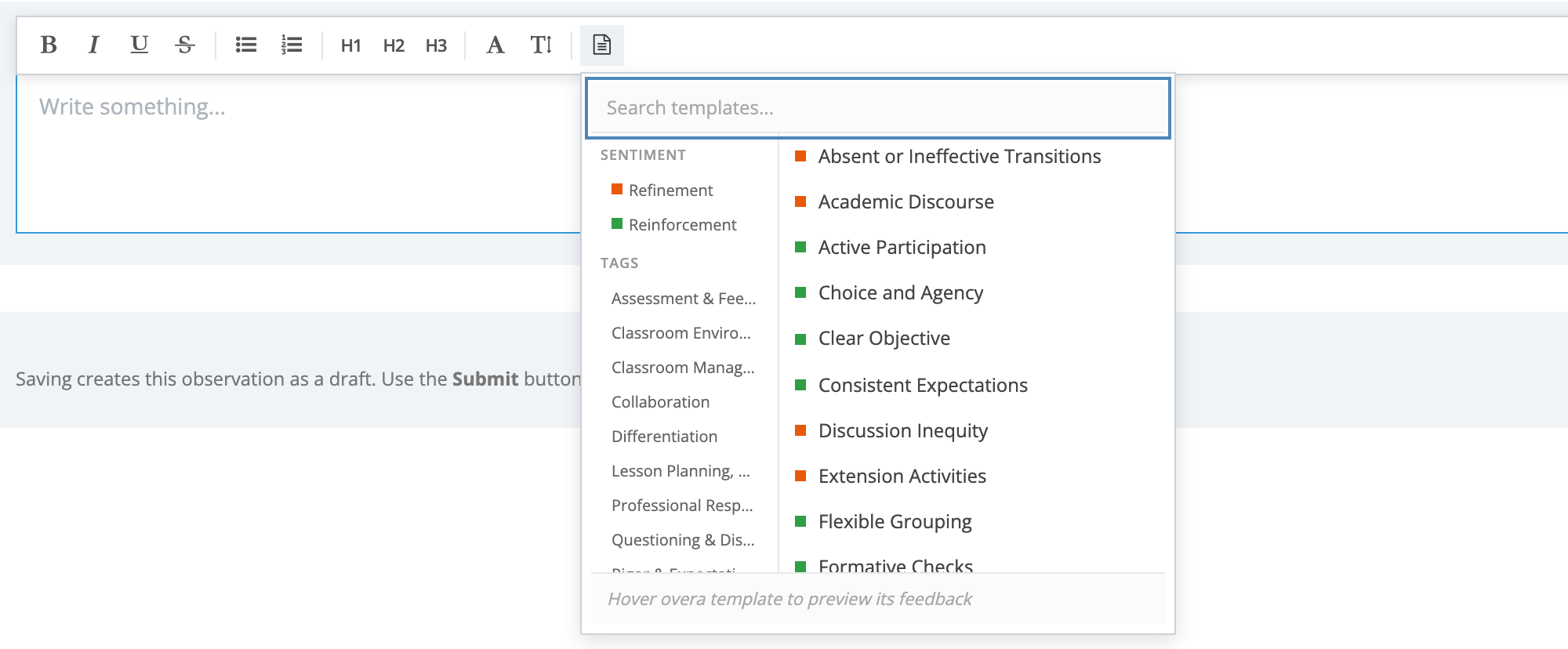
- On the toolbar above the box, click Insert Template (the page icon at the right end of the toolbar).
- A panel opens with:
- a Search templates… box at the top
- Sentiment and Tags filters down the left side
- the matching templates, each marked with its sentiment color
- a preview of a template’s text when you hover over it
- Click a template to insert its text at your cursor. Edit it the same way you edit any other feedback.
Templates are starting points. Trim them, combine them, and add what you saw in this classroom. Inserted text becomes ordinary feedback once it is in the box.
Label feedback with # mentions
Section titled “Label feedback with # mentions”Inside a feedback box, type #. A menu opens with:
- Reinforcement and Refinement at the top
- every tag your district has marked as a focus area
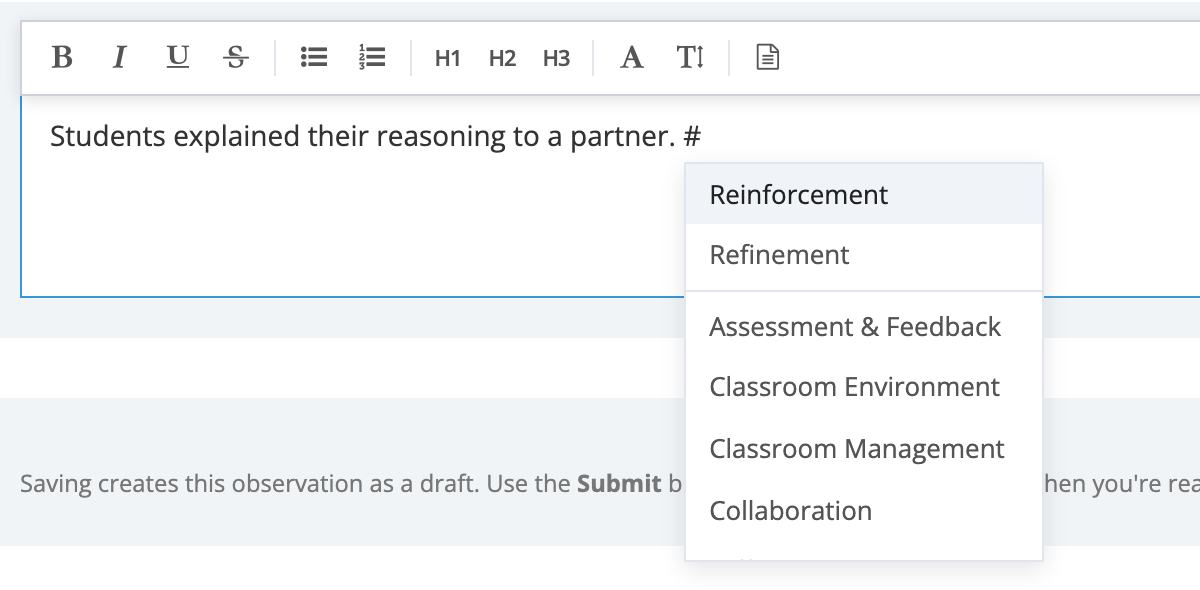
Pick an item with the arrow keys or your mouse, and a chip appears at the cursor. A chip is a single object: Backspace deletes it, but you cannot edit the text inside it. Add as many as you need.
When you insert a template, a chip for its sentiment (unless it is Neutral) and a chip for each of its focus-area tags are added after the text. One click gives you both the language and the labels. Delete any chip you do not want.
Chips are saved with the feedback. The teacher sees them when reviewing the observation, and they print in the observation PDF.
Where everything lives
Section titled “Where everything lives”In System Administration, under OBSERVE:
- Feedback Templates: the template library, with create, edit, archive, and the starter library
- Tags: the tag list, the focus-area setting, and archive and activate
Observers find the Insert Template button and the # menu in the rich text editor wherever they write feedback: the overall feedback and question feedback on observations and performance reviews.
A few things to know
Section titled “A few things to know”- Templates are optional. Free-text feedback works as it always has.
- Observers can change what they insert. Inserted text can be edited, and chips can be removed before saving.
- Nothing existing changes. Observations, forms, and feedback already written are not touched when you add tags or templates.
- The mobile app uses them too. The weCLIMB mobile app offers the same templates and focus-area tags.