

eLearn Mobile
eLearn Mobile Overview
What the eLearn mobile app does, how its four tabs and side menu are organized, and how it stays in step with eLearn on the web.
Roles: for everyone who takes courses in eLearn. The app has no administrator, reporter, or proctor features.
The eLearn mobile app puts your assigned professional learning on your phone or tablet. A teacher can work through a course section between classes, answer a course exam during a planning period, and pull up a completion certificate when a principal asks for it, all without opening a laptop.
The app works with the same account, courses, and records as eLearn on the web. Each section you finish in the app counts toward your progress on the web, and every completion on your web transcript appears in the app’s Certificates tab.
What you can do in the app
Section titled “What you can do in the app”- Find your courses on the Home tab, in your content libraries, or by searching. See Finding Courses in the App.
- Take a course one section at a time: read pages, watch videos, and move forward with the arrow buttons. See Taking a Course in the App.
- Answer exams that are part of a course or assessment, and see your grade when the exam shows one. See Answering Exams in the App.
- View your certificates for completed courses and for PD hours your district recorded. See Viewing Certificates in the App.
- Reach support from the side menu. See Profile, Support, and App Updates.
Some tasks are web only, including transcript downloads, notification settings, and every administrator feature. See What the eLearn App Does Not Do.
The four tabs
Section titled “The four tabs”The tab bar at the bottom of the screen is the same for everyone. What fills each tab is the content your district assigned to you.
| Tab | What it shows |
|---|---|
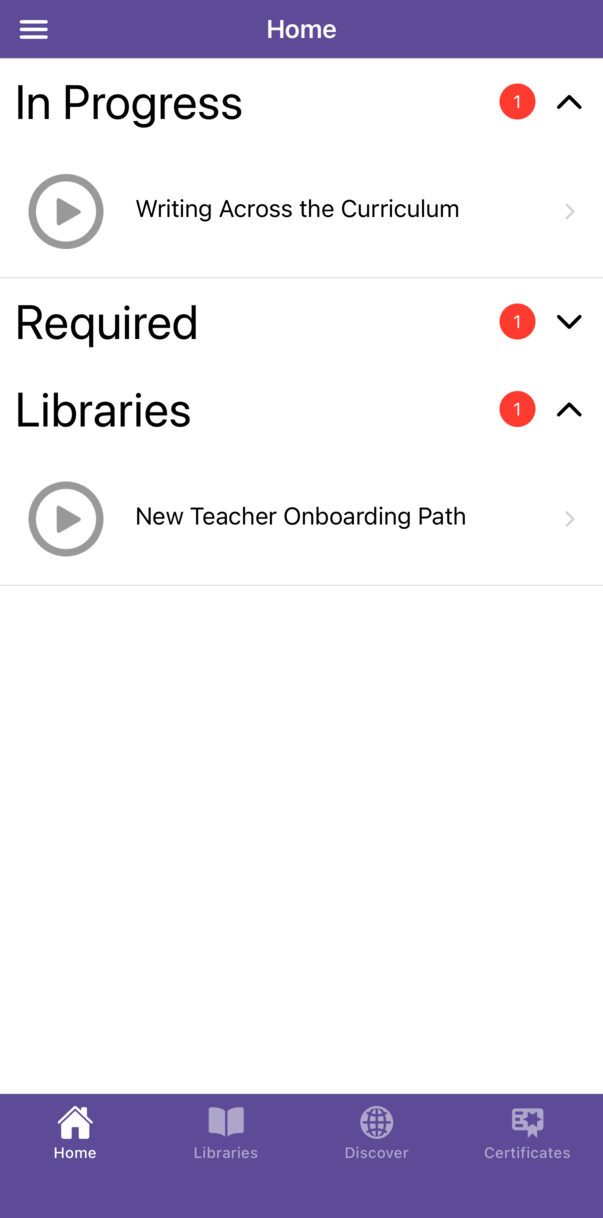
| Home | Collapsible sections: In Progress, Required, and Completed courses, then Libraries. A section appears only when it has something in it, and a red badge shows its count. |
| Libraries | Every content library and learning path assigned to you. Tap one to see what it contains. |
| Discover | All of your assigned content in one list, with a Search courses box and a Filters button. |
| Certificates | Your transcript entries, newest first, with a date filter. Tap an entry to open its certificate. |
Home shows only some of your courses. If a course you expect is missing from Home, look in Discover or Libraries. Finding Courses in the App explains which tab to use.
The side menu
Section titled “The side menu”On the Home tab, tap the menu button at the top left to open the side menu:
- Your name (with Profile under it) opens My Profile, which shows your photo, name, and email address.
- About shows the app version.
- weCLIMB appears when your district uses weCLIMB. It opens the weCLIMB app, already signed in, when the app is installed on your device. Otherwise it opens weCLIMB in your web browser.
- A link to another Master Teacher app can appear here too, when your district uses it.
- Support opens your support contacts.
- Sign off at the bottom signs you out.
See Profile, Support, and App Updates for details.
Staying in step with the web
Section titled “Staying in step with the web”The app reads and saves everything through your Master Teacher account while you use it. There is no offline mode and nothing to sync by hand.
- Progress: tapping the next-section arrow marks the section you were on complete. Finishing a video does the same. The web player picks up where the app left off, and the reverse.
- New assignments: a tab loads its list when you first open it. Pull down on the list to refresh it, for example after your district assigns a new course.
- Completions: a course you finish in the app adds an entry to your transcript, which you can see on the Certificates tab and on the web.
You need an internet connection the whole time. Videos stream as you watch them, and nothing downloads to your device.
Phones and tablets
Section titled “Phones and tablets”The app runs on iPhone, iPad, and Android devices, in portrait or landscape. On a tablet held sideways, the course outline stays open beside the course content instead of sliding over it.