

Reports
Exporting Observation Data
Get observation and review data out as CSV files, single PDFs, a ZIP of observation PDFs, or blank printable forms, and who can use each.
Schools export observation data for many reasons: a spreadsheet of this year’s walkthroughs for a leadership meeting, a PDF of a formal observation for a teacher’s personnel file, every closed observation for a records request, or a blank form for an observer to carry when the network is down. This article covers each way to get data out and who can use it.
Export the observation list to CSV
Section titled “Export the observation list to CSV”Role: organization administrator (the All Observations list).
- Go to All Observations.
- Set the date range, search, status, and Filter to the observations you want.
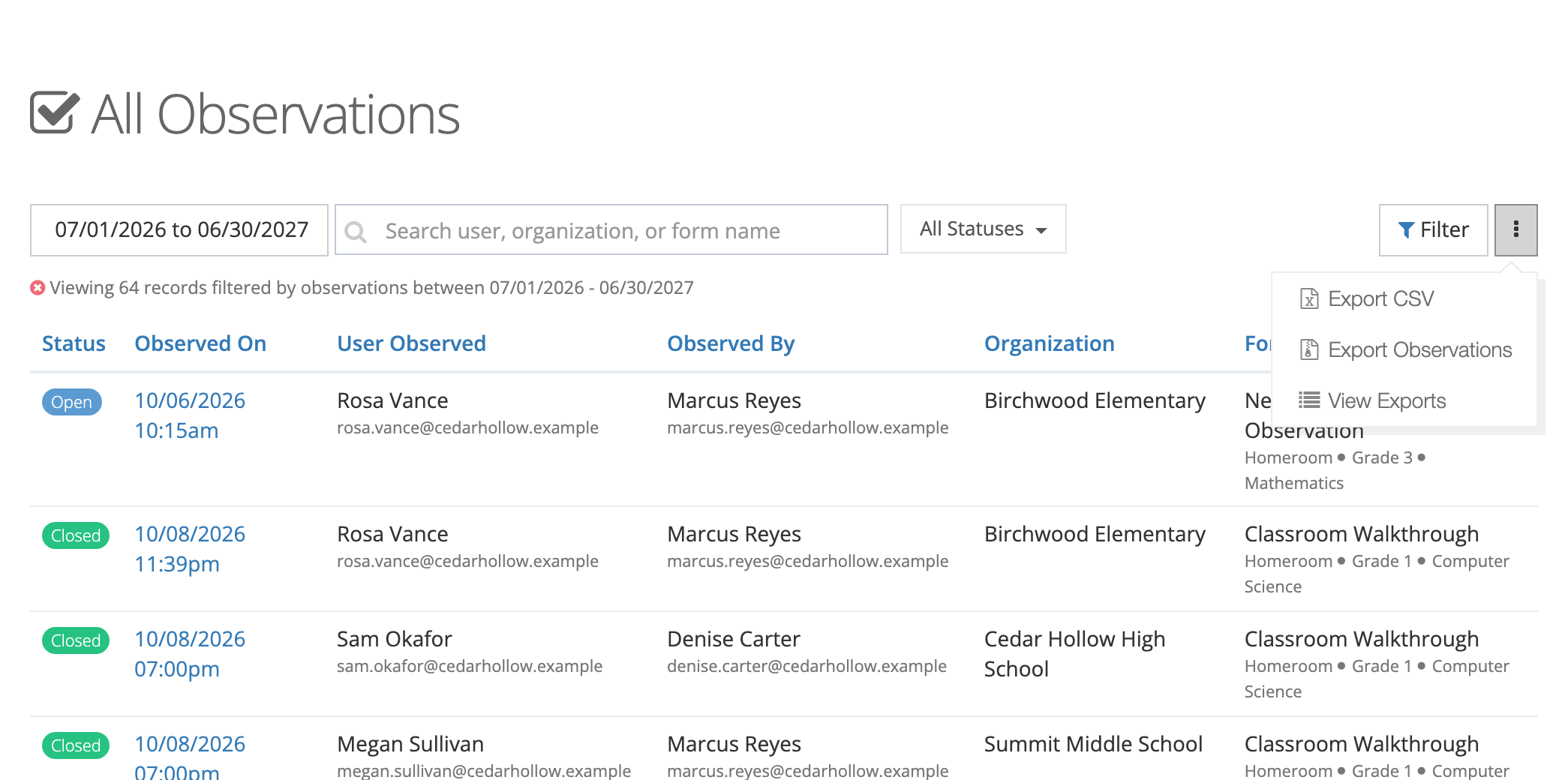
- Open the ⋮ menu and click Export CSV.
A progress window opens, and the file downloads when it is ready. The file holds the observations the list shows with your filters.
Export one observation as a PDF
Section titled “Export one observation as a PDF”Role: anyone who can view the observation. The button appears once the observation is closed.
- Open a closed observation.
- Click PDF at the top of the page.
- In the Export Observation PDF window, decide whether to tick Include Discussion comments. The PDF always captures the ratings, overall feedback, reflection, acknowledgment, and closure. Discussion comments can keep changing after the observation closes, so leave them out when the PDF is the final record.
- Click Generate PDF.
A closed performance review has the same PDF button.
Export many observations as a ZIP of PDFs
Section titled “Export many observations as a ZIP of PDFs”The Export Observations option builds one PDF per closed observation and packs them into a single ZIP file. Districts use it for end-of-year archiving, a records request, or moving evaluation records to another system.
Role: a user who is both a system administrator and an organization administrator. The option lives on All Observations, which needs the organization administrator role, and the export itself needs the system administrator role.
- Go to All Observations and filter the list to the observations you want. Only closed observations are exported.
- Open the ⋮ menu and click Export Observations.
- The Export Observations window says how many closed observations will be exported. Click Start Export.
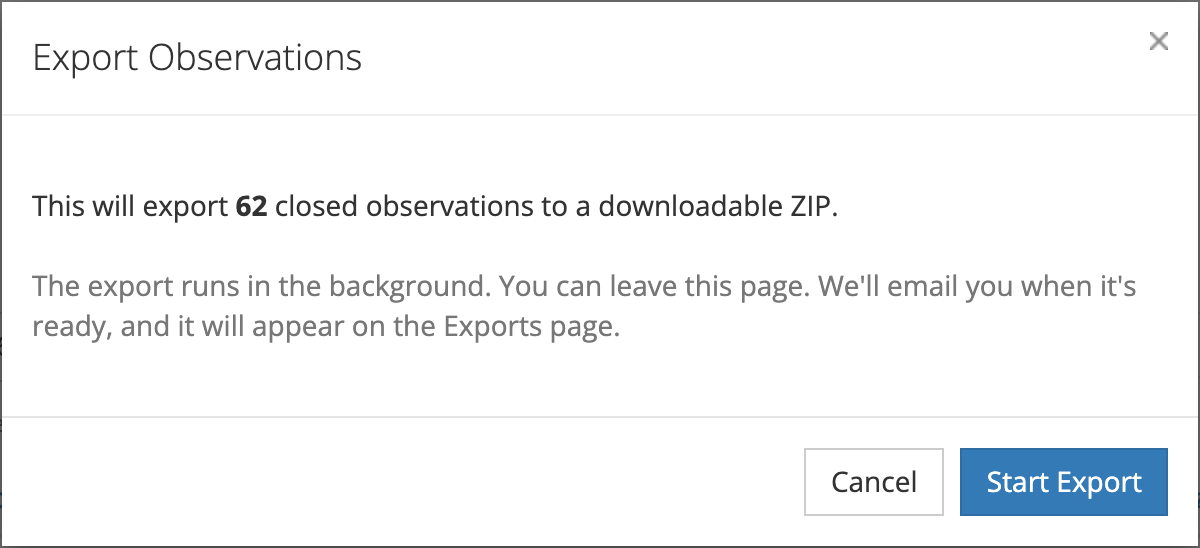
If no closed observations match the filters, the window says so and offers only Cancel.
The export runs in the background, so you can leave the page. You get an email when it is ready.
Follow and download the export
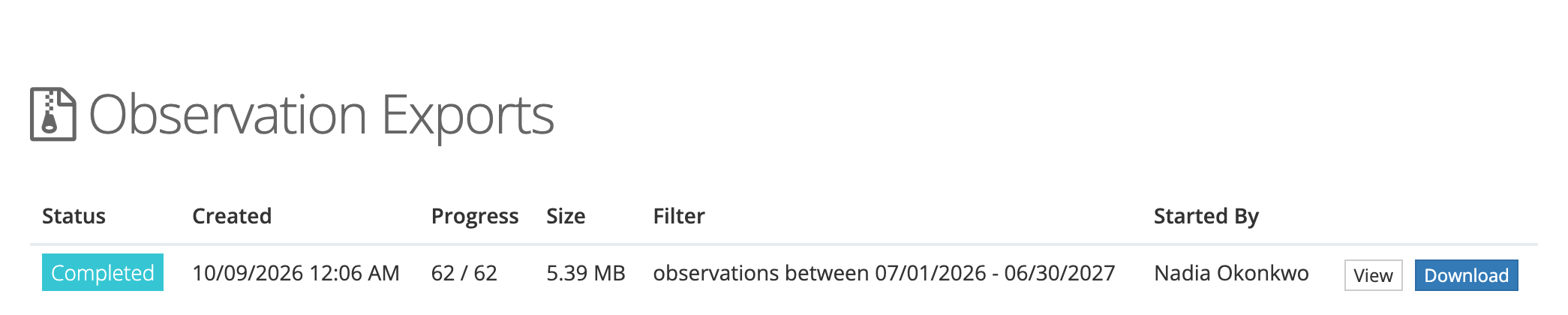
Section titled “Follow and download the export”Open the ⋮ menu on All Observations and click View Exports to open the Observation Exports page. Each export shows its Status, Created time, Progress (observations done out of the total), Size, the Filter it used, and who Started By.
The status moves through Waiting, Rendering (building the PDFs), and Building ZIP, and ends at Completed or Failed.
- Click Download on a completed export, or click View and then Download ZIP.
- If an export failed, click View, then Retry.
Only one export can run at a time for your organization. While one is running, the menu shows Export Observations (running…) and cannot be clicked.
Print a blank form
Section titled “Print a blank form”Role: observer.
A blank form lets an observer take notes on paper and enter them later, or gives a new observer something to study before their first visit.
- On All Observations or Conducted Observations, open the ⋮ menu and click Print Blank.
- In the Download Blank Observation Form window, choose the Organization, then the Form Set.
- Click Download.
The Print Blank option on the review lists works the same way for performance review forms.
Export from reports
Section titled “Export from reports”- Observation Status Report: Export PDF, Export PDF by User, and Export CSV. See Observation Status Report.
- Summary Report: Export as PDF in the ⋮ menu. See Observation Summary. Click an answer count in the Summary Report to open the Observation Answers Report, which lists each answer and has its own Export CSV.
- Organization Totals, Observable Users Totals, School Activity, and Observer Activity: Export CSV, matching the filters on the screen. See Organization Totals, Observable Users Totals, School Activity, and Observer Activity.
- Performance Review Report: PDF Export, with options for rubrics and a signature block. See Performance Review Reports.
The Conducted Reviews and All Reviews lists also have Export CSV in their ⋮ menu.
Report exports run in the background: a progress window opens, and the file downloads when it is ready. Every export includes only the data your role can see.