

Reports
Performance Review Reports
Open the scored report for a closed performance review and export it to PDF for the personnel file.
A Performance Review Report is the scored, printable record of one closed performance review. Use it at the end of an evaluation cycle to see how a teacher scored on each section of the form, and to produce a PDF with a signature block for the personnel file.
Role: reporter. The Performance Reports link sits in the Reports menu, which only users with the reporter role see. It appears only when performance reviews are turned on for your account.
Choose a review
Section titled “Choose a review”- In the left menu, open Reports and click Performance Reports.
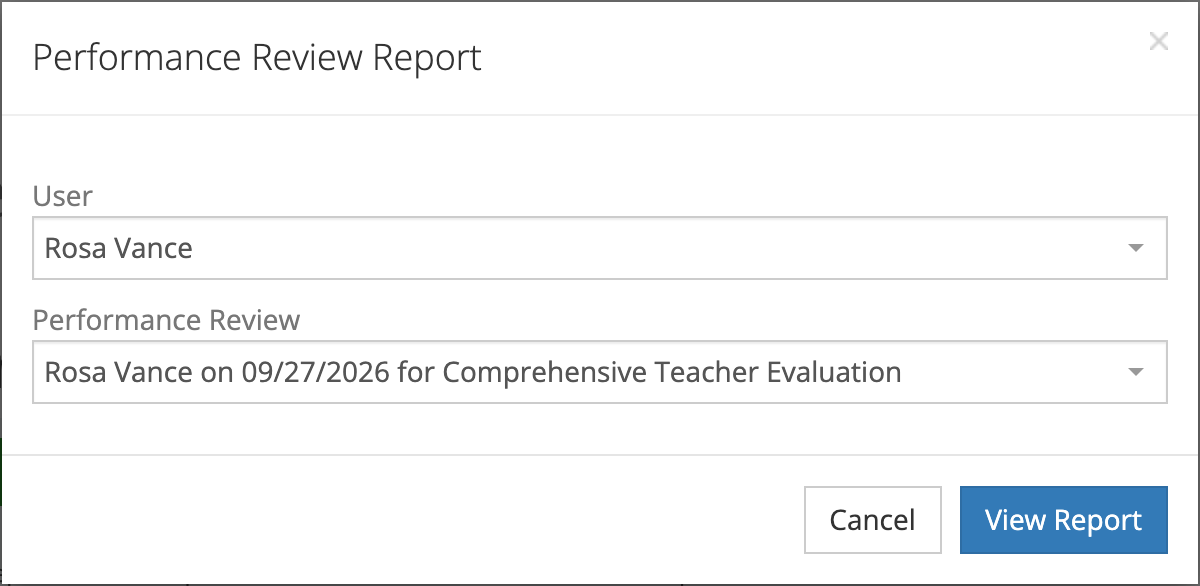
- In the Performance Review Report window, choose the teacher under User. The list shows the staff in your schools who have at least one closed performance review.
- Choose a review under Performance Review. The list fills in after you pick a user, and each entry reads “Name on date for form set”.
- Click View Report.
Reviews that are still open or waiting on the teacher do not appear. Close the review first, then come back to the report.
If no one in your schools has a closed review, the window says you do not have users assigned to your profile.
What the report shows
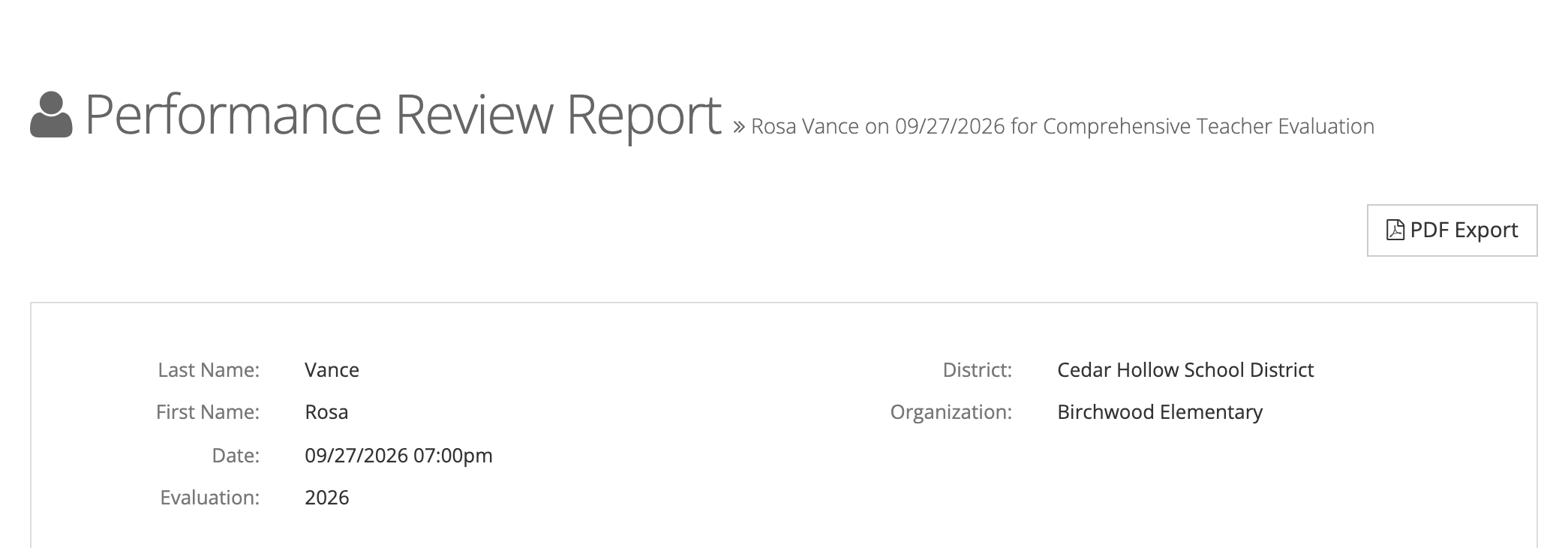
Section titled “What the report shows”The page title names the teacher, the date, and the form set. Below it:
- Details: Last Name, First Name, Date, Evaluation (the evaluation period’s name without its term, when the review has one), District, Organization, and Feedback (the reviewer’s overall feedback, when there is any).
- Ratings: the overall and section rating results, shown when the form set uses rating scales.
- Rubrics: each section of the form with the rating chosen for every question and the points earned out of the points possible. Click Rubric Detail on a section to see its full rubric.
Export to PDF
Section titled “Export to PDF”- Click PDF Export.
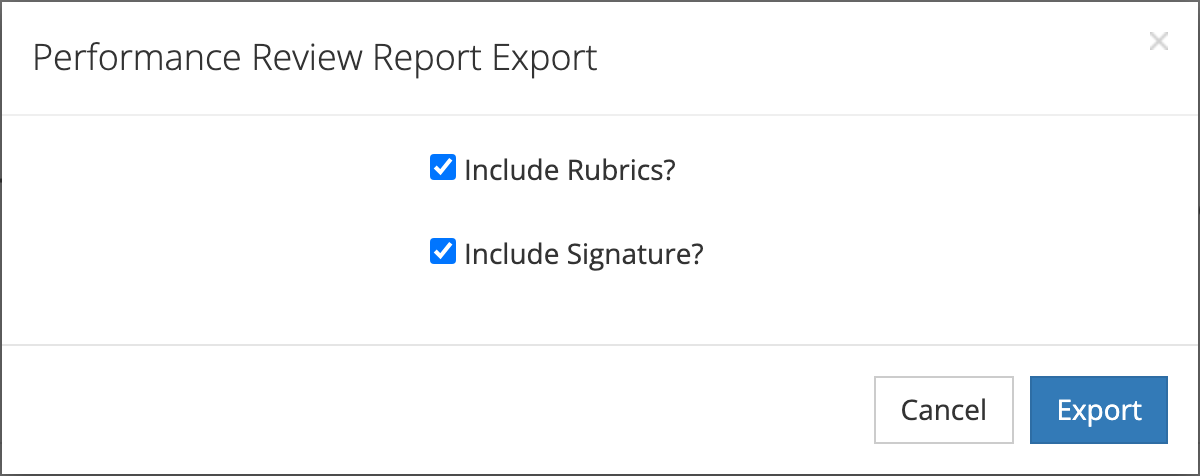
- In the Performance Review Report Export window, keep or clear the two options. Both are ticked to start:
- Include Rubrics? adds the section-by-section rubric results.
- Include Signature? adds a signature block so the teacher and evaluator can sign the printed copy.
- Click Export.
A progress window opens while the PDF is built, and the file downloads when it is ready.