

Forms & Rubrics
Form Sets Overview
How form sets, forms, sections, and questions fit together, and who can build them.
A form set is the instrument an observer picks when starting an observation or a performance review. “Classroom Walkthrough” and “Comprehensive Teacher Evaluation” are typical examples. Each form set holds one or more forms, and the form set’s settings decide what happens after the observer submits (for example, whether the teacher must reflect or acknowledge).
How the pieces fit together
Section titled “How the pieces fit together”| Piece | What it is | Example |
|---|---|---|
| Form set | The instrument observers choose. Holds forms and the after-submit settings. | Literacy Block Walkthrough |
| Form | A document inside a form set, made of sections. | Literacy Block Look-Fors |
| Section | A group of related questions on a form. A section can display as a standard list, a rubric, or a matrix. | Small-Group Instruction |
| Question | One indicator the observer answers, with its answer choices and point values. | Students read connected text for most of the group time |
Forms are built on their own and then attached to form sets, so one form can appear in more than one form set.
Who can do what
Section titled “Who can do what”- Viewing form sets. A system administrator or a user with the Publisher role can open System Administration > Form Sets and see each form set’s settings. The form set’s Forms tab lists its attached forms only when content creation is turned on for your district.
- Creating and editing form sets. Creating a form set, changing its settings, previewing it, and deleting it require the Publisher role.
- Building forms. The Forms, Sections, and Questions menu items appear under System Administration only when content creation is turned on for your district. Your account provider turns it on. A system administrator or a publisher can then create, duplicate, edit, and delete forms, weight a form’s sections, and attach forms to form sets.
- Building sections, questions, and rubrics. Creating and editing sections, questions, rubric and matrix markers, and rating scales requires the Publisher role.
If your district does not author its own forms, your account provider supplies them, and you work only with form sets.
The Form Sets list
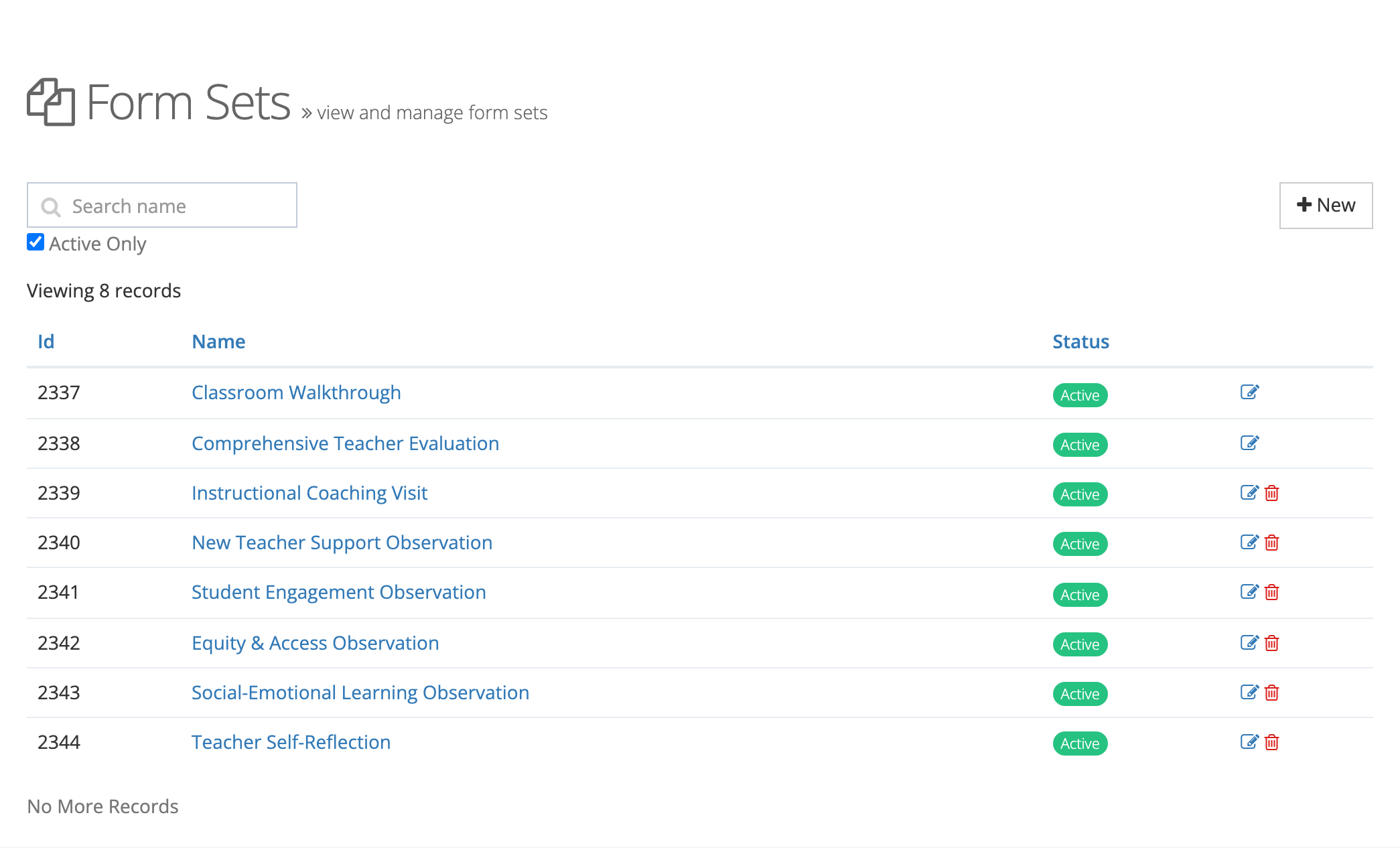
Section titled “The Form Sets list”Go to System Administration > Form Sets (under the Observe heading). The list shows each form set’s Id, Name, and Status. Active Only is checked by default; clear it to include inactive form sets. Use Search name to find a form set.
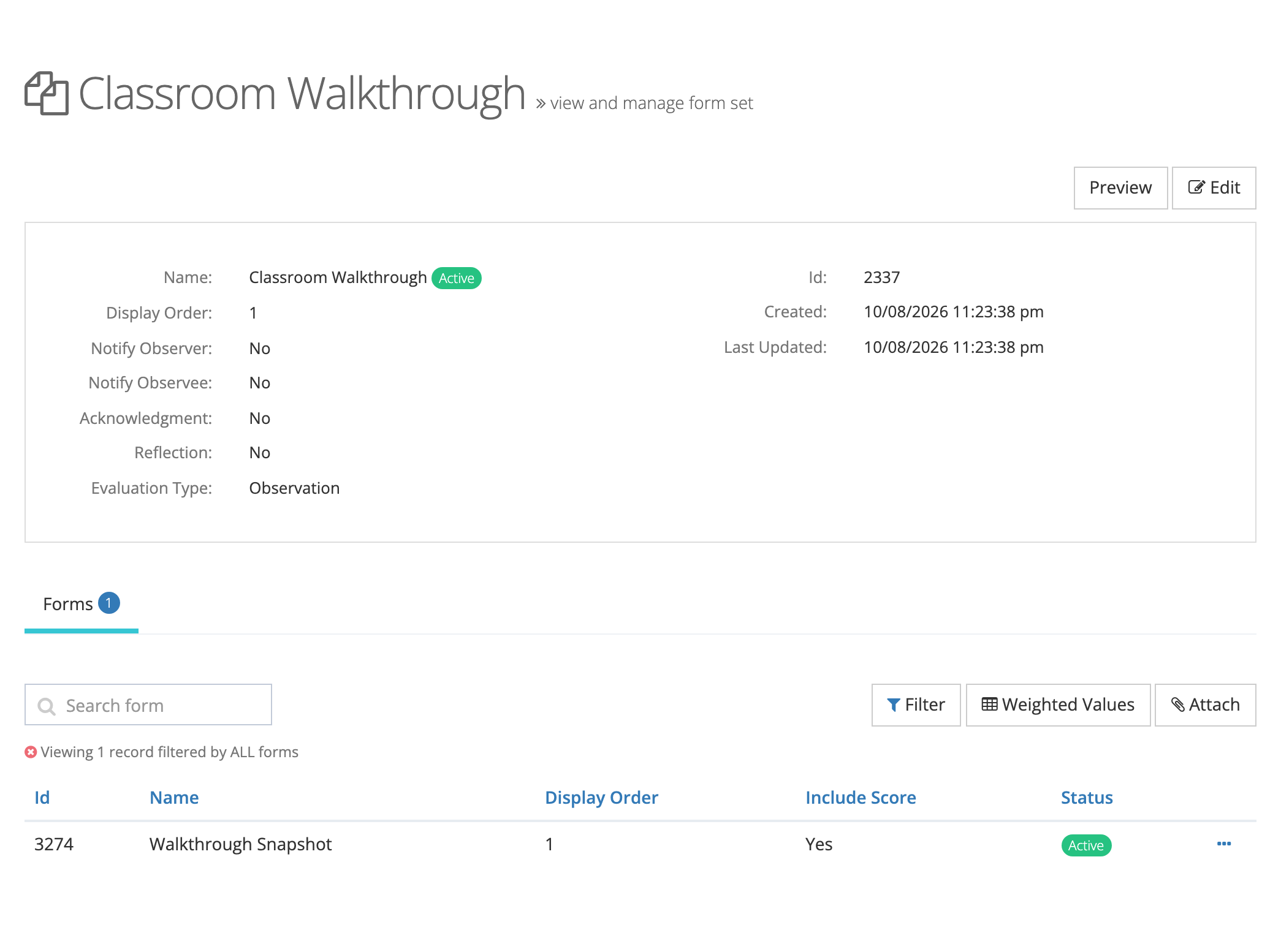
Click a form set’s name to open it. The detail page lists its settings (display order, notifications, acknowledgment, reflection, and evaluation type) and a Forms tab with each attached form’s Display Order, Include Score setting, and Status.
Observation and performance review form sets
Section titled “Observation and performance review form sets”When performance reviews are turned on for your district, each form set has an Evaluation Type of Observation or Performance Review:
- Observation form sets appear when an observer starts an observation (walkthroughs, informal visits, coaching visits).
- Performance Review form sets appear when an evaluator starts a performance review (summative evaluations). These form sets also have a Rating Scales tab. See Setting Up Rubrics and Rating Scales.
When performance reviews are off, every form set is an observation form set.
Active and inactive form sets
Section titled “Active and inactive form sets”Only active form sets can be chosen for a new observation or review. Turning a form set off (the Active? switch) hides it from new observations. Observations already done with it stay as they are. A form set can be deleted only while no observation or review uses it, so retire an old instrument by making it inactive.
When a form set shows up for observers
Section titled “When a form set shows up for observers”An observer sees a form set when starting an observation at a school if all of these are true:
- The form set is active.
- At least one of its forms is available to that school (or to an organization above it).
- The school is set up for observations (for example, Enable Observations? is on and the school has observable teachers).
The school’s own page lists anything missing under Requirements to enable observations, including Assign Forms and Attach Forms to Form Sets. For setup steps, see Preparing a School for Observations.