

Coaching
Overview
Coaching Cycles brings instructional coaching into the same place you already run observations. A coach is paired with each teacher they support, assigns action steps from an observation, and follows those steps up at the next visit. Each visit builds on the last one instead of standing alone.
Roles: coaches (observers) manage their roster and run visits; teachers see what they are working on; organization and system administrators turn the feature on, oversee assignments, and read the coaching reports.
What’s included
Section titled “What’s included”- Coaching roster and assignments: each coach works from My Roster, with summary tiles, a list of open action steps, and a card per teacher showing cadence, school, stage, last visit, and open steps. Organization and system administrators get an All Assignments table across coaches. See Coaching Roster & Assignments.
- Action steps: assigned to a teacher from an observation and carried forward. A coach can complete a step (with an optional note), defer it to a date, revise it, resume a deferred step, or remove it. See Action Steps.
- Action step templates: a library of reusable steps coaches pick from instead of retyping. Administrators manage it with the cycle stages. See Cycle Stages & Action Step Templates.
- Course recommendations: when eLearn is on, a coach can recommend a course from your licensed catalog on any action step, and the step shows the teacher’s progress (Recommended, Enrolled, Completed).
- The teacher’s My Coaching page: a read-only page that leads with the teacher’s current step, recognizes completed steps, and keeps set-aside and past work in their own sections. A Coaching panel also appears on the teacher’s submitted observations. See The Teacher’s My Coaching Page.
- Growth Trajectory: a per-assignment page of visit frequency, completion rate, and focus-area trends. See Growth Trajectory.
- Reminder emails (optional): teachers hear when a step’s check-back date is near, and coaches hear when visits are overdue.
- Coaching Dashboard and reports: administrators see coverage, visit cadence, completion rates, and top focus areas, with drill-downs by coach and by school. See Coaching Dashboard & Reminders.
Who sees what
Section titled “Who sees what”- Teachers see their own action steps, focus areas, and completion notes. They do not see the assignment’s notes.
- Coaches see and manage the assignments where they are the coach.
- Organization and system administrators can open any assignment for the people they can access. They can read the action steps, completion notes, and the Notes (coach + admin) block, but only the coach can create or change action steps.
- Reporters see the aggregate coaching reports.
A coaching visit is a regular observation that the coach conducts with one of your district’s Form Sets. It appears on the assignment’s timeline and in the teacher’s observation list. Giving coaching visits their own Form Set, one that does not require reflection or acknowledgment, keeps them apart from formal evaluations.
Turning it on
Section titled “Turning it on”Coaching Cycles is made available to your account by your account team, and then a system administrator switches it on under Observe Settings with Enable coaching cycles?. Reminder emails are a separate switch, Send coaching reminders?.
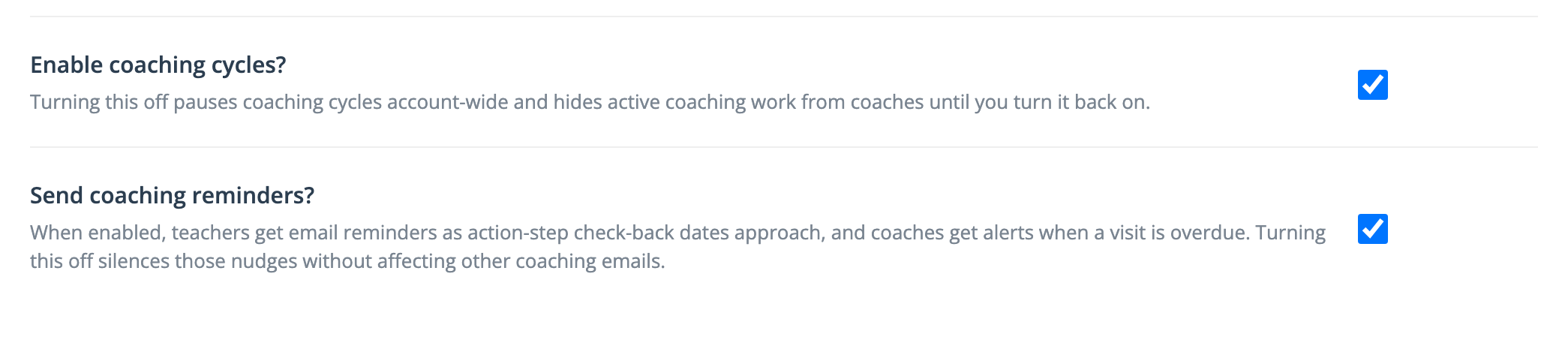
Turning Enable coaching cycles? off pauses coaching account-wide: the coaching menus, panels, reports, and emails disappear until it is turned back on. Existing records are kept, and administrators can still manage cycle stages and templates.
For the full feature background, see Release Notes: Coaching Cycles, and for a task walkthrough, the How-to Guide: Coaching Cycles.