

How-to Guides
How-to Guide: Managing Your Notification Preferences
Roles: for everyone. The rows you see depend on what your organization uses, not on your role.
You can choose which notifications Master Teacher sends you, and whether each one arrives as email, as a push notification, or both. Push applies only if your district uses a mobile app. Reflection requests, coaching reminders, comment notifications, and course recommendations are all optional. One email, the Final report, cannot be turned off here.
Find it
Section titled “Find it”- Click your avatar in the top-right corner to open the account menu.
- Choose My Profile.
- Scroll to the Notifications section.
Your preferences are personal. Changing them affects only what you receive.
The notification categories
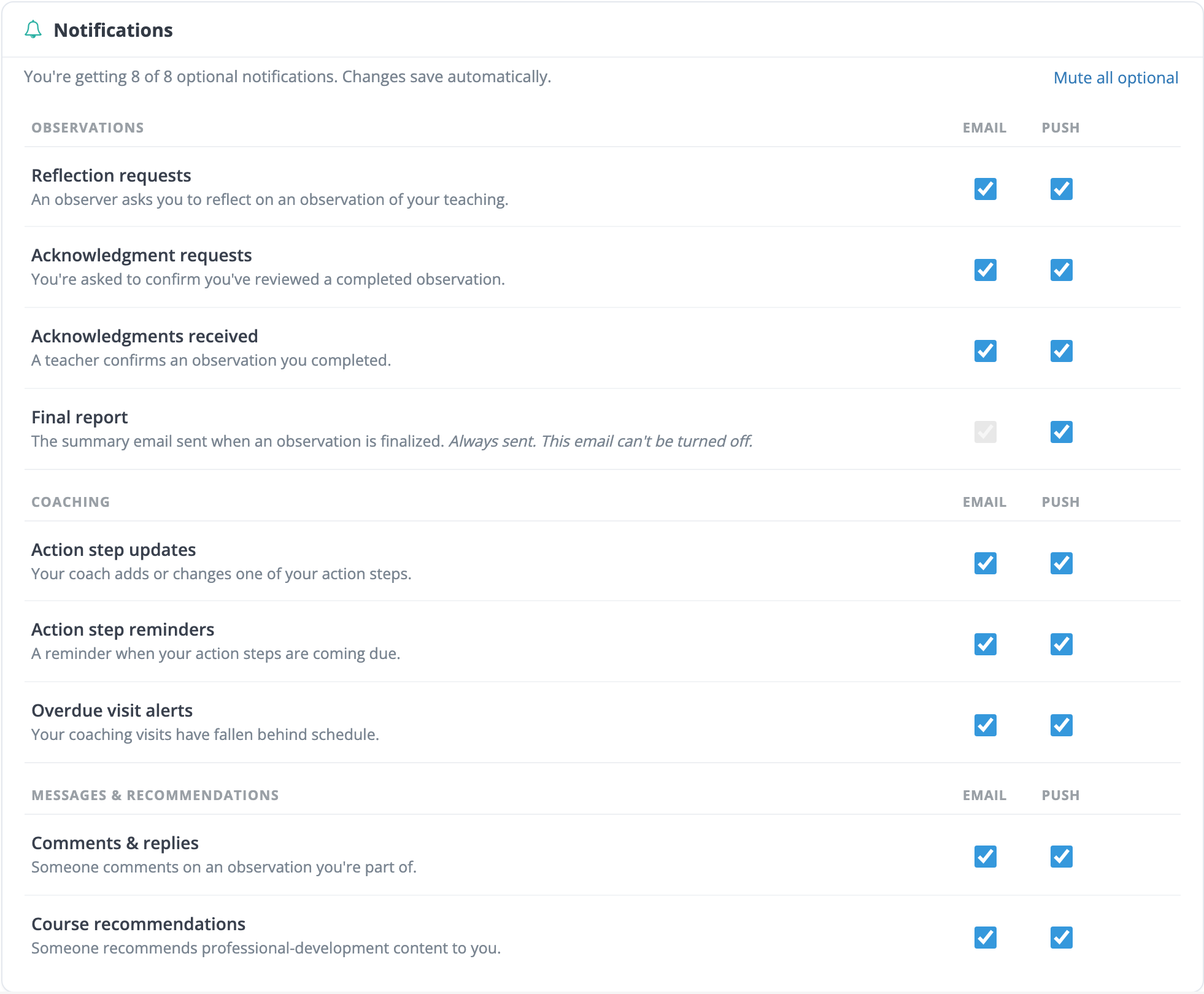
Section titled “The notification categories”Notifications are grouped by area. Everyone in an organization sees the same rows: the Observations and Comments & replies rows appear when your organization uses weCLIMB, and the Coaching rows appear when it has coaching cycles. Some rows apply to teachers and some to observers, so you may see rows for emails you never receive.
Observations
- Reflection requests: an observer asks you to reflect on an observation of your teaching.
- Acknowledgment requests: you’re asked to confirm you’ve reviewed a completed observation.
- Acknowledgments received: a teacher confirms an observation you completed.
- Final report: the summary email sent when an observation is finalized. You can’t turn its email off. Only your administrator can stop it (see below).
Coaching
- Action step updates: your coach adds or changes one of your action steps.
- Action step reminders: a reminder when your action steps are coming due.
- Overdue visit alerts: your coaching visits have fallen behind schedule.
Messages & recommendations
- Comments & replies: someone comments on an observation you’re part of.
- Course recommendations: someone recommends professional-development content to you.
Turn a notification on or off
Section titled “Turn a notification on or off”- In the Notifications section, find the row you want to change.
- Check or uncheck the box in the Email column, the Push column, or both.
- The change saves on its own, and a Saved indicator appears on the row.
The line at the top counts how many optional notifications you receive by email, for example “You’re getting 8 of 8 optional notifications.” It updates as you make changes. Push choices are not counted.
Note: Every optional notification starts on. If you’ve never changed this section, you receive everything that applies to you.
Mute everything optional
Section titled “Mute everything optional”To stop all optional email at once, click Mute all optional at the top of the section. It unchecks every optional box in the Email column and saves. The Final report email is not affected, and neither is the Push column. Push notifications on your phone keep coming until you turn them off.
The count drops to 0. You can turn any category back on at any time.
When a setting is controlled by your administrator
Section titled “When a setting is controlled by your administrator”Some notifications depend on your organization’s settings, so a row may carry a note:
- “Turned off by your administrator. You won’t receive these until it’s switched back on.” Your organization has turned this email off in Observe Settings: Notify observee? or Notify observer? for observation and action-step emails, or Send coaching reminders? for the two coaching reminders. Your own choice is remembered and applies again when the setting is switched back on.
- “Comments aren’t enabled for your organization right now.” The comments feature is off for your organization.
When the Final report is turned off
Section titled “When the Final report is turned off”If Notify observee? or Notify observer? is off in Observe Settings, the Final report row shows a lock in the Email column and the note “Your administrator has turned off notifications for this recipient, so this email is not being sent right now.” There is no email checkbox to change. The Push checkbox stays available.
Email and push
Section titled “Email and push”Each row has two columns, Email and Push, set independently:
- Email: arrives in your inbox.
- Push: applies only if your district uses a mobile app. Push notifications arrive on your phone. They need the Master Teacher mobile app installed and signed in, with notifications allowed on the phone.
The Push checkboxes here are the same settings the mobile app shows under Notifications in its side menu. Change either one and the other reflects it.
The Final report email checkbox is locked on. Its Push checkbox is an ordinary control you can turn off, because the email still delivers the report.
New to push? Every category starts out on, so allowing notifications on your phone is all it takes. See Push Notifications on Mobile for the mobile walkthrough.
Comments while an observation is in progress
Section titled “Comments while an observation is in progress”Once an observation is submitted and is waiting on the teacher’s reflection or acknowledgment, comments reach the teacher during that step, not only after the observation closes. You and your observer can hold a conversation while the work is underway. If you’d rather not receive these, turn off Comments & replies.