

Forms & Rubrics
Creating and Managing Form Sets
Create a form set, choose its notification, reflection, and acknowledgment settings, and retire it when it is no longer used.
A form set is the instrument observers choose when they start an observation or a performance review. Its settings decide who is emailed and what the teacher is asked to do after the observer submits.
Requires the Publisher role. A system administrator without that role can view form sets but cannot create or change them. See Form Sets Overview.
Create a form set
Section titled “Create a form set”- Go to System Administration > Form Sets.
- Click New.
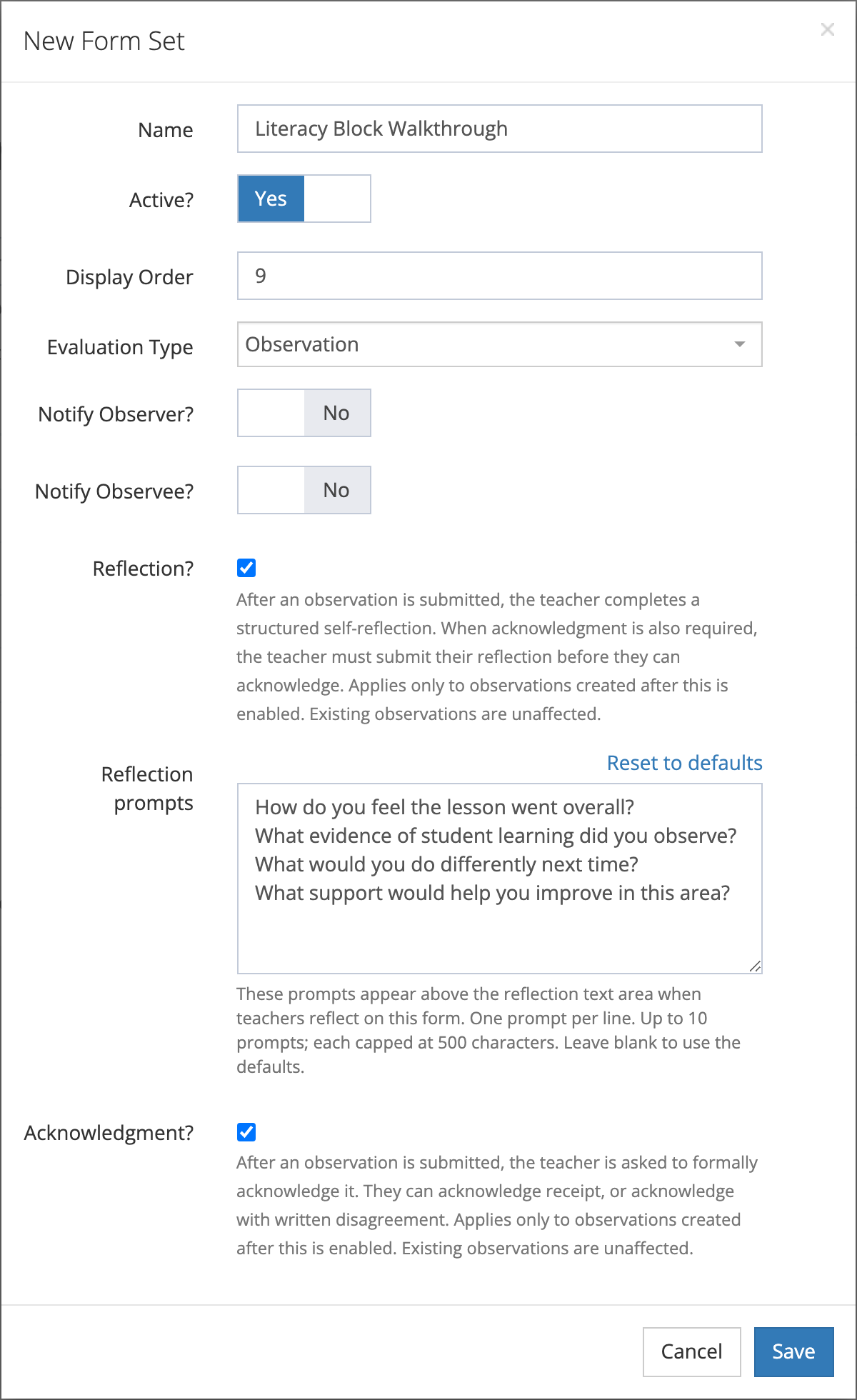
- In the New Form Set window, fill in the settings described below.
- Click Save.
The new form set appears in the list. Click its name to open it, then attach forms (see Adding Forms to Form Sets). A form set with no forms does not appear to observers.
Form set settings
Section titled “Form set settings”| Setting | What it does |
|---|---|
| Name | The name observers see when they pick a form set. Use the name your staff already know, such as “Literacy Block Walkthrough”. |
| Active? | Only active form sets can be chosen for new observations or reviews. |
| Display Order | Sorts form sets in the observer’s list. Lower numbers come first. |
| Evaluation Type | Observation or Performance Review. Shown only when performance reviews are turned on for your district. |
| Notify Observer? | Emails the observer when an observation with this form set is closed. |
| Notify Observee? | Emails the teacher when an observation with this form set is closed. It also controls the emails that ask the teacher to reflect or acknowledge. |
| Reflection? | After the observer submits, the teacher completes a structured self-reflection. |
| Reflection prompts | The questions shown above the teacher’s reflection box. Appears when Reflection? is checked. |
| Acknowledgment? | After the observer submits, the teacher is asked to acknowledge the observation, either acknowledging receipt or acknowledging with written disagreement. |
The two notify switches work together with the district-wide Notify observer? and Notify observee? settings on the Observe Settings page. Both the district setting and the form set setting must be on for the email to go out. If you turn on Reflection? or Acknowledgment?, leave Notify Observee? on so teachers get the email asking them to respond.
Reflection and acknowledgment
Section titled “Reflection and acknowledgment”Use these when your evaluation process asks teachers to respond in writing, for example on formal observations tied to an evaluation cycle:
- When both are checked, the teacher submits the reflection first and then acknowledges.
- Each setting applies only to observations created after you turn it on. Observations already in progress keep the setting they started with.
- Reflection prompts start with four default prompts. Enter one prompt per line, up to 10 prompts of up to 500 characters each. Click Reset to defaults to restore the default prompts, or leave the box blank to use them.
For what the teacher sees, see Teacher Self-Reflection and Teacher Acknowledgment.
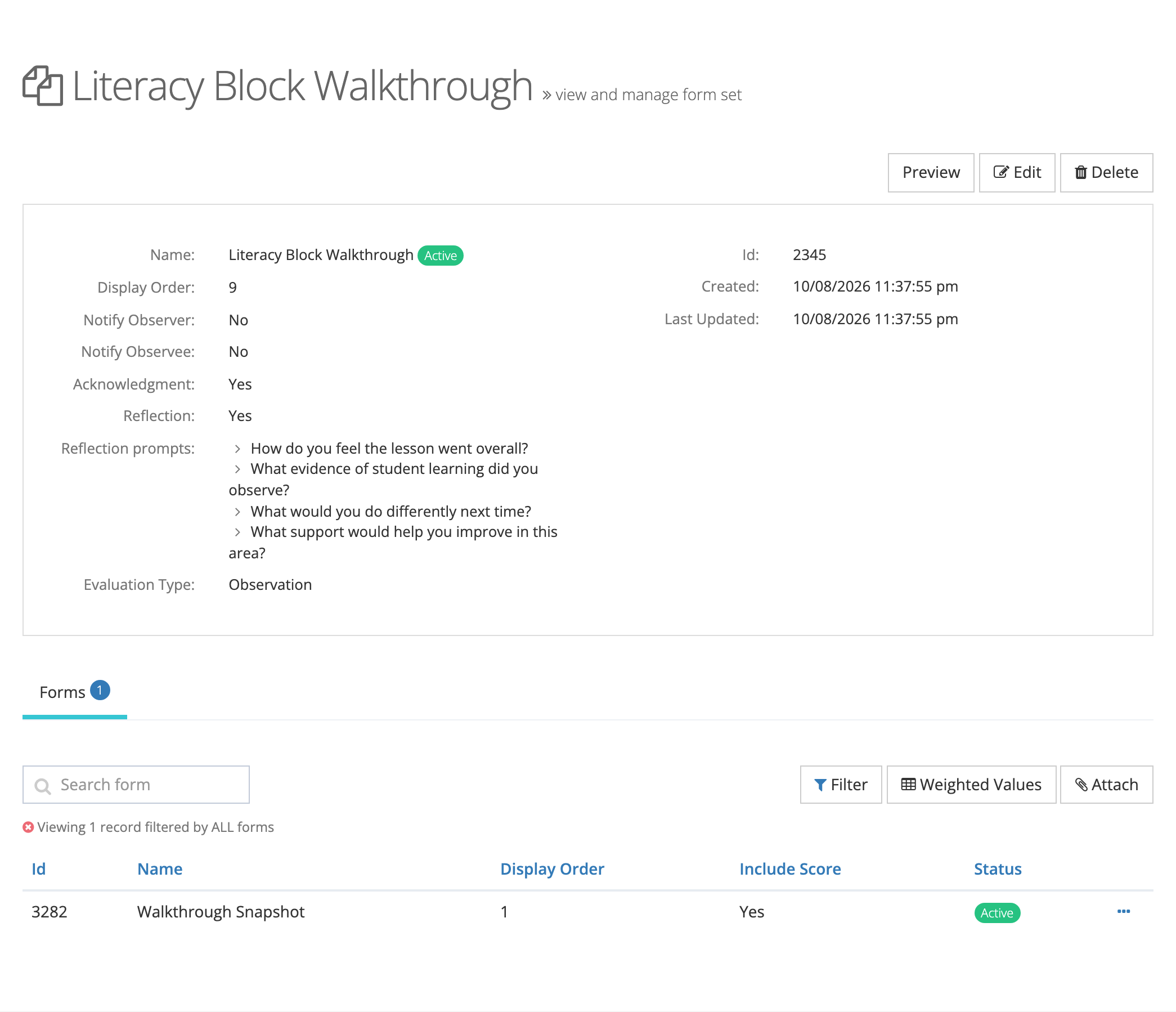
After you save, the form set’s detail page shows each setting, including the reflection prompts.
Change a form set
Section titled “Change a form set”- Go to System Administration > Form Sets.
- Click the edit icon on the form set’s row, or open the form set and click Edit.
- Change the settings in the Edit Form Set window.
- Click Save.
To preview the forms in a form set, open it and click Preview.
Retire or delete a form set
Section titled “Retire or delete a form set”To stop using a form set, edit it and turn Active? off. It no longer appears for new observations, and existing observations keep their data.
A form set can be deleted only while no observation or review uses it. When deleting is allowed, a trash icon appears on its row and a Delete button appears on its detail page.
- Keep one form set per purpose (walkthrough, coaching visit, formal observation) so reports stay easy to read.
- Turn on reflection and acknowledgment before the first observation of the cycle, since the settings do not apply to observations already started.
- Build and test a new instrument with Active? off, then turn it on when it is ready.