

Other Settings
Tags
Create the district vocabulary that organizes feedback templates, suggests templates on questions, and gives observers focus areas to tag feedback with.
Tags are your district’s shared vocabulary for instruction, such as “Classroom Management” or “Student Engagement”. One list of tags organizes the feedback template library, links templates to rubric questions, labels coaching action steps, and, for tags you mark as focus areas, lets observers label their feedback with #.
When every observer picks from the same list, feedback from every school uses one vocabulary instead of each observer’s own labels.
Role: system administrators. Organization administrators do not see this page.
Opening the page
Section titled “Opening the page”Click the gear icon to open System Administration, then click Tags under OBSERVE.
What the page lists
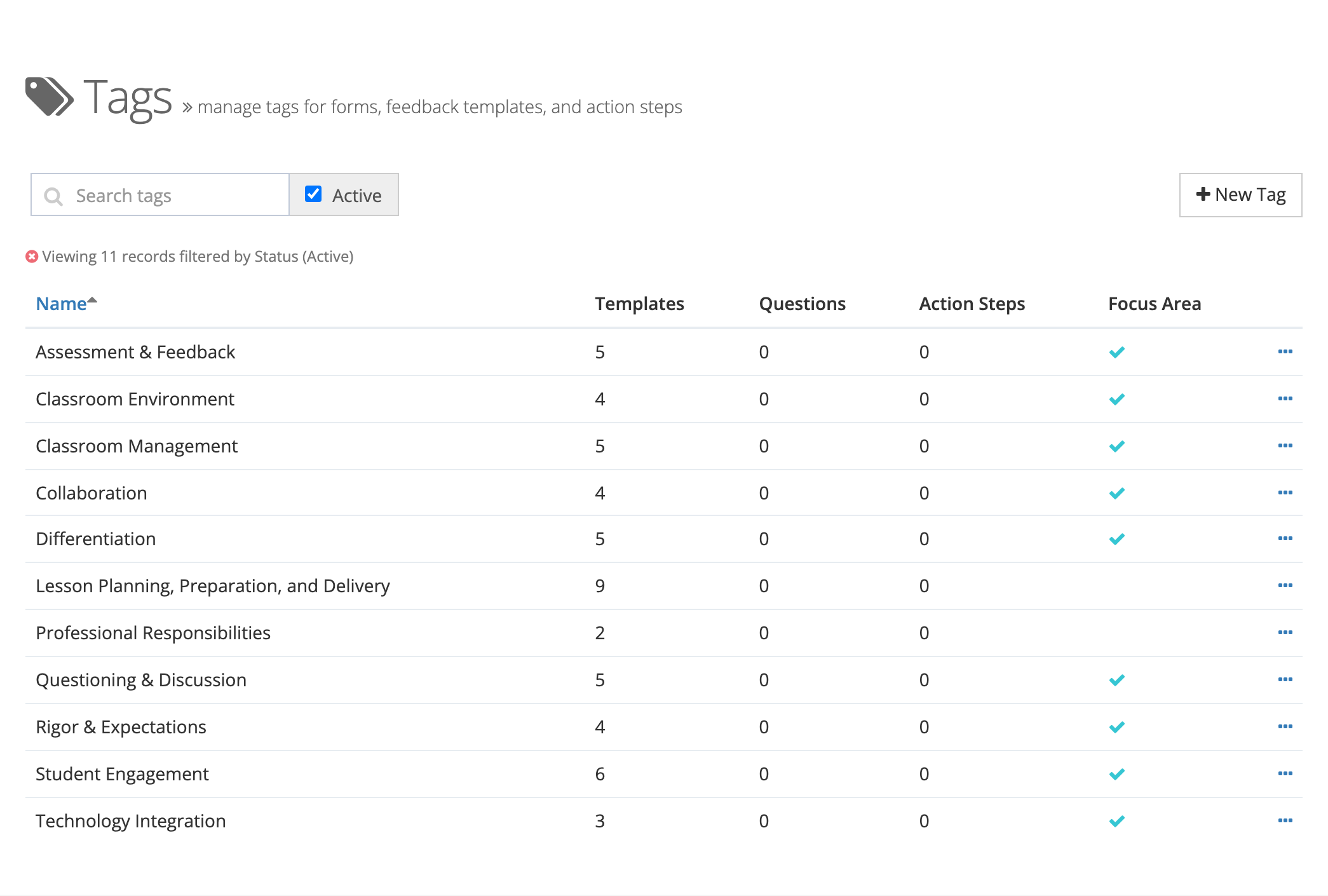
Section titled “What the page lists”Each row shows:
- Name: an archived tag shows an Archived badge.
- Templates: how many feedback templates use the tag.
- Questions: how many questions use the tag.
- Action Steps: how many coaching action steps use the tag.
- Focus Area: a check mark when observers can use the tag in feedback.
Use Search tags to find a tag by name. Active is checked by default. Uncheck it to include archived tags. Click Name to sort.
Creating a tag
Section titled “Creating a tag”- Click New Tag.
- Enter a Name. Each name can be used only once in your district.
- Check Available as focus area if observers should be able to tag their feedback with it using
#in the feedback editor. Leave it unchecked for a tag that only organizes templates and questions. - Click Save.
Editing, archiving, and deleting
Section titled “Editing, archiving, and deleting”Open the … menu at the end of a row:
- Edit: rename the tag or change Available as focus area, then click Save.
- Archive: retires the tag without removing it from anything already tagged. Activate brings it back.
- Delete: opens Delete Tag.
If the tag is in use, the Delete Tag window lists how many items of each kind use it and warns that deleting removes all of those associations and cannot be undone. Type the tag’s name to confirm, then click Delete. For a tag with no associations, the window asks you to confirm and you click Delete without typing anything.
At the end of a school year, archive tags tied to a focus you are retiring. That keeps last year’s tagged feedback intact while removing the tag from this year’s pickers.
Where tags show up
Section titled “Where tags show up”- Feedback templates: the Tags field on a template offers active tags only. Observers filter the template picker by these tags. See Feedback Templates.
- Questions: on a question’s page (System Administration > Questions), the pencil button beside its tags opens Manage Tags, where you pick Feedback Template Tags. Templates with those tags are listed first when an observer writes feedback on that question. The Questions menu appears only for districts that build their own forms.
- Focus areas: active tags marked Available as focus area appear when an observer types
#in the feedback editor, below Reinforcement and Refinement. They are also added as chips when an observer inserts a template that carries them. - Coaching: focus-area tags appear in the Focus areas field on action step templates, and tags label action steps. See Action Steps.
Archived tags leave every picker but stay on records already tagged.