

Observations
Scores and Reopening
Read the points on an observation, switch between rubric summary and detail, and reopen an observation that needs changes.
This article covers two parts of the observation page: the scores, and reopening a submitted observation to change it. To find an observation first, see Managing Observations. For the rest of the page, see The Observation Page.
Where scores come from
Section titled “Where scores come from”Scores come from the point values your district gave each answer choice when it built the form set. An observer never types a score: selecting an answer earns that answer’s points. If a form set has no point values, the observation shows answers and feedback but no score tables.
How points are set up, including weights, is covered in Questions and Scoring and Configuring Rubrics.
Reading the score tables
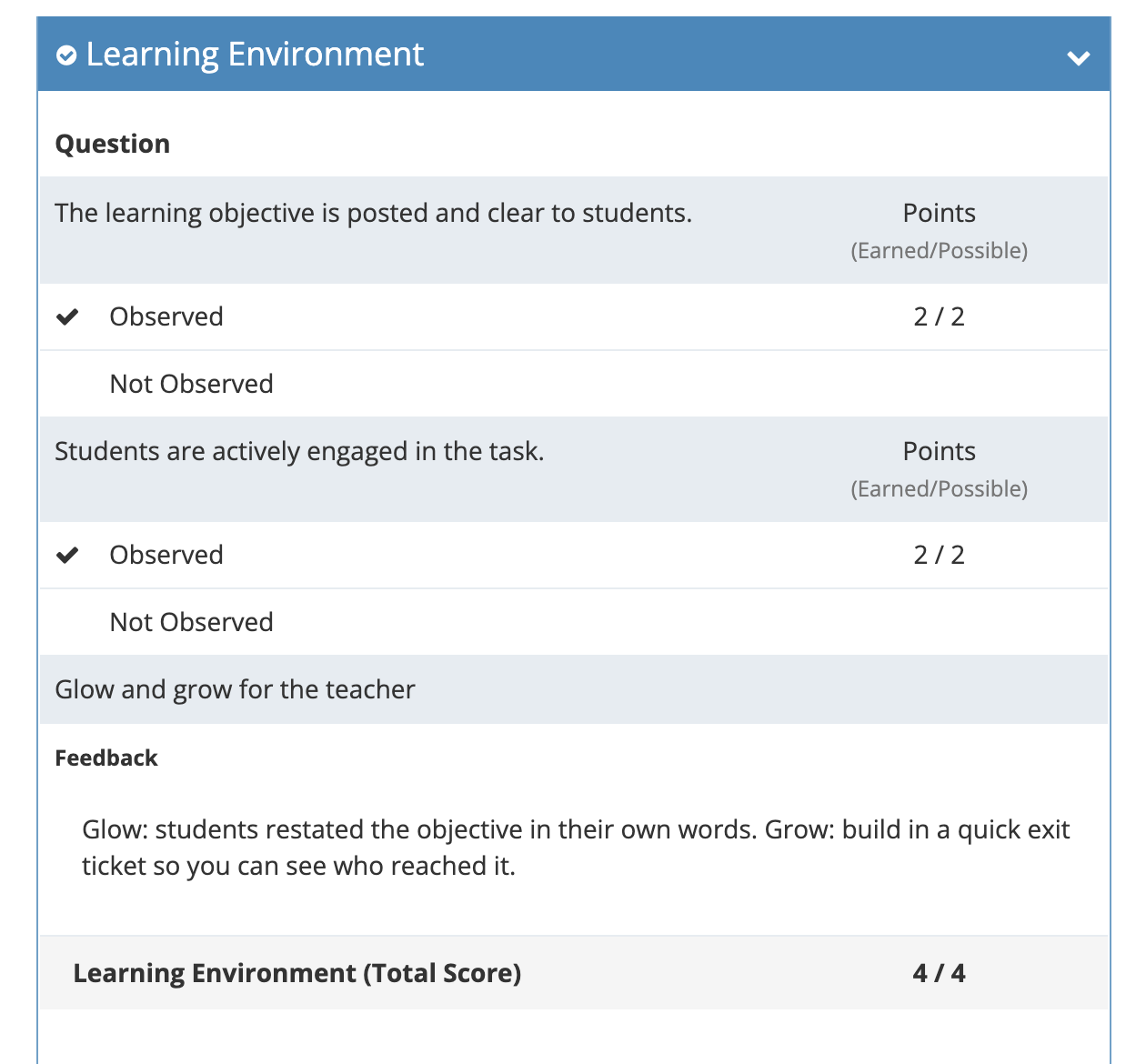
Section titled “Reading the score tables”Open the observation and go to the Observation tab. The scores appear in three layers, from the whole form set down to each question.
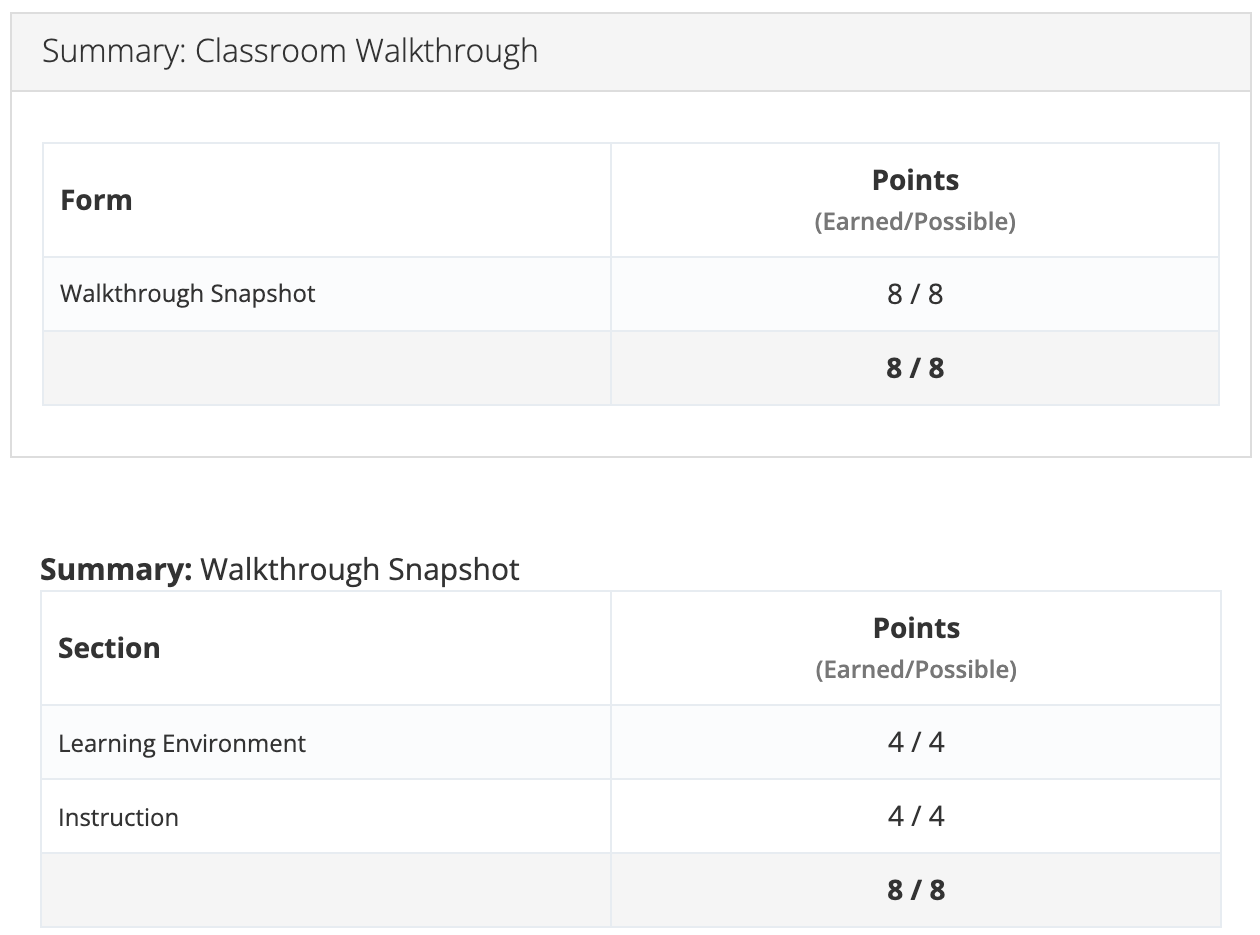
- Summary:
- Summary: : one row per section of that form, with its points and the form’s total.
- Section panels: each section lists its questions, the selected answer (marked with a check), the points it earned, and a (Total Score) row for the section.
Weighted points
Section titled “Weighted points”When a form set gives its forms, sections, or questions different weights, the tables add a Weighted Points column and show each item’s Weighted Value as a percentage. If some parts of a form are weighted and others are not, the column reads Normalized Weighted Points; hover over the information icon beside it (What is Normalized?) for how the values were divided.
Rubric and matrix sections
Section titled “Rubric and matrix sections”A section built as a rubric shows a Rubric Summary by default, with a Rubric Detail button at the top of the section:
- Rubric Summary: one row per question with the Rating (Value) selected and its Points (Earned/Possible), plus Weighted Points when the section is weighted. Where the question allows it, a ⋯ menu beside the rating offers Require Course (recommend linked professional learning) and Attachments.
- Rubric Detail: the full rubric grid, with every performance level as a column and the selected cell highlighted. Click Rubric Summary to switch back.
A section built as a matrix works the same way with Matrix Summary and Matrix Detail.
In a post-observation conference, Rubric Detail lets you and the teacher read the descriptor that was selected next to the levels above and below it.
Reopening an observation
Section titled “Reopening an observation”Reopen a submitted or closed observation when it needs a change: a wrong answer, missing feedback, a rating to revise after the teacher shares more evidence, or the wrong class period.
Who can reopen: observers, evaluators, organization administrators, and system administrators, for observations at schools in their scope. Teachers cannot reopen observations.
To reopen:
- Open the observation.
- Click Reopen at the top of the page, or Reopen Observation in the Closed panel on the right.
- Read When you reopen, then enter a Reopen note explaining why. The note is required, the teacher can see it, and it is recorded in the observation’s history.
- Click Reopen & reset audit.
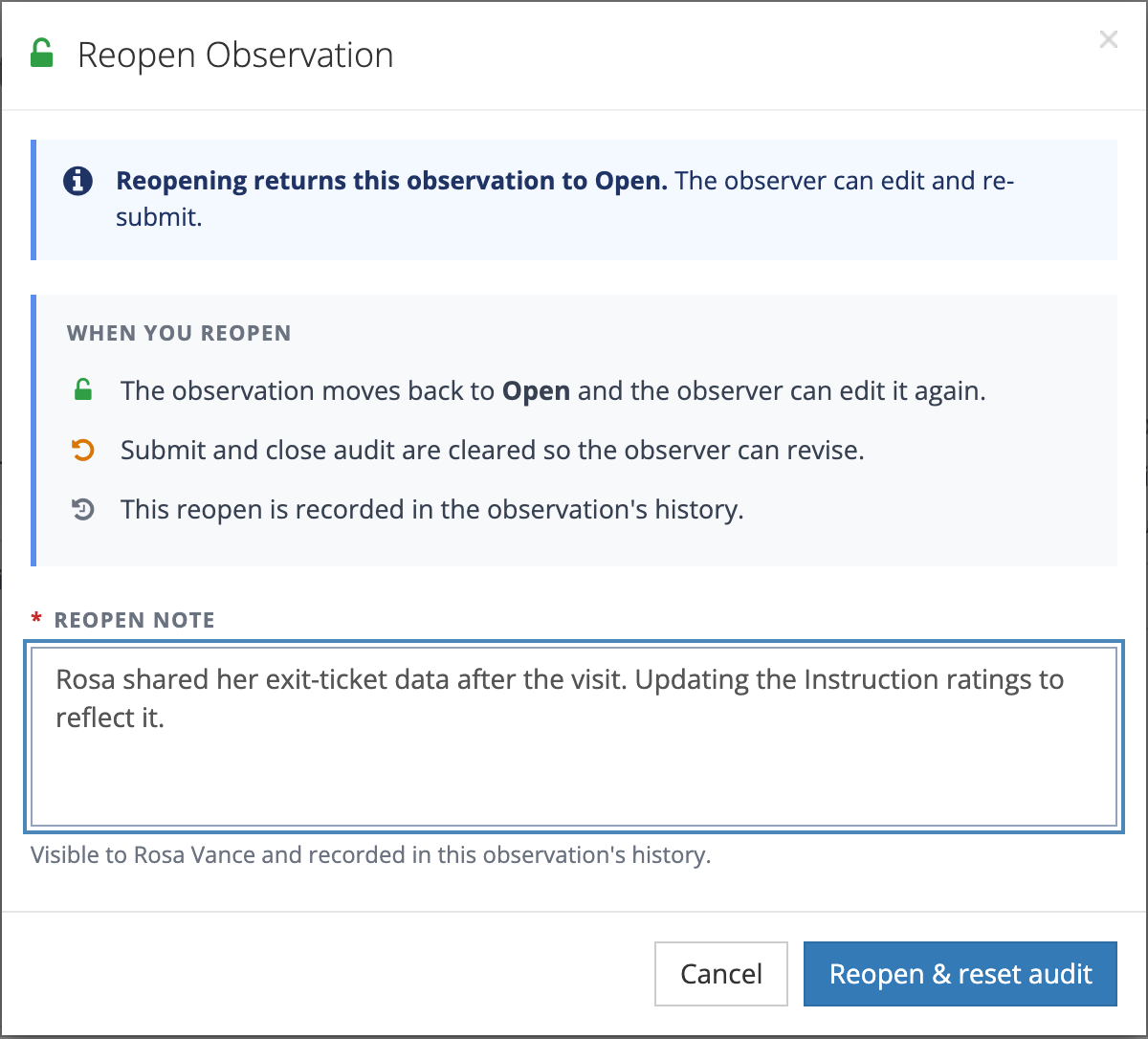
What reopening does:
- The observation returns to Open, and the observer can edit it again.
- The submit and close records are cleared, so the observer submits again when finished.
- If the form set asks the teacher to reflect or acknowledge, the teacher’s earlier reflection and acknowledgment are cleared. The teacher is asked to respond again after the observer resubmits.
- Any sign-in link already emailed to the teacher stops working. When teacher emails are on and your district allows magic links, a new link goes out with the next request to respond.
- The reopen is recorded in the observation’s history.
When the teacher has already reflected, the Reopen Observation window says the reflection is preserved and that the teacher acknowledges again “at the next close.” Reopening clears the reflection, and the new request goes out when the observer resubmits.
After you make your changes, submit the observation again. See Conducting Your First Observation.
Tell the teacher why. A reopened observation changes something the teacher has already read. A short reopen note, followed by a conversation, avoids surprises.
Reopen history
Section titled “Reopen history”After an observation has been reopened, the Observation details card shows a link such as Reopened 1 time · view history. Click it to see each reopen, newest first, with who reopened it, when, and the reopen note. Because reopening clears the earlier submit and close records, this history is the lasting record of the change. Only organization administrators and system administrators see the link.