

Observations
Managing Observations
Find observations on the My Observations, Conducted Observations, and All Observations lists, filter them, and export them.
weCLIMB keeps three lists of observations. Which ones you see depends on your roles:
| List | In the menu | Shows | Role needed |
|---|---|---|---|
| My Observations | My Observations | Submitted observations of you. Drafts do not appear. | Observable |
| Conducted Observations | Conducted Observations | Observations you conducted, including your drafts | Observer |
| All Observations | All Observations | Every observation in the schools you belong to and the schools below them | Organization Administrator |
A system administrator without the Organization Administrator role does not see All Observations.
On an observation page, the breadcrumb shows which list it belongs to for you: My Observations, My Conducted Observations, or All Observations. The Observations page under the OBSERVE heading shows a card for each list you can see.
My Observations
Section titled “My Observations”Teachers see the observations of their classrooms here once the observer submits them. A number beside My Observations in the menu counts observations waiting on your reflection or acknowledgment.
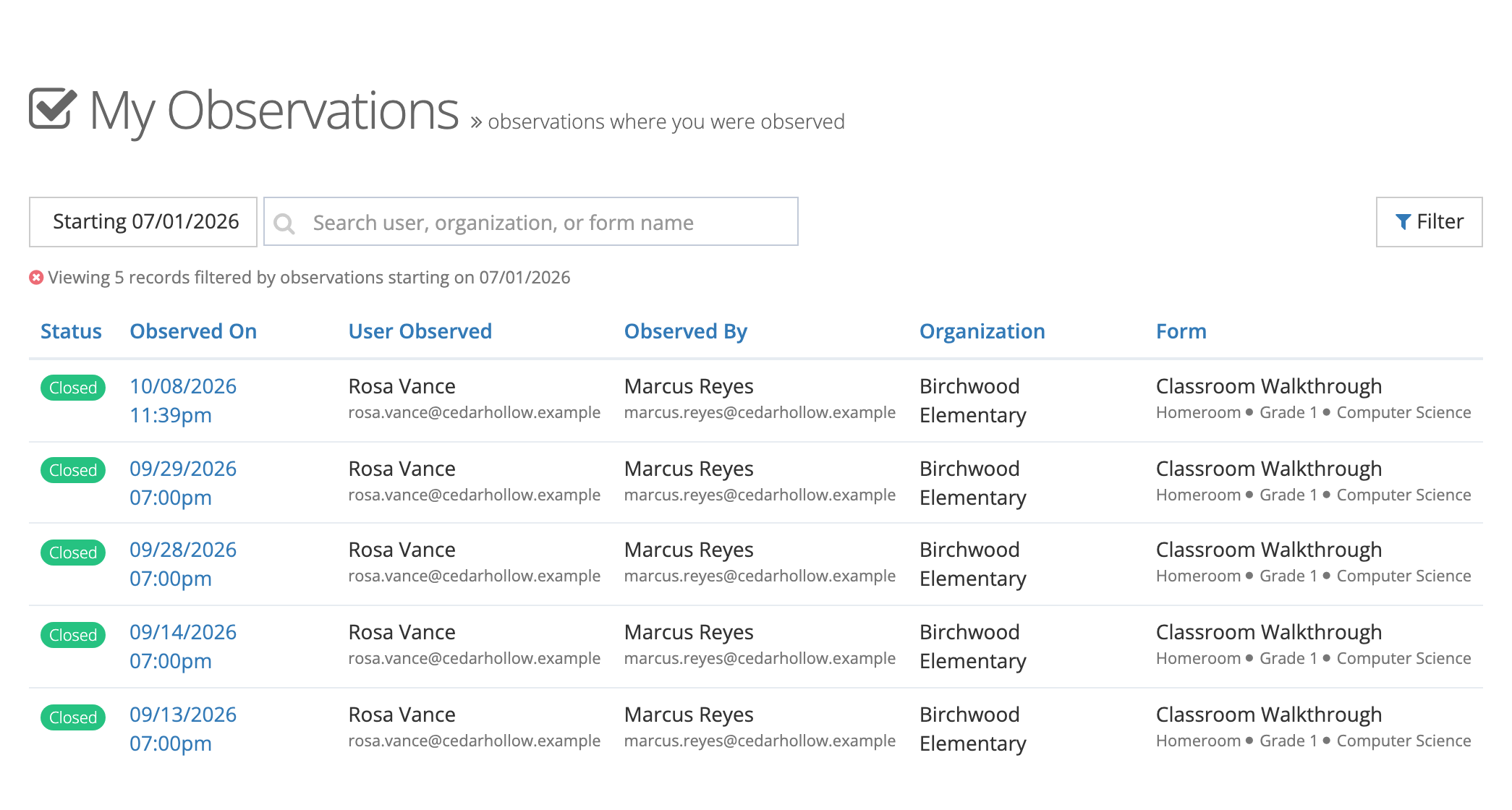
For what a teacher can do on each observation, see Your Observations as a Teacher.
Conducted Observations
Section titled “Conducted Observations”Observers see every observation they conducted, in any status. Use it to finish drafts, follow up on observations waiting on a teacher, and close the ones ready to close.
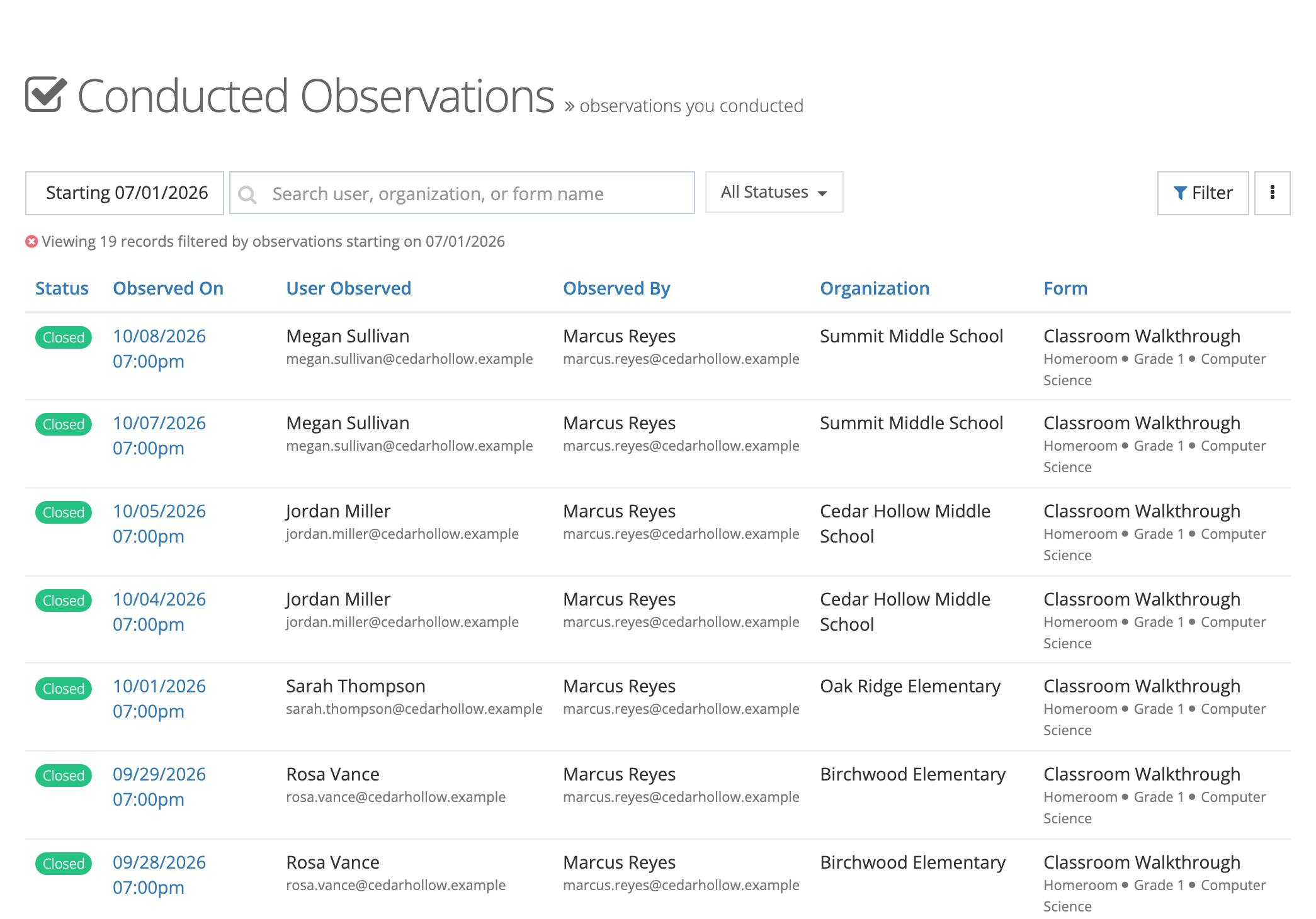
The ⋮ menu offers New (start an observation), Print Blank (download an empty form set as a PDF), and Export CSV (your conducted observations, with the current filters).
All Observations
Section titled “All Observations”Organization administrators see every observation in their schools, from every observer.
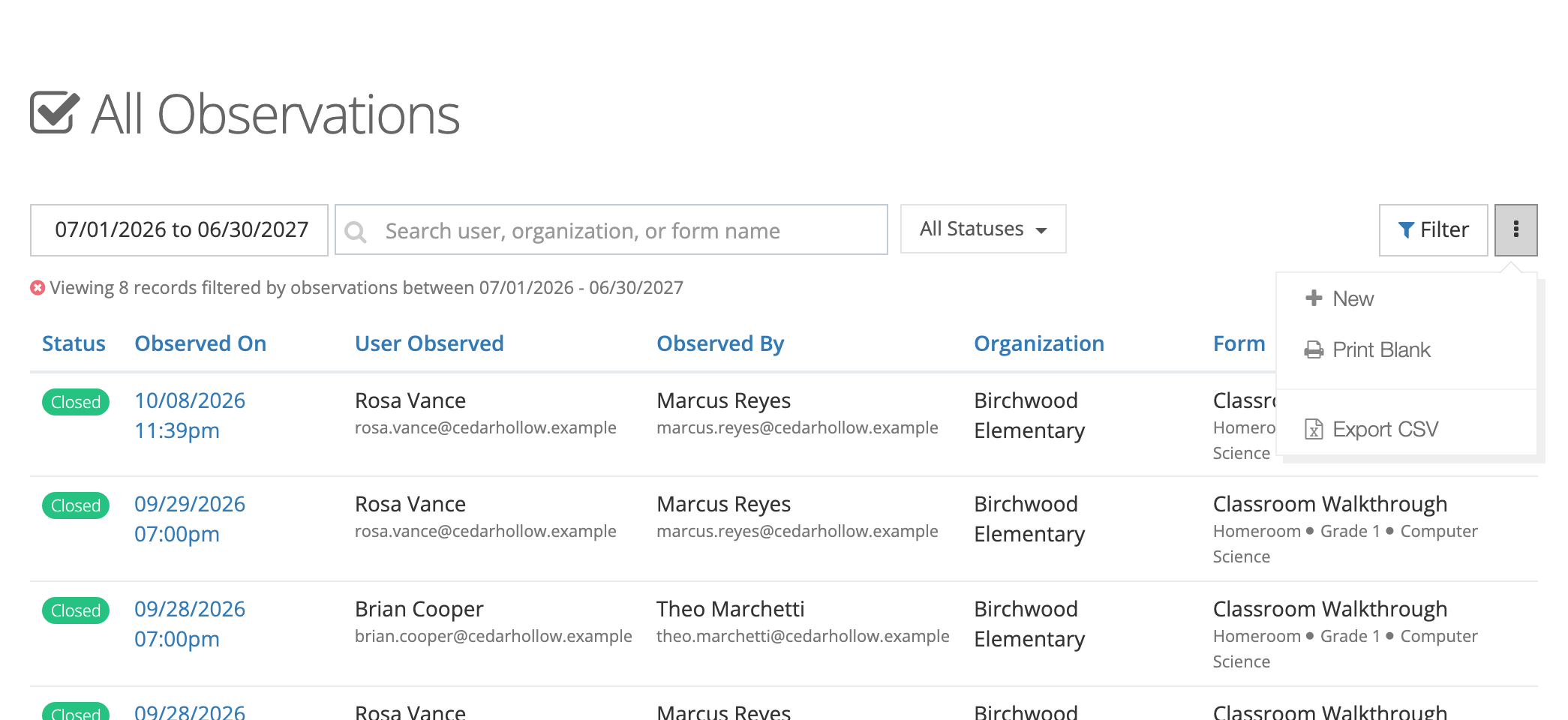
The ⋮ menu offers:
- New: start an observation (needs the Observer role).
- Print Blank: download an empty form set as a PDF.
- Export CSV: one row per observation in the filtered list.
- Export Observations: a ZIP file of observation PDFs, for example for end-of-year personnel files.
- View Exports: the list of your ZIP exports and their progress.
Export Observations and View Exports appear only for users who hold the System Administrator role as well as Organization Administrator. For more on exports, see Exporting Observation Data.
Lists opened from a dashboard
Section titled “Lists opened from a dashboard”Links on the Observe Dashboard open All Observations already filtered, and the page title names the filter: Observations In Flight, Drafts Never Submitted, Stalled Observations, or Waiting On A Teacher. The rows are the observations the dashboard counted. Counts on the Admin Dashboard open the same list scoped to one school.
The columns
Section titled “The columns”All three lists share the same columns. Click a column heading to sort by it.
- Status: Open, Awaiting Reflection, Awaiting Acknowledgment, Awaiting Closure, or Closed. See Overview.
- Observed On: the date and time of the visit. Click it to open the observation.
- User Observed: the teacher, with their email. An archived teacher carries a badge.
- Observed By: the observer, with their email.
- Organization: the school.
- Form: the form set, with the class period, grade level, and content area beneath it, and a badge on formal observations.
Finding an observation
Section titled “Finding an observation”The toolbar above each list narrows what it shows:
- Date range: the button on the left. It starts at the current school year. Choose Last 30 Days, Last 90 Days, This Month, This Quarter, Last Year, This Year, or All Time, or enter a Start Date and End Date and click Apply.
- Search: matches a user, organization, or form name.
- All Statuses: on Conducted Observations and All Observations, tick one or more statuses.
- Filter: opens Filter Observations with more fields: Forms, Organizations, Grade Levels, Class Periods, Content Areas, Observable Users, Observable User Record Status, and Observers, plus Formal on accounts with performance reviews.
My Observations adds Observation Status (Closed or Open). All Observations adds two filters for follow-up work:
- Closed: Closed or Open, the simpler question of whether an observation is finished.
- Sitting at least (days): observations that have been in their current step for at least that many days. This is how the dashboard counts stalled work.
The line under the toolbar says how many records you are viewing and which filters apply.
Opening an observation
Section titled “Opening an observation”Click the Observed On date to open the observation page. There you can read the answers and scores, add to the discussion, and use the buttons your role allows, such as Submit Observation, Reopen, or PDF. See The Observation Page and Scores and Reopening.
K-12 tips
Section titled “K-12 tips”- Principals: filter All Observations by your building and sort by Status to see what is still waiting before a reporting deadline.
- Coaches: filter Conducted Observations to one teacher with Observable Users to review the visits from a coaching cycle before a conference.
- Teachers: the date button starts at the current school year. Choose All Time to see earlier years.