

Observations
Your Observations as a Teacher
Find observations waiting on you, reflect on and acknowledge them, follow the conversation, and download a copy once they are closed.
When a principal, assistant principal, or coach observes your classroom, the observation comes to you after they submit it. Depending on how your district set up the form, you may be asked to write a reflection, acknowledge the observation, or both. This article shows where to find your observations and what to do with each one.
You see these pages when your account can be observed (the observable role).
See what is waiting on you
Section titled “See what is waiting on you”Observations that need your response show up in three places.
My Dashboard. On the Observations tab, the Awaiting your response panel lists up to ten observations waiting on you, newest first. Each row shows the form, who observed you and when, and the step you are on (Awaiting Reflection or Awaiting Acknowledgment). Click Respond to open the observation.

Below the panel, the My Observations card counts how many times your classroom has been observed (closed observations only) and links to your full list with View.
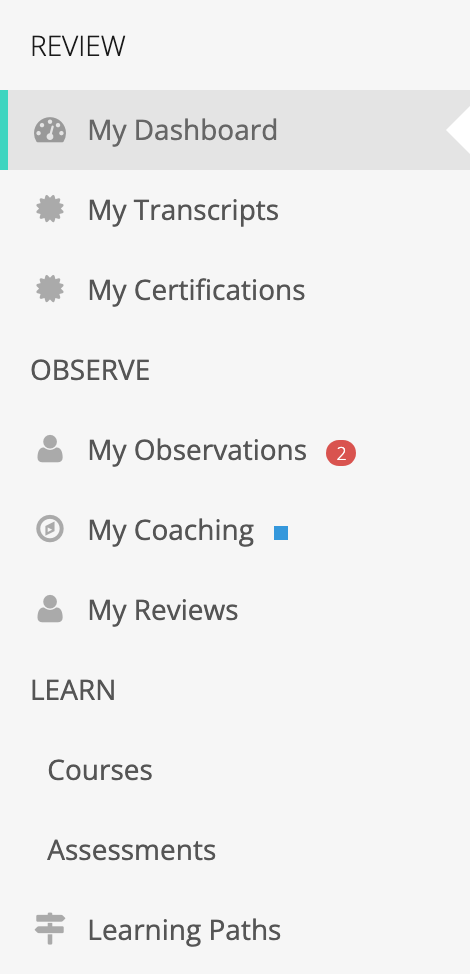
The menu. A red number next to My Observations in the left menu shows how many observations are waiting on you. It goes away when you have responded to all of them.
Email. When your district has teacher emails turned on, you get an email when an observation needs you. See Emails you may receive.
Your observation list
Section titled “Your observation list”Click My Observations in the menu to see every observation of your classroom. The list shows only observations your observer has submitted. Drafts they are still working on do not appear until they submit.
The columns are Status, Observed On, User Observed, Observed By, Organization, and Form. The list starts at the beginning of the current school year. Change the start date, search by a person’s name, school, or form name, or click Filter to narrow it further. Click a row to open the observation.
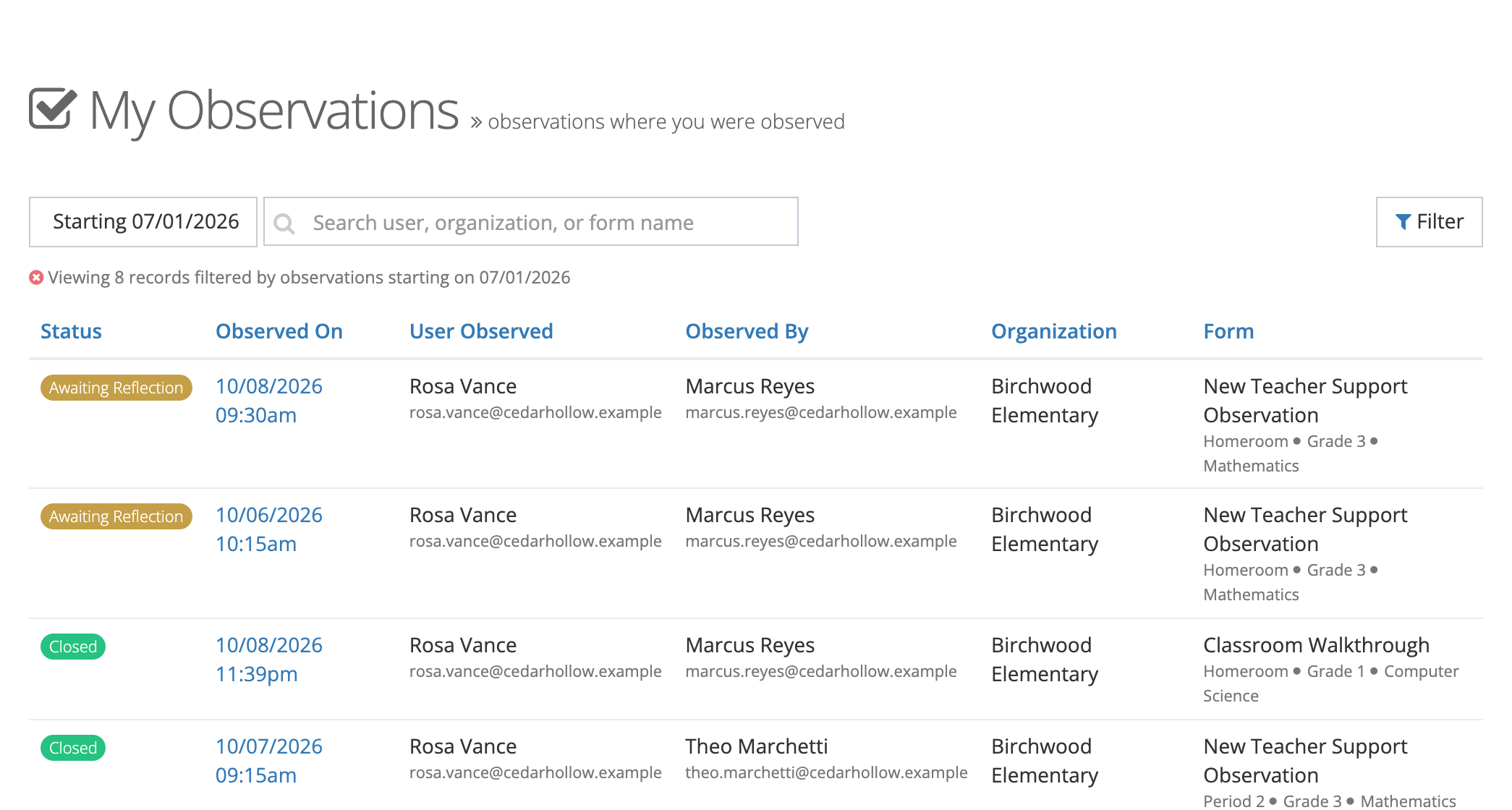
Each status means:
| Status | What it means for you |
|---|---|
| Awaiting Reflection | Your observer is asking for your reflection. |
| Awaiting Acknowledgment | Your observer is asking you to confirm you have reviewed it. |
| Awaiting Closure | You have done your part. Your observer will close it. |
| Closed | Final. Nothing more is needed from you. |
Respond to an observation
Section titled “Respond to an observation”Open the observation. The band at the top tells you what is being asked, and the response form is on the right. Read the ratings, overall feedback, and any comments on the left before you respond.
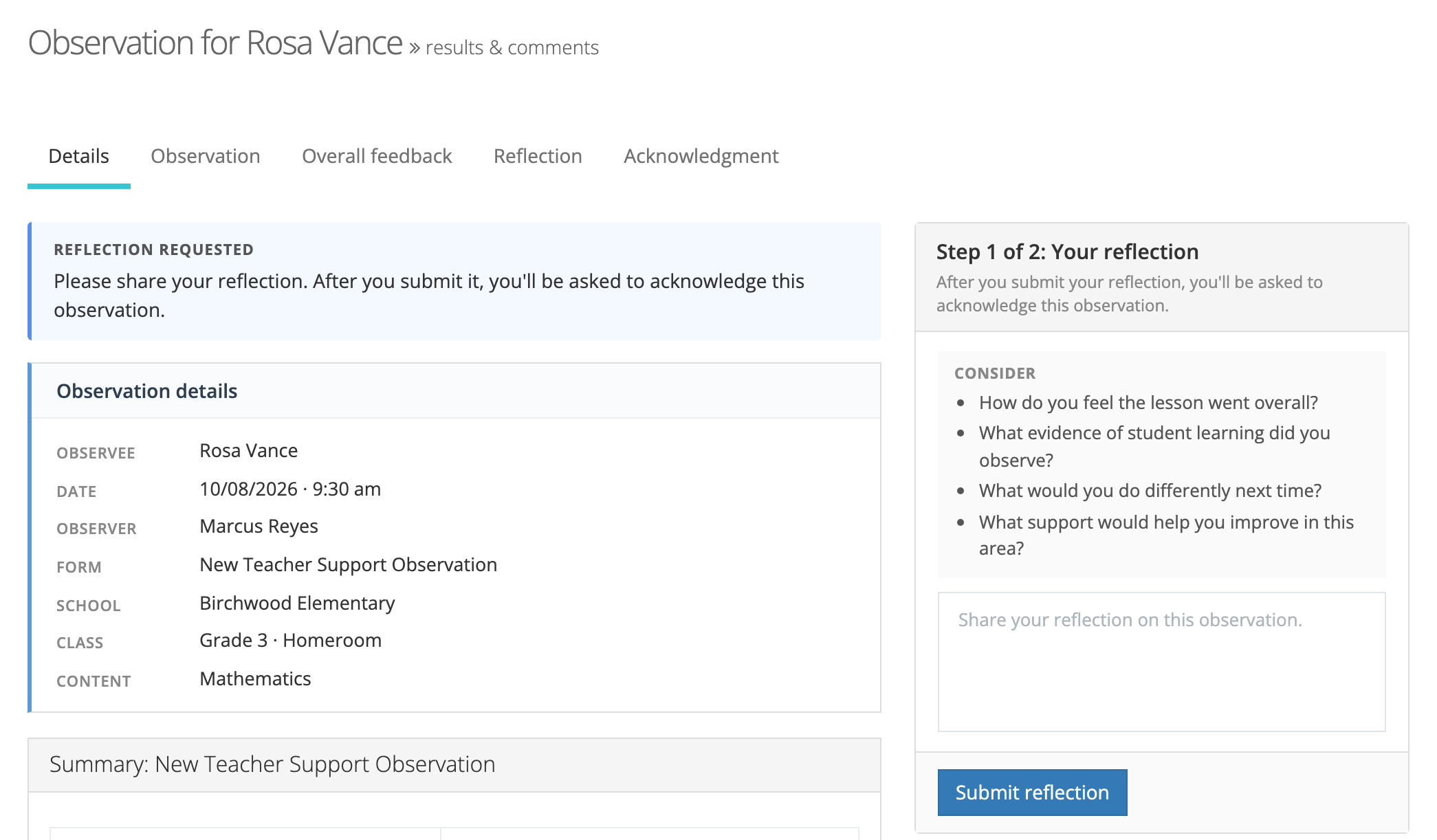
- Reflect (when asked). Use the Consider prompts as a guide, write your reflection, and click Submit reflection. See Teacher Self-Reflection.
- Acknowledge (when asked). Choose I acknowledge this observation. or I acknowledge, but disagree with part of this observation. If you disagree, explain why in the box that appears (required). Click Acknowledge. Acknowledging confirms you have reviewed the observation. It does not mean you agree with it. See Teacher Acknowledgment.
When the form asks for both, the panel reads Step 1 of 2 and Step 2 of 2, and the acknowledgment step appears after you submit your reflection.
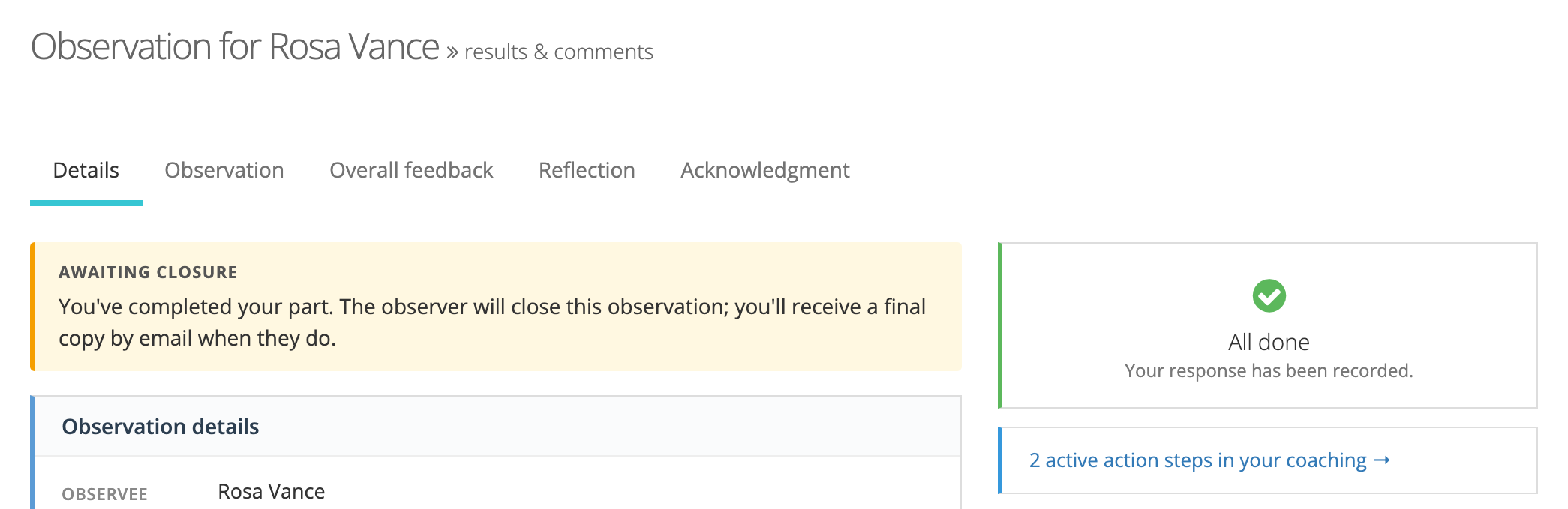
When you finish, the page shows All done and the status changes to Awaiting Closure: your observer will close the observation, and you get a final copy by email when they do (if teacher emails are on).
You can respond from the email link without signing in when your district allows it. See Opening an Observation from Email.
Talk with your observer
Section titled “Talk with your observer”When your district has comments turned on, a Discussion panel appears on the right once the observation is submitted. Use it to ask a question about a rating or share context your observer did not see. The thread stays open after the observation is closed. See Comments and Attachments.
After the observation is closed
Section titled “After the observation is closed”- A Closure section shows who closed the observation, when, and any note they left for you.
- A PDF button appears at the top of the page. Click it, choose whether to Include Discussion comments, and click Generate PDF to save a copy for your records.
- You cannot edit, reopen, or delete an observation. If something is wrong, contact your observer or school administrator. They can reopen it.
If it was closed before you responded. Your administrator can close an observation without your reflection or acknowledgment, for example at the end of an evaluation window, and must leave a note explaining why. The band at the top tells you it was closed without your response. You can still reflect or acknowledge. Your response is recorded, but it does not reopen the observation.
Coaching connected to your observations
Section titled “Coaching connected to your observations”If you are in a coaching cycle, the observation page shows the action steps from that visit, or a link such as 2 active action steps in your coaching →. The link opens My Coaching, where you can see your goals and steps across visits. See The My Coaching Page.
Performance reviews
Section titled “Performance reviews”Performance reviews work the same way but live under My Reviews in the menu, with their own red badge when a review is waiting on you. See Performance Reviews Overview.
Emails you may receive
Section titled “Emails you may receive”Teacher emails are sent only when your district has turned them on in its settings and on the observation’s form. You may receive:
- A reflection request, when your observer submits an observation that asks for your reflection. The subject reads “Please reflect on your observation from” and your observer’s name.
- An acknowledgment request, when the observation asks for your acknowledgment and you have reached that step. The subject reads “Please acknowledge your observation from” and your observer’s name.
- A final copy when the observation is closed.
When magic links are allowed, the link in a request email signs you in to that observation without a password. It is unique to you, expires in 30 days, and should not be forwarded. You can turn the reflection and acknowledgment requests on or off in your notification preferences. See Managing Notification Preferences.