

Reports
Saving and Reusing Report Filters
Save a report's filters under a name so you and other report users can rerun the same view each month in one click.
Many schools look at the same report the same way every month: walkthroughs at one building, grouped by grade level, for the current school year. Instead of setting the date range, form set, and filters each time, you can save them under a name and reload them later.
Saved filters work on three reports:
Role: reporter, organization administrator, or system administrator. The Saved Reports page sits in the sidebar Reports menu, which appears only for users with the reporter role.
What a saved filter remembers
Section titled “What a saved filter remembers”A saved filter stores everything the report is using when you save it: the date range, the grouping (such as Group By on Organization Totals), the form set, and every choice in the report’s Filter window.
The date range is saved as fixed dates. A filter saved with this school year’s dates keeps showing this school year. When a new year starts, change the dates on the report and use Update Current Filter (below).
Who can see a saved filter
Section titled “Who can see a saved filter”Saved filters are shared across your district. Every user who can open the report sees every saved filter on it, whoever created it, and can rename, update, or delete it.
The filter controls the settings, not the data. When a principal at another building opens your saved filter, the report shows only the observations that principal is allowed to see. Give filters names that say what they show, such as “Walkthroughs by grade, 2026–27”, so colleagues can tell them apart.
Saving a filter
Section titled “Saving a filter”- Open one of the three reports and set it up the way you want: date range, grouping, form set, and filters.
- Click the Saved Filters button at the left of the toolbar.
- Click Create New Filter.
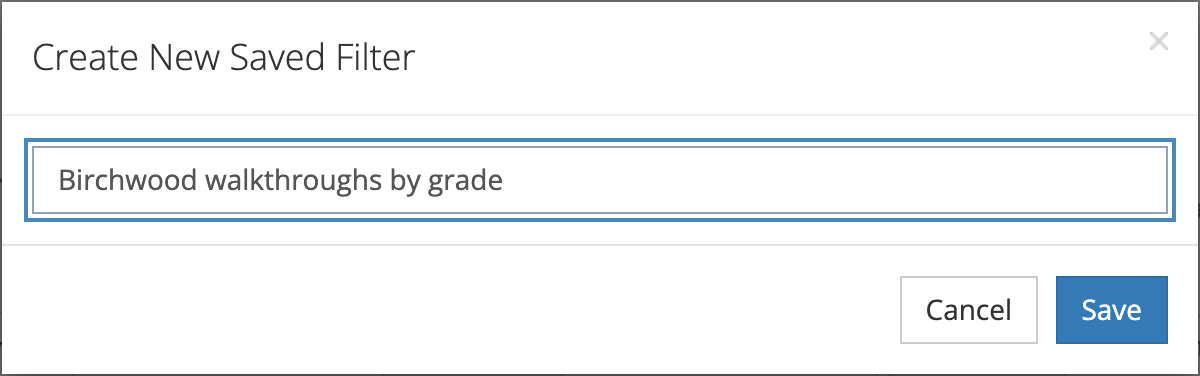
- In the Create New Saved Filter window, type a name and click Save.
The button now shows the filter’s name, and the filter appears in the list.
Loading and managing a saved filter
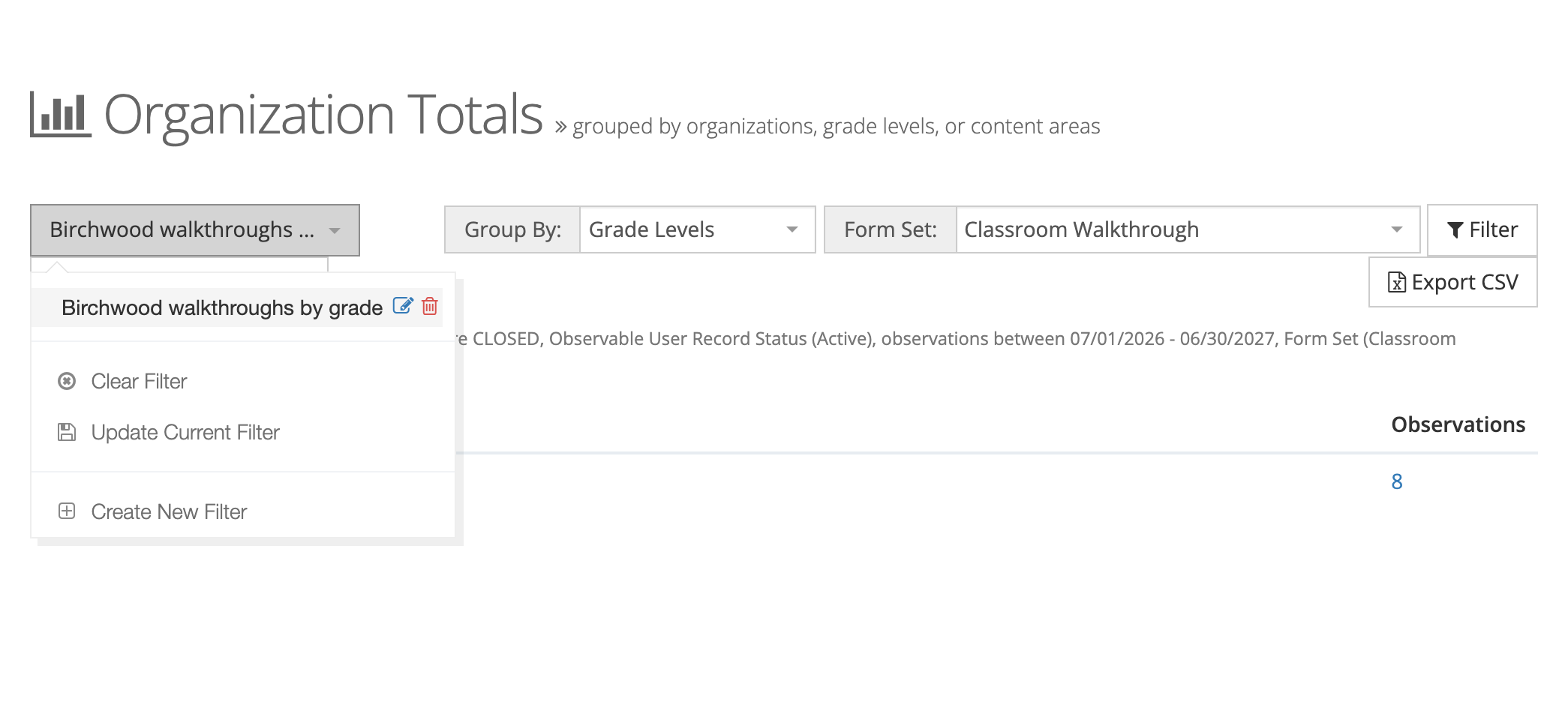
Section titled “Loading and managing a saved filter”Click the Saved Filters button (or the name of the filter you are using) to open the list. Click a filter’s name to load it. The report reloads with its settings, and the line under the toolbar lists the filters in use.
Point at a filter in the list to show two icons:
- Edit (pencil): opens the Edit Saved Filter window to rename it.
- Delete (trash can): asks you to confirm, then removes the filter for everyone.
When a saved filter is loaded, the list also offers:
- Clear Filter: unloads the saved filter. The button goes back to Saved Filters.
- Update Current Filter: replaces the saved settings with what the report is using now. Use it after you change the dates or add a filter.
When you have ten or more saved filters on a report, a Search filters… box appears at the top of the list.
The Saved Reports page
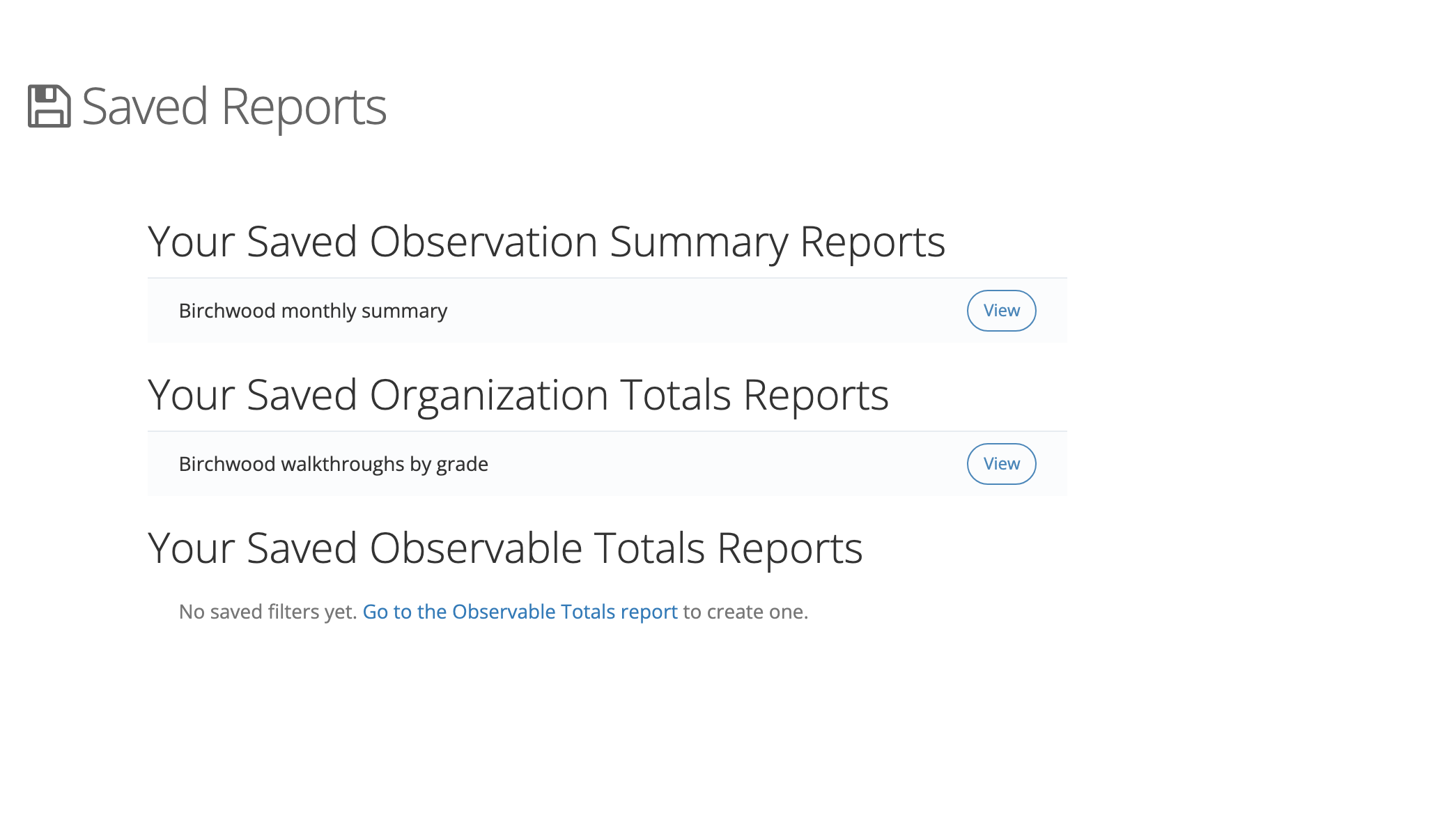
Section titled “The Saved Reports page”To see every saved filter in one place, open Reports in the sidebar and click Saved Reports.
The page has one list per report: Your Saved Observation Summary Reports, Your Saved Organization Totals Reports, and Your Saved Observable Totals Reports. Click View next to a filter to open its report with that filter loaded. A list with nothing saved shows a link to the report so you can create one.
The page has no rename or delete buttons. Open the filter’s report and use the icons in the Saved Filters list instead.
Saved filters on the Admin Dashboard
Section titled “Saved filters on the Admin Dashboard”The REPORTS panel on the Admin Dashboard lists links to Organization Totals, Observable Users Totals, and Observation Summary Report. When your district has saved filters on those reports, a SAVED REPORTS heading follows, with one link per saved filter. This is how an organization administrator without the reporter role reaches saved filters.
Ideas for your district
Section titled “Ideas for your district”- A monthly building check: each principal saves “Walkthroughs this year” on Organization Totals and opens it before the monthly leadership meeting.
- A coverage list: save Observable Users Totals set to Users Not Observed, and rerun it every few weeks to see who still needs a first visit.
- A district summary for the board: save the Observation Summary Report by semester for the form set your district uses for formal evaluations.