

Coaching
Coaching Dashboard & Reminders
Administrators get a Coaching Dashboard for program-level oversight, and optional reminder emails keep coaches and teachers on cadence.
Coaching Dashboard
Section titled “Coaching Dashboard”Requires the organization administrator or system administrator role. Open it from Dashboards > Coaching Dashboard in the sidebar.
The dashboard answers the questions a coaching program lead asks each month: who is being coached, how often, and whether action steps are getting done.
- Filters: a date range button (This School Year by default; its menu also offers Last School Year, Fall, Spring, Summer, All Time, and custom Start Date and End Date), All schools, and All coaches.
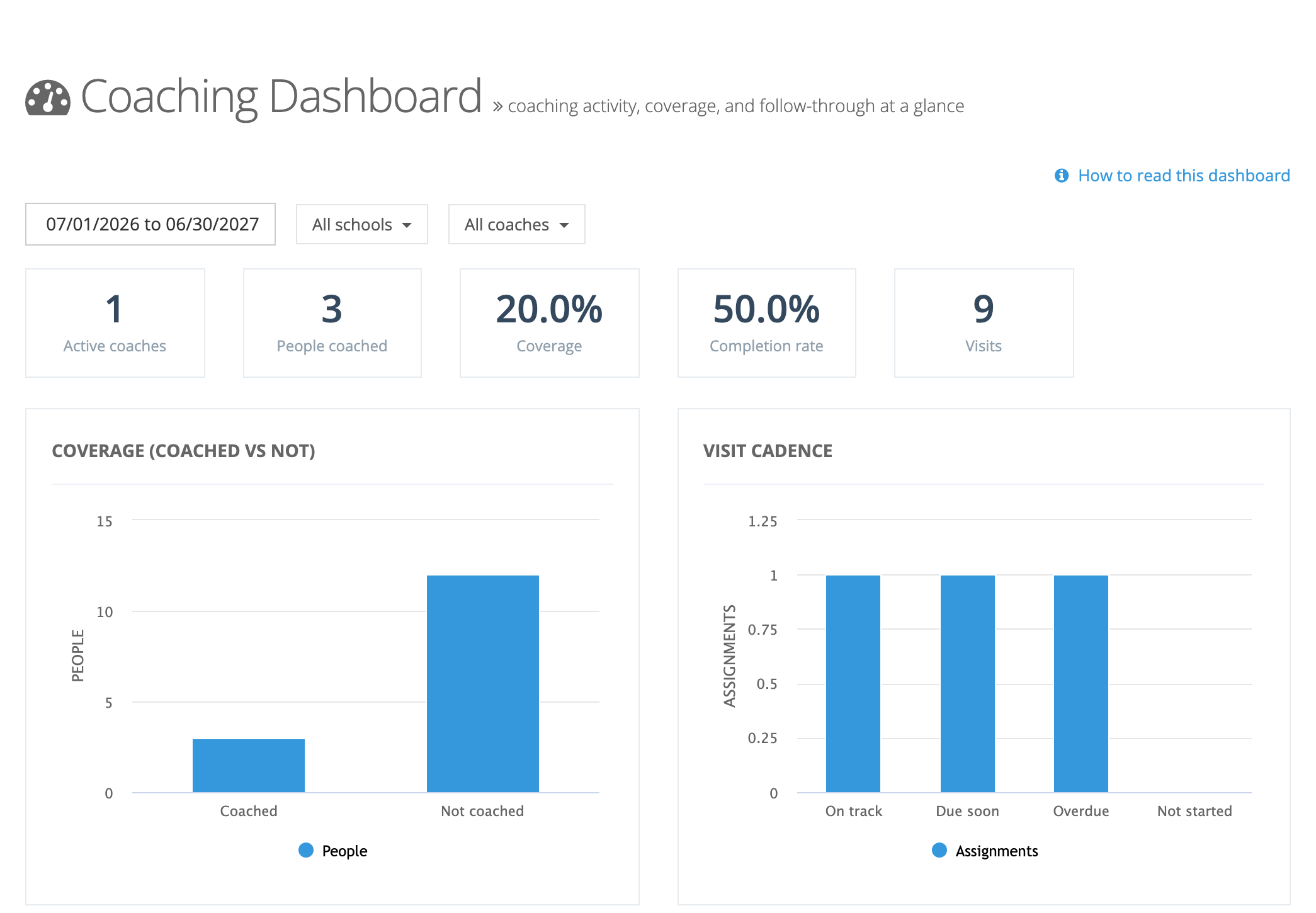
- KPI tiles: Active coaches, People coached, Coverage, Completion rate, and Visits.
- Charts: Coverage (coached vs not), Visit cadence (On track, Due soon, Overdue, Not started), Completion-rate distribution, Visits over time, Top focus areas, and Visits by grade.
- Coverage by school: a table of observable teachers, coached, not coached, and coverage for each school.
- Activity by Coach and Activity by School links open the detailed coaching reports, which have Export CSV. See Coaching Activity Reports.
How to read this dashboard opens a short guide to each figure.
Reminder emails (optional)
Section titled “Reminder emails (optional)”When Send coaching reminders? is on in Observe Settings:
- Teachers receive Your coaching action steps are coming due two days before a step’s check-back date and on the date itself.
- Coaches receive You have coaching visits that are overdue, listing in-progress assignments that are overdue or not yet started.
Turning reminders off silences these two emails without affecting other coaching emails. Each person can also turn them off in their own notification preferences (Action step reminders and Overdue visit alerts).
Action step update emails
Section titled “Action step update emails”Separate from reminders, a teacher gets an email when their coach adds, revises, or defers a step on a submitted observation. Changes made within a few minutes of each other arrive as one email. These need Notify observee? on for the account and the Form Set, and the teacher’s Action step updates preference.