

Forms & Rubrics
Adding Questions and Configuring Scoring
Add questions to a section, give answer choices point values, and weight questions within a section.
Questions are the indicators observers answer, such as “Students read connected text for most of the group time.” Each question has answer choices, and a choice’s Value is the points it earns.
Requires the Publisher role and content creation turned on for your district. See Form Sets Overview.
Question types
Section titled “Question types”| Type | What the observer does | Scored? |
|---|---|---|
| Multiple Choice Question | Picks one answer choice. Use this for rubric indicators. | Yes. The highest choice value is the most the question can earn. |
| Multiple Selection Question | Checks every choice that applies, such as strategies seen during the lesson. | Yes. The question can earn the sum of all choice values. |
| Counter Question | Taps plus and minus buttons to count each choice, such as student responses at each level. | No. |
| Free Form Response Question | Types a written response. | No. |
Add a question to a section
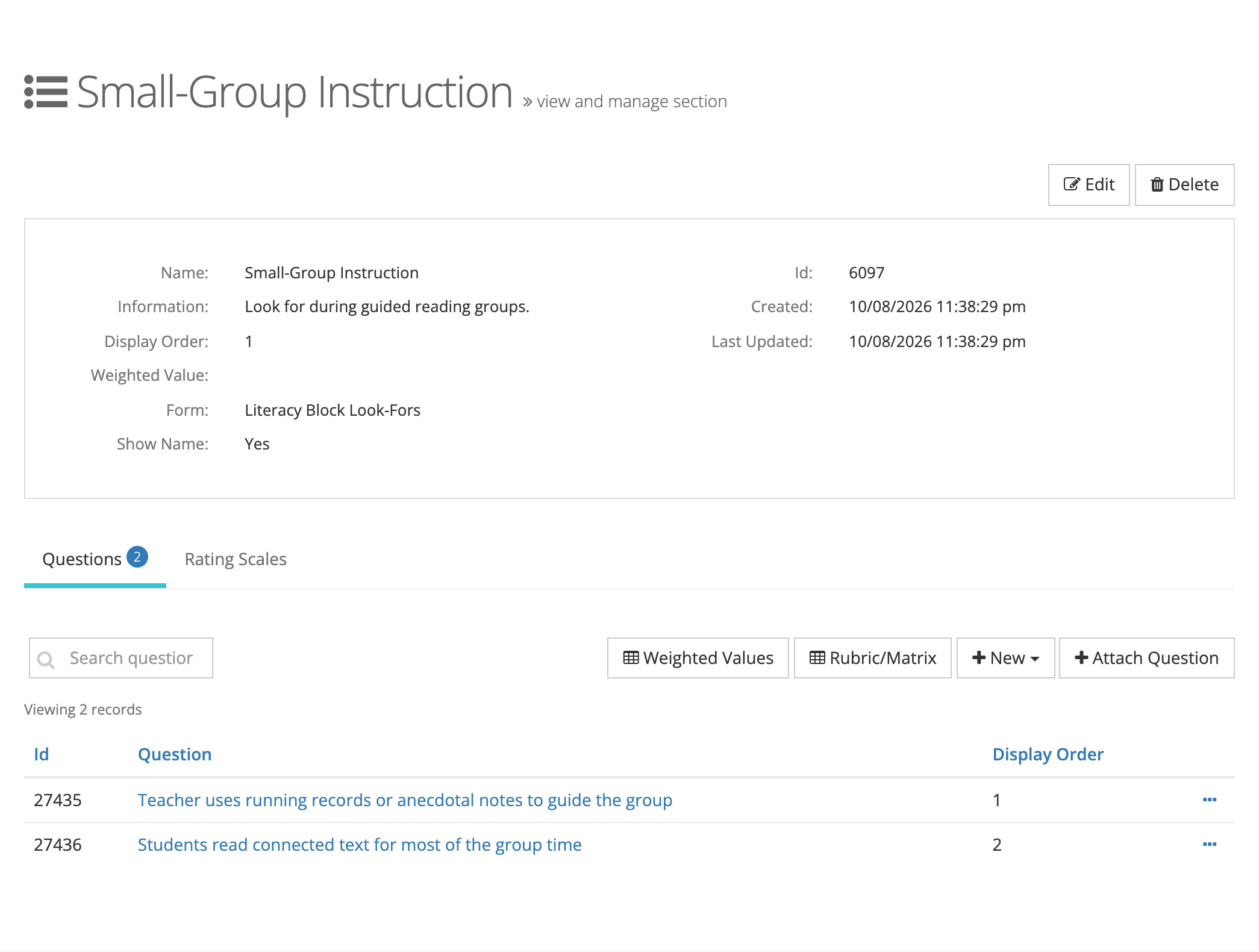
Section titled “Add a question to a section”- Open the section (from the form’s Form Sections tab, or System Administration > Sections).
- On the Questions tab, click New and choose the question type.
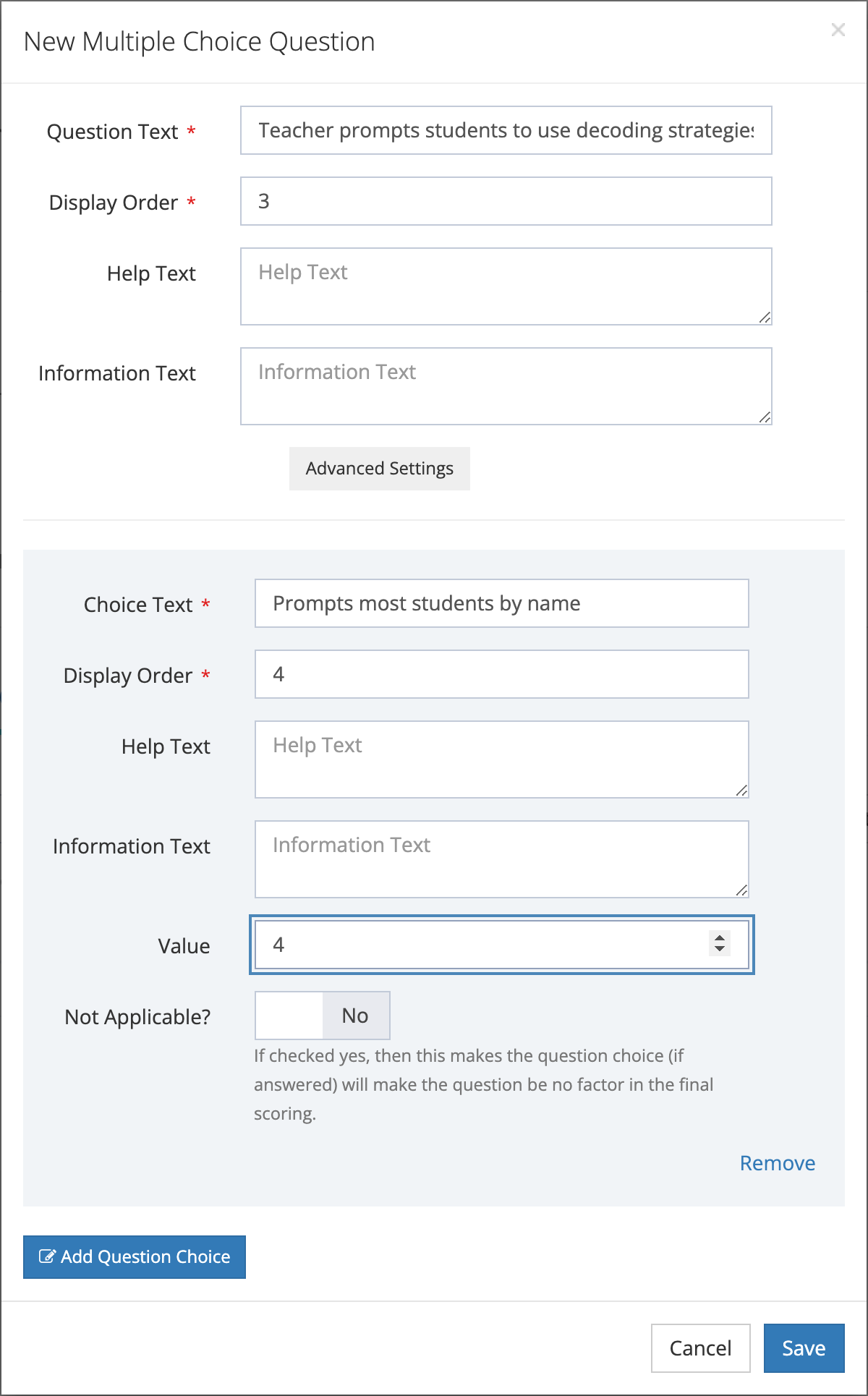
- Enter:
- Question Text (required): the indicator observers see.
- Display Order (required): the question’s position in the section, lowest first.
- Help Text and Information Text: optional guidance shown to observers.
- Click Add Question Choice for each answer choice, and enter:
- Choice Text (required): the wording observers choose, such as “Most students read most of the time”.
- Display Order (required): the choice’s position.
- Help Text and Information Text: optional.
- Value: the points for this choice. Leave it blank for a choice that earns no points. (Counter choices have no Value.)
- Not Applicable?: turn on for a choice such as “Not observed”. If an observer picks it, the question is left out of the score.
- Click Save.
Free Form Response questions have no answer choices.
Advanced Settings
Section titled “Advanced Settings”Click Advanced Settings in the question window for these options:
- Feedback enabled?: gives observers a feedback box on this question.
- Chart Type: Column or Area, for the question’s chart in reports.
- Divide Type: how reports calculate rates. Observations divides answers by the number of observations (the default). Choices divides by the number of answers to the question.
- Attachment Enabled?: lets observers attach a file to this question.
Reuse an existing question
Section titled “Reuse an existing question”To add a question that already exists, click Attach Question on the section’s Questions tab. Choose the Question, enter a Display Order, set Required?, and click Save. Attach Question appears only when there are questions available to attach.
To create a question without a section, go to System Administration > Questions, click New, and choose the type. Then attach it to a section as described above. The Questions page lists every question with its Type, and you can filter by type or search.
Make a question required, or change its order
Section titled “Make a question required, or change its order”- On the section’s Questions tab, click the … menu on the question’s row.
- Click Edit.
- Change Display Order, or turn on Required? so observers must answer the question.
- Click Save.
Required is set for the question within this section, so the same question can be required on one form and optional on another.
Remove a question from a section
Section titled “Remove a question from a section”Click the … menu on the question’s row, click Delete, then click Remove in the Remove Question window. The question is removed from this section only.
Edit a question and its choices
Section titled “Edit a question and its choices”Click the question’s text to open it. Click Edit to change the question, or use the Question Choices tab to add or edit choices.
The question page also shows Feedback Tags. Click the pencil icon to choose Feedback Template Tags. Feedback templates with those tags are suggested to observers when they give feedback on this question. See Feedback Templates.
How scoring works
Section titled “How scoring works”- A question counts toward the section score when it is not a counter and at least one of its choices has a Value (or, on a rubric section, its choices are placed under rubric markers with values).
- A choice marked Not Applicable? leaves the question out of the score when picked.
- On a rubric section, the answer earns the rubric marker’s value. See Setting Up Rubrics and Rating Scales.
- If the observer leaves some scored questions unanswered, the score is based on the questions answered.
Weight questions within a section
Section titled “Weight questions within a section”By default every scored question counts equally. To make some indicators count more:
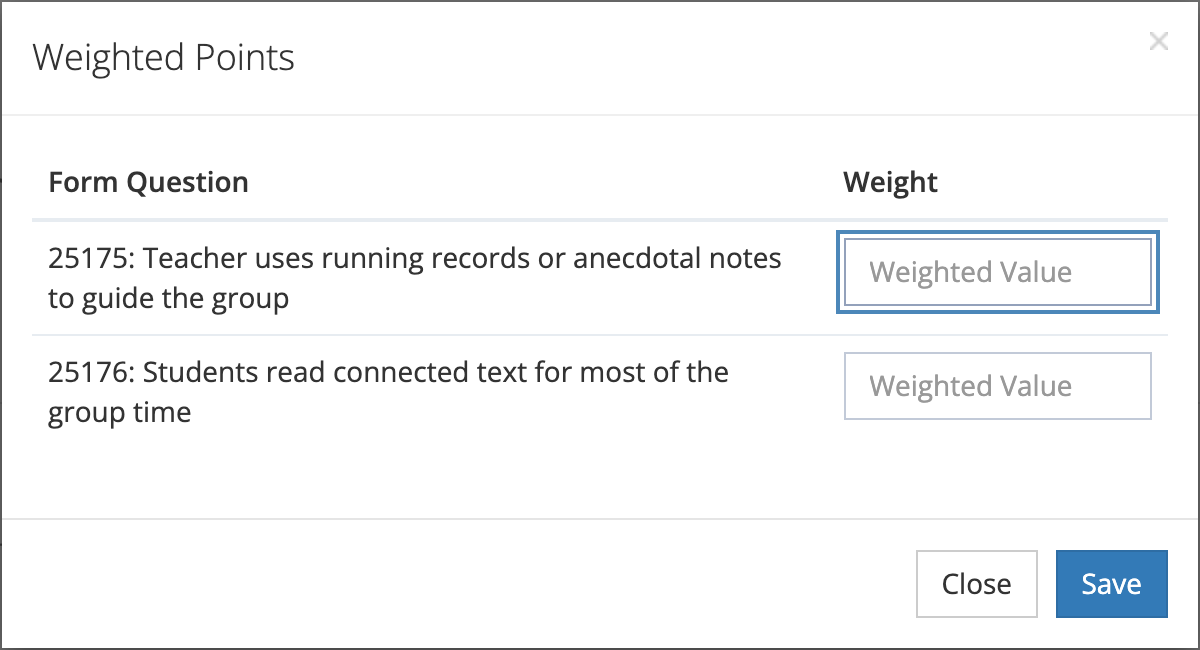
- On the section’s Questions tab, click Weighted Values.
- In the Weighted Points window, enter a Weight for each question as a decimal (for example
0.5,0.25,0.25). - Click Save.
The rules:
- Each weight must be greater than 0 and no more than 1.
- If you weight one scored question, weight them all. Otherwise leave every weight blank.
- The weights must add up to 1.
- Counter questions and questions with no values cannot be weighted. The window lists them separately.
- Adding a question to the section, or removing a weighted question, clears the section’s weights, so you need to enter them again. The add and remove windows warn you when this will happen.
- Give every rubric indicator the same set of values (for example 1 to 4) so section scores are comparable.
- Use a Not Applicable? choice for indicators that do not fit every lesson, such as small-group look-fors during whole-class instruction.
- Use Multiple Selection questions for look-for checklists, and keep their values small, since they add up.