

Coaching
Setting Up Cycle Stages and Action Step Templates
Define your district's coaching cycle stages and visit cadence, and build the library of action steps coaches pick from.
Two administration pages shape how coaching runs across your district:
- Cycle Stages describe where a teacher is in your coaching model (for example, first-year teachers in non-evaluative coaching) and set how often a coach should visit at each stage. That interval decides when a teacher shows as Due soon or Overdue on a coach’s roster.
- Action Step Templates are a shared library of well-worded action steps. Coaches pick from it when they assign a step after an observation, so steps stay specific and consistent across schools.
Role: system administrators. Both pages appear once your account team has made Coaching Cycles available to the district, even while the district’s Enable coaching cycles? setting is off, so you can set them up before coaches start. Organization administrators have permission to manage these pages but no menu link to them.
To find them, click the gear icon to open System Administration and, under OBSERVE, open Coaching > Cycle Stages or Coaching > Action Step Templates.
Cycle stages
Section titled “Cycle stages”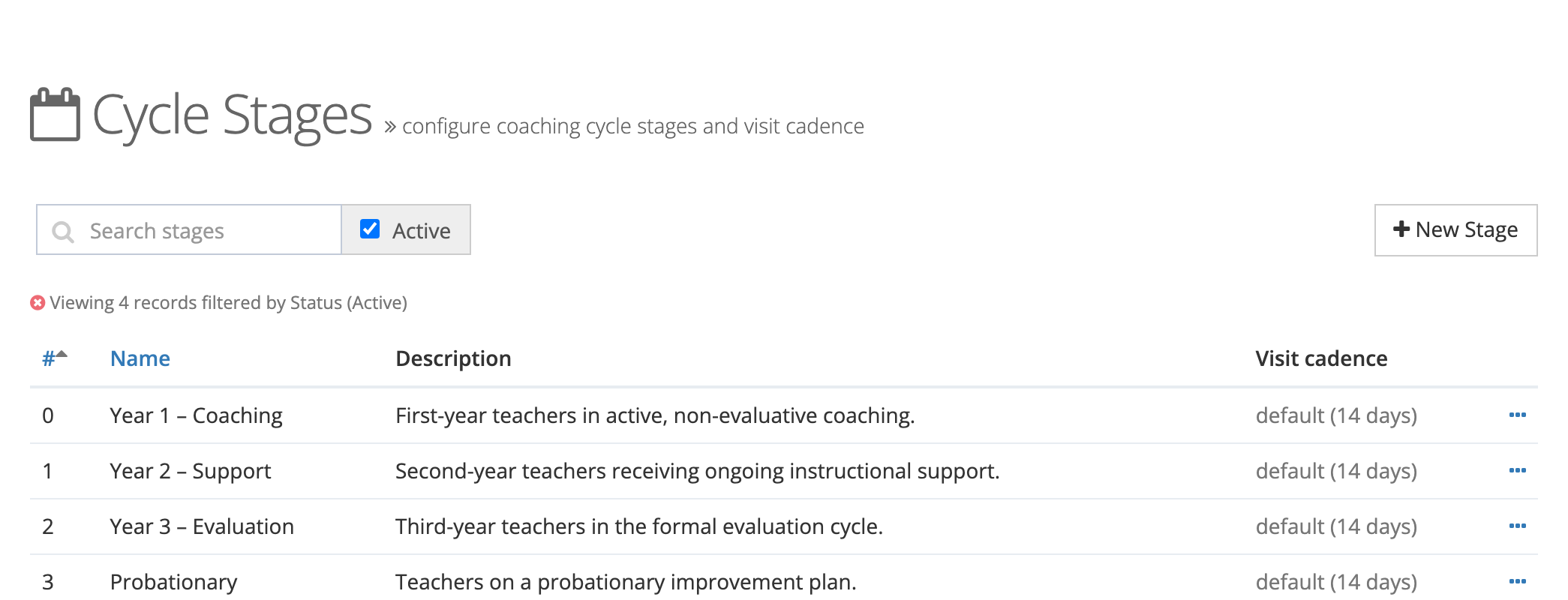
The list shows each stage’s # (position), Name, Description, and Visit cadence (“every N days”, or “default (14 days)” when no interval is set). Search by name or description, or uncheck Active to include archived stages.
Create a stage
Section titled “Create a stage”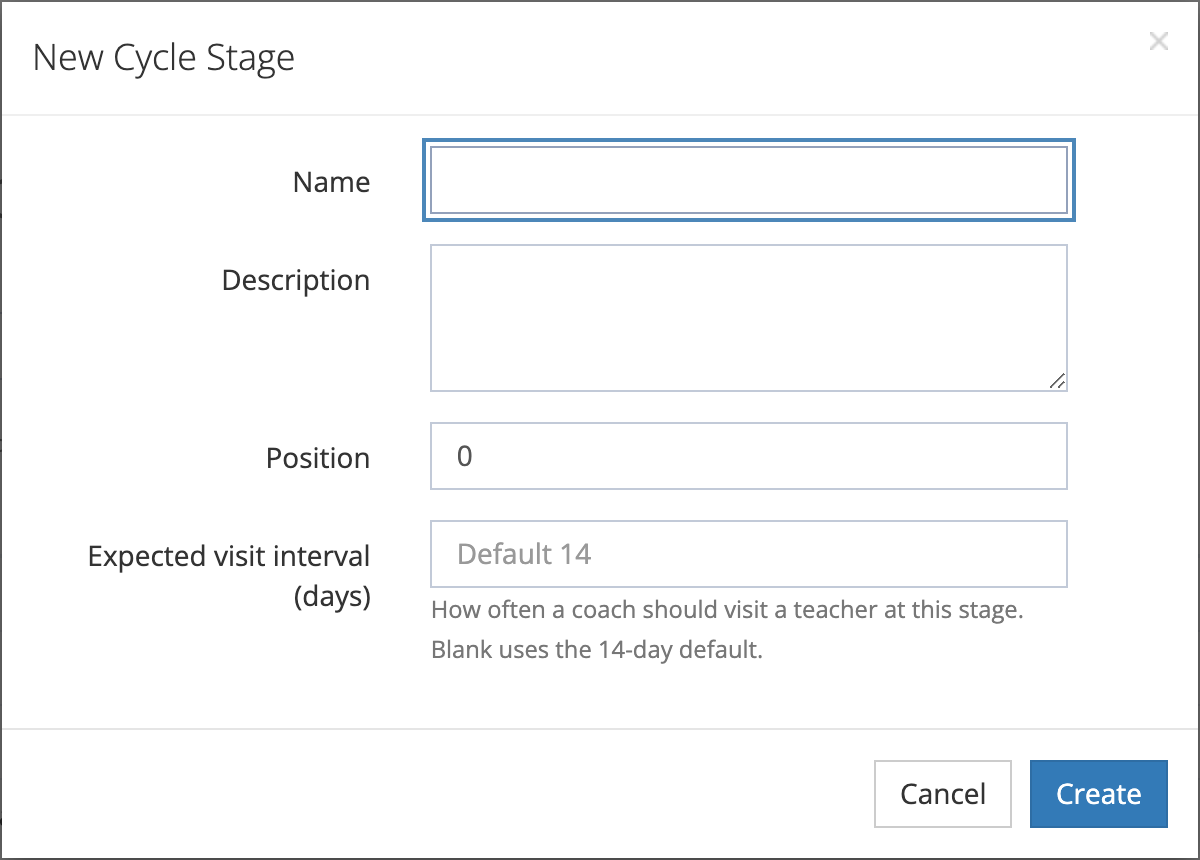
- Click New Stage.
- Fill in the fields:
- Name (required): must be unique in your district, for example “Year 2 – Support”.
- Description: what the stage means, so coaches choose the right one.
- Position: the stage’s place in lists. Lower numbers come first; the Cycle Stage dropdown in the assignment wizard and the All Stages filter on the rosters follow this order.
- Expected visit interval (days): how often a coach should visit a teacher at this stage. Leave it blank to use the 14-day default.
- Click Create.
To change a stage, open its ⋯ menu and click Edit, then Save.
How the visit interval drives cadence
Section titled “How the visit interval drives cadence”Each assignment’s cadence compares the days since the coach’s last submitted visit with the interval of the assignment’s stage (14 days when the stage has none, or when the assignment has no stage):
| Cadence | When |
|---|---|
| Not started | The coach has no submitted visit with the teacher. |
| On track | Fewer days have passed than the interval minus four. |
| Due soon | From four days before the interval until it is reached. For a 14-day interval, that is days 10 through 13. |
| Overdue | The interval has been reached or passed. |
For intervals of five days or fewer, Due soon starts on the day after a visit. Match the interval to how your district staffs coaching: a first-year teacher in intensive support might be visited weekly (7 days), while a veteran in a support stage might be visited monthly (30 days). When coaching reminders are on, coaches also get an email alert when a visit is overdue.
Archive or delete a stage
Section titled “Archive or delete a stage”The ⋯ menu on each stage offers:
- Archive: removes the stage from the Cycle Stage dropdown and the All Stages filter. Assignments already in that stage keep it. Activate brings an archived stage back.
- Delete: removes the stage permanently after you confirm “Permanently delete "
"? This cannot be undone.” A stage that any coaching assignment uses cannot be deleted; archive it instead.
Starter stages
Section titled “Starter stages”When your district has no stages yet, the page shows No cycle stages yet with a Load starter stages button (and Or create a stage from scratch). The starter set adds four stages with no visit interval, so each uses the 14-day default until you set one:
- Year 1 – Coaching: First-year teachers in active, non-evaluative coaching.
- Year 2 – Support: Second-year teachers receiving ongoing instructional support.
- Year 3 – Evaluation: Third-year teachers in the formal evaluation cycle.
- Probationary: Teachers on a probationary improvement plan.
Click Load starter stages, review the Load Starter Cycle Stages window, and click Load starter stages again. Starter stages whose names already exist are skipped, and existing stages are left unchanged. Starter stages are added only when an administrator loads them.
Action step templates
Section titled “Action step templates”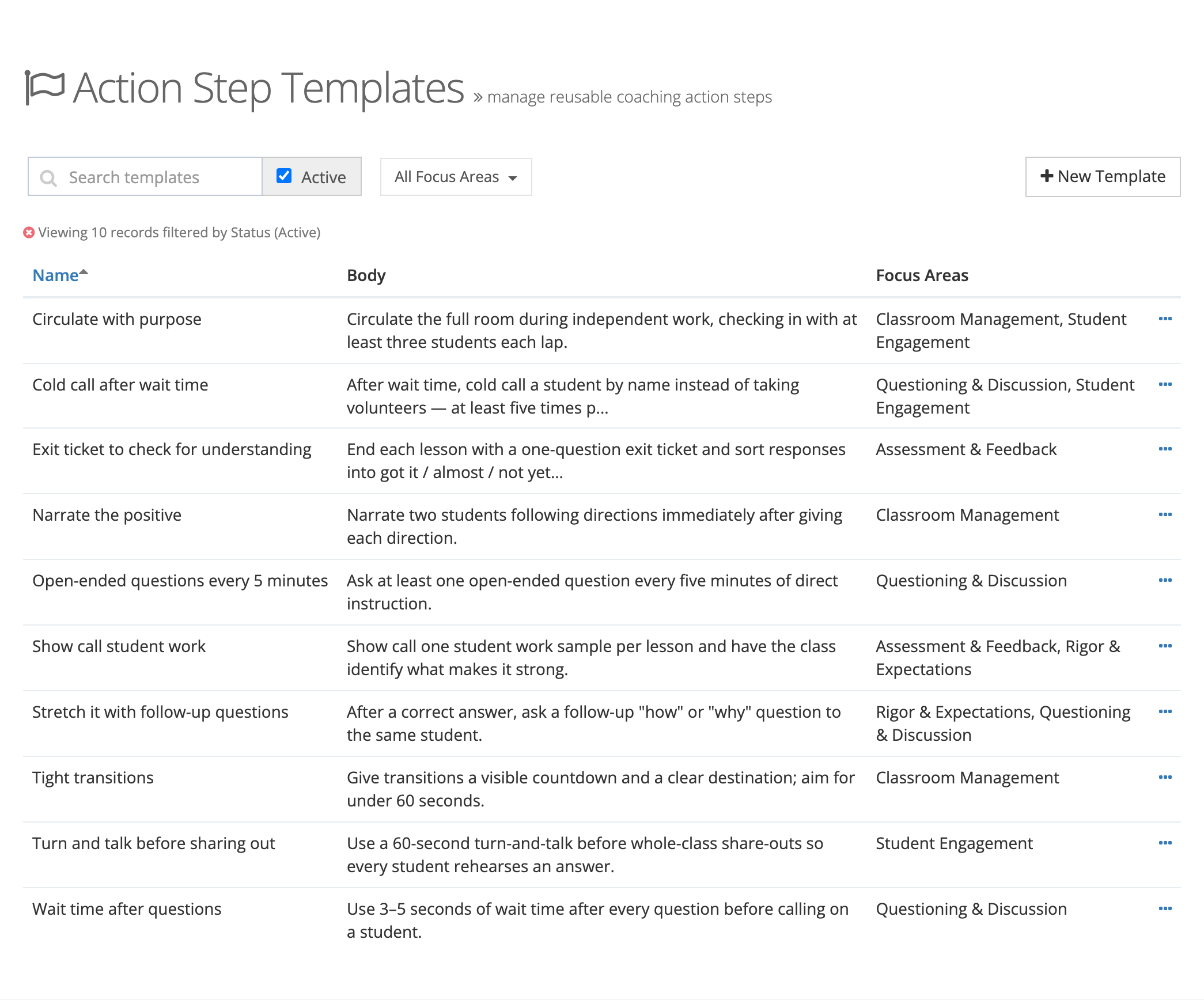
The list shows each template’s Name, Body (shortened), and Focus Areas. Search by name or text, filter with All Focus Areas, or uncheck Active to include archived templates. A focus area shown in a warning color has been archived on the Tags page.
Create a template
Section titled “Create a template”- Click New Template.
- Fill in the fields:
- Name (required): a short label coaches search for, such as “Wait time after questions”.
- Focus areas: the tags the step addresses. The list holds tags marked Available as focus area on the Tags page.
- Action Step Text (required): the step as the teacher will read it. Keep it bite-sized, specific, and observable, something the teacher can try before the next visit.
- Click Create.
To change a template, open its ⋯ menu and click Edit, then Save.
How coaches use templates
Section titled “How coaches use templates”When a coach clicks + Add Action Step on an observation, a New Action Step for window opens, named for the teacher, with a Pick from library search. Choosing a template fills in the step’s description and focus areas, and the coach can adjust the wording for this teacher before clicking Assign Action Step. Only active templates are listed. If the library is empty, coaches see a note to write a custom step instead. See Action Steps.
Archive or delete a template
Section titled “Archive or delete a template”The ⋯ menu offers Archive (hides the template from the coaches’ library; Activate brings it back) and Delete (removes it permanently after you confirm). Action steps already created from a template keep their text either way, because a template only fills in the step when the coach picks it.
Starter templates
Section titled “Starter templates”When your district has no templates yet, the page shows No action step templates yet with a Load starter templates button (and Or create a template from scratch). The starter library adds 10 action steps across 5 focus areas (Student Engagement, Questioning & Discussion, Classroom Management, Assessment & Feedback, and Rigor & Expectations), and creates any of those focus-area tags your district does not have yet. Templates and tags whose names already exist are skipped and left unchanged.