

Observations
The Observation Page: Status, Next Steps, and Actions
Read an observation's status, take the next step (submit, close, or reopen), and use the Edit, Reopen, PDF, and Delete buttons.
Every observation has one page that the observer, school administrators, and the teacher all use. It shows where the observation is in its cycle (draft, waiting on the teacher, ready to close, or closed) and puts the next step in front of the person who owns it. This article walks through that page from the observer’s and administrator’s side. If you are the teacher, see Your Observations as a Teacher.
Who can open an observation
Section titled “Who can open an observation”- The observer who conducted it (observer role).
- Organization administrators and system administrators whose schools include the observation.
- The teacher who was observed, but only after the observation is submitted. Drafts stay private to the observer and administrators.
The breadcrumb at the top tells you which list you came from: My Conducted Observations for the observer, All Observations for administrators, and My Observations for the teacher.
How the page is laid out
Section titled “How the page is laid out”The left column is the permanent record. The right column holds the work to do and the conversation.
Left column
- Section tabs across the top jump to each part of the page: Details and Observation, then Overall feedback when the observer wrote it, Reflection and Acknowledgment when the form set asks for them, and Closure once the observation is closed.
- Status summary: a colored band that names the current status and says what happens next.
- Observation details: the observee, date, observer, form, school, class (grade level and class period), and content area. When you are the observer and are coaching this teacher in an active assignment, a Coaching row shows the cycle stage.
- Observation: the ratings and score summaries for each form on the form set.
- Overall feedback, the teacher’s Reflection, the teacher’s Acknowledgment, and, once closed, a Closure card that names who closed it, when, and their close note.
Right column
- The next-step panel, which changes with the status (described below).
- Coaching panels, when the observer is coaching this teacher.
- Discussion, a comment thread that opens once the observation is submitted and stays open after it is closed. It appears only when comments are turned on for your district. See Comments and Attachments.
Statuses and the next step
Section titled “Statuses and the next step”An observation moves through these statuses. The same names appear as badges in observation lists.
| Status | What it means | What the observer or administrator sees in the right column |
|---|---|---|
| Open | A draft. You can keep editing. | Ready when you are with Submit Observation |
| Awaiting Reflection | Submitted. The teacher has not written a reflection yet. | Waiting on the teacher, with Resend email and Close without reflection |
| Awaiting Acknowledgment | Submitted. The teacher has not acknowledged it yet. | Waiting on the teacher, with Resend email and Close without acknowledgment |
| Awaiting Closure | The teacher has finished their part. | Ready to close with Close Observation |
| Closed | Final. No one can edit it. | Closed with Reopen Observation |
Whether an observation waits on the teacher depends on its form set. When the form set has Reflection? or Acknowledgment? turned on, submitting asks the teacher to respond. When both are off, submitting closes the observation in one step. The form set’s settings are captured when the observation is created, so changing the form set later does not change observations already started. See Teacher Self-Reflection and Teacher Acknowledgment.
Open: submitting a draft
Section titled “Open: submitting a draft”When you save a new observation, it opens as a draft. The status band reads Open and says what submitting will do for this form set, for example “Submitting will ask Rosa Vance to share a reflection and acknowledge this observation.”
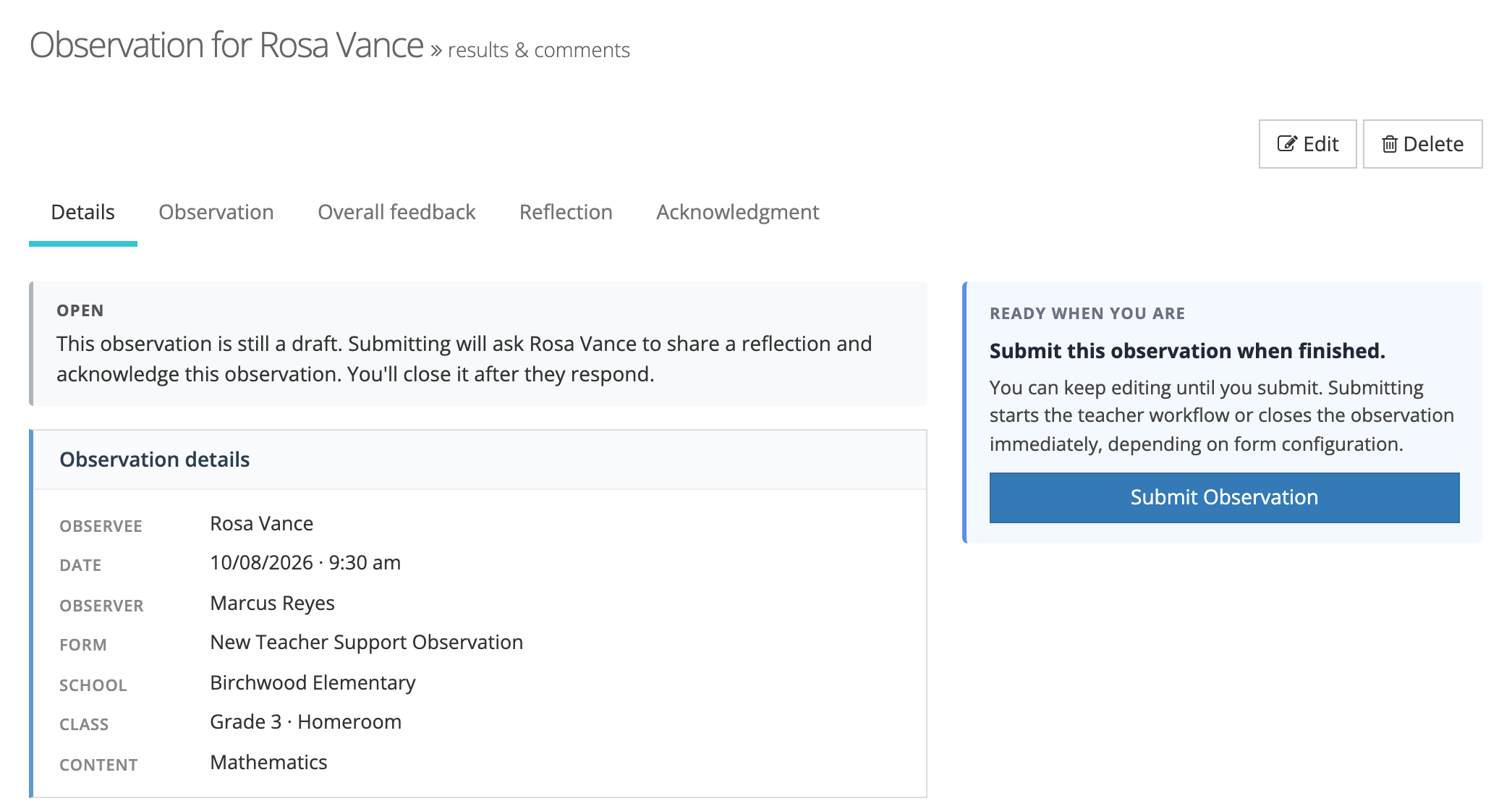
To submit:
- Click Submit Observation in the right column.
- Read the When you submit list in the window. It tells you what happens next for this observation.
- Click Submit Observation to confirm.
When the form set asks for a teacher response, submitting:
- Locks the ratings and feedback so they can no longer be edited.
- Asks the teacher to reflect, acknowledge, or both.
- Emails the teacher a request to respond when teacher emails are on. When your district allows magic links, the email includes a sign-in link (see Opening an Observation from Email).
When the form set asks for no response, submitting moves the observation straight to Closed. If Notify observee? is on, the teacher gets a copy by email. If Notify observer? is on, you get one too.
Self-observations. When you observe yourself (you are both the observer and the observee), submitting always closes the observation right away. Reflection and acknowledgment do not apply to self-observations.
Waiting on the teacher
Section titled “Waiting on the teacher”After you submit, the right column shows Waiting on the teacher with a line such as “Rosa Vance hasn’t reflected yet.” The teacher responds on their own view of the same page.
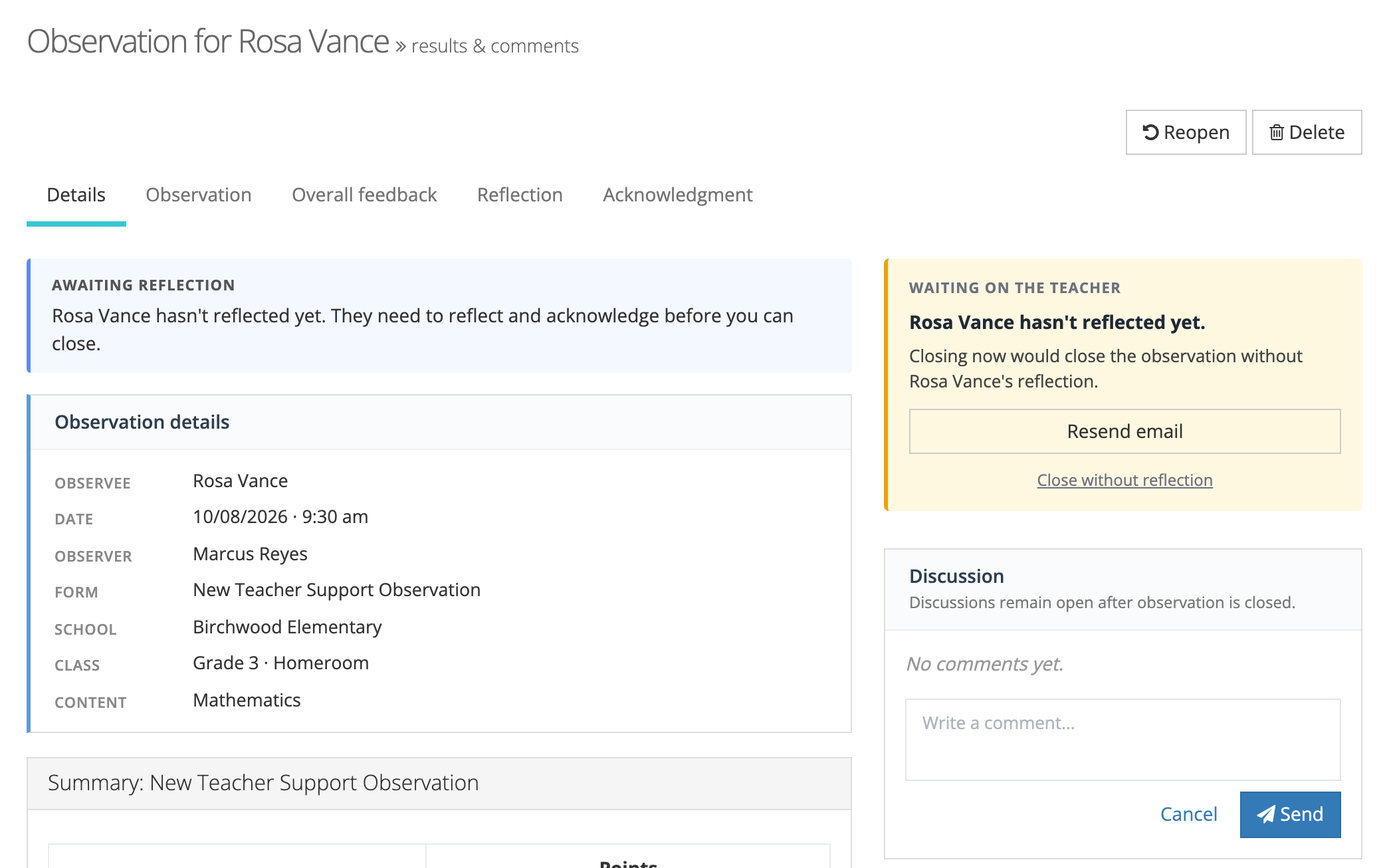
Resend email sends the teacher the email for the step they are on (the reflection request or the acknowledgment request). Click it, then confirm. The page shows “Email resent to” and the teacher’s name. The button appears only when teacher emails are on in two places: Notify observee? in Observe Settings and Notify Observee? on the observation’s form set. If the teacher has turned off these emails in their own notification preferences, no email is sent.
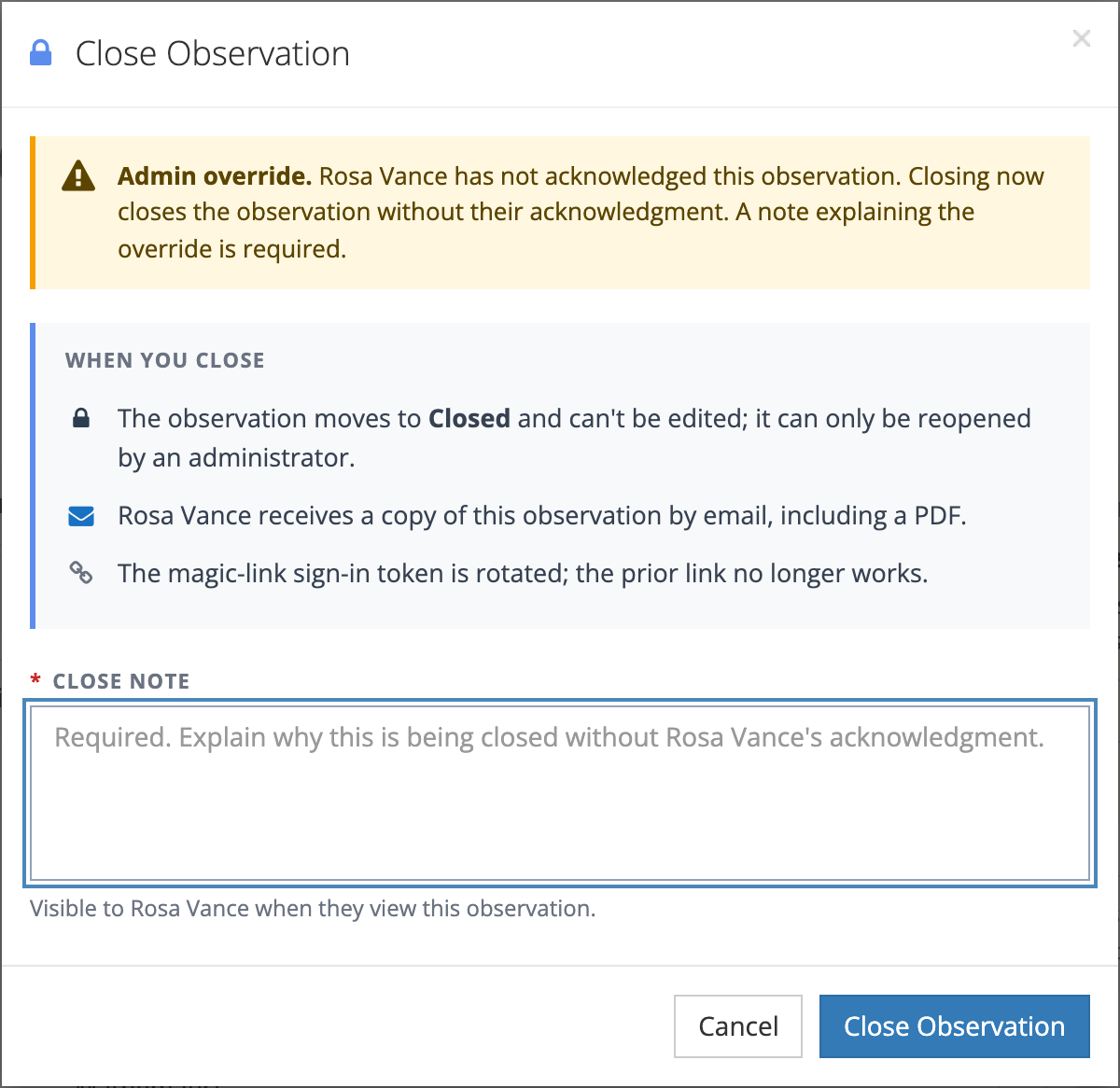
Closing before the teacher responds. Organization administrators and system administrators see Close without reflection or Close without acknowledgment. This is an administrator override for cases such as the end of an evaluation window or a teacher on extended leave. Observers who are not administrators see a note that they can close once the teacher responds.
The override window opens with an Admin override warning, and a Close note is required. The teacher sees the note on the observation.
A teacher can still reflect on or acknowledge an observation that was closed without them. Their response is recorded, but it does not reopen the observation.
Ready to close
Section titled “Ready to close”Once the teacher has finished, the status changes to Awaiting Closure and the right column reads Ready to close.
- Click Close Observation.
- Review the When you close list. Closing locks the observation, and any sign-in link already emailed to the teacher stops working. When teacher emails are on, the teacher receives a copy by email.
- Optionally add a Close note. The teacher sees it in the Closure section.
- Click Close Observation.
The observer of record and any organization administrator or system administrator can close an observation that is ready to close.
Closed and reopening
Section titled “Closed and reopening”A closed observation shows Closed in both columns and adds a Closure tab.
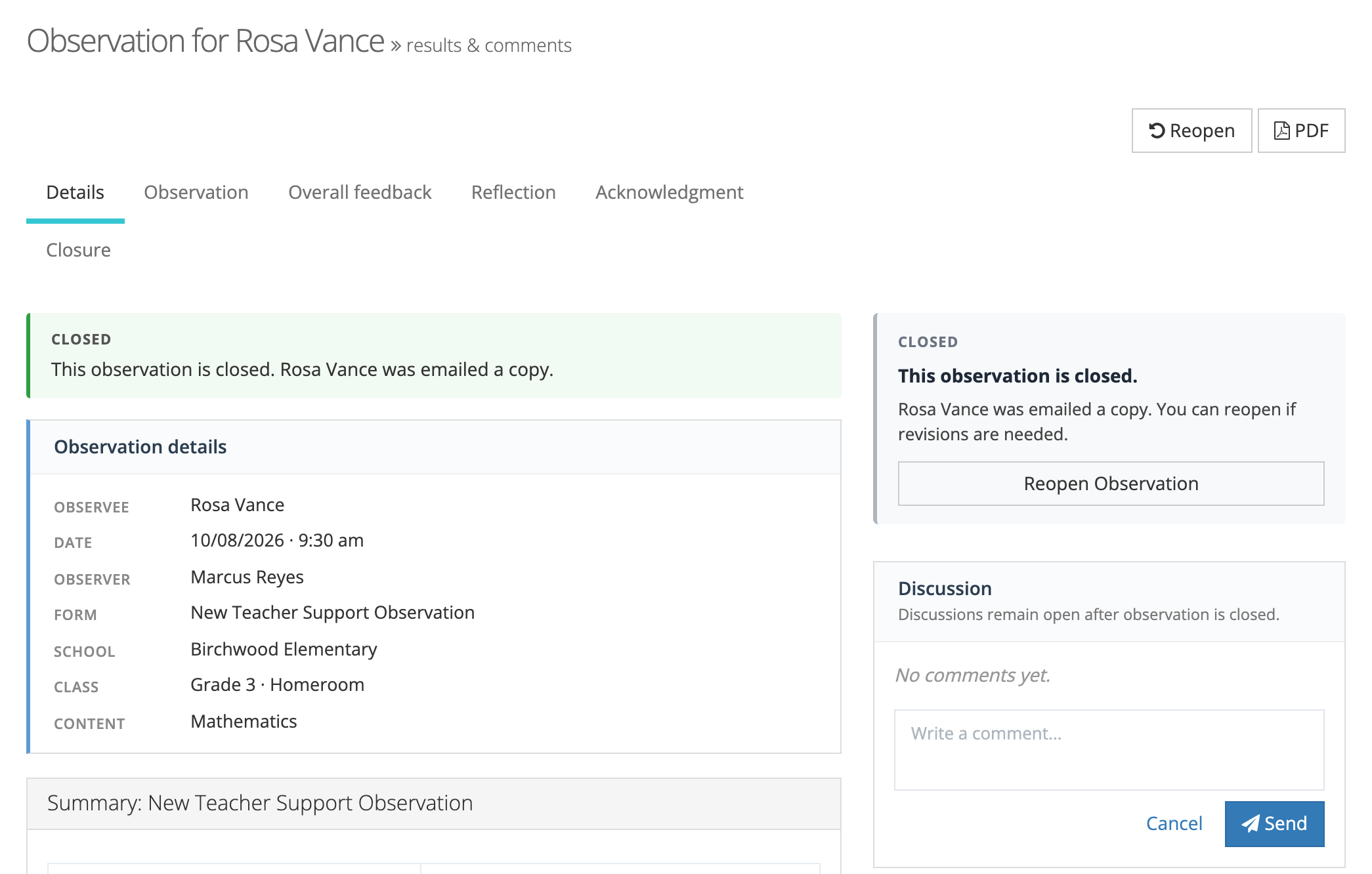
Reopen an observation when something needs to change, such as a wrong class period or a rating entered in error. Click Reopen Observation in the right column (or Reopen in the toolbar), enter the required Reopen note, and click Reopen & reset audit. The observation returns to Open so the observer can edit and resubmit it. For who can reopen, what reopening clears, and the reopen history, see Reopening an observation.
The toolbar
Section titled “The toolbar”Buttons at the top right of the page appear only when they apply.
| Button | When it appears | Who sees it |
|---|---|---|
| Edit | Before the observation is submitted | The observer of record, and organization or system administrators over the observation |
| Reopen | Once the observation is submitted, including while it waits on the teacher | Observers, evaluators, and organization or system administrators over the observation |
| Only after the observation is closed | Anyone who can view it, including the teacher | |
| Delete | Any time before the observation is closed | The observer of record, and organization or system administrators over the observation |
Reopen in the toolbar lets you pull back an observation that is still waiting on the teacher, for example when you notice a mistake right after submitting.
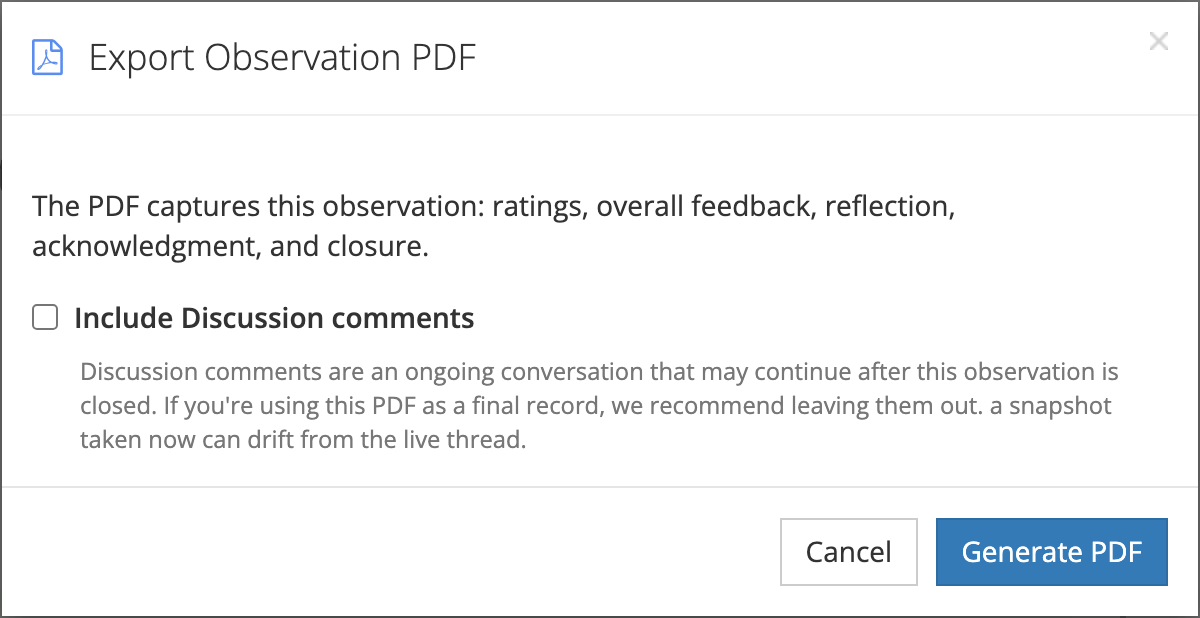
PDF. Click PDF to open Export Observation PDF. The PDF captures the ratings, overall feedback, reflection, acknowledgment, and closure. Check Include Discussion comments to add the Discussion thread. It is off by default, because the thread can keep growing after the observation closes and a PDF kept as a final record should not change. Click Generate PDF.
Delete removes the observation. Use it for a draft started by mistake, such as the wrong teacher or the wrong form. A confirmation window shows the observation and observer. Click Yes, Delete Observation to remove it. A closed observation cannot be deleted. Reopen it first if it must be removed.
When the teacher has left the district
Section titled “When the teacher has left the district”If the observed teacher is no longer part of your district’s account, a yellow notice at the top of the page says so and that the observation can no longer be edited. The Edit button does not appear. The record stays available for viewing.