

Coaching
The Teacher's "My Coaching" Page
Teachers get a read-only My Coaching page that shows what they are working on with their coach and what they have already built into their teaching.
Where to find it
Section titled “Where to find it”My Coaching appears in the sidebar for any teacher who is the observee on at least one coaching assignment that has not been archived. A dot next to it marks an assignment that is in progress or paused.
What it shows
Section titled “What it shows”- Latest from coach: the teacher’s current action step in the coach’s words, the focus areas (You’re working on…), and a link to the walkthrough where the coach noticed it. A paused assignment adds Paused for now.
- Also keeping up: any other active steps.
- Part of how you teach now: completed steps, with the date the coach saw the step land and the coach’s completion note.
- Set aside for now: deferred steps, with the date the coach set them aside.
- Earlier coaching: past assignments with each coach.
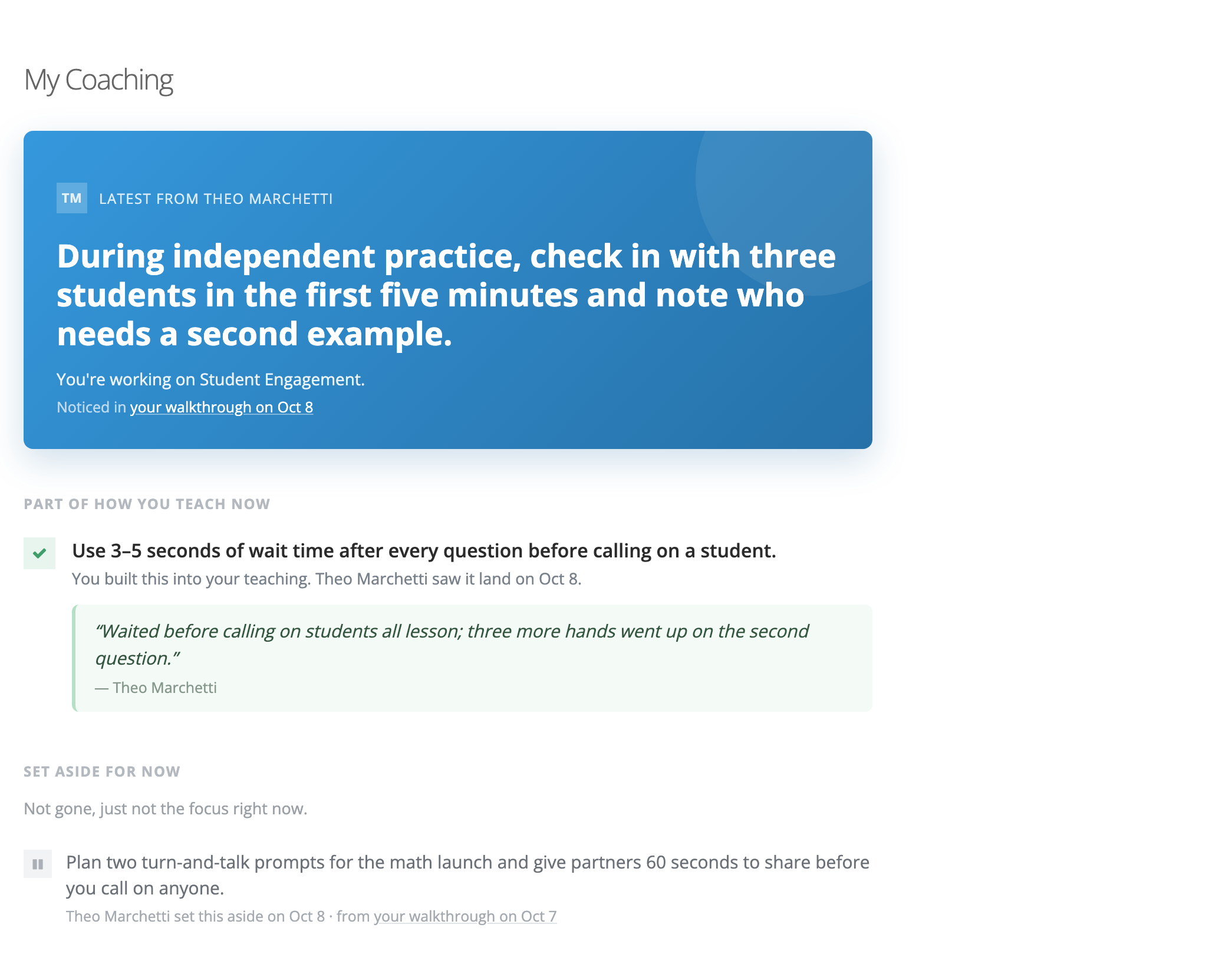
Teachers see steps only from observations the coach has submitted. Steps on a draft observation stay hidden until then.
On the teacher’s observations
Section titled “On the teacher’s observations”A Coaching panel also appears on the teacher’s submitted observations, including when they open one from an email link. It shows the stage and coach, the focus areas, Currently active steps, Recently resolved steps, and a See full coaching history link to My Coaching.
Privacy
Section titled “Privacy”My Coaching shows only the teacher’s own coaching. The assignment’s Notes (coach + admin) never appear here. Organization and system administrators can read a teacher’s action steps on the assignment page; see Overview.