

Observations
Comments and Attachments
Add feedback to questions, attach evidence files, and hold a discussion with the teacher on a submitted observation.
An observation can carry three kinds of written content beyond the answers:
- Feedback that the observer writes on a question or on the whole visit, while filling in the observation.
- Attachments: photos, videos, or PDFs the observer attaches to a question as evidence.
- Discussion: a comment thread on the submitted observation, where the observer and the teacher can talk it over.
Feedback on questions and on the visit
Section titled “Feedback on questions and on the visit”Your district decides which questions accept written feedback when it builds the form. On those questions, an Add feedback link appears under the answer choices.
- While creating or editing the observation, expand the question.
- Click Add feedback and type in the box. The editor supports bold, italics, lists, and headings, and offers your district’s feedback templates if it has any.
- Click Save Draft (or save your edits) to keep it.
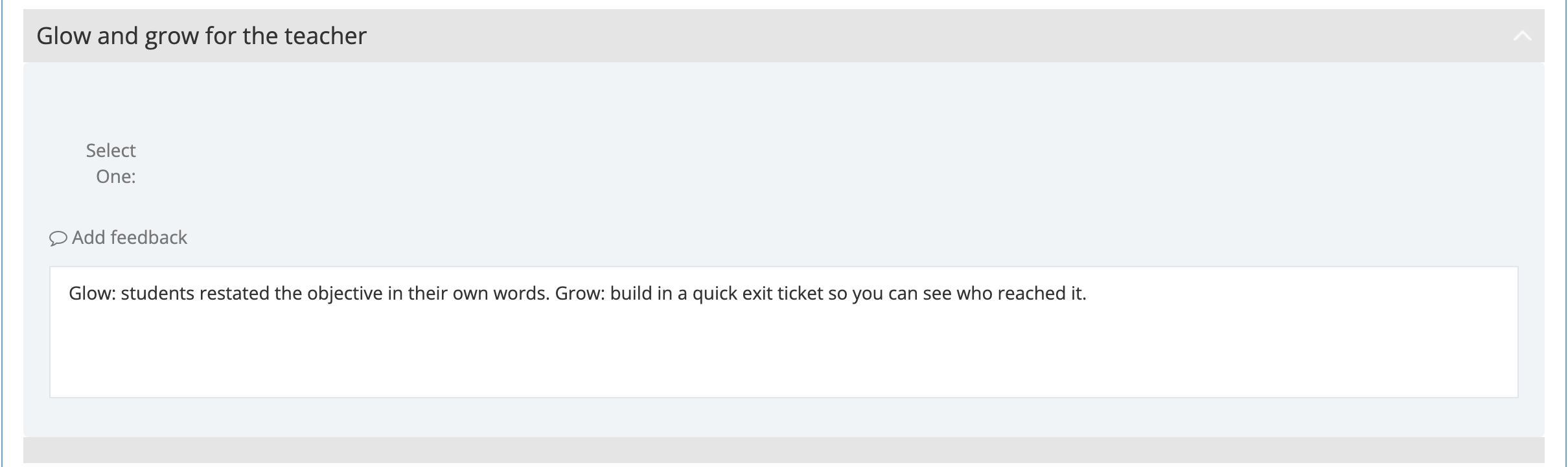
Once a question has feedback, the link reads Feedback. On the observation page, the feedback appears under its question with the heading Feedback.
Overall Feedback, at the bottom of the form, holds your summary of the whole visit. It appears on the observation page under Overall feedback from the observer’s name, and the Observe Dashboard counts how many observations carry it.
For templates, tags, and focus-area mentions in the feedback editor, see Feedback Templates, Tags, and Focus Area Mentions.
Attachments
Section titled “Attachments”Your district decides which questions accept attachments when it builds the form. On those questions, an Attach Files button appears next to Add feedback, with a count of the files attached so far. In a rubric or matrix section, the Attach Files button is in the last column of the question’s row, after the rating cells.
To attach a file:
- While creating or editing the observation, expand the question.
- Click Attach Files. The Attach Files window opens.
- Add your files, wait for each upload to finish, then click Close.
- Save the observation.
On the observation page, a question with files shows an Attachments link with a count. Click it to see the list:
- Photos and videos open in a viewer on the page.
- PDFs download.
- A file that can no longer be retrieved shows its name with “(file unavailable)”.
In a rubric section, the same files are under the ⋯ menu beside the rating, in Attachments.
Who can see and remove attachments:
- The observer who conducted the observation can view its attachments and is the only person who can delete one.
- The teacher can view them once the observation is submitted.
- Organization and system administrators who belong to the observation’s school or to the district can view them.
Before you photograph students or their work, follow your district’s policy on student images and consent.
Discussion
Section titled “Discussion”The Discussion panel lets the observer and the teacher talk about an observation after it is submitted, without email chains. A coach can answer a teacher’s question about a rating, or a teacher can share what they tried next.
The panel appears on the right of the observation page when both are true:
- Your district has turned on Enable comments? in Observe Settings. See Observe Settings.
- The observation has been submitted. Drafts have no discussion.
As the panel says, discussions remain open after the observation is closed.
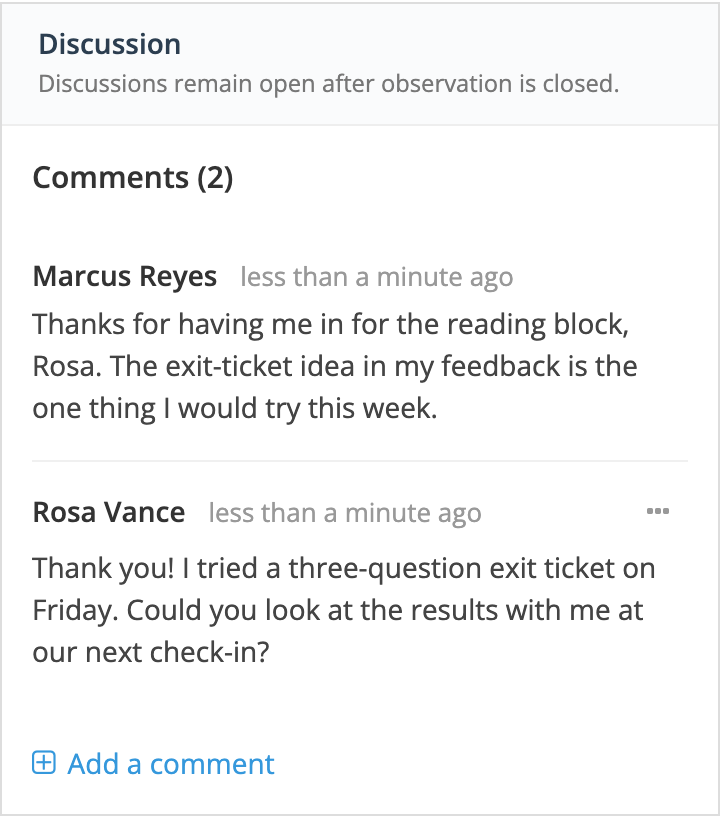
To comment:
- Open the observation.
- In Discussion, type in the box (on the first comment), or click Add a comment.
- Click Send.
Comments appear in one thread, oldest first, with each author’s name and how long ago they posted. There are no threaded replies; answer by adding the next comment.
To edit or delete your own comment, click the ⋯ beside it and choose Edit or Delete. You cannot edit or delete someone else’s comment.
A teacher who opens the observation from an email link can also post comments there, but cannot edit or delete them.
Who is notified: when someone comments, the observer is notified. The teacher is notified once the observation is closed, or once it is submitted when the form set asks for a reflection or acknowledgment. The person who wrote the comment is not notified. Each person can turn off these emails with the Comments & replies preference; see Managing Notification Preferences.
To include the discussion in a printed copy of a closed observation, see the PDF button in The Observation Page.
Related
Section titled “Related”- Conducting Your First Observation
- Your Observations as a Teacher
- Performance Reviews, which use Attach Files for review documentation.