Getting Started with eLearn
eLearn Overview
What eLearn is, where it appears in the sidebar, and the kinds of professional learning content your district can assign.
eLearn is the professional learning side of Master Teacher. Your district licenses courses, assessments, learning paths, and other content from a publisher, then makes it available to staff. You work through that content in a guided player, and each completion is recorded on your transcript.
eLearn appears only when your organization has it turned on. What you see inside it depends on the content your district has licensed and assigned to you.
Where eLearn appears
Section titled “Where eLearn appears”My Dashboard
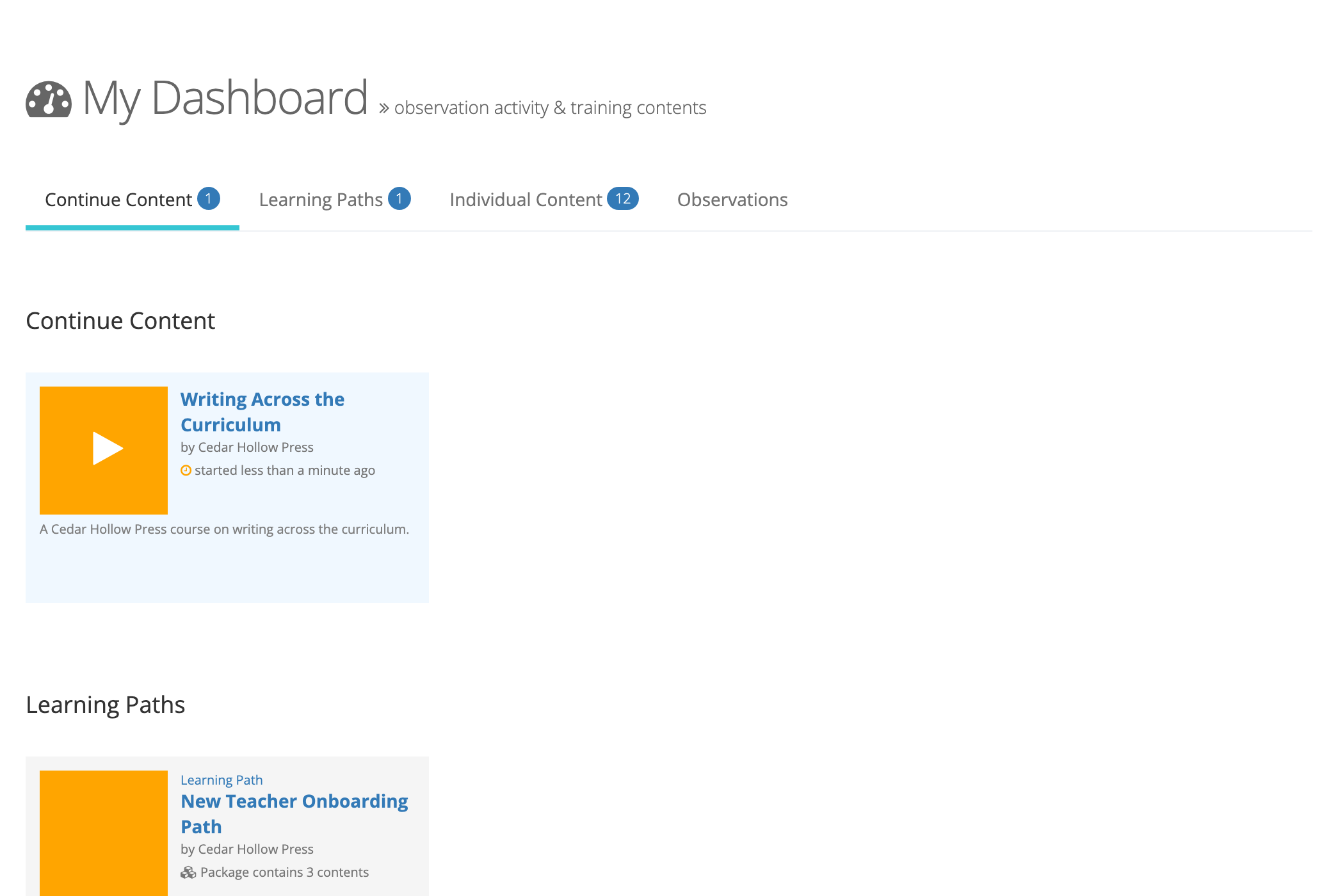
Section titled “My Dashboard”My Dashboard (under REVIEW in the sidebar) is the usual starting point. When eLearn is on, it adds a tab for each kind of content you have, with a count on each tab: Required Content, Continue Content, Content Libraries, Learning Paths, and Individual Content. A tab appears only when it has something in it. See Accessing Your Learning Content for what each tab holds.
The LEARN section of the sidebar
Section titled “The LEARN section of the sidebar”The LEARN heading in the sidebar opens the Learn page, which shows your Continue Content, Required Content, Content Libraries, and Learning Paths as sliders. Under the heading, the sidebar lists one link for each kind of content you have, such as Courses, Assessments, and Learning Paths. Accessing Your Learning Content lists every link.
Your records
Section titled “Your records”Two links under REVIEW hold your completion records:
- My Transcripts: one card for each course, assessment, or learning path you completed, plus PD hours your district recorded, with links to certificates
- My Certifications: proctored assessments you passed that were certified
Kinds of content
Section titled “Kinds of content”| Content | What it is |
|---|---|
| Course | A sequence of chapters and sections (videos, web pages, PDFs, images, and exams) that you work through in the content player |
| Assessment | A scored exam. Some assessments are proctored and can be taken only during a session a proctor runs |
| Learning path | A set of courses. Completing the courses that count toward the path completes the path |
| Content library | A collection of content your district licenses as a bundle |
| Video or resource | A standalone video or PDF document outside any course |
The names Courses and Assessments come from the publisher, so your district may see different content type names in the sidebar.
Every staff member with assigned content can take it and see their own transcripts. A few eLearn tasks need a role (see Who Sees What in eLearn for the full list):
- Reporter: sees Reports in the sidebar, including Learn Reports and Assessment Reports. See eLearn Reports Overview.
- Proctor (shown in the app as Proctor Administrator): runs proctored assessment sessions from the Proctoring Dashboard. See Managing Proctored Sessions.
System administrators assign licensed content to schools, groups, or the whole district, and you receive it through the organizations you belong to. See Managing Course Assignments.