

weCLIMB Mobile
Push Notifications on Mobile
Get notified on your phone when an observation, coaching update, comment, or recommendation needs you, and choose which notifications you receive.
Roles: for everyone. Teachers, observers, and coaches each receive the notifications that apply to them.
The weCLIMB mobile app can notify you on your phone when work is waiting: a reflection to write, an acknowledgment to confirm, a coaching update, a new comment. Tapping the notification opens the app on the observation or coaching screen it’s about.
Push notifications are separate from the notification emails you manage in your profile on the web, and you can control both. See Managing Your Notification Preferences.
Turning on notifications
Section titled “Turning on notifications”The first time you sign in on a phone, the app shows Turn on notifications: “Get notified when you have an observation to reflect on, a coaching update, or a new comment, so you never miss a time-sensitive request.”
- Tap Turn on notifications.
- Your phone asks for permission. Tap Allow.
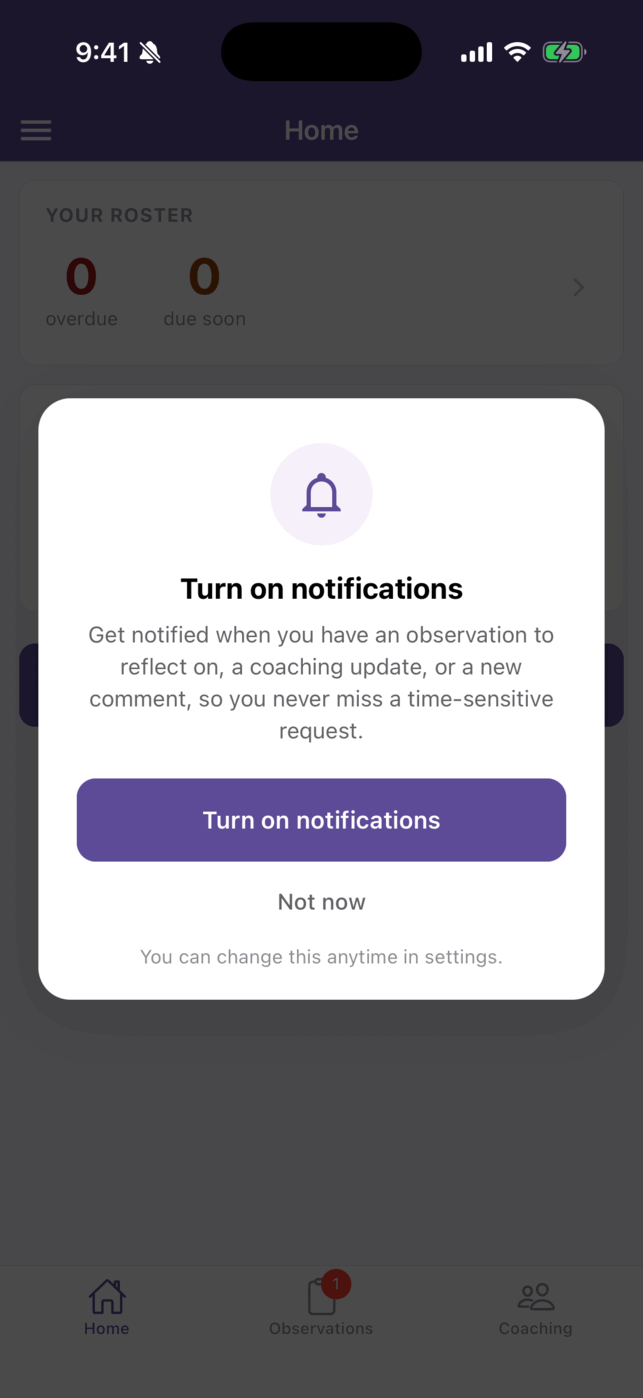
Every category starts out on, so notifications begin arriving right away. You can switch off the ones you don’t want at any time.
The app shows this prompt only once. If you tap Not now, turn notifications on later in your phone’s settings: find the app, allow notifications, then reopen the app.
Where the settings live
Section titled “Where the settings live”- Tap the menu icon (☰) in the top-left corner of Home, Observations, My Roster, or My Coaching.
- Tap Notifications.
The Notifications screen opens with “Choose which push notifications you receive.” and lists each category that applies to you, grouped by area.
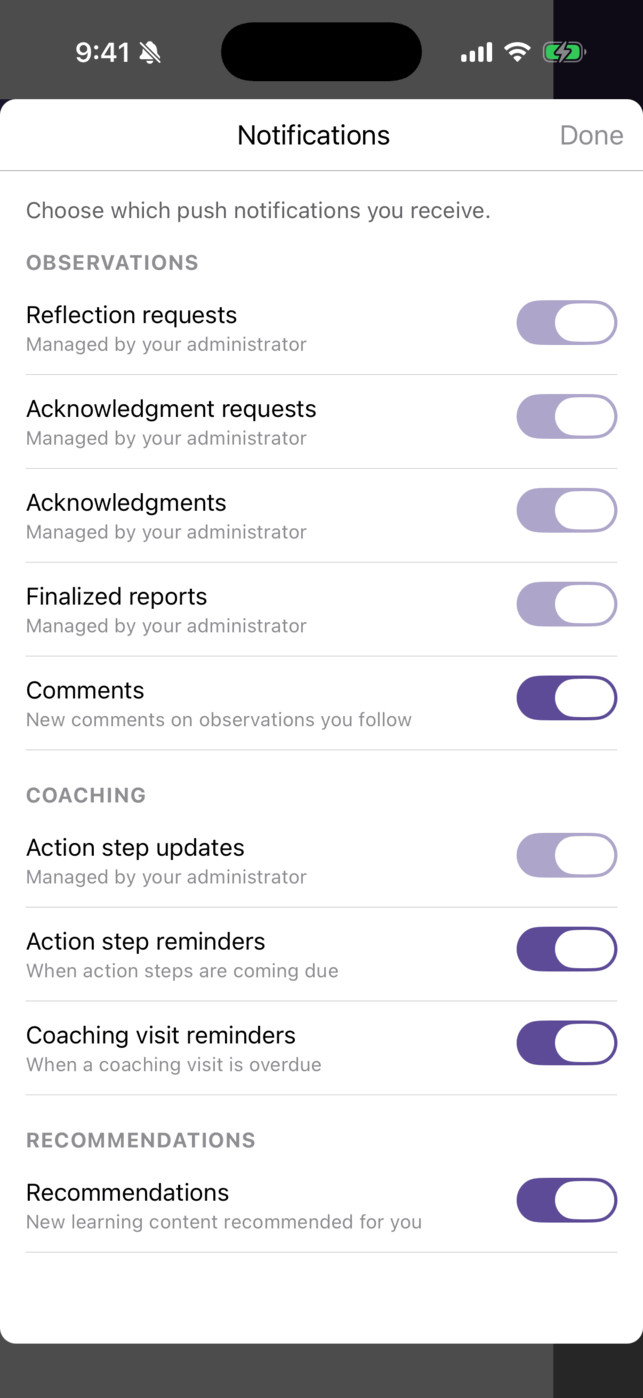
These settings belong to your account, so they apply to every phone you’re signed in on. Permission to show notifications is granted per phone, in your phone’s settings.
The notification categories
Section titled “The notification categories”You see only the groups and categories that apply to your organization and your role.
Observations
| Switch | You’re notified when |
|---|---|
| Reflection requests | An observer asks you to reflect on an observation. |
| Acknowledgment requests | You’re asked to review a completed observation. |
| Acknowledgments | A teacher acknowledges an observation you completed. |
| Finalized reports | An observation report is finalized. |
| Comments | Someone comments on an observation you follow. |
Coaching
| Switch | You’re notified when |
|---|---|
| Action step updates | Your coach updates one of your action steps. |
| Action step reminders | Action steps are coming due. |
| Coaching visit reminders | A coaching visit is overdue. |
Recommendations
| Switch | You’re notified when |
|---|---|
| Recommendations | Someone recommends learning content for you. |
Turn a notification on or off
Section titled “Turn a notification on or off”- Open the Notifications screen.
- Tap the switch next to the category.
The change saves when you tap; there’s no save button. If it can’t be saved (for example, you’re offline), the switch returns to where it was.
Turning a category off stops only the push notification. It doesn’t change what’s recorded in Master Teacher, and it doesn’t affect the matching email.
When a setting is controlled by your organization
Section titled “When a setting is controlled by your organization”When a category depends on a setting your organization controls, its switch is greyed out and a note replaces the description:
- Turned off for your organization: the feature behind it isn’t turned on for your organization.
- Managed by your administrator: an administrator has paused this notification.
Ask your administrator if you need one of these turned on.
What a notification looks like
Section titled “What a notification looks like”The notification shows a short title and a sentence that doesn’t name anyone, so nothing private shows on a locked phone. For example, Reflection requested: “An observer asked you to reflect on an observation.”
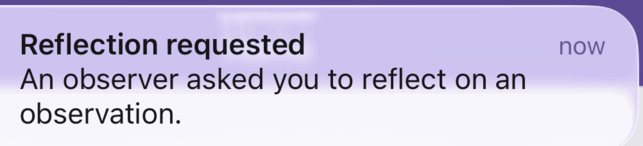
If a notification arrives while you’re using the app, it appears as a banner at the top of the screen.
What tapping a notification opens
Section titled “What tapping a notification opens”| Notification | Opens |
|---|---|
| Reflection requests, Acknowledgment requests, Acknowledgments, Finalized reports | The observation, on its Details tab |
| Comments | The observation, on its Comments tab |
| Action step updates, Action step reminders, Coaching visit reminders | The Coaching Cycle for that teacher |
| Recommendations | Home |
This works when the app is closed too: tapping the notification opens the app and then the screen.
Teachers and coaching notifications: the Coaching Cycle screen is for coaches. When a teacher taps an Action step updates or Action step reminders notification, the app shows “Unable to load this coaching cycle.” Tap the Coaching tab to see the step on My Coaching.
Quiet hours
Section titled “Quiet hours”Push notifications aren’t delivered overnight. One that would arrive between 9:00 pm and 7:00 am is held and delivered within 20 minutes after 7:00 am. The time zone is your phone’s, as of the last time the app registered it (when you sign in or open the app). A held reflection or acknowledgment request is dropped if you have already responded by morning.
Android: per-category system settings
Section titled “Android: per-category system settings”On Android, each category is also a notification channel in your phone’s settings for the app, grouped into Observations, Coaching, and Recommendations. Use them to set the sound and priority of a category, or to mute it on that phone.
Muting a channel in Android settings is separate from the switch in the app. If you muted it on the phone, the app’s switch can be on and you still won’t see the notification. Check both when something seems missing.
If you’re not receiving notifications
Section titled “If you’re not receiving notifications”- Check permission on the phone. In your phone’s settings, find the app and confirm notifications are allowed. If you tapped Not now at the first prompt, this is usually why.
- Check the category. Open ☰ > Notifications and confirm the switch is on.
- Look for a status note. Turned off for your organization or Managed by your administrator means your organization controls it. Talk to your administrator.
- Check the time. Between 9:00 pm and 7:00 am, notifications wait until morning.
- On Android, check the channel. Confirm the category isn’t muted in your phone’s notification settings for the app.
- Make sure you’re signed in. Notifications go to phones where you’re signed in. Sign off stops them on that phone.
Email and push together
Section titled “Email and push together”Push and email are controlled separately, and you can use either or both:
- Push: the Notifications screen in the app, or the Push column in your profile on the web.
- Email: the Email column in your profile on the web.
Both cover the same categories, so you might keep coaching reminders as push only, comments as email only, and reflection requests as both. The finalized observation report email is always sent and can’t be switched off on the web, but its push notification can.