

Courses
When Content Will Not Open
What each message means when a course or assessment will not open, and who can fix it.
When you click a course or assessment card in eLearn, the content usually opens in the player. If something stands between you and the content, a small message box opens instead. The box names the problem and closes with Close (or the × in the corner).
This article lists each message, what causes it, and who in your district can help. In most cases you cannot fix it yourself: the cause is a license, a publisher setting, or a proctored session that someone else controls.
| Message title | What it means | Who to ask |
|---|---|---|
| No Licenses Available | Every seat your district bought for this content is in use | Your system administrator |
| Product Unavailable (“not permitted”) | The content is not currently licensed and assigned to your school or group | Your system administrator |
| Product Unavailable (“marked … as inactive”) | The content provider has switched the content off | Your system administrator |
| Proctor Session Unavailable | The content needs a proctor, and no session is scheduled | Your system administrator or proctor |
| Proctor Session Enrollment | Sessions exist, but you are not on one | Your proctor |
| Enter Code | You can join a session with a code from your proctor | Your proctor (for the code) |
| Proctor Lobby | You are enrolled, and the session has not opened yet | Wait, or ask your proctor |
| Assessment Notice or Course Notice | You have already taken this proctored content | Your proctor or administrator |
License messages
Section titled “License messages”Your district licenses content from a provider, then assigns each license to the district, a school, or a group. You can open content when one of your organizations has an active license assignment for it. The first time you open a piece of content, it uses one seat of that license.
No Licenses Available
Section titled “No Licenses Available”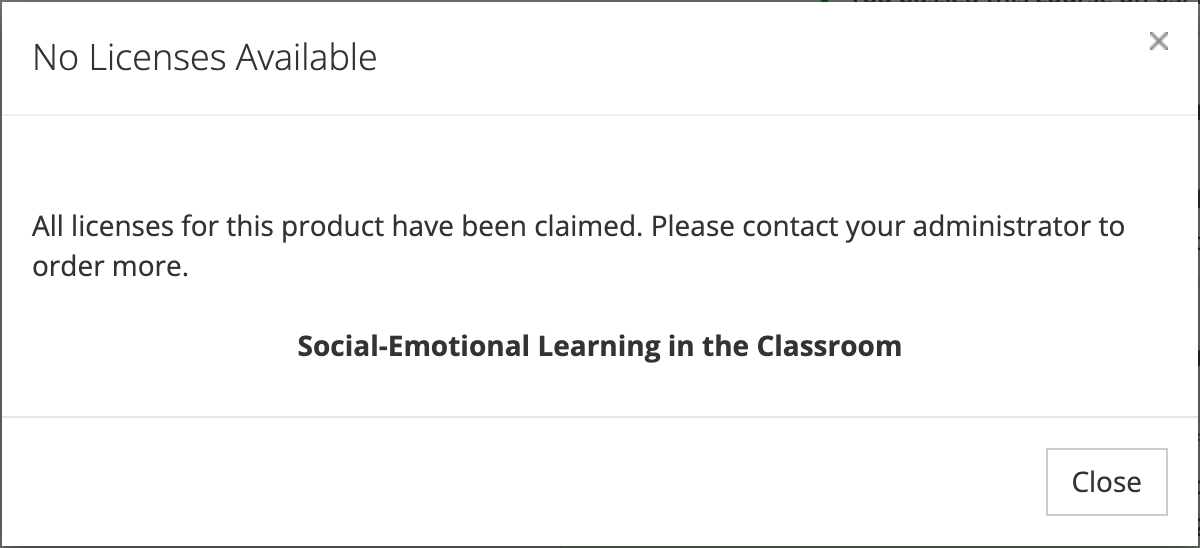
The message reads: “All licenses for this product have been claimed. Please contact your administrator to order more.” The content name appears below it.
What it means: The license has a seat limit, and every seat is taken. Some licenses refresh their seat count monthly or yearly; others never refresh. Teachers who already used a seat keep their access. Only people opening the content for the first time see this message.
Who to ask: Your district’s system administrator. They can see seat counts on the Licenses page (the Allocation, Used, and Remaining columns) and arrange more seats with your provider. District staff cannot raise a seat limit themselves. See License Management.
Product Unavailable: not permitted
Section titled “Product Unavailable: not permitted”The message reads: “You are not permitted to access this product. Please contact your administrator for access.”
What it means: None of your organizations has a current license assignment for this content. Common reasons:
- The license, or its assignment to your school, has expired or has not started yet.
- The license or assignment was turned off.
- You moved to a school that does not have the content.
You usually reach this message from a page or link that was open before the change.
Who to ask: Your system administrator. They can check the content’s Assignments tab under Products to confirm which schools have it and for which dates. See Assigning Content to Schools.
Product Unavailable: inactive
Section titled “Product Unavailable: inactive”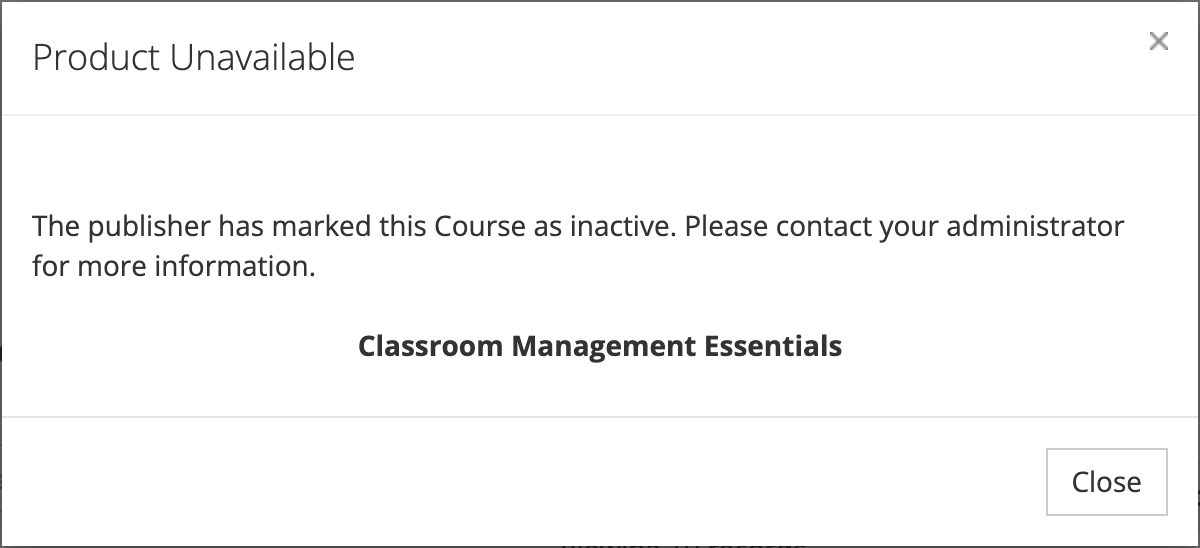
The message reads: “The publisher has marked this Course as inactive. Please contact your administrator for more information.” The word “Course” changes to match the content type, such as “Assessment”.
What it means: The organization that publishes the content has switched it off, often while revising it or retiring it. Your district’s license does not override this setting.
Who to ask: Your system administrator, who can confirm with the provider whether the content is coming back or has been replaced.
Proctored content messages
Section titled “Proctored content messages”Some assessments and courses must be taken in a proctored session, where a proctor (the Proctor Administrator role) or a system administrator supervises the attempt. Districts use this for certification exams and other high-stakes assessments. When you open proctored content, eLearn checks for a session before it opens the player. For the full testing-day process, see Proctored Assessments.
Proctor Session Unavailable
Section titled “Proctor Session Unavailable”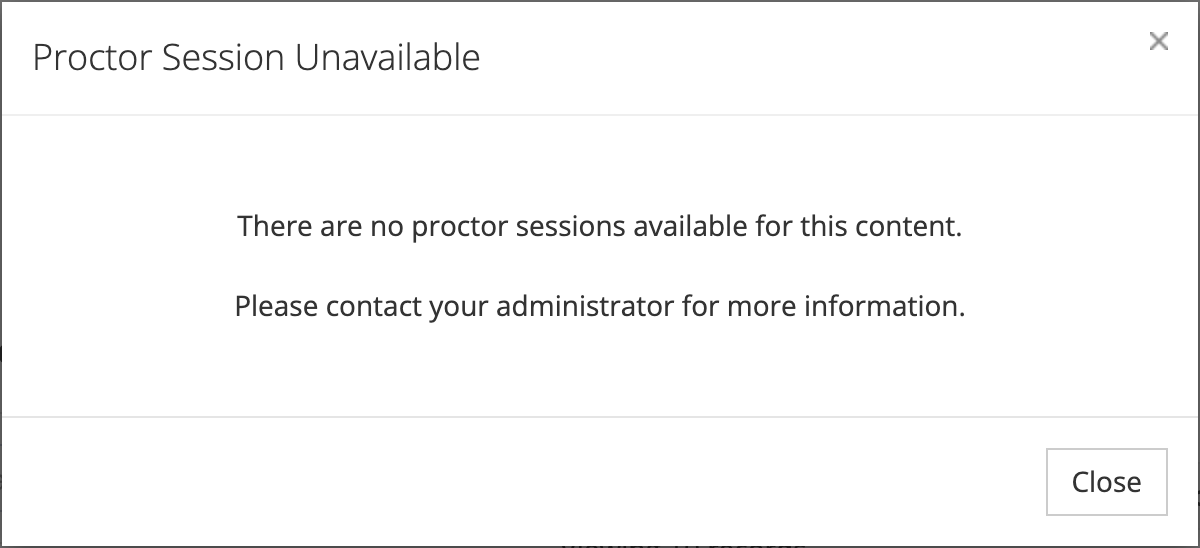
The message reads: “There are no proctor sessions available for this content. Please contact your administrator for more information.”
What it means: No proctored session is scheduled or running for your district right now. You cannot open proctored content outside a session.
Who to ask: Your system administrator or the proctor who runs testing at your school. A session has to be scheduled first.
Proctor Session Enrollment
Section titled “Proctor Session Enrollment”The message reads: “You are not enrolled for this proctor session. Please contact your proctor for more information.”
What it means: At least one session is scheduled, but you are not on its list, and the session does not let testers join with a code.
Who to ask: Your proctor. They add testers to a session from its session page.
Enter Code
Section titled “Enter Code”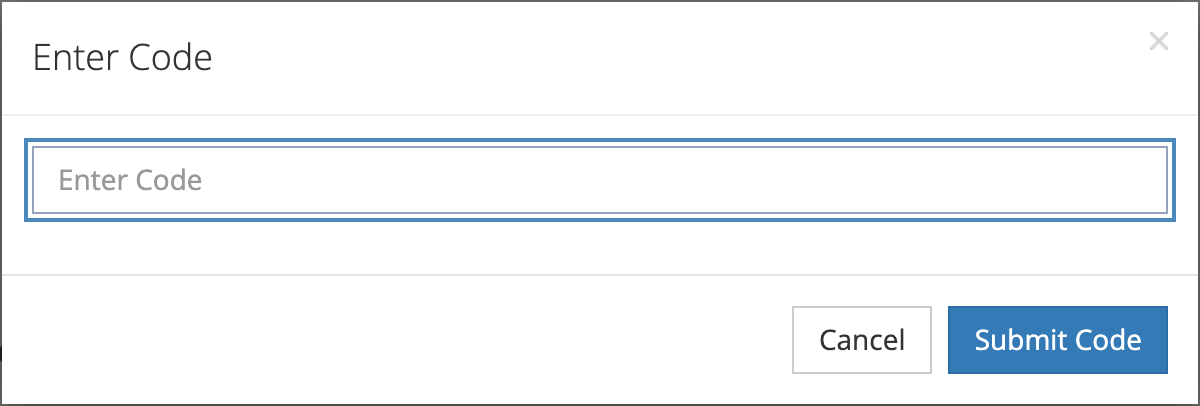
This box appears when a session that accepts enrollment codes is scheduled and you are not enrolled in a session yet.
- Get the four-character code from your proctor.
- Type it in the Enter Code field. Capital or lowercase letters both work.
- Click Submit Code.
A matching code enrolls you in that session, and eLearn takes you on to the content or the lobby. A code that does not match an open session does not enroll you. Check the code with your proctor and try again.
Proctor Lobby
Section titled “Proctor Lobby”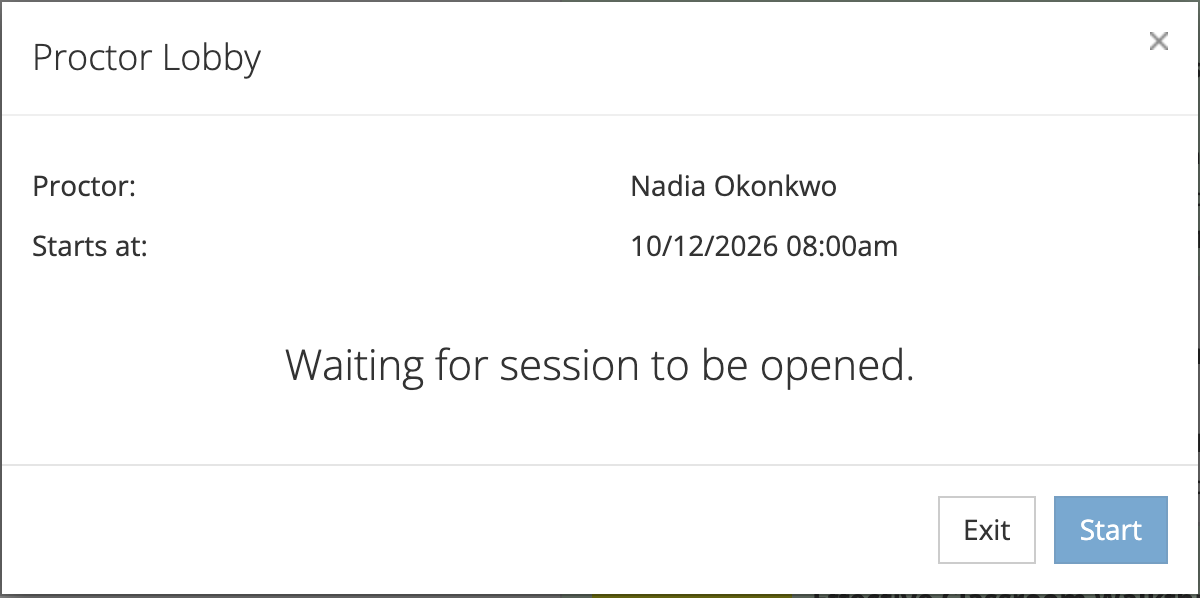
The lobby means you are enrolled and waiting for your proctor. It shows the Proctor and the time the session Starts at, plus a status line:
- Waiting for session to be opened. The proctor has not started the session. Start stays dimmed.
- Session is open. You may now start. Click Start to open the content. The lobby updates on its own when the proctor starts the session, so you do not need to reload the page.
- Session is complete. or Session is expired. The session is over. Ask your proctor about the next one.
- You’ve been removed from this session. The proctor took you off the list. Contact your administrator for details.
Click Exit to leave the lobby without starting.
Assessment Notice or Course Notice
Section titled “Assessment Notice or Course Notice”The title names the content type, for example Assessment Notice. The message reads: “You’ve already taken this proctored assessment. Please contact your administrator for more information.”
What it means: You have already completed this content, or you did not pass an attempt in an earlier session. A new attempt needs your proctor to allow a retake.
Who to ask: Your proctor, who can allow a retake from the session page, or your system administrator.
Before you contact someone
Section titled “Before you contact someone”Include these details so the right person can find the cause:
- The exact title of the message box.
- The content name shown in the box, or on the card you clicked.
- Your school, if you work at more than one.