

eLearn Administration
Recording PD Hours for Outside Training
Add a district PD day, conference, or workshop to staff transcripts, with hours and an optional certificate file.
Not all professional learning happens in eLearn. A district PD day, a summer institute, a regional conference, or a university workshop still counts toward a teacher’s hours, and teachers need that record in the same place as their online courses when they renew a license or show they met a district requirement.
Manage PD Hours is where the district office enters those records. Each one is a transcript that an administrator typed in (the page subtitle reads “PD hours are manually entered transcripts”). You can credit one event to many teachers at once and attach the certificate they received.
Role requirement: system_administrator. Organization administrators cannot open this page.
Open Manage PD Hours
Section titled “Open Manage PD Hours”- Select the gear icon in the top bar to open System Administration.
- Under GENERAL, open Transcripts and select Manage PD Hours.
The list shows every manually entered record: Name, User (name, record status, and email), Credits/Hours, and Completed On. Each person has their own row, so a PD day credited to 40 teachers appears as 40 rows.
The date range button, search box, and Filter (here titled Filter PD Hours) work as on All Transcripts; see Find a transcript. Two differences matter on this page, because every record on it was entered by hand:
- Search content or user finds records by the staff member’s first or last name only. Searching for the event name finds nothing, so search for a person or narrow the date range.
- The Content filter lists eLearn content, so it never matches a record here, and sorting by Name does not reorder the list.
Add a record for a PD event
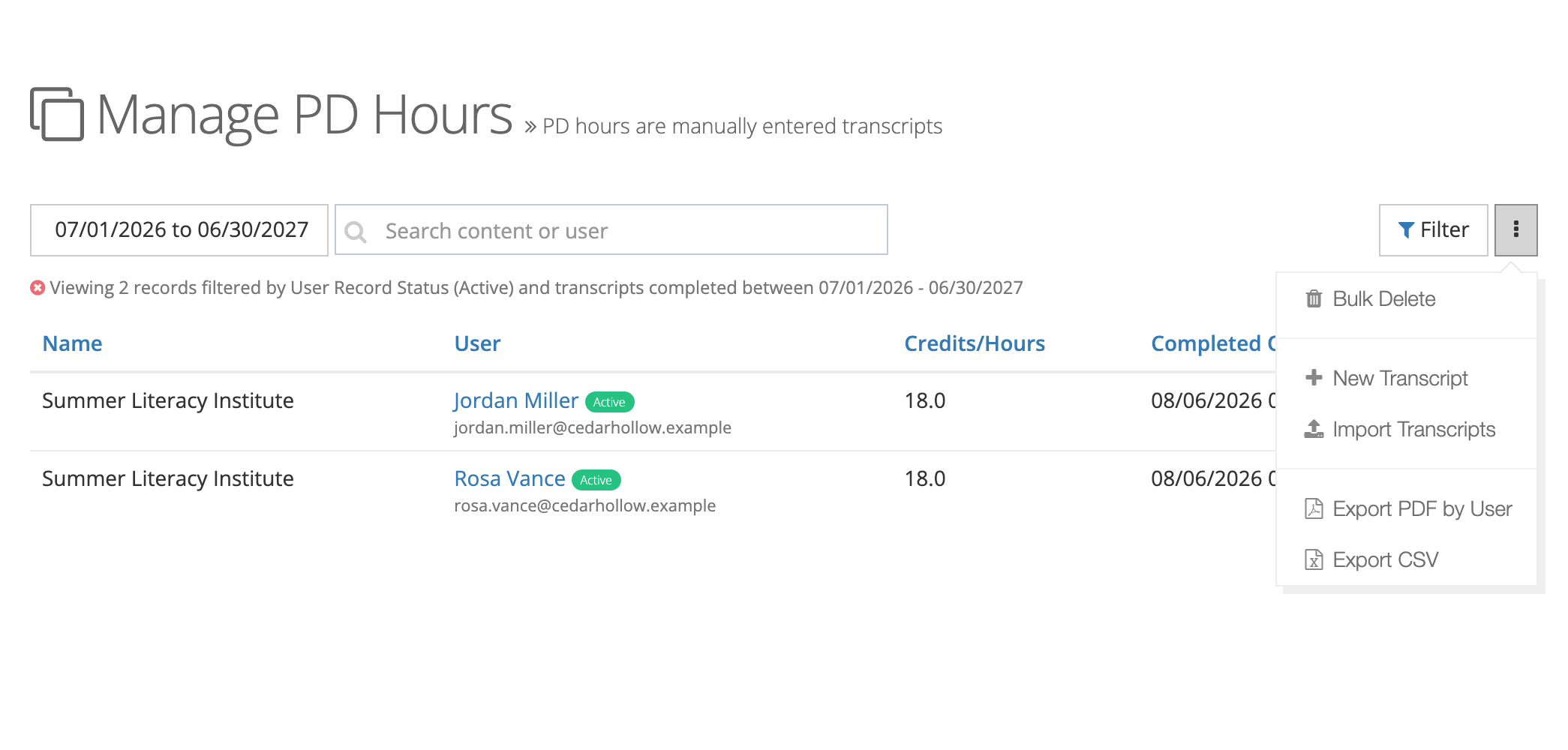
Section titled “Add a record for a PD event”- On Manage PD Hours, select the more actions button (⋮) next to Filter.
- Select New Transcript.
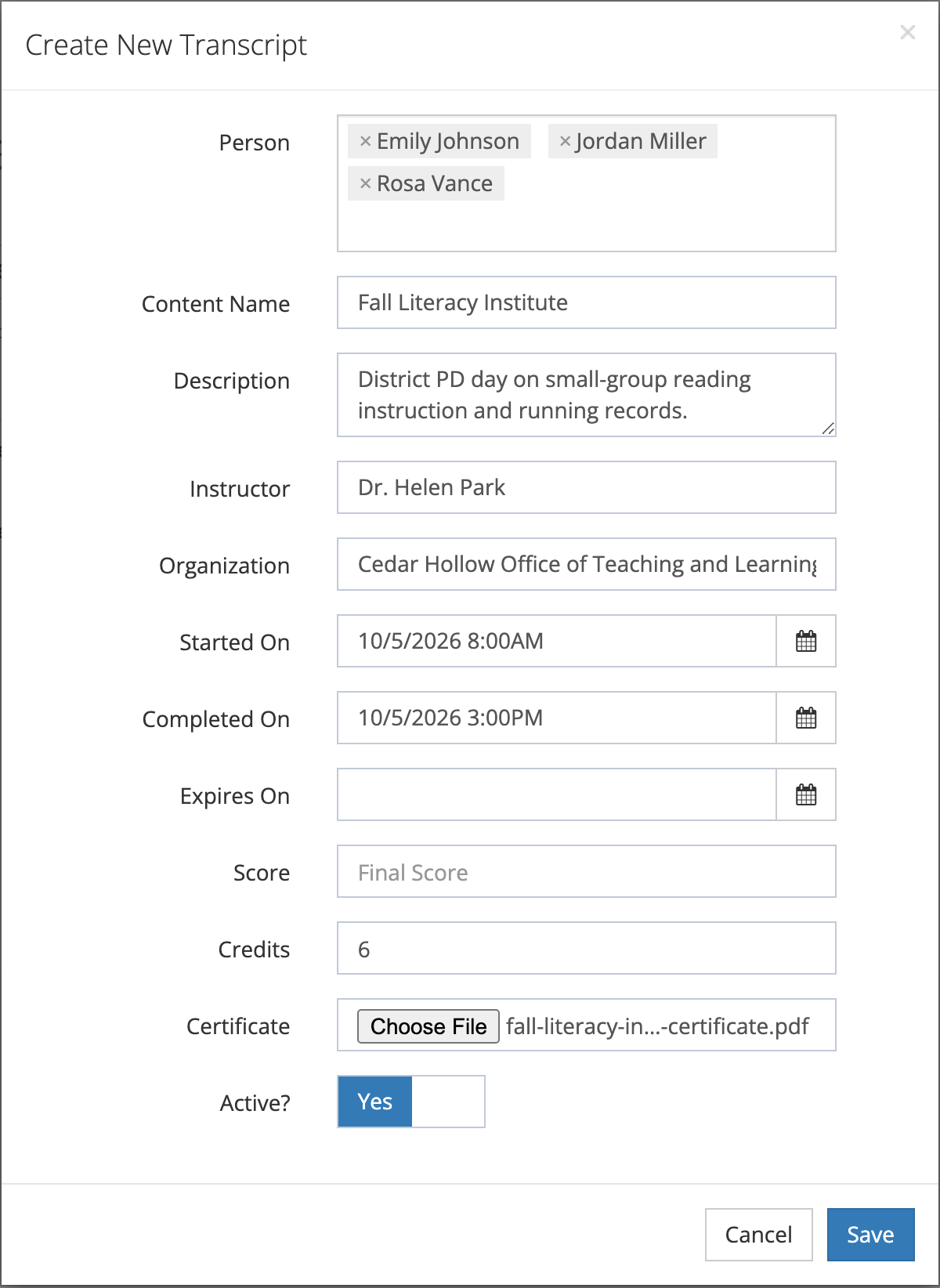
The Create New Transcript window opens. Fill in the fields that apply to the event:
| Field | What to enter |
|---|---|
| Person | Everyone who attended. Select as many names as you need; the list stays open so you can keep choosing. |
| Content Name | The event name teachers will recognize, such as “Fall Literacy Institute”. |
| Description | A short summary of the topic. It appears on the teacher’s transcript card. |
| Instructor | The presenter or facilitator. |
| Organization | Who provided the training, such as your curriculum office or an outside provider. This is free text, not one of your schools. |
| Started On / Completed On | When the event began and ended. Completed On is the date that reports and date filters use. |
| Expires On | Only if the credit lapses, for example a certification that must be renewed. |
| Score | Only if the event had a graded component. |
| Credits | The hours or credits earned. This is the number shown in Credits/Hours and on the teacher’s card. |
| Certificate | A certificate file for attendees to view: a PDF, JPG, or PNG. |
| Active? | Leave on Yes. |
- Select Save.
eLearn creates a separate record for each person you selected, all with the same details and the same certificate file. The page reloads with the new rows.
Credit more people later
Section titled “Credit more people later”Sign-in sheets often turn up after the fact. To add attendees to an event you already entered:
- Find any row for the event and select its row menu (⋯).
- Select Add Users.
- In Add users to "
" , choose the people under Person. - Select Add Selected Users.
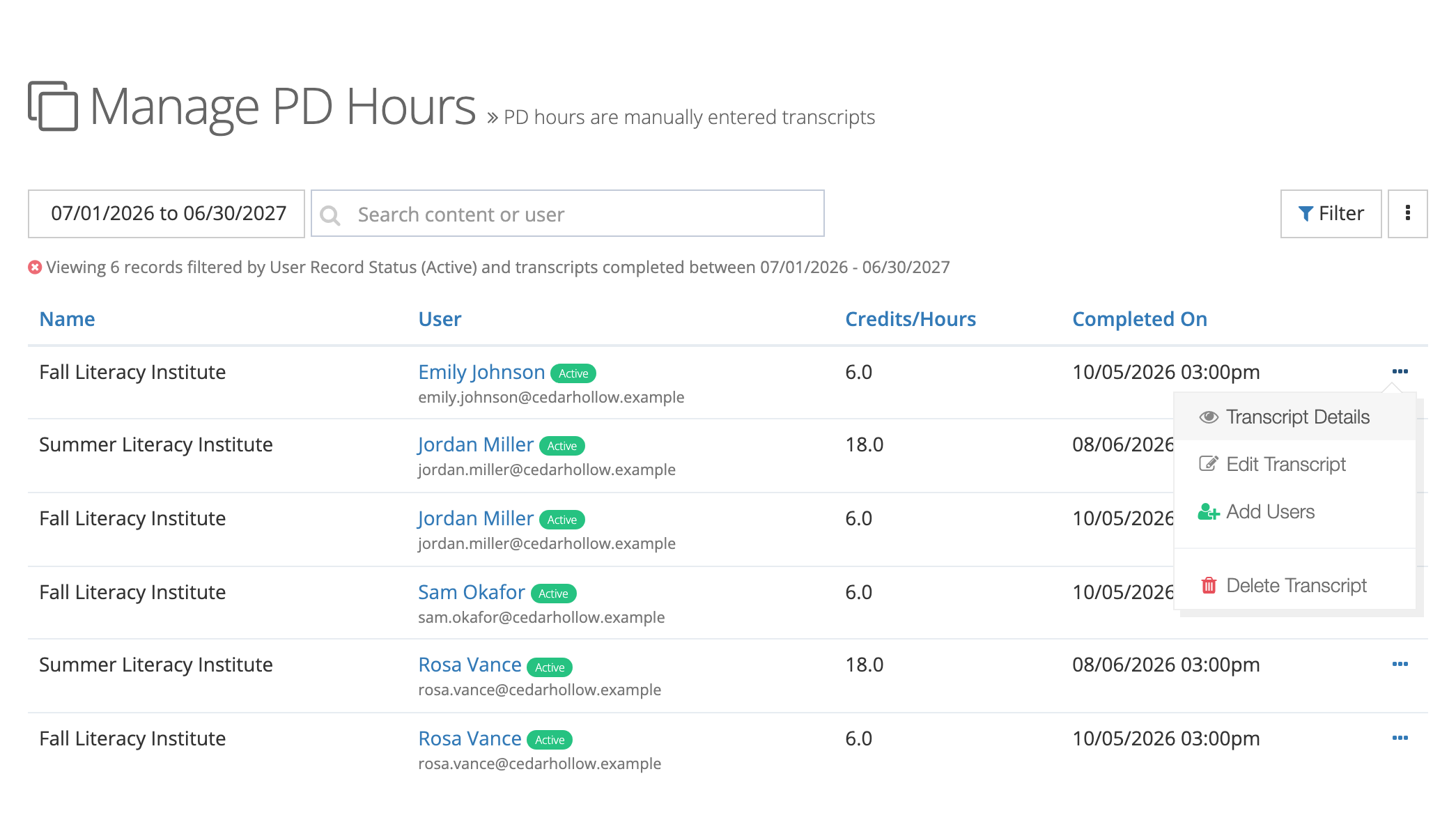
Each added person gets a copy of that row’s details. The certificate file is not copied: the new record lists a certificate, but the file does not open. If the event has a certificate, open each added person’s row, select Edit Transcript, choose the file under Certificate, and select Save. When you know the full attendee list up front, select everyone in New Transcript instead.
Review, fix, or remove a record
Section titled “Review, fix, or remove a record”The row menu (⋯) on each record offers:
- Transcript Details: the name, description, person, providing organization, dates, scoring, and credits.
- Edit Transcript: the same fields as the create window, for this one person’s record. Use it to fix hours for someone who left at noon, or to attach a certificate.
- Add Users: described above.
- Delete Transcript: removes this one person’s record.
Edits and deletions apply to one row only. To correct a detail for every attendee, edit each person’s row.
The more actions button (⋮) also has Bulk Delete, Import Transcripts, Export PDF by User, and Export CSV. They work as on All Transcripts, limited to the records on this page; see The more-actions menu.
What teachers see
Section titled “What teachers see”The record appears on the teacher’s My Transcripts page (My Home > REVIEW > My Transcripts) alongside the courses they completed in eLearn. The card shows the content name, description, completion date, credits, and score (“No score” when you left it blank).
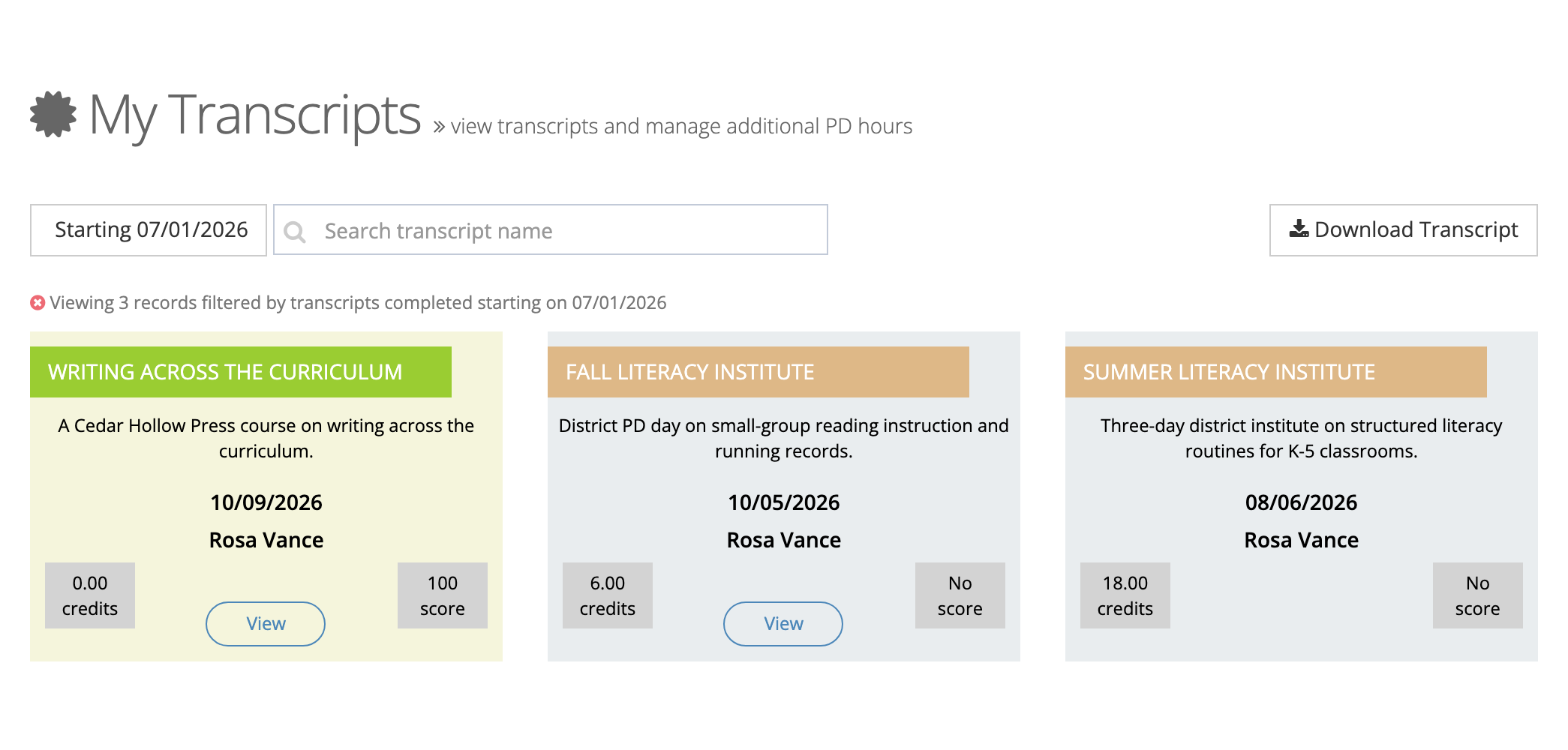
A View button appears when the record has a certificate file. It opens the file in a Certificate window. Records entered without a certificate show no View button. The records also appear in All Transcripts.