

Courses
Taking Courses
Work through a course in the content player, move between sections, and pick up where you left off.
Courses open in the content player, a full-screen window over the page you started from. You work through the course one section at a time, and eLearn saves your progress as you go, so a teacher can finish a chapter during a planning period and come back to the rest after school. To find and open a course, see Finding and Accessing Your Courses.
The player
Section titled “The player”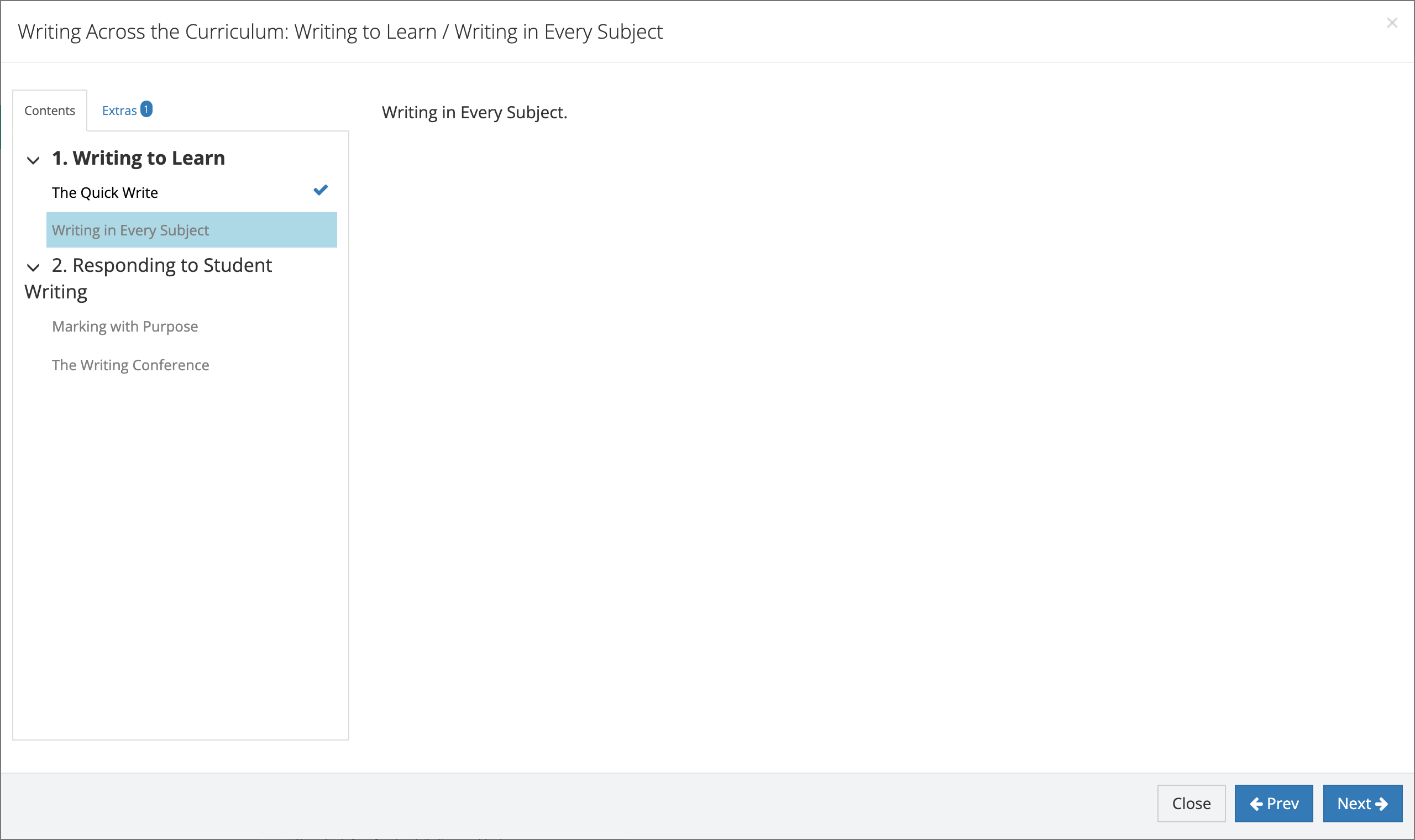
- Title bar: the course name, then the chapter and section you are on (for example “Writing Across the Curriculum: Writing to Learn / Writing in Every Subject”).
- Contents tab: the course outline. Chapters are numbered, and each lists its sections. The section you are on is highlighted. A check mark marks a section you can open from the list.
- Extras tab: additional resources the publisher attached to the course, with a count when there are any. Click one to open it in the player, then click Resume Course to go back to where you were.
- Main area: the section’s content, which can be a video, a web page, a PDF, an image, or an exam.
- Buttons at the bottom: Close, Prev, and Next, plus exam and certificate buttons when they apply.
On a phone or narrow window, the Contents list is hidden. Tap the menu button at the bottom left to show it.
Moving through a course
Section titled “Moving through a course”- Read or watch the section.
- Click Next. eLearn marks the section complete and opens the next one. At the end of a chapter, Next moves to the first section of the next chapter.
- Click Prev to go back one section. Prev does not appear on the first section.
You can also click a section in the Contents list to jump to it. In a sequential course, a section becomes a link (its gray text turns black, with a check mark) only after you complete it. You move forward with Next and can go back to any section you finished. In a course that is not sequential, every section is a link from the start. Some publishers turn off Prev and the section links for a course, so you move only forward with Next.
Videos
Section titled “Videos”On a required video section, Next appears after the video plays to the end. That is how eLearn confirms you watched it. The player saves your place in the video, so you can stop and continue later.
When a section is an exam, answer the questions and click Submit (or Grade Exam, when the exam shows your score). Next appears once your answers are accepted. See Course Assessments and Exams for scoring and retakes.
Closing and resuming
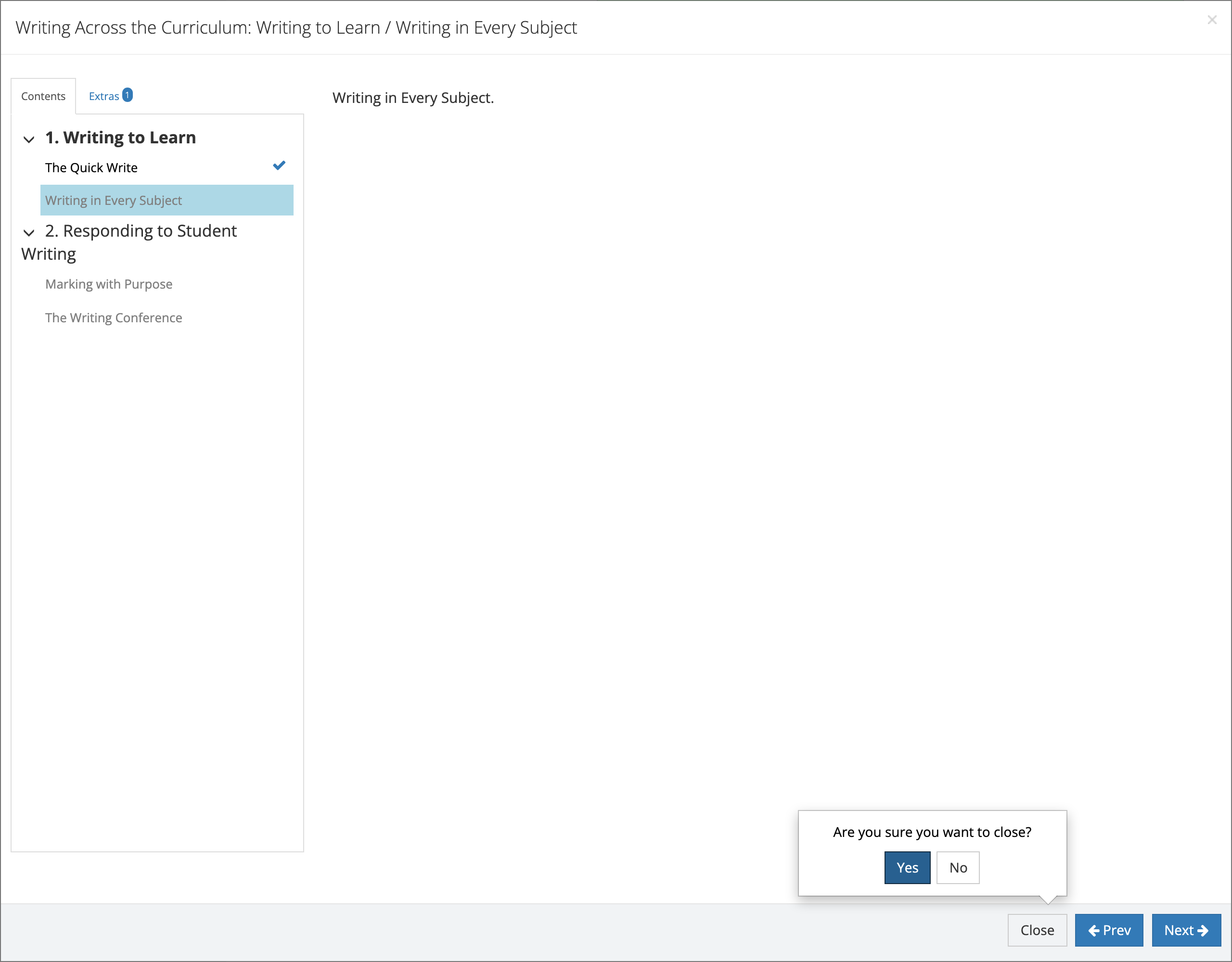
Section titled “Closing and resuming”To leave the player, click Close (or the × at the top right), then click Yes at “Are you sure you want to close?”. Your completed sections stay complete.
To resume, click the course on the Continue Content tab of My Dashboard, or click its play button on the Courses page. The player opens at the first section you have not completed.
Finishing a course
Section titled “Finishing a course”When you click Next on the last section, the player shows the end of the course. What happens next (the completion record, the certificate, the transcript entry) is covered in Course Completion and Certificates.