
eLearn Reports
eLearn Reports Overview
Where to find the Learn and Assessment reports, who can open them, and what each one answers.
eLearn reports answer the questions a district asks about professional learning: who is partway through a course, who has not started required training before its deadline, what each teacher has completed this school year, and which assessments are in progress or failed.
Who can open the reports
Section titled “Who can open the reports”You need the reporter role. The Reports menu and every eLearn and assessment report check for it.
A system administrator or organization administrator who does not also hold the reporter role does not see the Reports menu and cannot open the report pages. If someone on your team needs reports, ask a system administrator to add the reporter role to their account.
What a report lists depends on which organizations you can see. A reporter at one school sees that school’s people. A district-level reporter sees the whole district.
Opening the reports
Section titled “Opening the reports”- In the left menu, under REVIEW, select Reports.
- Select Learn Reports or Assessment Reports.
Inside a report, the Reports link in the breadcrumb at the top opens a page that lists every report card you can open, grouped by Learn Reports, Assessment Reports, and (if you can see weCLIMB reports) Observe Reports. The eLearn and assessment items appear only when eLearn is turned on for your district.
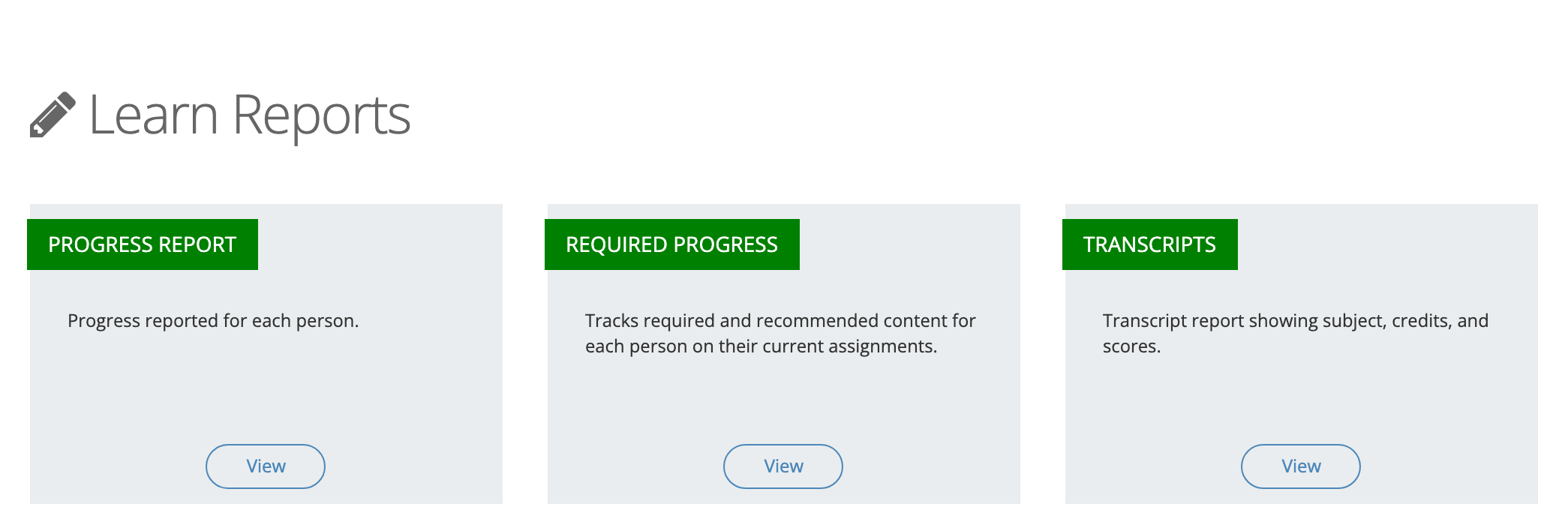
Learn Reports
Section titled “Learn Reports”| Card | What it shows | Article |
|---|---|---|
| Progress report | Content that people have started but not finished | Progress Report |
| Required Progress | Required and recommended content on each person’s current assignments, with deadlines | Required Progress Report |
| Transcripts | Completed content with scores and credits or hours | Transcripts Report |
Assessment Reports
Section titled “Assessment Reports”| Card | What it shows | Article |
|---|---|---|
| Assessment Progress report | Assessments in progress and assessments failed | Assessment Reports |
| Assessment Certifications | Certifications issued after proctored assessments | Assessment Reports |
Working in a report
Section titled “Working in a report”The reports share the same controls:
- Search: type a content title or a person’s name. The list updates as you type. In the Transcripts report, records an administrator entered by hand are not found by title; search for the person instead.
- Date filter: most reports open filtered to the current school year. Open the date button to pick Last 30 Days, Last 90 Days, This Month, This Quarter, Last Year, This Year, or All Time, or enter a Start Date and End Date and select Apply. This Year and Last Year cover a school year that runs July 1 to June 30. The Required Progress report has no date filter.
- Filter: opens more filters, such as content, users, and organizations. Most reports show only active users until you change User Record Status.
- Criteria line: the line above the table reads, for example, “Viewing 14 records filtered by User Record Status (Active)”. Check it before you share numbers.
- Sorting: select a column heading to sort by it. Select it again to reverse the order.
- Export: the menu button (three dots) at the top right lists the exports the report offers. An export runs in the background. A progress window shows Exporting…, and the file downloads when it is ready.
Organization reports from the Admin Dashboard
Section titled “Organization reports from the Admin Dashboard”Organization administrators see a CURRICULUM PROGRESS card and a REPORTS card on the Admin Dashboard. The View more links on the All in Progress and All Completed tiles, and the Progress Reports and Transcripts links, open those reports limited to one organization. The organization Progress Report lists started, unfinished content only. The Required Progress link on the REPORTS card opens the full Required Progress report. These pages also require the reporter role.
Related articles
Section titled “Related articles”- Correcting eLearn results: fixing an exam score or passing score is done from System Administration, not from a report.
- Managing transcript records: adding, editing, and importing transcripts.