

eLearn Reports
Required Progress Report
Track required and recommended content on each person's current assignments, with deadlines and progress.
The Required Progress Report shows each person’s progress on the content they are required or recommended to complete right now. Use it to check mandated training before a deadline, find staff who have not started a required course, and confirm that new-teacher onboarding is on track.
Role required: reporter
Open the report
Section titled “Open the report”- In the left menu, select Reports > Learn Reports.
- On the Required Progress card, select View.
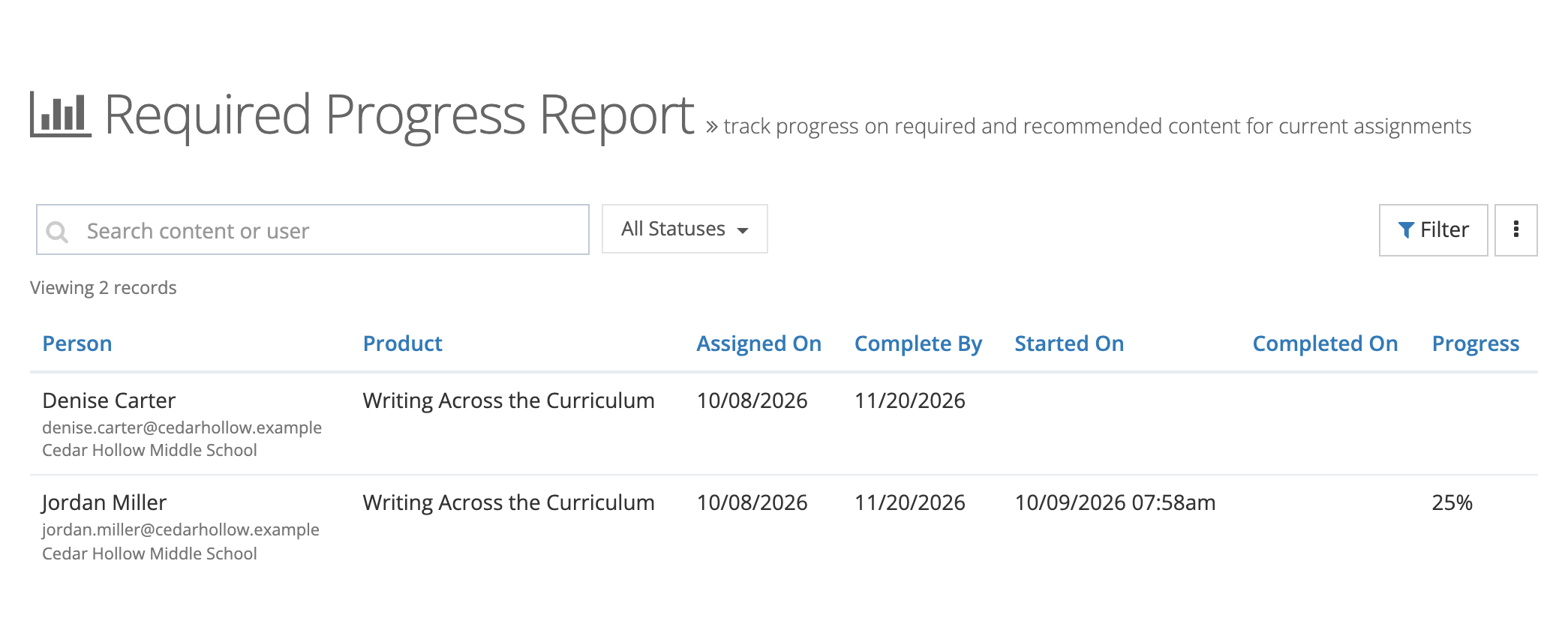
What the report includes
Section titled “What the report includes”The report pairs each person with each piece of content that is:
- Required: assigned to one of the person’s organizations with Required? turned on, or
- Recommended: assigned to one of the person’s organizations without Required?, and recommended to that person.
Only current assignments count. An assignment drops out of the report when it is inactive, not yet available, or expired, or when the license behind it is inactive or expired. For a person’s full history, including past school years, use the Transcripts report.
The same person and content can appear on more than one row: once for each enrollment, and once for each assignment with its own dates.
Only individual content (courses, assessments, and similar items) appears. Learning paths and bundles do not.
Columns
Section titled “Columns”| Column | What it shows |
|---|---|
| Person | Name, email, and the organizations whose assignment put this content on the row. |
| Product | The required or recommended content. |
| Assigned On | The date the content was recommended to the person, if it was. Otherwise, the date it was assigned to the organization. |
| Complete By | The deadline set on the assignment, if any. |
| Started On | When the person first opened the content. Blank if they have not started. |
| Completed On | When the person reached 100%. |
| Progress | Percent complete. Blank if they have not started. |
Select a column heading to sort by it. Select it again to reverse the order.
Search
Section titled “Search”Type in Search content or user to match a content name or a person’s first or last name. The list updates as you type.
Status filter
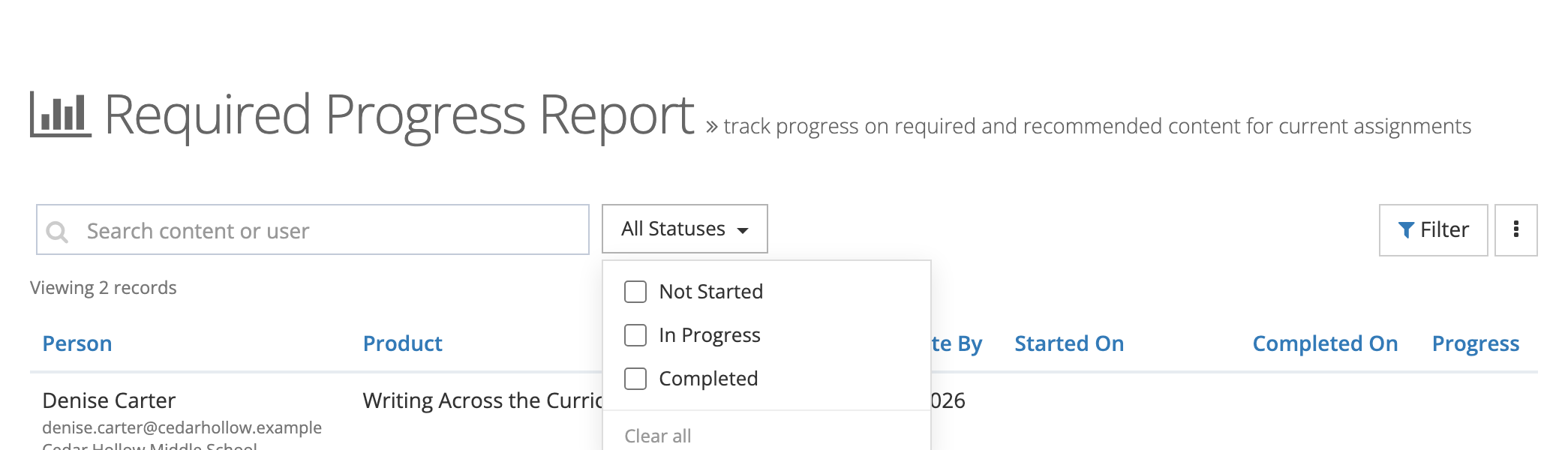
Section titled “Status filter”The All Statuses button next to the search box narrows the list by progress:
- Not Started: no enrollment yet, or an enrollment at 0%.
- In Progress: above 0% and below 100%.
- Completed: 100%.
Check more than one status to combine them. The button shows the status name when one is checked, and Statuses with a count when several are checked. Select Clear all to show every status again.
More filters
Section titled “More filters”Select Filter to open Filter Required Progress Report, set any of these, and select Filter:
- Content: one or more courses or other content.
- Users: one or more active people.
- Organizations: rows whose requirement or recommendation came from the organizations you pick. A teacher who belongs to two schools appears under a school only if that school’s assignment includes the content.
- Content Type: the content types in your library, such as courses or assessments.
- Topics, Subjects, or Skills: content tagged with the categories you pick.
Filters combine: each one you add narrows the list. The line above the table lists the filters in effect.
Export
Section titled “Export”Open the menu button (three dots) at the top right:
- Export PDF: a PDF of the report with the columns Person, Organizations, Product, Assigned On, Complete By, Start On, Completed On, and Progress.
- Export CSV:
required_progress_report.csvwith the same columns.
Both exports use your current search, status, filters, and sort. A progress window shows Exporting…, and the file downloads when it is ready.
Using the report in a school
Section titled “Using the report in a school”- Before a training deadline: check Not Started, filter Content to the required course, and send the list to building principals.
- For one school: filter Organizations to the school to see only that school’s requirements.
- For new-teacher onboarding: filter Content to your onboarding content and check Not Started and In Progress.
Setting content as required
Section titled “Setting content as required”The report reads the Required? and Complete By settings on each product assignment. See Managing course assignments.