

eLearn Administration
eLearn Administration at a Glance
Where each eLearn administration page lives, what it is for, and which role can open it.
A district runs professional learning the way it runs any other program: someone decides which courses each school gets, someone keeps the records that prove teachers did the work, and someone fixes a record when it is wrong. In eLearn, those jobs sit on a handful of administration pages. This article tells you where each one is and who can open it.
Who can open these pages
Section titled “Who can open these pages”Role requirement: system_administrator for every page in this article except the reports.
- System administrators select the gear icon in the top bar (labeled Settings for screen readers). It opens the System Administration pages, with the System Administration menu in the left sidebar. The eLearn pages appear only when eLearn is turned on for your district.
- Organization administrators do not see the gear icon or the System Administration menu. Their only eLearn administration view is the CURRICULUM PROGRESS card on the Admin Dashboard (My Home > Dashboards > Admin Dashboard), with All Completed and All in Progress totals.
- Reports need the reporter role. An administrator without reporter does not see the Reports menu, whatever their other roles.
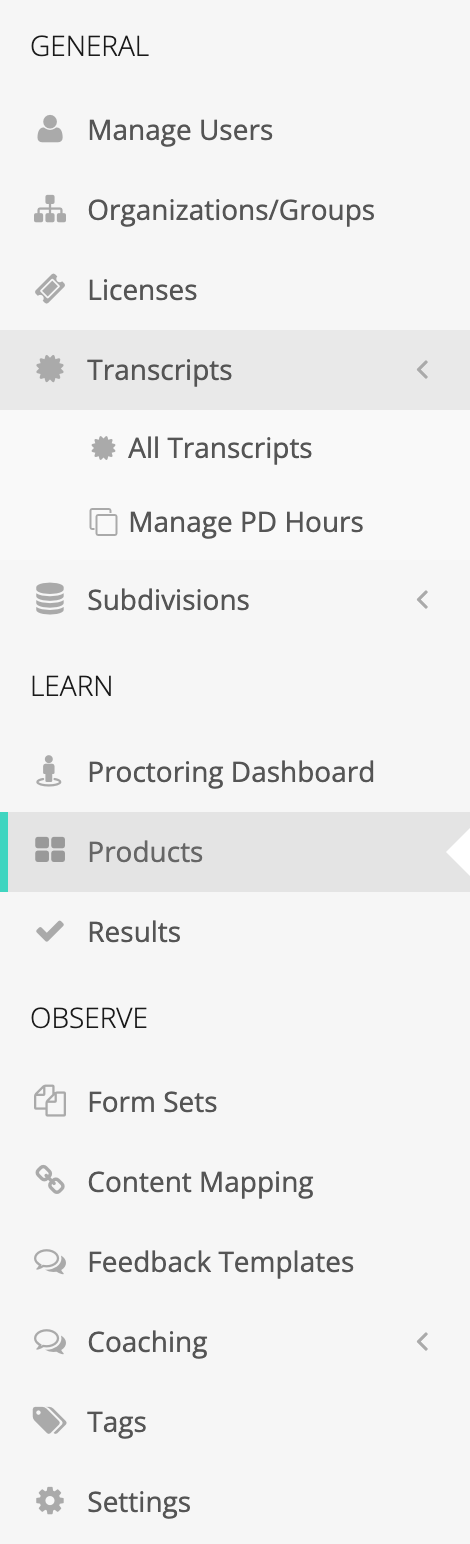
The eLearn pages are split across two headings in the menu: Licenses and Transcripts sit under GENERAL, and Proctoring Dashboard, Products, and Results sit under LEARN.
Products and assignments
Section titled “Products and assignments”Menu: System Administration > LEARN > Products
Products lists every course, assessment, and learning path your district is licensed for. Opening a product shows its Assignments tab, where you decide which schools and groups get the content, whether it is required, and when it is due. Assignments go to organizations, not to individual people: everyone who belongs to an assigned school can open the content.
Use this page when you roll out a district PD requirement, give new-teacher onboarding content to every school, or set a completion deadline. See Assigning Content to Schools.
All Transcripts
Section titled “All Transcripts”Menu: System Administration > GENERAL > Transcripts > All Transcripts
The Transcripts page lists every transcript record for staff in your district: completed eLearn content and records an administrator entered. From here you search and filter records, edit or delete one, bulk delete a filtered set, import records from a file, and export to CSV or to a PDF for each person. Teachers who need proof of hours for state recertification depend on these records being right. See Managing Staff Transcripts.
Manage PD Hours
Section titled “Manage PD Hours”Menu: System Administration > GENERAL > Transcripts > Manage PD Hours
Manage PD Hours shows only the transcripts an administrator entered by hand (“PD hours are manually entered transcripts”). Use it to credit staff for training that happened outside eLearn, such as a district PD day, a conference, or a university course. See Recording PD Hours for Outside Training.
Results
Section titled “Results”Menu: System Administration > LEARN > Results
Results lists each person’s attempts at eLearn content with the final score and status. If your account allows result changes, you can update exam results or a passing score, delete a result, or reassign a result to a different person, for example after a technical problem during an exam. See Reviewing and Correcting eLearn Results.
Licenses
Section titled “Licenses”Menu: System Administration > GENERAL > Licenses
Licenses shows the district’s currently active licenses and remaining seats: Product, Organization, Allocation, Used, and Remaining. View License Claims lists who used each seat. See License Management.
Proctored Sessions
Section titled “Proctored Sessions”Menu: System Administration > LEARN > Proctoring Dashboard > Proctored Sessions
Some assessments must be taken in a proctored session. On the Proctoring Dashboard, a system administrator sees the Proctored Sessions tile (all sessions for your organizations) along with Assessment Progress Report and Assessment Certifications. Staff with the proctor role see My Proctored Sessions. A system administrator who is also a proctor sees both. See Proctored Sessions.
eLearn reports
Section titled “eLearn reports”Menu: My Home > Reports > Learn Reports
Role requirement: reporter
The Learn Reports page links to the Progress report, Required Progress, and Transcripts reports. A reporter who belongs to the district organization sees the whole district; a reporter who belongs only to schools sees those schools. See eLearn Reports Overview.