

Assessments
Proctored Assessments
How a test taker joins a proctored session, waits in the lobby, takes the exam, and gets a retake.
A proctored assessment is taken in a scheduled session while a proctor supervises the room. Districts use proctoring for certification exams, where a licensing office needs proof of who took the exam and who watched. This article covers testing day from the test taker’s side. Proctors should read Managing Proctored Sessions.
Who can do this: any staff member whose school is assigned the assessment.
How you can tell an assessment is proctored
Section titled “How you can tell an assessment is proctored”The card on LEARN > Assessments shows Proctored. The publisher sets this; your district cannot turn it off.
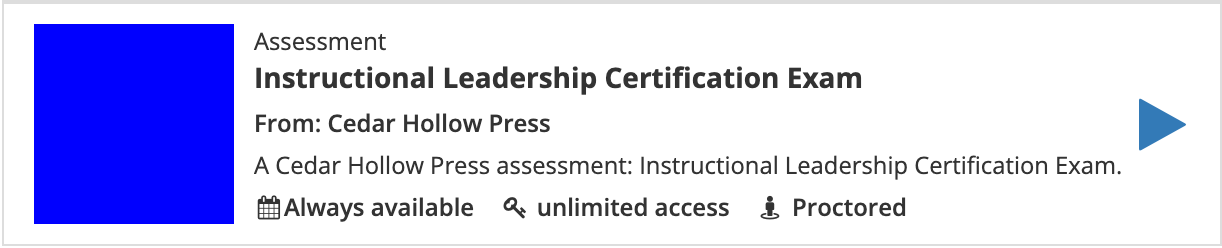
You cannot open a proctored assessment outside a session. Your proctor tells you the date, time, and place. Bring the photo ID your proctor asks for.
Join the session
Section titled “Join the session”- Select the play button on the assessment’s card.
- What happens next depends on how your proctor set up the session:
- If the proctor already enrolled you, you go straight to the lobby.
- If the session accepts an enrollment code, the Enter Code box opens. Type the four-character code your proctor gives you and select Submit Code. Capital or lowercase letters both work.
- If neither applies, a message tells you that you are not enrolled. Ask your proctor to add you.
- If no session is scheduled at all, a message says so. Check the date with your proctor.
Each message you might see is explained in When Content Will Not Open.
Wait in the lobby
Section titled “Wait in the lobby”The Proctor Lobby shows your proctor’s name and when the session Starts at. Until the proctor starts the session, it reads “Waiting for session to be opened.” and Start is dimmed.
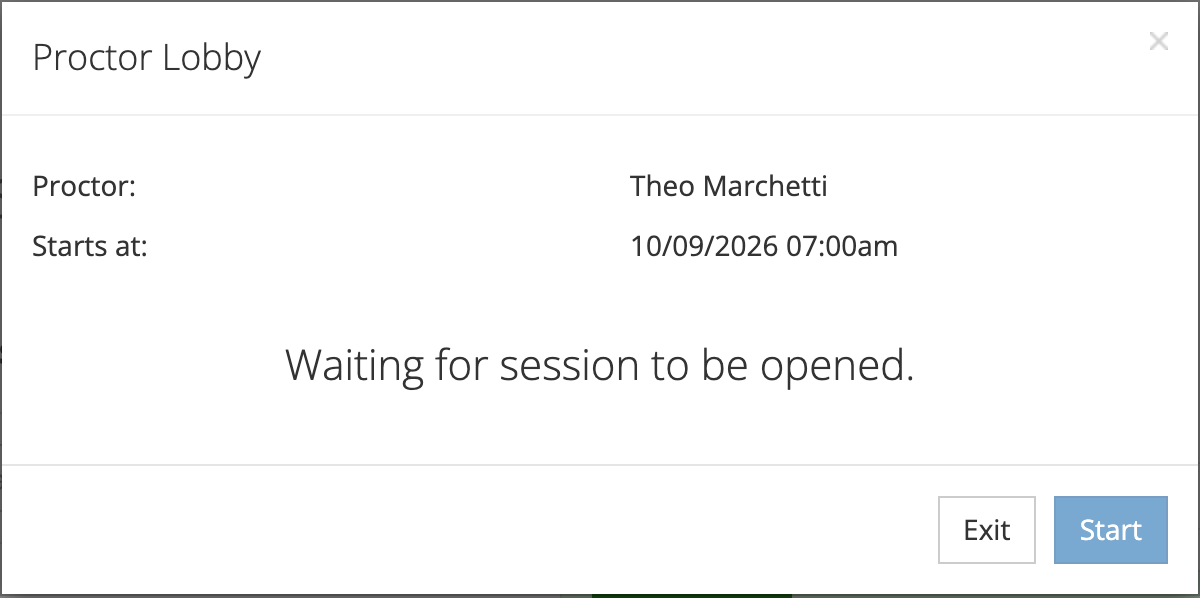
When the proctor starts the session, the lobby changes to “Session is open. You may now start.” without a reload. Select Start to open the exam. Select Exit to leave the lobby.
Take the exam
Section titled “Take the exam”The exam works like any other assessment: answer every required question and select Grade Exam or Submit. See Taking Assessments.
Your proctor sees your progress on the session page as you work. When you finish, the player shows the end of the assessment.
If you did not pass
Section titled “If you did not pass”On a proctored assessment you cannot start over by yourself. If you open it again, an Assessment Notice reads “You’ve already taken this proctored assessment.”
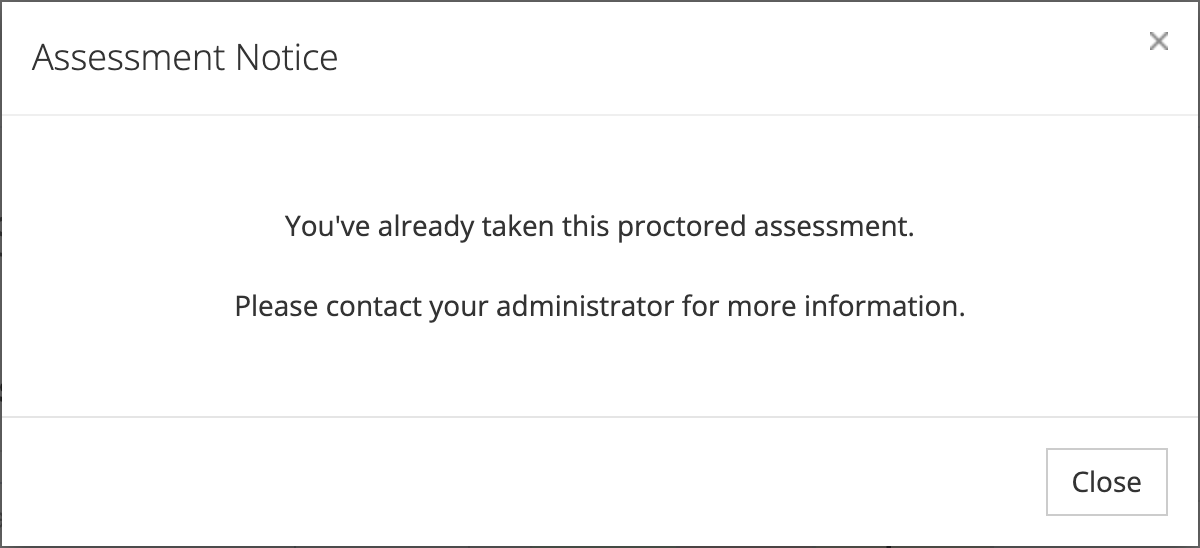
Tell your proctor. While the session is still open, the proctor can select Allow Retake? next to your result, and you can take the exam again in the same session. After the session ends, the proctor has to enroll you in a new session. Once you open the assessment in that session, it shows Failed on the proctor’s page, and the proctor selects Allow Retake? there.
After you pass
Section titled “After you pass”Your result is recorded with the proctor’s name, job title, employer, email, and phone number. Depending on your district’s setup, the certification is issued when you pass or when the proctor certifies your result. You receive the certificate by email, and it appears on My Certifications. See Viewing Your Assessment Certifications.