

eLearn Administration
Reviewing and Correcting eLearn Results
Look up any staff member's course and assessment results, and fix a score, a passing score, or a result recorded under the wrong account.
Every time a staff member starts a course or assessment, eLearn keeps a result: when they started, when they finished, their final score, and whether they passed. Most results need no attention. The Results page is for the exceptions: a teacher whose exam froze mid-attempt, a passing score that changed after people had already tested, or a paraprofessional who took a course on a shared classroom computer while a colleague was still signed in.
Role requirement: system_administrator. Organization administrators cannot open this page.
Changing results depends on your account. Every system administrator can view results. The options to update, delete, or reassign a result appear only if your account allows result changes, a setting your Master Teacher provider controls (Allow System Administrator access to guided content results?). If you see no row menus on the Results page, contact your provider.
Open Results
Section titled “Open Results”- Select the gear icon in the top bar to open System Administration.
- Under LEARN, select Results.
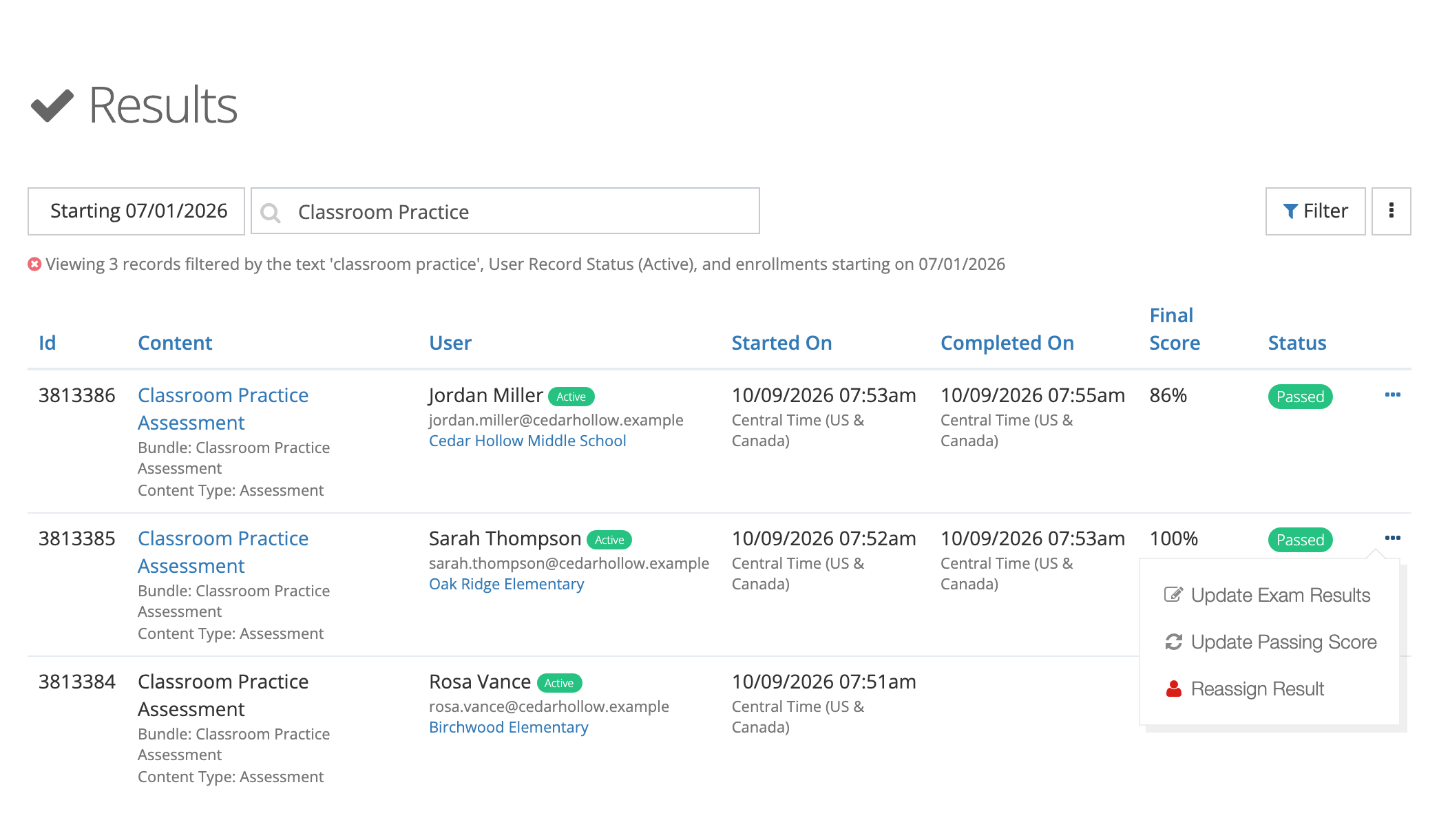
The table lists one row per person per course or assessment:
| Column | What it shows |
|---|---|
| Id | The result’s reference number. Give it to support when you report a problem. |
| Content | The course or assessment name, its bundle, its Content Type, and any categories. |
| User | The person’s name, record status, email, and organizations. |
| Started On / Completed On | When they began and when they finished. Completed On is blank until they finish. |
| Final Score | The score that counts. |
| Status | For example Passed or Not Started. |
Select a column heading to sort.
Find the result you need
Section titled “Find the result you need”- Date range button: filters by when the person started. It starts at the beginning of the current school year. Choose a preset such as Last 30 Days or All Time, or type a Start Date and End Date and select Apply.
- Search content or user: matches the content name or the person’s name.
- Filter: opens Filter Guided Content Results with Content, Content Bundles, Content Types, Users, User Record Status, Organizations, Categories, and Status (Complete, Passed, Failed, In Progress, Not Started). Select Filter to apply.
The line under the search box lists the filters in effect. User Record Status starts on Active, so results for archived staff stay hidden until you add that status.
See the attempt history
Section titled “See the attempt history”When a result has exam scores, its content name is a link. Select it to open Results for the person:
- Results: Final Score, Score Needed To Pass, Status, Attempts, and Completed On.
- Exam Results: each attempt by date with its final score, newest first. Select the arrow on an attempt to see the score for each exam within it.
- Proctor Information: for a proctored session, the proctor’s name, job title, employer, email, and phone number.
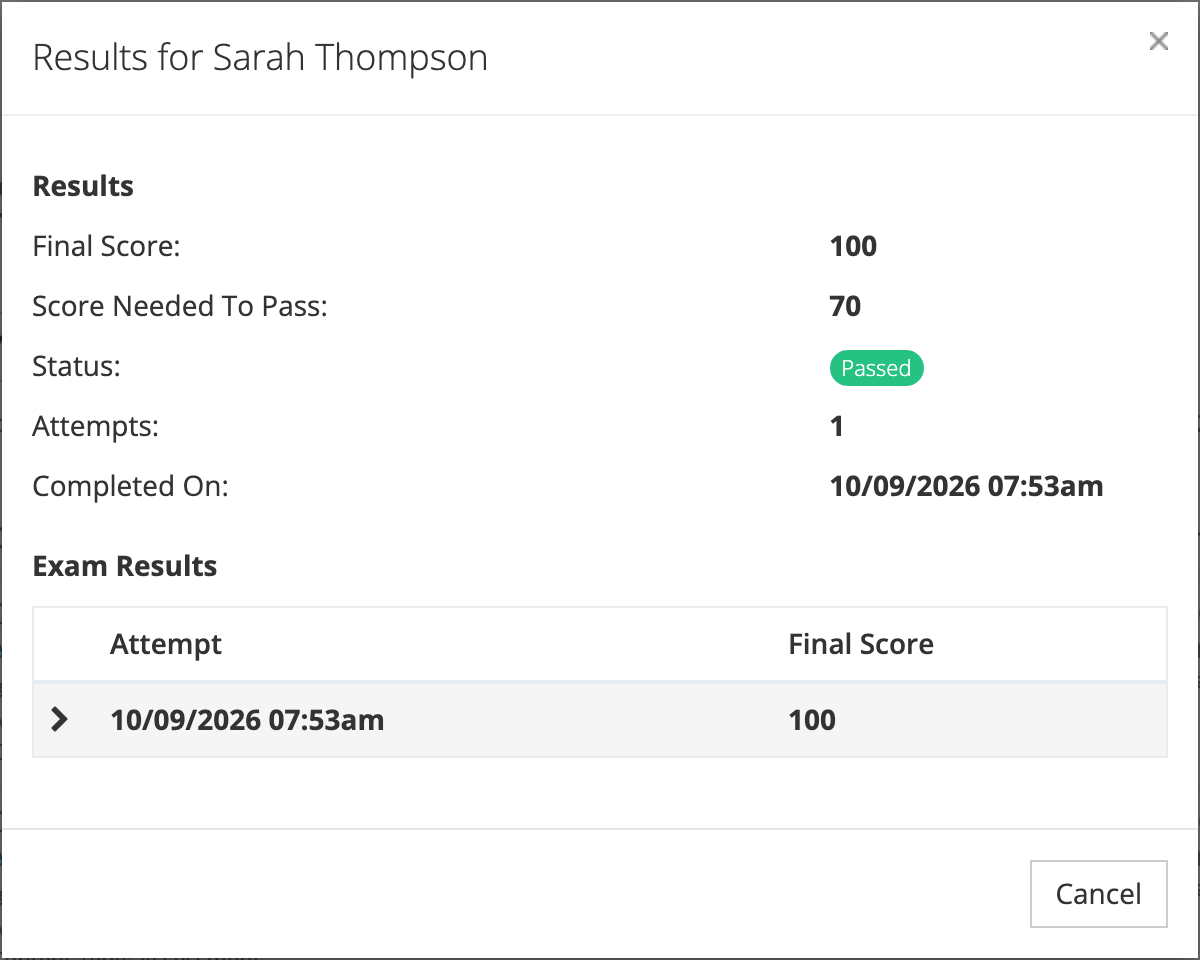
Check this history before you change anything. It shows whether a low score came from one interrupted attempt or from several real ones.
Correct a result
Section titled “Correct a result”Open the row menu (⋯) at the end of the row. Which options appear depends on the result:
| Option | When it appears |
|---|---|
| Update Exam Results | Completed results |
| Update Passing Score | Completed results |
| Delete Result | Any result except an assessment |
| Reassign Result | Any result |
Update Exam Results
Section titled “Update Exam Results”Use this when a technical problem recorded the wrong score for an exam.
- Select Update Exam Results.
- Each exam in the course or assessment has its own field, labeled with the exam name. Enter the corrected percentage.
- Select Save.
eLearn recalculates the final score and status and updates the person’s transcript to match. If the result is tied to a proctor certification, the window warns that a failing grade after your change revokes that certification.
Update Passing Score
Section titled “Update Passing Score”Use this when the passing score for one person’s result needs to change, for example after the district lowers the cut score for a local assessment.
- Select Update Passing Score.
- Enter the new Passing Score.
- Select Save.
eLearn rechecks the status against the new passing score and updates the transcript to match. The same proctor certification warning appears when it applies.
Delete Result
Section titled “Delete Result”- Select Delete Result.
- In Remove Result, confirm the person and content, then select Remove.
Assessment results cannot be deleted.
Reassign Result
Section titled “Reassign Result”Use this when someone completed work while signed in as another person, which happens on shared computers.
- Select Reassign Result.
- In Reassign Guided Content Result, choose the person who did the work under Reassign To:.
- Select Save.
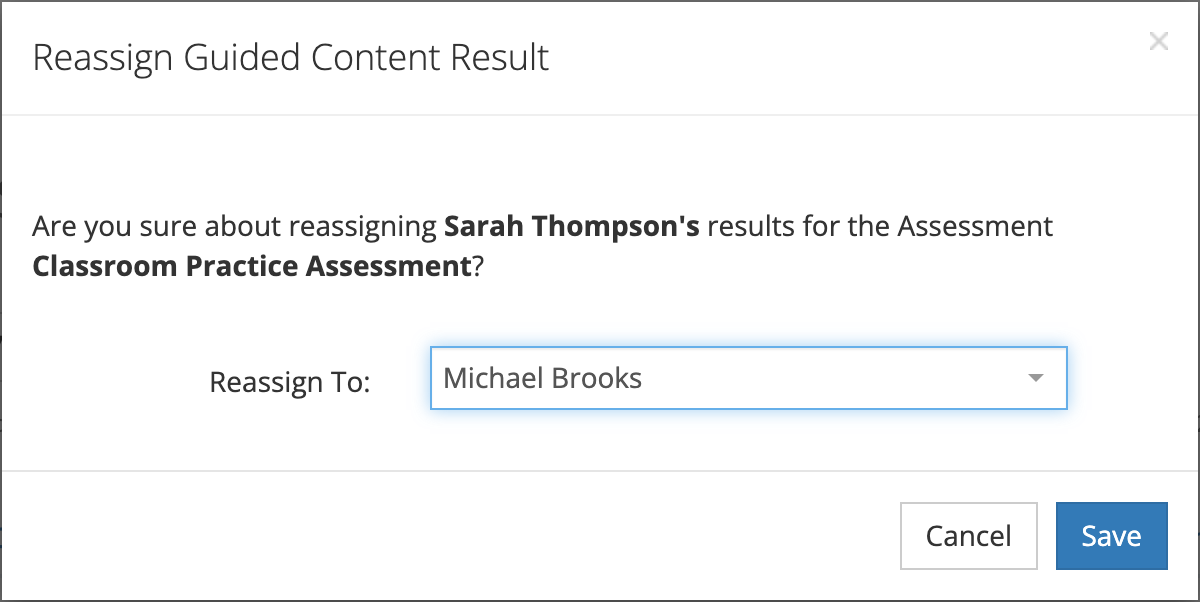
The progress, exam answers and scores, and transcript move to the person you chose, and the result no longer appears for the original account.
Remove many results at once
Section titled “Remove many results at once”The more actions button (⋮) next to Filter has Bulk Remove, for clearing a batch of course results, such as a pilot group’s practice runs. It appears only if your account allows result changes.
- Set the date range, search, and filters so the list shows only the results to remove.
- Select the more actions button (⋮), then Bulk Remove.
- Remove Results shows how many results match, the criteria, and how many assessment results it excluded. Assessment results are never removed in bulk.
- Select Remove.
You receive an email when the removal finishes.