

Certificates & Transcripts
Viewing Your Assessment Certifications
Find the proctored assessments a proctor certified for you, see your score and proctor details, and download the certificate.
When you pass a proctored assessment, the result is certified. Either the proctor certifies it at the end of the session, or eLearn certifies it as soon as you pass when the session is set up to do that. The certification is the official record that you passed under supervision. It is the document you hand to the district office or attach to a license or endorsement application.
My Certifications lists every certification you hold. It is separate from My Transcripts:
- My Transcripts records everything you complete in eLearn, plus PD hours your district enters.
- My Certifications records only proctored assessments that were certified, with the proctor’s name and the certificate file.
A proctored assessment you pass appears in both places.
Opening My Certifications
Section titled “Opening My Certifications”- Open the My Home sidebar.
- Under the REVIEW heading, select My Certifications.
My Certifications appears for every user when eLearn is turned on for your district. If you have never taken a proctored assessment, the table is empty.
Finding a certification
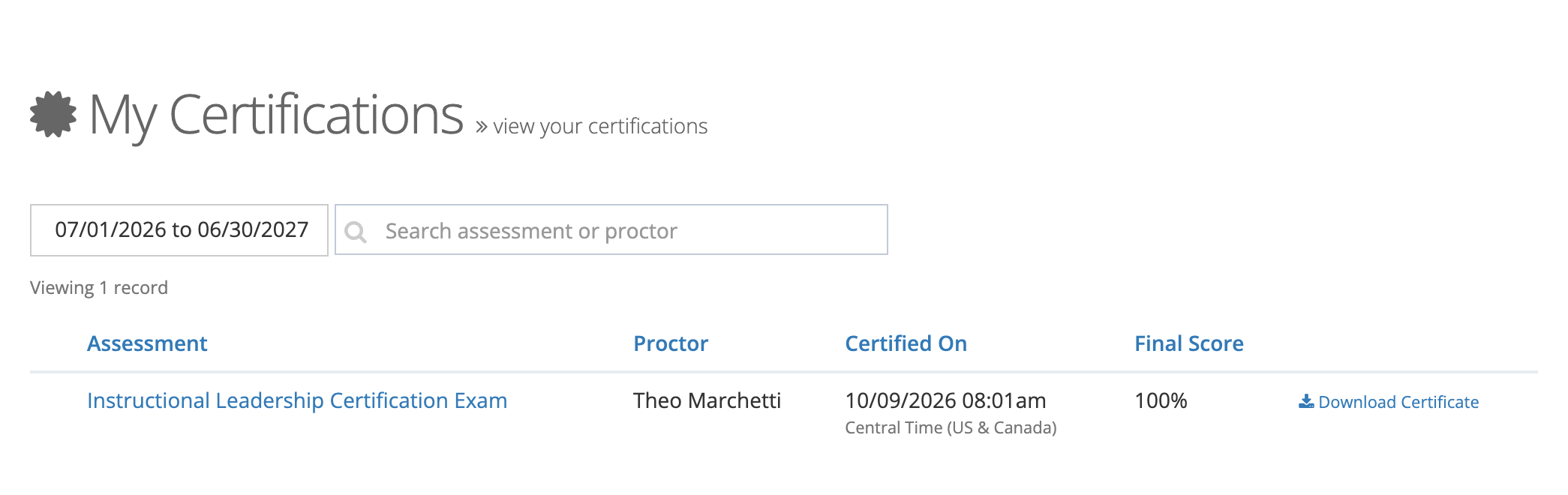
Section titled “Finding a certification”The list opens filtered to the current school year.
- Date filter: select the date button to choose Last 30 Days, Last 90 Days, This Month, This Quarter, Last Year, This Year, or All Time, or enter a Start Date and End Date and select Apply. Choose All Time to see certifications from earlier school years.
- Search assessment or proctor: type part of an assessment name or a proctor’s name.
- Select a column heading to sort by it.
Reading the table
Section titled “Reading the table”| Column | What it shows |
|---|---|
| Assessment | The assessment name. Select it to open the details. |
| Proctor | The proctor who ran the session. |
| Certified On | The date and time of certification, in your time zone (shown under the date). |
| Final Score | Your score as a percentage. |
A Legacy tag next to the name marks a certification created from assessment results recorded before eLearn kept certification records.
Learning paths with proctored assessments
Section titled “Learning paths with proctored assessments”When a proctored learning path is certified, its row has an arrow on the left and a Show Scores button in place of a score. Select either one to list the certified assessments inside the path, each with its own Certified On date and Final Score. Select an assessment name in that list to open its details.
Viewing the details
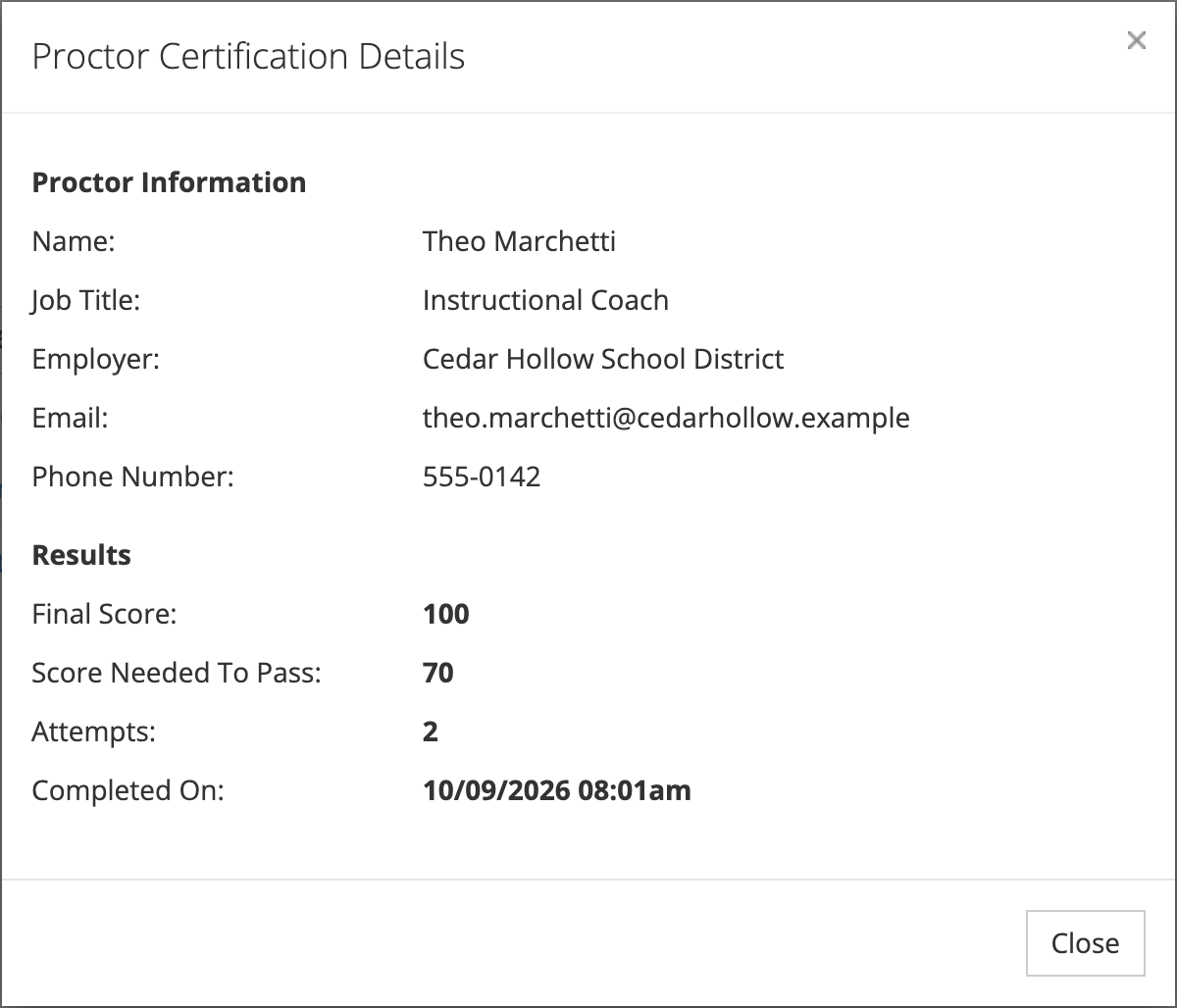
Section titled “Viewing the details”Select the assessment name to open Proctor Certification Details. It shows:
- Proctor Information: the proctor’s Name, Job Title, Employer, Email, and Phone Number. Use these if a licensing office asks you to verify who supervised your exam.
- Results: Final Score, Score Needed To Pass, Attempts, and Completed On.
Select Close to return to the list.
Downloading your certificate
Section titled “Downloading your certificate”Select Download Certificate on the row to save the certificate as a PDF. The link appears only when a certificate file is attached to the certification.
You also receive the certificate by email when the result is certified. If you lost that email, download the certificate here, or ask your proctor or a system administrator to resend it from Assessment Certifications.
Who sees your certifications
Section titled “Who sees your certifications”- You see only your own certifications on this page.
- The proctor who ran your session sees your certification on the Assessment Certifications page of the Proctoring Dashboard.
- System administrators see certifications on the same page.
- Staff with the reporter role see them in Reports > Assessment Reports > Assessment Certifications.