

Getting Started with eLearn
Who Sees What in eLearn
Which eLearn menus and pages a teacher, an organization administrator, a system administrator, a reporter, and a proctor can open, and where to find them.
What you see in eLearn depends on your roles, not your job title. A principal with the reporter role sees the reports; a principal without it does not. This article lists each role, the pages it opens, and the menu path to each one, so you can tell whether a missing menu item is expected or a role your district needs to add.
Everything below appears only when eLearn is turned on for your district. Your provider turns eLearn on for the district; there is no district setting for it.
Two menus
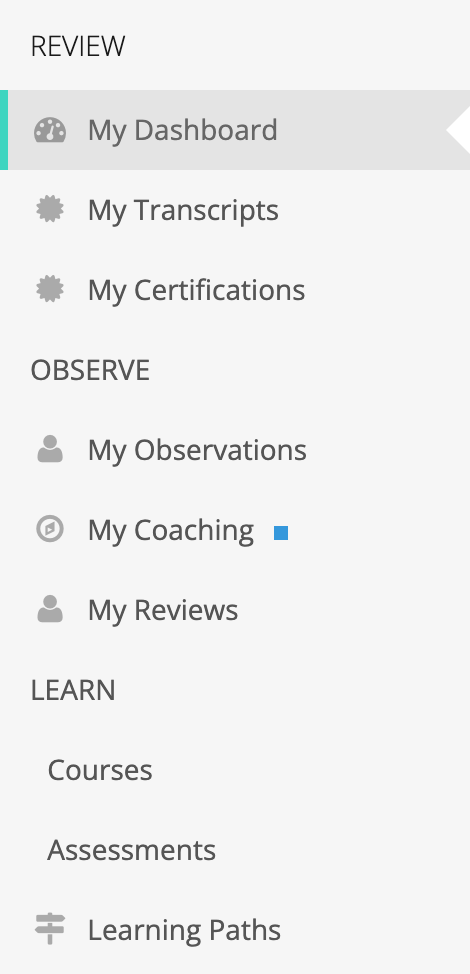
Section titled “Two menus”- My Home is the sidebar every user sees. It holds your own learning, your records, and any dashboards and reports your roles allow.
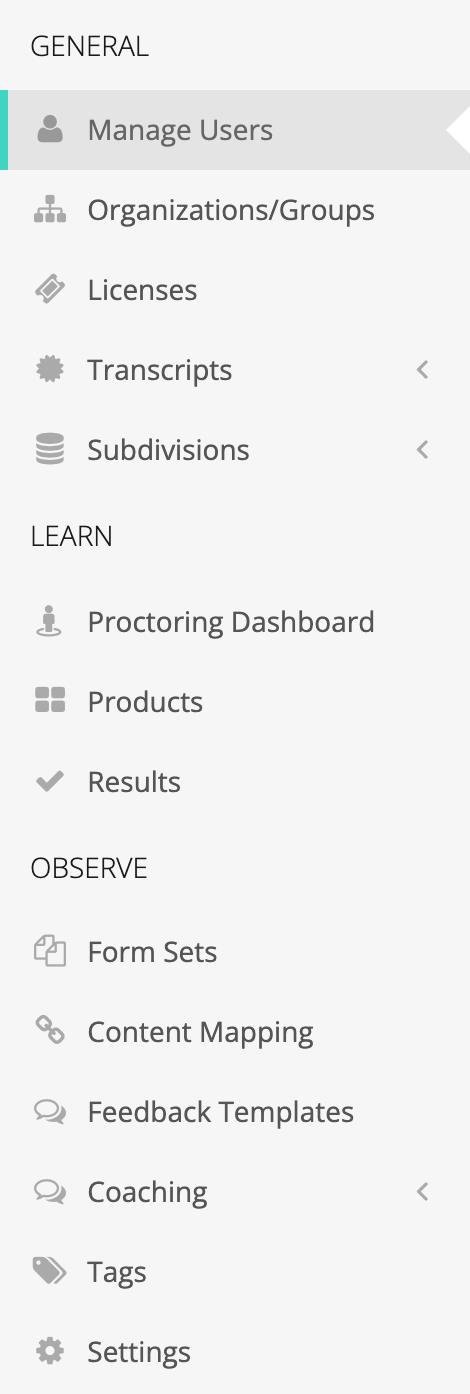
- System Administration opens from the gear icon (Settings) in the top bar. Only system administrators see the gear icon. Organization administrators do not, so the eLearn administration pages are not in their menu.
At a glance
Section titled “At a glance”| Role | What it adds in eLearn | Where to find it |
|---|---|---|
| Everyone (teachers and staff) | Your courses, assessments, learning paths, videos, and resources; your transcripts and certifications | My Home > LEARN; My Home > REVIEW > My Transcripts and My Certifications |
| Organization administrator | The CURRICULUM PROGRESS card on the Admin Dashboard | My Home > Dashboards > Admin Dashboard |
| System administrator | Products and assignments, all transcripts, PD hours, results, licenses, and all proctored sessions | Gear icon > System Administration > GENERAL and LEARN |
| Reporter | The eLearn and assessment reports | My Home > Reports > Learn Reports and Assessment Reports |
| Proctor (shown as Proctor Administrator) | The Proctoring Dashboard, your proctored sessions, and assessment certifications | My Home > Dashboards > Proctoring Dashboard |
Roles add up. A person with several roles sees the pages of each one.
Teachers and all staff
Section titled “Teachers and all staff”Every user sees two eLearn items under the REVIEW heading in My Home:
- My Transcripts: your completed courses, assessments, learning paths, and PD hours your district recorded.
- My Certifications: assessments a proctor certified for you.
The LEARN heading lists the content you have. The LEARN heading itself links to the Learn page. Under it, each item appears only when you have at least one piece of that kind:
- Content Libraries
- One item per content type, such as Courses and Assessments (the names come from the content provider)
- Learning Paths
- Videos
- Resources (PDF documents)
A new teacher who has no learning paths yet sees no Learning Paths item. Once a path is assigned to their school, the item appears.
Organization administrators
Section titled “Organization administrators”An organization administrator manages the schools or groups they belong to. In eLearn, the role adds one thing: the CURRICULUM PROGRESS card on the Admin Dashboard (My Home > Dashboards > Admin Dashboard).
The card has two tiles for the organization and date range you pick at the top of the dashboard:
- All Completed: completions recorded on transcripts for active staff.
- All in Progress: content staff have started and not finished.
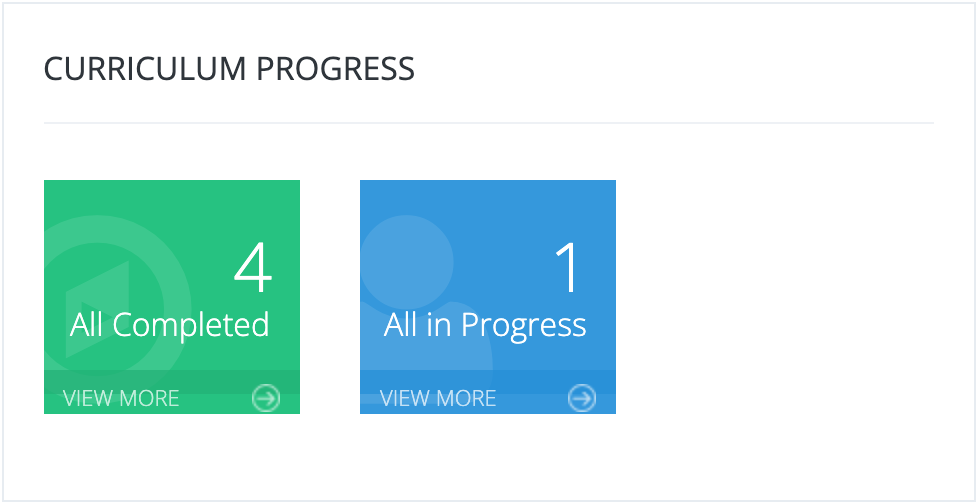
The VIEW MORE links and the Progress Reports, Required Progress, and Transcripts links on the dashboard open reports. Those reports need the reporter role. An organization administrator without it is turned away when they follow those links. Ask a system administrator to add the reporter role if a principal needs to drill into the numbers.
Organization administrators cannot assign content, edit transcripts, or open the proctoring pages.
System administrators
Section titled “System administrators”A system administrator manages eLearn for the whole district. Select the gear icon in the top bar to open System Administration. The eLearn pages are:
| Page | Menu path | What it is for |
|---|---|---|
| Licenses | GENERAL > Licenses | Seats per product: Allocation, Used, Remaining |
| All Transcripts | GENERAL > Transcripts > All Transcripts | Every staff transcript; edit, delete, import, and export |
| Manage PD Hours | GENERAL > Transcripts > Manage PD Hours | Transcripts entered by hand for outside training |
| Proctoring Dashboard | LEARN > Proctoring Dashboard | All proctored sessions, assessment progress, and certifications |
| Products | LEARN > Products | The district’s licensed content and its assignments to schools |
| Results | LEARN > Results | Course and assessment results; corrections if your account allows result changes |
Content is assigned to organizations (the district, a school, or a group), not to individual people. Staff receive content through the organizations they belong to.
The system administrator role does not include reports. A system administrator needs the reporter role to see the Reports menu.
Reporters
Section titled “Reporters”The reporter role opens the Reports menu in My Home. It is the only role that does. For eLearn, it holds:
- Learn Reports: Progress report, Required Progress, and Transcripts
- Assessment Reports: Assessment Progress report and Assessment Certifications
The same role also opens the weCLIMB reports when your district uses weCLIMB.
What a reporter sees depends on where they belong. A reporter in the district organization sees the whole district. A reporter who belongs only to schools sees those schools and the groups under them. A district curriculum director usually belongs to the district; a principal usually belongs to one school.
Proctors
Section titled “Proctors”The proctor role appears as Proctor Administrator when roles are assigned. It is for staff who supervise in-person assessments, such as a certification exam taken at the district office.
Before a proctor can open any page, they must complete the proctor acknowledgment once: phone number, job title, employer, and agreement to the proctoring responsibilities. After that, the proctor opens the Proctoring Dashboard from My Home > Dashboards > Proctoring Dashboard. It links to My Proctored Sessions, the Assessment Progress Report for their sessions, and Assessment Certifications.
A system administrator without the proctor role skips the acknowledgment and sees every session in the district instead of My Proctored Sessions. See Getting Started as a Proctor.
When something is missing
Section titled “When something is missing”- No LEARN heading at all: eLearn is not turned on for your district. Contact your provider.
- A content type is missing under LEARN: you have no content of that kind. A system administrator assigns content to your school or group.
- No Reports menu: you do not have the reporter role.
- No gear icon: you are not a system administrator.
- No Proctoring Dashboard: you do not have the proctor role or the system administrator role.