

Administration
License Management
See how many seats your district has for each course or product, how many are used, and who used them.
Your district’s eLearn content comes with licenses: an agreement that a school or the district can use a product, sometimes with a limit on how many people can use it. When a course has 50 seats and a new cohort of teachers is about to start, you need to know how many are left before anyone hits a “No Licenses Available” message. The Licenses page answers that, and License Claims shows who used each seat.
Role requirement: system_administrator. Both pages are in System Administration, which organization administrators do not have.
How seats are used
Section titled “How seats are used”A license is granted to an organization (the district or a school) for one product. People use it like this:
- A system administrator assigns the product to an organization. See Assigning Content to Schools.
- The first time a staff member in that organization opens the content, they claim a seat. Opening it again later does not use another seat.
- When a license has a seat limit and every seat is claimed, the next person who tries to open the content sees No Licenses Available: “All licenses for this product have been claimed. Please contact your administrator to order more.”
Seats are claimed per person and per product, when the content is opened. Assigning roles to a user does not claim or release a seat.
Seat limits, license dates, and renewals are set by your Master Teacher provider. To add seats or renew a license, contact your account representative.
View your licenses
Section titled “View your licenses”- Select the gear icon in the top bar to open System Administration.
- Under GENERAL, select Licenses.
The page is titled Licenses (“currently active licenses and remaining seats”). It lists your district’s licenses that are active today. Expired licenses and licenses that have not started yet are not listed.
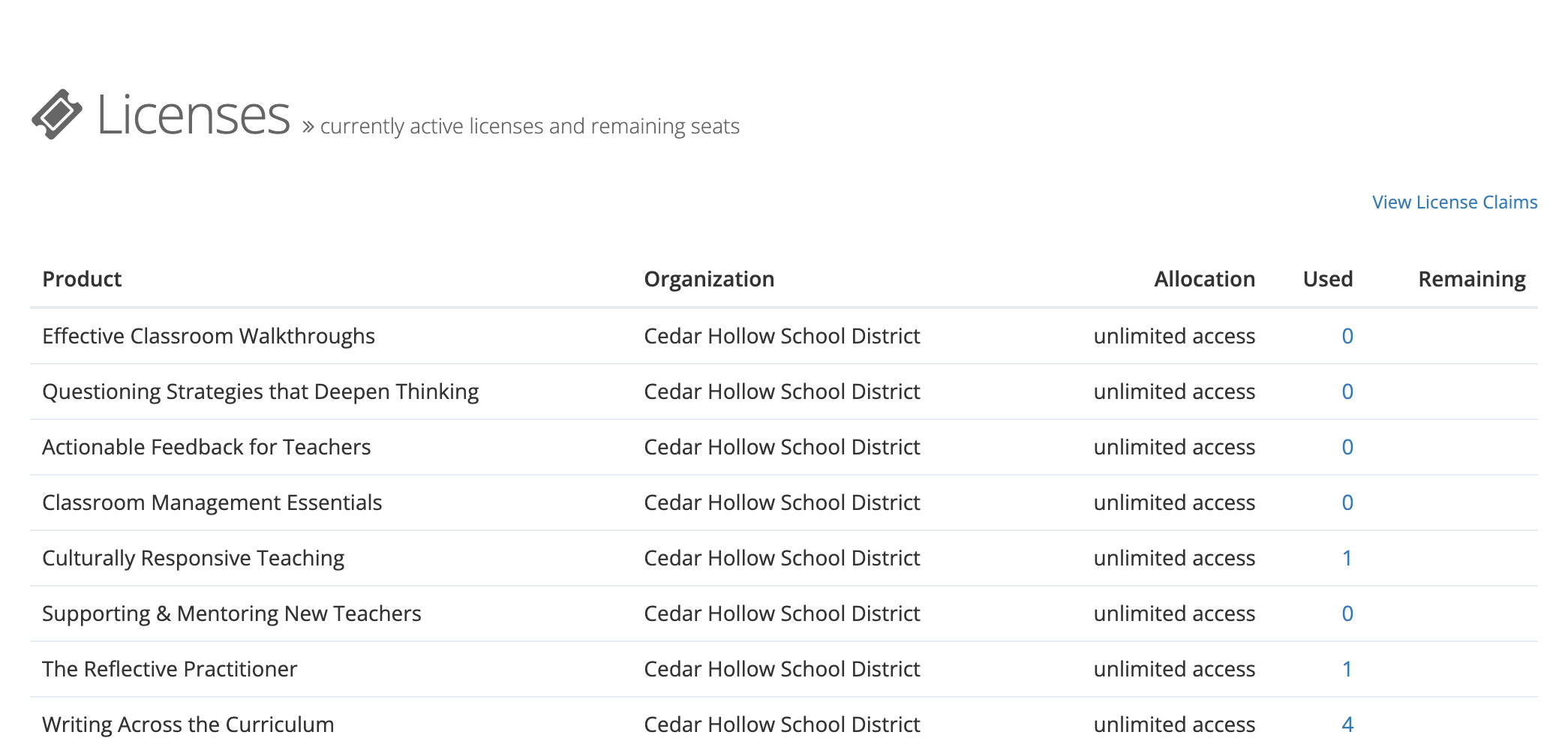
| Column | What it shows |
|---|---|
| Product | The course, assessment, learning path, bundle, or form. |
| Organization | The district or school the license is granted to. |
| Allocation | The seat limit, or “unlimited access” when there is no limit. |
| Used | How many people have claimed a seat. Select the number to see who. |
| Remaining | Seats left. Blank when the license is unlimited. |
Some licenses reset their seat count each month or each year. For those, Used and Remaining count only the current month or year.
See who used a seat
Section titled “See who used a seat”Select View License Claims at the top of the Licenses page, or select a Used number to open the list already filtered to that license.
The page is titled License Claims (“all claims across all licenses, including expired”). Unlike the Licenses page, it includes claims on licenses that have ended, which helps when you reconcile last year’s usage before a renewal.
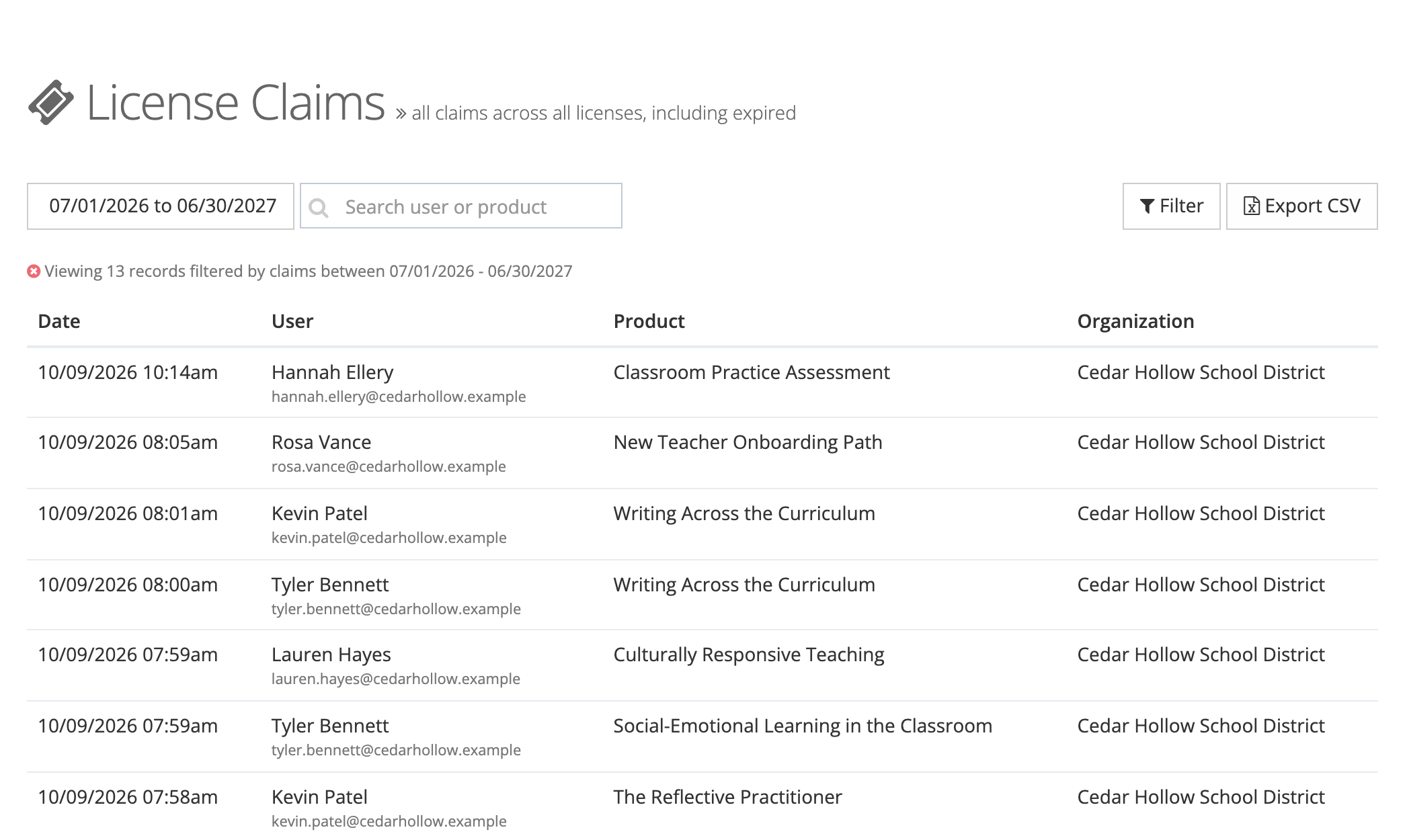
Each row shows the Date of the claim, the User (name and email), the Product, and the license’s Organization. A claim by someone whose account now belongs to a different district reads “This user is no longer apart of this account.” under their name.
To narrow the list:
- Date range button: filters by claim date and starts on the current school year. Choose a preset or type a Start Date and End Date and select Apply.
- Search user or product: matches a person’s name, a product name, or an organization name.
- Filter: opens Filter License Claims with Users, Organizations, and Product Licenses. Select Filter to apply.
To keep a copy, select Export CSV. A progress window opens while the file of the claims matching your current filters is prepared.
Troubleshooting
Section titled “Troubleshooting”A teacher sees “No Licenses Available.” Open Licenses and check Remaining for that product. If it is 0, every seat is claimed; contact your account representative about more seats.
A teacher cannot open content and the seats are not used up. Check that the product is assigned to an organization the teacher belongs to (Products > the product > Assignments). A seat can only be claimed through an assignment.
A product is missing from the Licenses page. The page lists only licenses that are active today. A license that has expired or has not started yet does not appear. Past claims are still on License Claims.