

Assessments
Getting Started as a Proctor
Complete the proctor acknowledgment, find your way around the Proctoring Dashboard, and download or resend assessment certifications.
Some assessments must be taken in person under supervision, such as a certification exam a teacher needs for a license or endorsement. A proctor schedules the session, confirms each test taker’s identity, watches the room, and certifies the results. This article covers your first sign-in as a proctor, the Proctoring Dashboard, and the Assessment Certifications page. To schedule and run a session, see Managing Proctored Sessions.
Who can do this: staff with the proctor role (shown as Proctor Administrator when roles are assigned). A system administrator gives you the role. System administrators also open the Proctoring Dashboard; see The system administrator view.
Step 1: Complete the proctor acknowledgment
Section titled “Step 1: Complete the proctor acknowledgment”The first time you sign in after receiving the proctor role, eLearn takes you to the proctor acknowledgment. Until you complete it, every page sends you back here with the message “You must review and acknowledge proctor responsibilities before accessing this area of the system.”
- Read the proctor agreement at the top of the page. Your provider sets its text.
- Fill in any of these fields that appear. A field appears only when it is missing from your profile.
- Phone Number
- Job Title
- Employer Name
- Select the box next to “I have read and understand my responsibilities for Proctoring and agree to adhere to all policies as outlined above.”
- Select Submit.
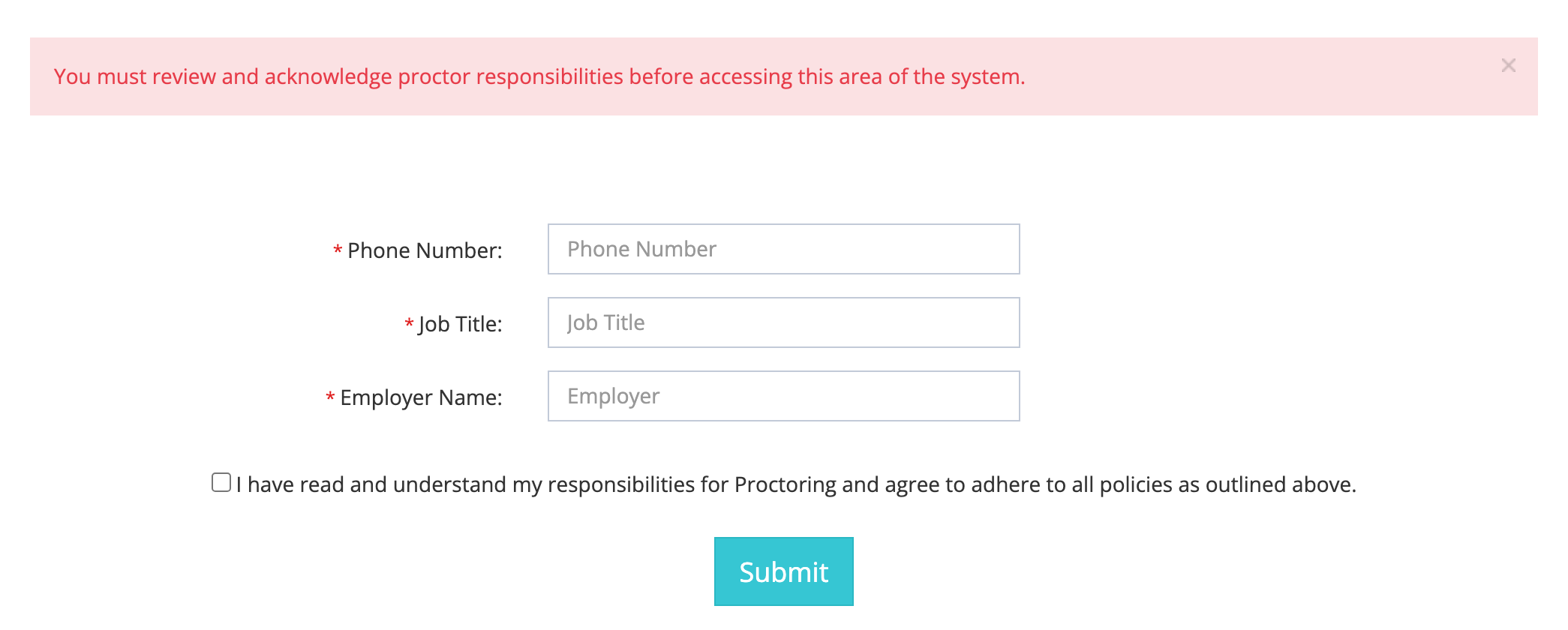
If a field or the checkbox is empty, the page shows what is required and you submit again. After you submit, eLearn emails you a PDF copy of the agreement you signed and opens your dashboard.
Your phone number, job title, and employer appear in the details of every certification you issue. Test takers and licensing offices use them to confirm who supervised the exam, so enter your work details.
Step 2: Open the Proctoring Dashboard
Section titled “Step 2: Open the Proctoring Dashboard”- Open the My Home sidebar.
- Under Dashboards, select Proctoring Dashboard.
The dashboard has three tiles. Select View on a tile to open it.
| Tile | What it opens |
|---|---|
| My Proctored Sessions | The sessions assigned to you. Create, schedule, start, and end sessions here. |
| Assessment Progress Report | In-progress and failed assessments taken in your sessions. |
| Assessment Certifications | Certifications for the sessions you proctored, with certificate download and resend. |
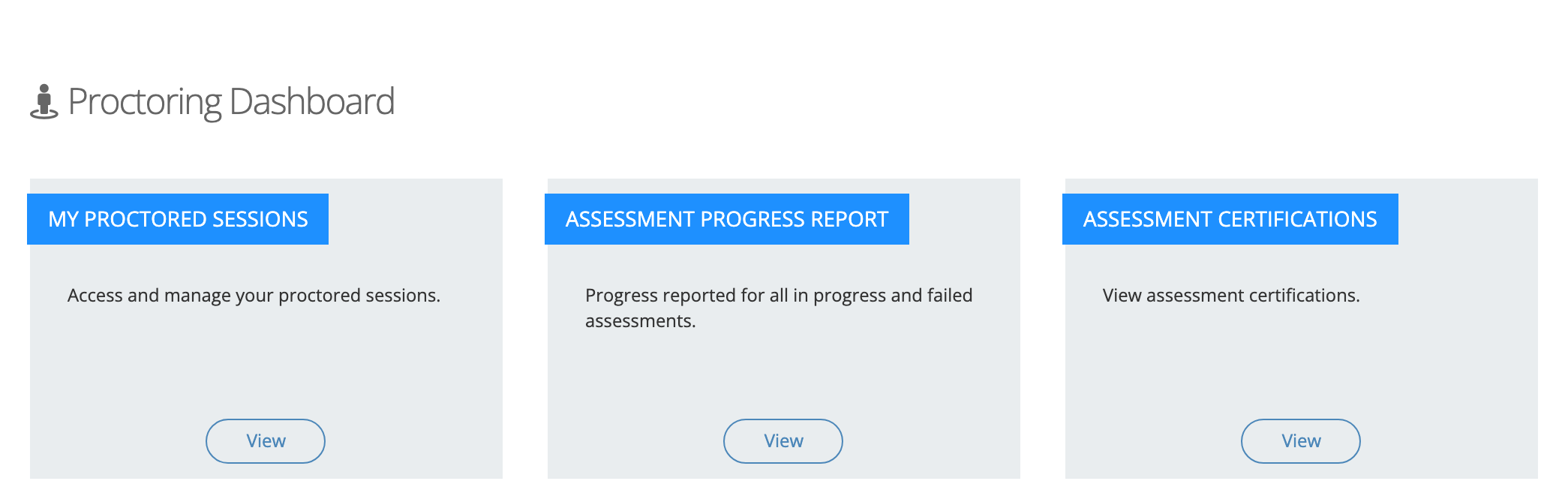
Below the tiles are two panels:
- Your Proctor Acknowledgment Agreement: the date you signed and a Proctor Acknowledgment Agreement link to download the signed PDF. Keep a copy if your district files proctor agreements.
- The Proctoring Process: a checklist in three parts, Before The Assessment, Assessment Day, and After The Assessment. It covers scheduling, checking photo ID, keeping devices out of the room, breaks, and handing over certificates. Treat it as general guidance; your district’s and state’s rules for timing and submissions come first.
Step 3: Work with assessment certifications
Section titled “Step 3: Work with assessment certifications”A certification is created when you certify a test taker’s result from the session control panel (Certify Results, then Certify Result), or automatically when a test taker passes in a session set up to certify on its own. The test taker receives an email with the certificate, and the certification appears on their My Certifications page.
To open the list, select View on the Assessment Certifications tile.
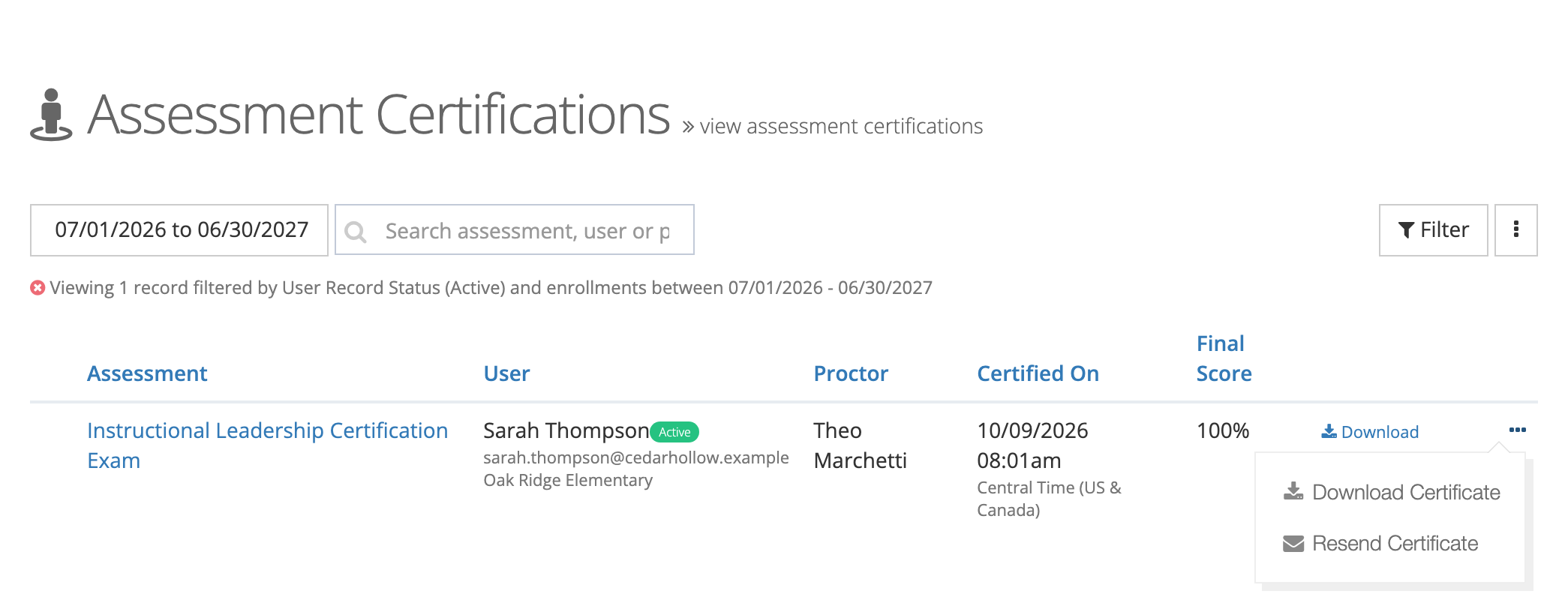
Each row shows Assessment, User (with the person’s email and school), Proctor, Certified On, and Final Score. A Legacy tag marks a certification created from results recorded before eLearn kept certification records.
Finding a certification
Section titled “Finding a certification”- The list opens filtered to the current school year. Select the date button to change the range, or choose All Time.
- Type in Search assessment, user or proctor to narrow the list.
- Select Filter to filter by Assessment, User, User Record Status, Organization, Proctor, or Legacy Records, then select Filter in the window. The list opens showing active users only; change User Record Status to include others.
Viewing the details
Section titled “Viewing the details”Select the assessment name to open Proctor Certification Details: your proctor information, the Results (Final Score, Score Needed To Pass, Attempts, Completed On), and Exam Results, which lists each attempt with its date and score. Expand an attempt to see the score for each exam in it.
Downloading or resending a certificate
Section titled “Downloading or resending a certificate”Open the menu (the three dots) at the end of the row:
- Download Certificate: saves the certificate PDF. Hand it to the test taker or send it to the district office, as After The Assessment asks.
- Resend Certificate: emails the certificate to the test taker again. The email goes out as soon as you select it, and a Resend Proctor Certification window confirms “The certification has been resent to” the person’s name. Use it when a teacher reports that the original email never arrived.
The menu appears only on rows that have a certificate file.
Exporting the list
Section titled “Exporting the list”Select the more-actions button (the vertical dots) next to Filter, then Export CSV or Export PDF. The export uses the filters you have applied.
The system administrator view
Section titled “The system administrator view”A system administrator opens the Proctoring Dashboard from either menu:
- Gear icon > System Administration > LEARN > Proctoring Dashboard
- My Home > Dashboards > Proctoring Dashboard
A system administrator who does not have the proctor role skips the acknowledgment and sees a different set of tiles:
| Tile | What it opens |
|---|---|
| Proctored Sessions | Every proctored session in the district, for scheduling sessions and assigning proctors. |
| Assessment Progress Report | In-progress and failed assessments across the district. |
| Assessment Certifications | Certifications across the district, with the same download, resend, and export options. |
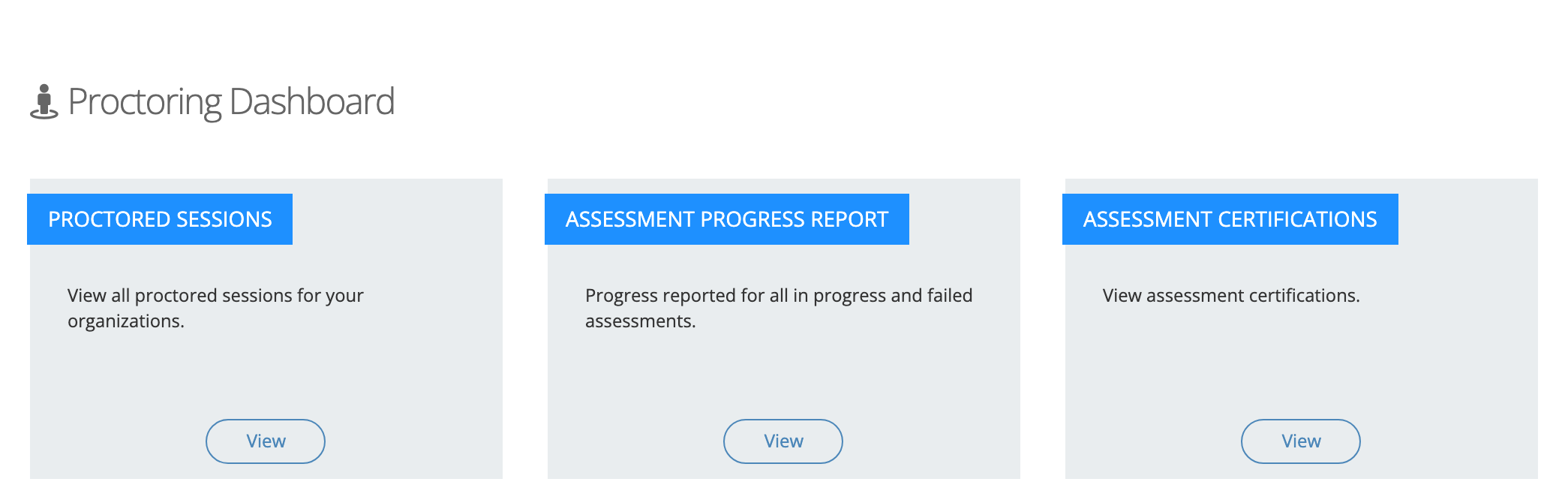
The acknowledgment panels and The Proctoring Process checklist appear only for proctors.
A system administrator who also has the proctor role must complete the acknowledgment like any proctor. Their dashboard then shows both My Proctored Sessions and Proctored Sessions.
Staff with the reporter role can see the same certifications in My Home > Reports > Assessment Reports > Assessment Certifications.