

Assessments
Assessment Reports
Where to find assessment results in eLearn for test takers, proctors, and reporters, and how to read a person's results.
Assessment results show up in several places depending on your role. This article tells you where to look. The column-by-column guide to the reports is in Assessment Reports in the Reports collection.
Where each role finds results
Section titled “Where each role finds results”| You are | Where to look | What you see |
|---|---|---|
| A test taker | LEARN > Assessments, My Transcripts, My Certifications | Your own pass or fail status, completed assessments, and certifications |
| A proctor | Proctoring Dashboard | The session page for each of your sessions, plus an Assessment Progress Report and Assessment Certifications limited to your sessions |
| A reporter | Reports > Assessment Reports | The Assessment Progress report and Assessment Certifications for the schools you can see |
| A system administrator | Proctoring Dashboard | The district’s Proctored Sessions, the Assessment Progress Report, and Assessment Certifications |
The reports under Reports > Assessment Reports require the reporter role. A system administrator without the reporter role uses the Proctoring Dashboard tiles instead.
The Assessment Progress report lists assessments people have started but not finished, and assessments they failed; passed assessments do not appear. Assessment Certifications lists who is certified, with a certificate download. Both open on the current school year. For their columns, filters, and exports, see Assessment Reports.
Read a person’s results
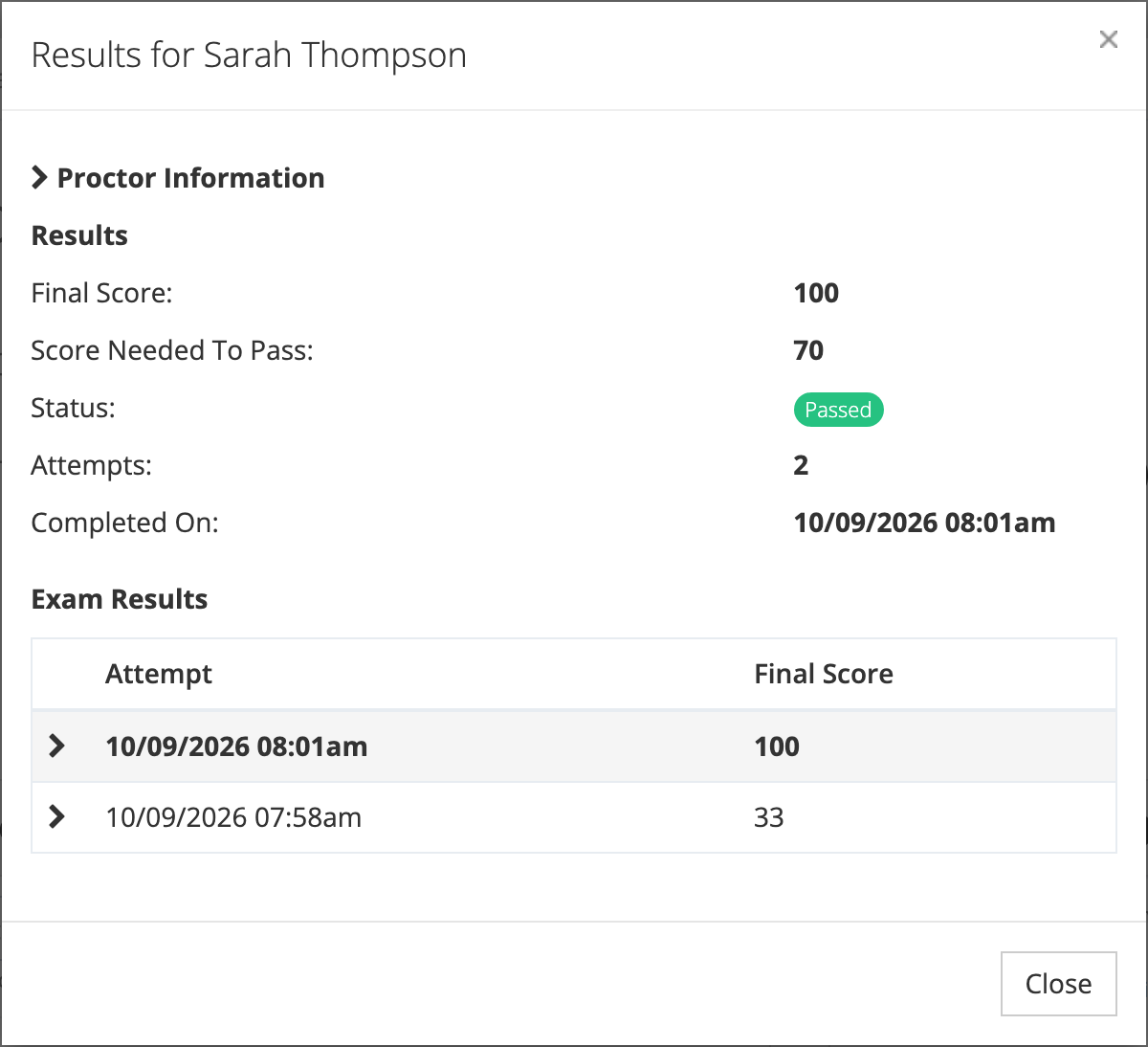
Section titled “Read a person’s results”Select an assessment name in the Assessment Progress report, or on a proctored session page, to open the Results for box. It shows:
- Proctor Information (proctored assessments only): the proctor’s name, job title, employer, email, and phone number.
- Final Score and Score Needed To Pass.
- Status, Attempts, and Completed On. A person who is retaking shows “Retaking”.
- Exam Results: one row per attempt with its date and score. Expand a row to see the score for each exam in that attempt.
The name is a link only when the person has recorded exam results.